
Searchable PDF text layer
EUDAMED user guide Actor module for Economic Operators Production v 2.27.0 2026
Currentness under review. Whether this instrument remains applicable is under review. Consult the later instruments and source context below before relying on it.
Original page images are authoritative. Searchable text is the PDF text layer and may omit image text or contain extraction artifacts. Quote and verify against the page images.
Link directly to a passage with its anchor — for example #pdf-page-1 — to open it highlighted. This reference version is generated from the authority’s publication and does not replace it. Language: English.
EUDAMED user guide Actor module for Economic Operators Production v 2.27.0 2026
EUDAMED user guide Table of Contents 1. Introduction ............................................................................. 1 1.1. Overview ........................................................................ 2 1.2. Basic terms and principles ............................................. 2 1.2.1. Access EUDAMED through personal login ........... 2 1.2.2. EUDAMED Actors ................................................. 3 List of actors .............................................................. 3 EUDAMED access - based on three levels ............... 4 1.2.3. User rights and profiles ......................................... 4 Hierarchy of user profiles .......................................... 4 Tasks in Actor registration ......................................... 5 1.2.4. Starting and ending a EUDAMED session ............ 5 Ending a EUDAMED session .................................... 9 2. Managing actors and user accounts ..................................... 11 2.1. Managing actors .......................................................... 12 2.1.1. Register as an Economic Operator ..................... 13 2.1.2. Register as a non-EU manufacturer .................... 25 2.1.3. Verify non-EU manufacturer registrations ........... 29 2.1.4. Search and view registered actors ...................... 31 View Actor data – historical versions ....................... 35 2.1.5. Link a non-EU manufacturer to an importer ........ 37 2.1.6. Updating Actor details ......................................... 40 2.1.7. Confirm Actor data accuracy ............................... 49 2.1.8. Activate/inactivate your Actor .............................. 54 2.1.9. Change a Competent Authority for registered actors ............................................................................ 58 2.2. Users and user access management .......................... 62 2.2.1. Request access as a user to a registered actor .. 62 2.2.2. Validate user access requests ............................ 70 2.2.3. Manage acquisition requests .............................. 74 2.2.4. Terminate a user account .................................... 80 2.2.5. Edit your user account ........................................ 81 2.2.6. Upgrade your user profile .................................... 83 2.2.7. Switch between actors ........................................ 84 2.3. Manage mandates ....................................................... 85 2.3.1. Add a new mandate ............................................ 86

EUDAMED user guide 2.3.2. Create a new mandate version ........................... 88 2.3.3. Verify mandates .................................................. 90 2.3.4. Terminate a mandate .......................................... 91
EUDAMED user guide 1 Introduction The ACT module of EUDAMED is used to manage the mandatory registration of economic operators of medical devices across EU/EEA according to requirements in MDR/IVDR. Access to EUDAMED is granted following a validation by the competent authority of the economic operator Actor registration request. For the actors that also must register devices or systems and procedure packs (SPPs) in EUDAMED, the registration in the ACT module needs to be validated and their Actor ID/SRN issued before they can register their medical devices. The Actor module information in EUDAMED is publicly available for searching and viewing, except the contact details for Competent Authorities. This user guide specifically guides you to actor registration if you are a: • Manufacturer • Authorised Representative • Importer • System/Procedure pack producer These roles, collectively referred to as economic operators, are defined by article 2 in MDR and IVDR. Actors who are active in more than one role need a separate registration per role. This User Guide describes how to register each actor (organization), user (person) and how to assign profiles for each user. The scope is how economic operators can use the actor registration module – concept, registration, management, access and mandates. 1 EVOLVING USER INTERFACE The visual components of the EUDAMED user interface, including field labels, menu options and screen layout, are still subject to change and may therefore slightly differ from what you see in this manual. 1For a wider understanding on how to use the platform, visit the EUDAMED Information Centre. Introduction 1
EUDAMED user guide 1.1 Overview EUDAMED is the IT system developed by the European Commission to implement the EU medical devices regulations: Regulation (EU) 2017/745 on medical devices Regulation (EU) 2017/746 on in vitro diagnostic medical devices EUDAMED restricted website is structured around six interconnected modules: • Actor registration – user registration and management • UDI/Devices – registration of devices and UDI database for device data and unique device identifiers (UDI) • Notified Bodies and Certificates • Clinical Investigation and performance studies • Vigilance and post-market surveillance • Market surveillance Some of the information in EUDAMED is publicly available through EUDAMED Public. 1.2 Basic terms and principles This section describes a number of basic terms and principles: • Access through personal login • Actors • Basic concepts • User profiles and access grants/rights • Starting and ending a EUDAMED session 1.2.1 Access EUDAMED through personal login To use EUDAMED, you must have an EU Login account associated with your professional/personal email address. Private / shared mailboxes are not allowed for security reasons. Introduction 2
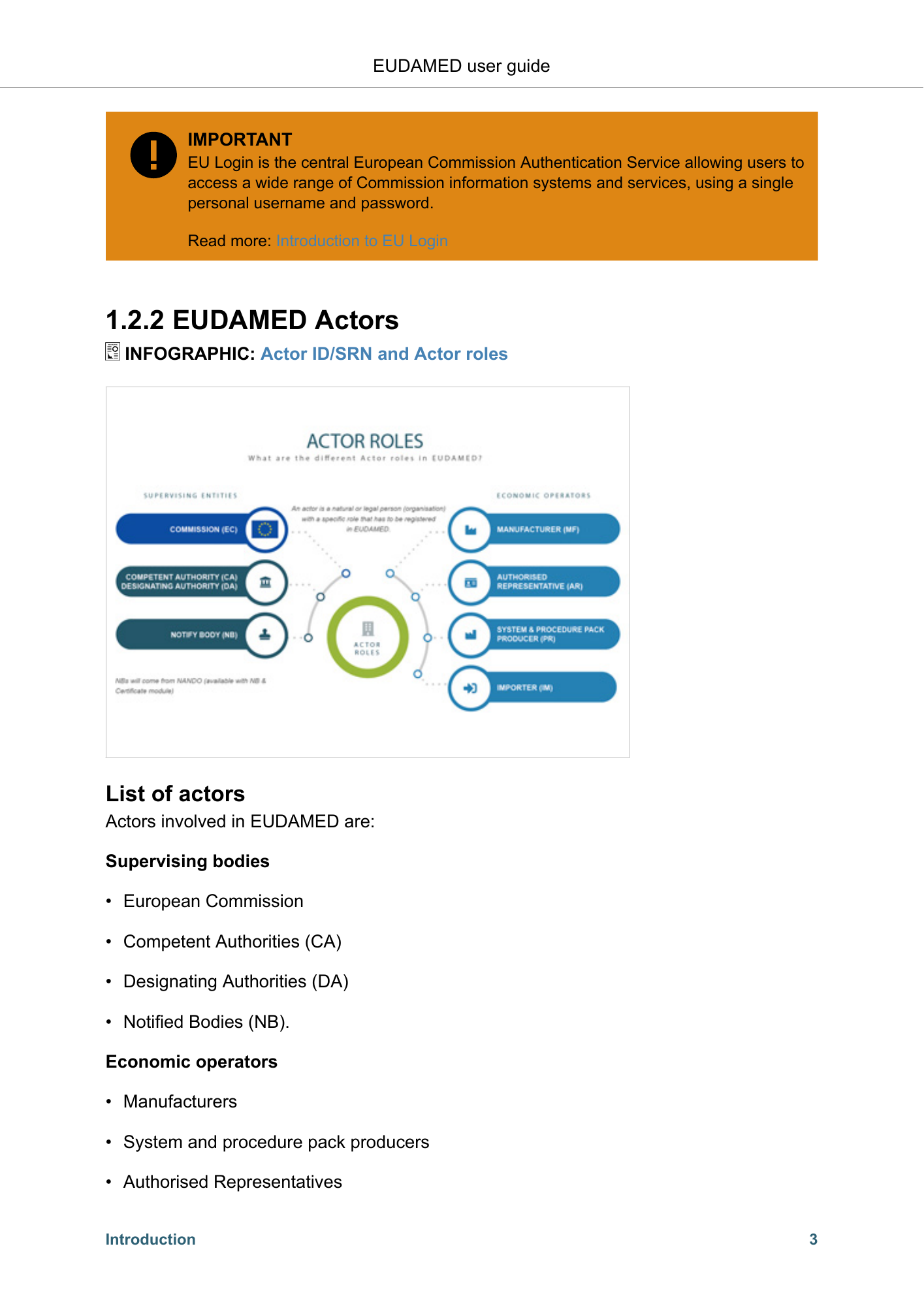
EUDAMED user guide IMPORTANT EU Login is the central European Commission Authentication Service allowing users to access a wide range of Commission information systems and services, using a single personal username and password. Read more: Introduction to EU Login 1.2.2 EUDAMED Actors INFOGRAPHIC: Actor ID/SRN and Actor roles List of actors Actors involved in EUDAMED are: Supervising bodies • European Commission • Competent Authorities (CA) • Designating Authorities (DA) • Notified Bodies (NB). Economic operators • Manufacturers • System and procedure pack producers • Authorised Representatives Introduction 3
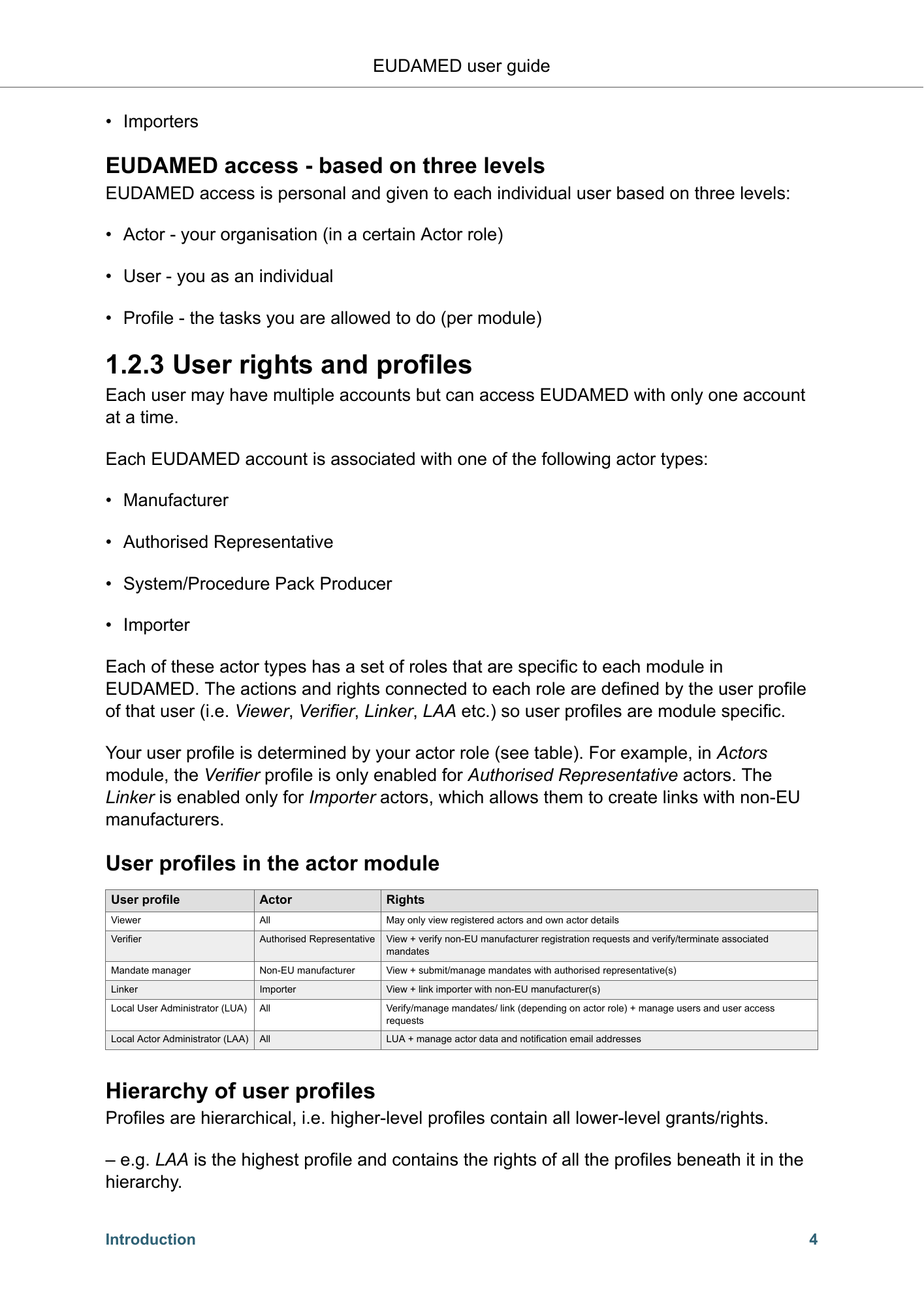
EUDAMED user guide • Importers EUDAMED access - based on three levels EUDAMED access is personal and given to each individual user based on three levels: • Actor - your organisation (in a certain Actor role) • User - you as an individual • Profile - the tasks you are allowed to do (per module) 1.2.3 User rights and profiles Each user may have multiple accounts but can access EUDAMED with only one account at a time. Each EUDAMED account is associated with one of the following actor types: • Manufacturer • Authorised Representative • System/Procedure Pack Producer • Importer Each of these actor types has a set of roles that are specific to each module in EUDAMED. The actions and rights connected to each role are defined by the user profile of that user (i.e. Viewer, Verifier, Linker, LAA etc.) so user profiles are module specific. Your user profile is determined by your actor role (see table). For example, in Actors module, the Verifier profile is only enabled for Authorised Representative actors. The Linker is enabled only for Importer actors, which allows them to create links with non-EU manufacturers. User profiles in the actor module User profile Actor Rights Viewer All May only view registered actors and own actor details Verifier Authorised Representative View + verify non-EU manufacturer registration requests and verify/terminate associated mandates Mandate manager Non-EU manufacturer View + submit/manage mandates with authorised representative(s) Linker Importer View + link importer with non-EU manufacturer(s) Local User Administrator (LUA) All Verify/manage mandates/ link (depending on actor role) + manage users and user access requests Local Actor Administrator (LAA) All LUA + manage actor data and notification email addresses Hierarchy of user profiles Profiles are hierarchical, i.e. higher-level profiles contain all lower-level grants/rights. – e.g. LAA is the highest profile and contains the rights of all the profiles beneath it in the hierarchy. Introduction 4
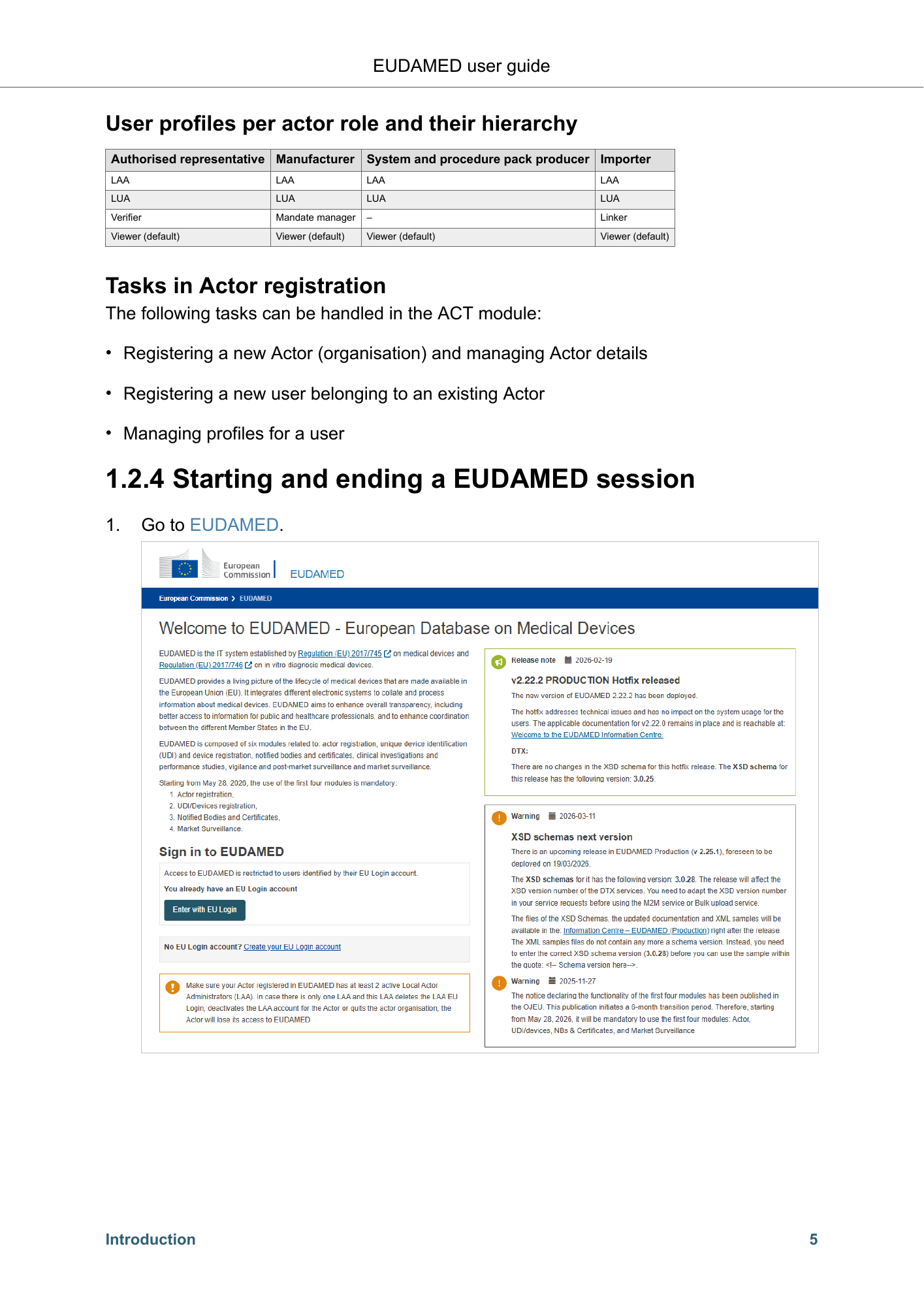
EUDAMED user guide User profiles per actor role and their hierarchy Authorised representative Manufacturer System and procedure pack producer Importer LAA LAA LAA LAA LUA LUA LUA LUA Verifier Mandate manager – Linker Viewer (default) Viewer (default) Viewer (default) Viewer (default) Tasks in Actor registration The following tasks can be handled in the ACT module: • Registering a new Actor (organisation) and managing Actor details • Registering a new user belonging to an existing Actor • Managing profiles for a user 1.2.4 Starting and ending a EUDAMED session 1. Go to EUDAMED. Introduction 5
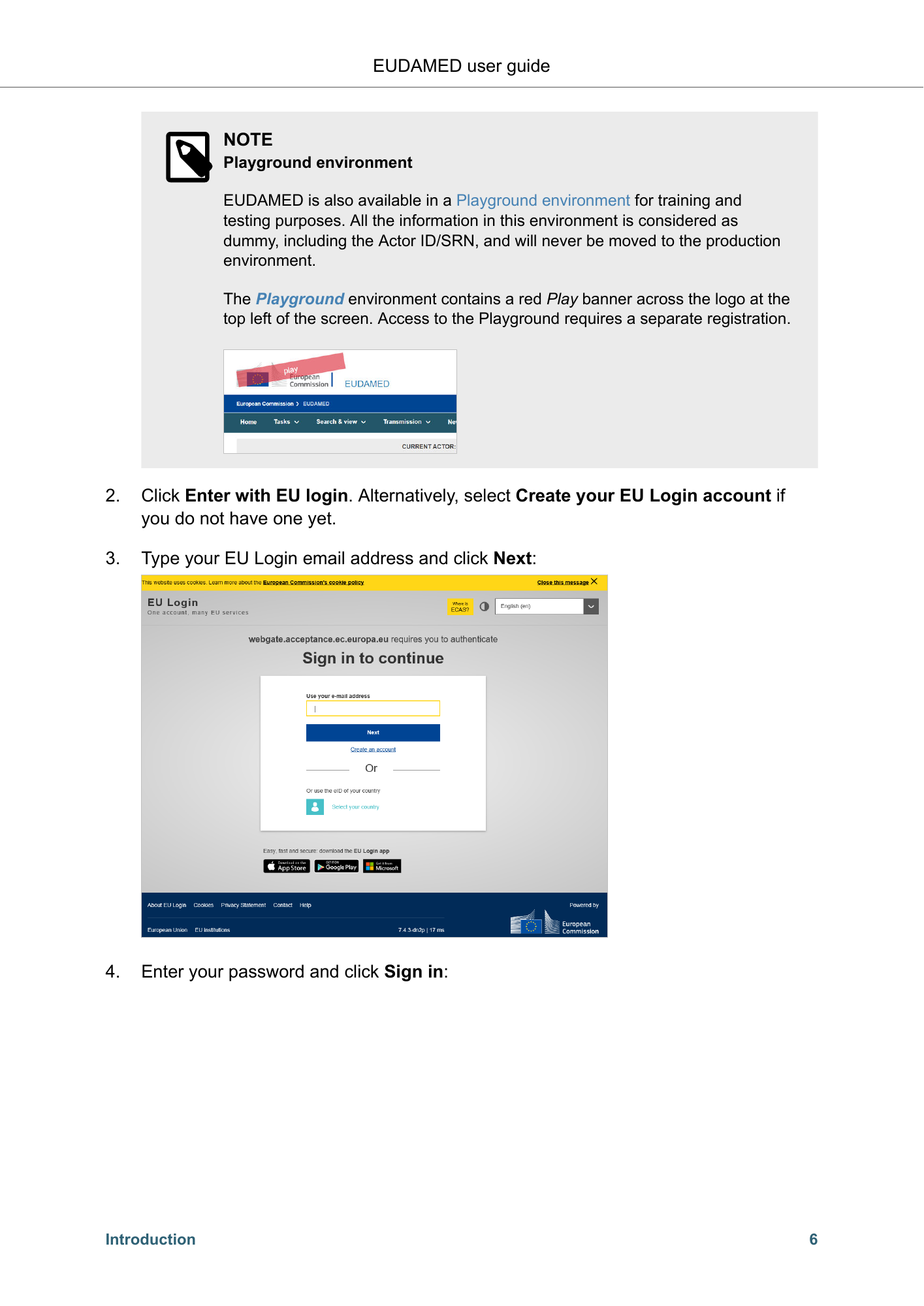
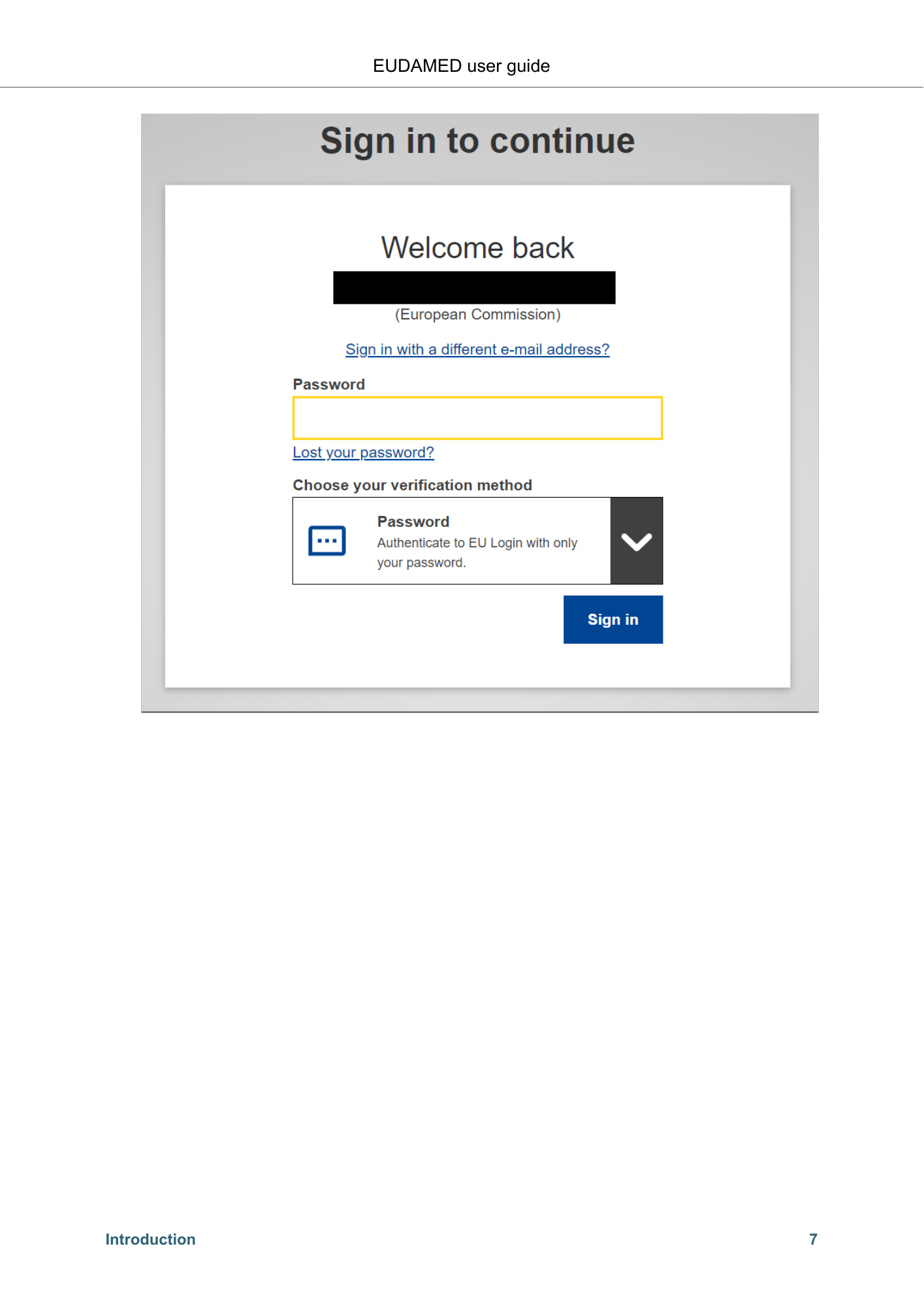
EUDAMED user guide NOTE Playground environment EUDAMED is also available in a Playground environment for training and testing purposes. All the information in this environment is considered as dummy, including the Actor ID/SRN, and will never be moved to the production environment. The Playground environment contains a red Play banner across the logo at the top left of the screen. Access to the Playground requires a separate registration. 2. Click Enter with EU login. Alternatively, select Create your EU Login account if you do not have one yet. 3. Type your EU Login email address and click Next: 4. Enter your password and click Sign in: Introduction 6
EUDAMED user guide Introduction 7
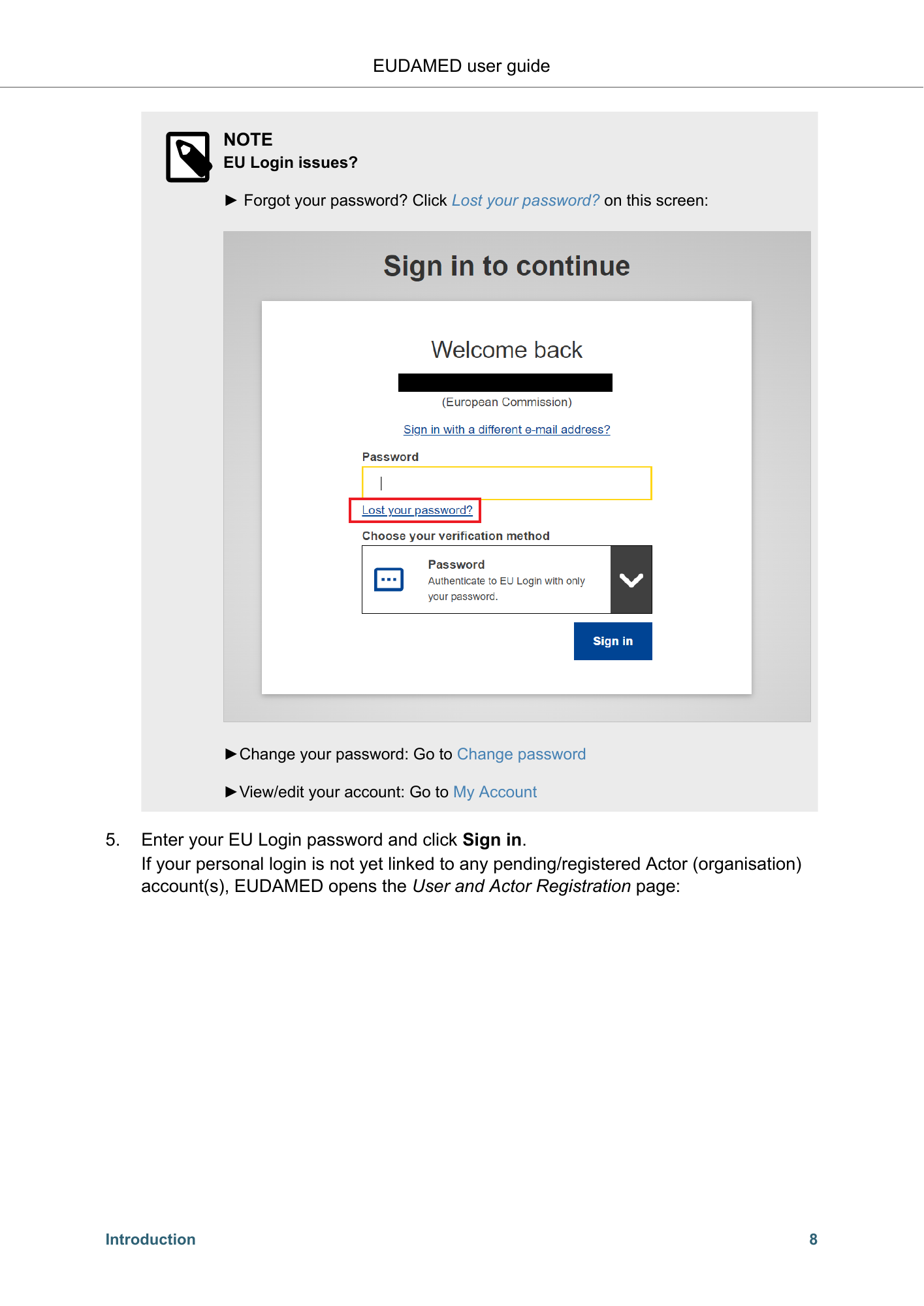
EUDAMED user guide NOTE EU Login issues? ► Forgot your password? Click Lost your password? on this screen: ►Change your password: Go to Change password ►View/edit your account: Go to My Account 5. Enter your EU Login password and click Sign in. If your personal login is not yet linked to any pending/registered Actor (organisation) account(s), EUDAMED opens the User and Actor Registration page: Introduction 8
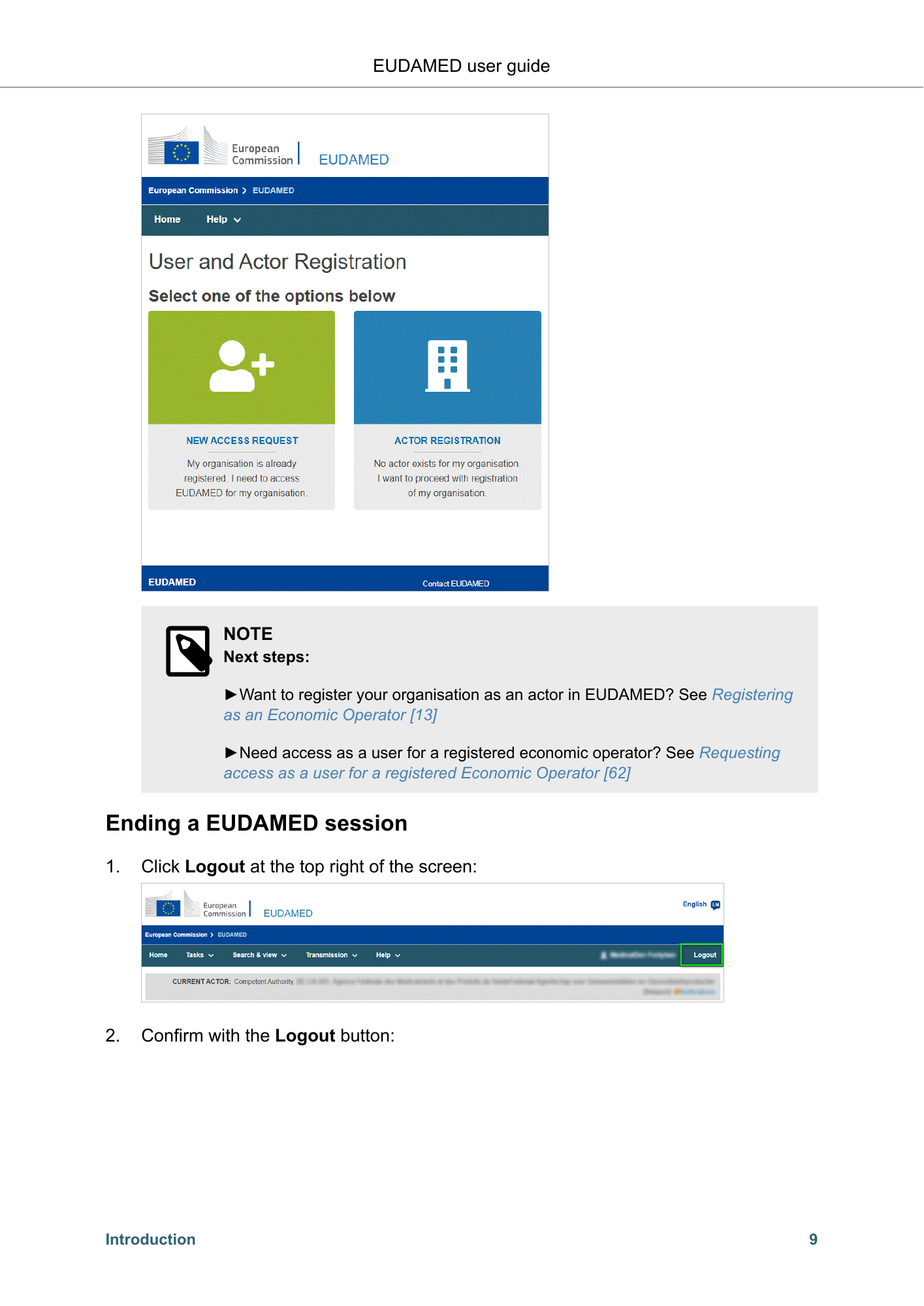
EUDAMED user guide NOTE Next steps: ►Want to register your organisation as an actor in EUDAMED? See Registering as an Economic Operator [13] ►Need access as a user for a registered economic operator? See Requesting access as a user for a registered Economic Operator [62] Ending a EUDAMED session 1. Click Logout at the top right of the screen: 2. Confirm with the Logout button: Introduction 9

EUDAMED user guide 3. Answer the EU Login confirmation message by clicking Log me out. Introduction 10
EUDAMED user guide 2 Managing actors and user accounts The Actors module ensures that all actors and users using EUDAMED have been authenticated. There are two levels of registration to gain access to EUDAMED: • Registration of an Actor (organisation) • Registration of a user (person) belonging to an Actor (organisation) Request registration for an Economic Operator (organisation) Authentication for a new Actor is done by the relevant Competent Authority in that country. Register your Actor in EUDAMED with the appropriate actor role. • The person who performs the Actor registration automatically becomes the first Local Actor Administrator (LAA) for that actor once the registration is validated. • Depending on the role, an Actor ID or Single Registration Number (SRN) is generated by EUDAMED and issued by the Competent Authority after validating the registrations request. Incorrect or incomplete requests will not be validated and no Actor ID/SRN will be generated until a complete and correct request has been provided and validated. Request access as a user (person) of a registered Economic Operator (organisation) Authentication for a new user of an existing Actor is done by the Actor's users with the appropriate profile (Local User Administrator or Local Actor Administrator). If your Actor is already registered in EUDAMED, you can request access as a user of that actor. Once an LAA/LUA from your actor has approved your request, your account will be granted the appropriate user profile for that actor. Managing actors and user accounts 11
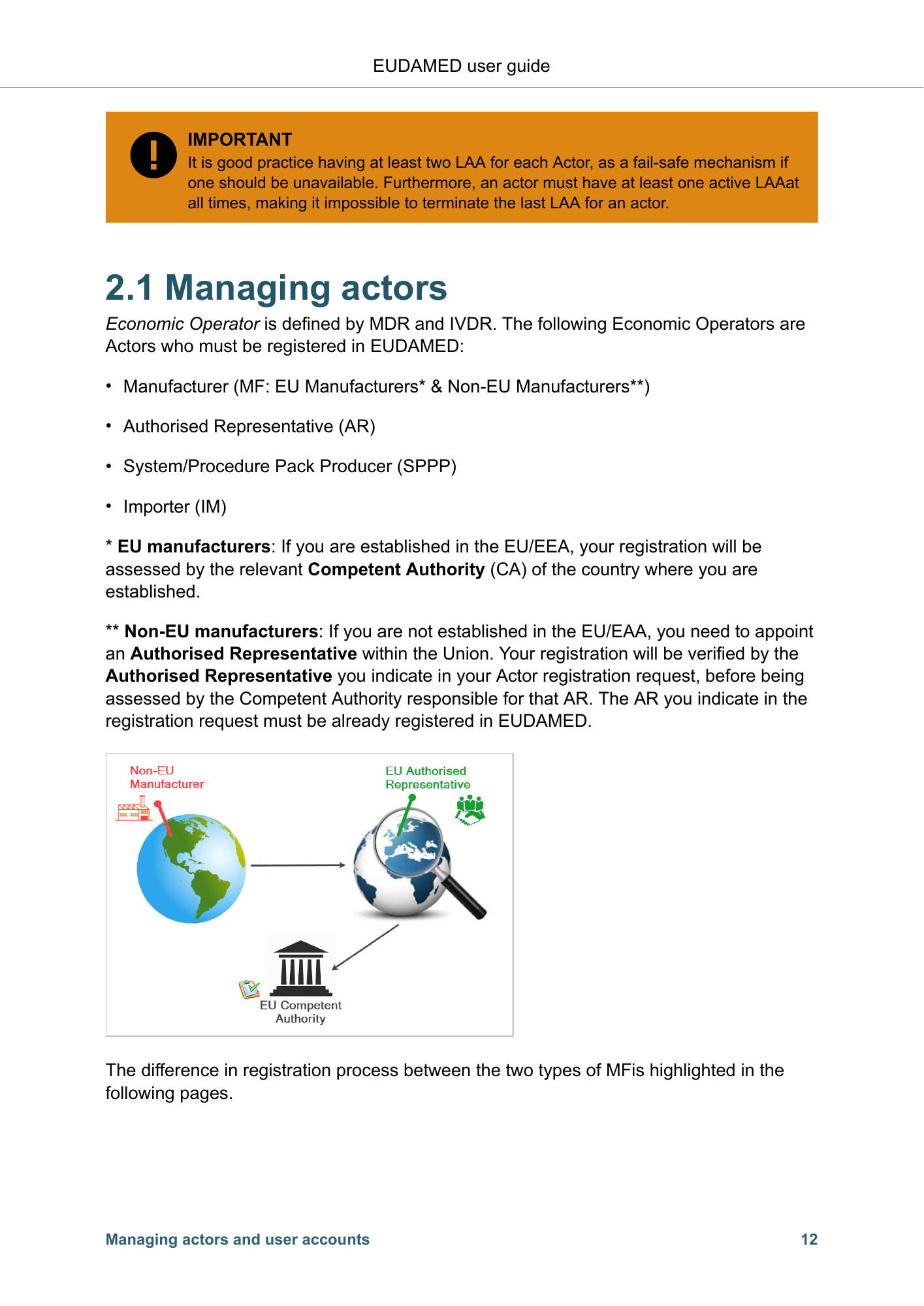
EUDAMED user guide IMPORTANT It is good practice having at least two LAA for each Actor, as a fail-safe mechanism if one should be unavailable. Furthermore, an actor must have at least one active LAAat all times, making it impossible to terminate the last LAA for an actor. 2.1 Managing actors Economic Operator is defined by MDR and IVDR. The following Economic Operators are Actors who must be registered in EUDAMED: • Manufacturer (MF: EU Manufacturers* & Non-EU Manufacturers**) • Authorised Representative (AR) • System/Procedure Pack Producer (SPPP) • Importer (IM) * EU manufacturers: If you are established in the EU/EEA, your registration will be assessed by the relevant Competent Authority (CA) of the country where you are established. ** Non-EU manufacturers: If you are not established in the EU/EAA, you need to appoint an Authorised Representative within the Union. Your registration will be verified by the Authorised Representative you indicate in your Actor registration request, before being assessed by the Competent Authority responsible for that AR. The AR you indicate in the registration request must be already registered in EUDAMED. The difference in registration process between the two types of MFis highlighted in the following pages. Managing actors and user accounts 12
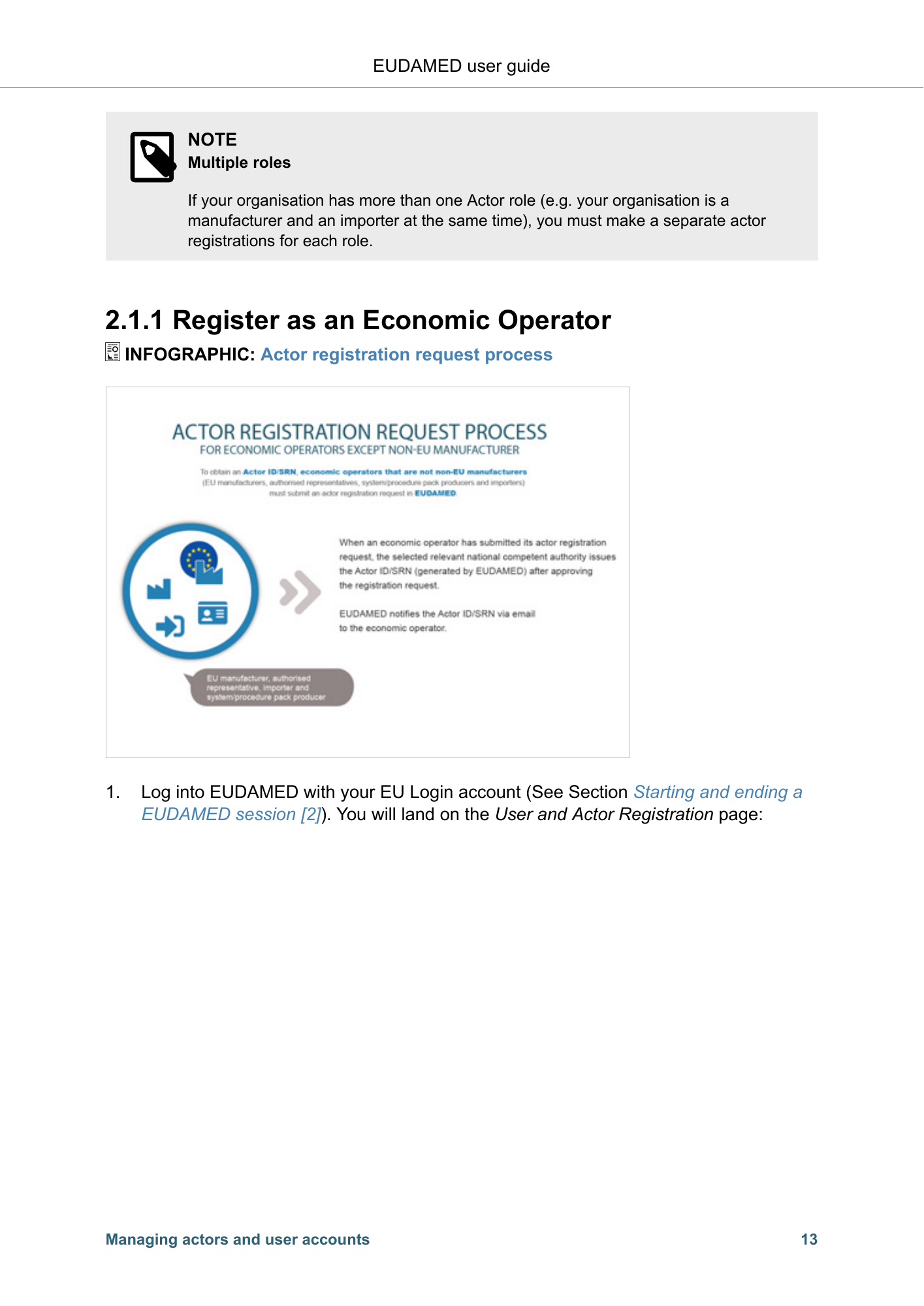
EUDAMED user guide NOTE Multiple roles If your organisation has more than one Actor role (e.g. your organisation is a manufacturer and an importer at the same time), you must make a separate actor registrations for each role. 2.1.1 Register as an Economic Operator INFOGRAPHIC: Actor registration request process 1. Log into EUDAMED with your EU Login account (See Section Starting and ending a EUDAMED session [2]). You will land on the User and Actor Registration page: Managing actors and user accounts 13
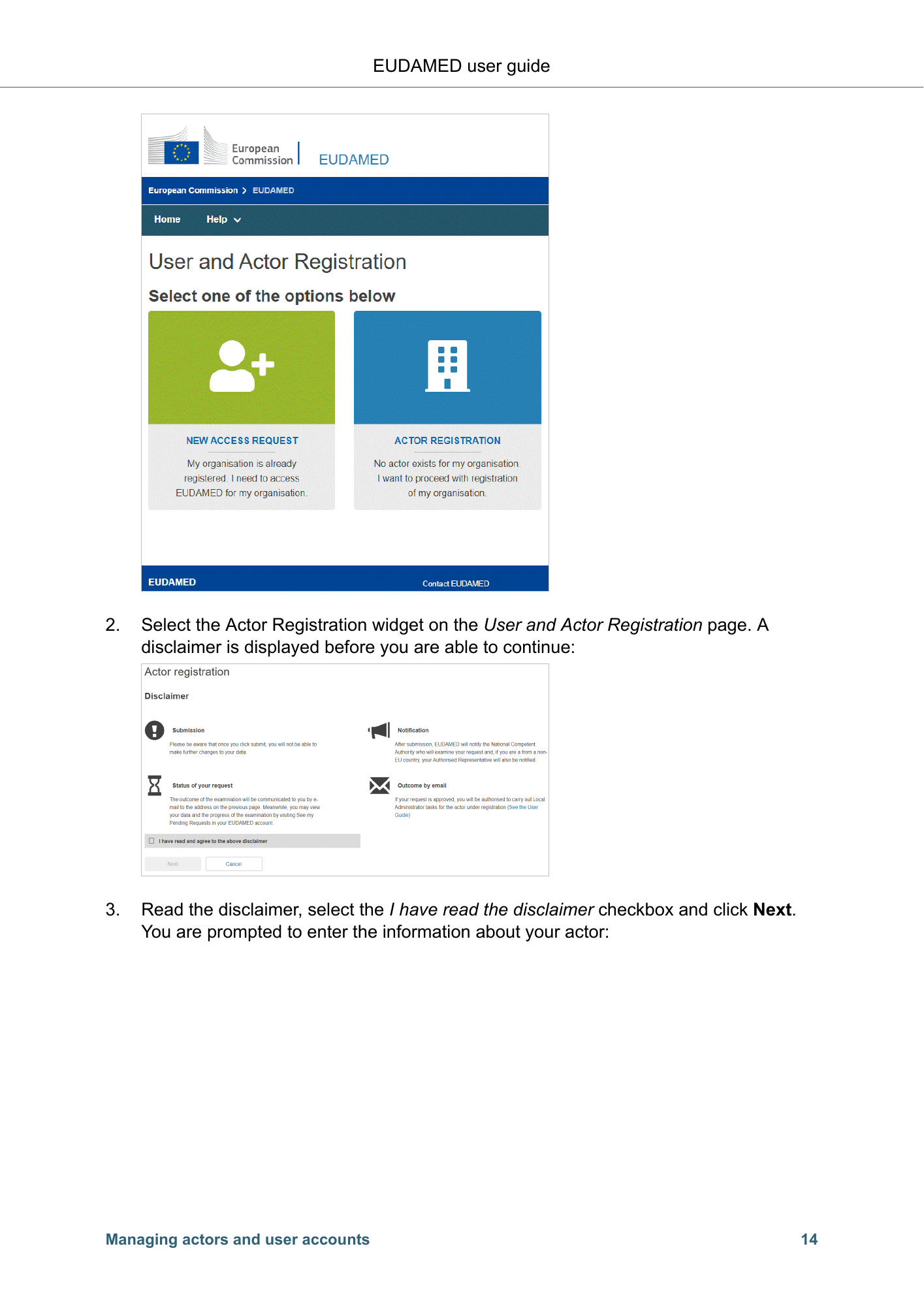
EUDAMED user guide 2. Select the Actor Registration widget on the User and Actor Registration page. A disclaimer is displayed before you are able to continue: 3. Read the disclaimer, select the I have read the disclaimer checkbox and click Next. You are prompted to enter the information about your actor: Managing actors and user accounts 14
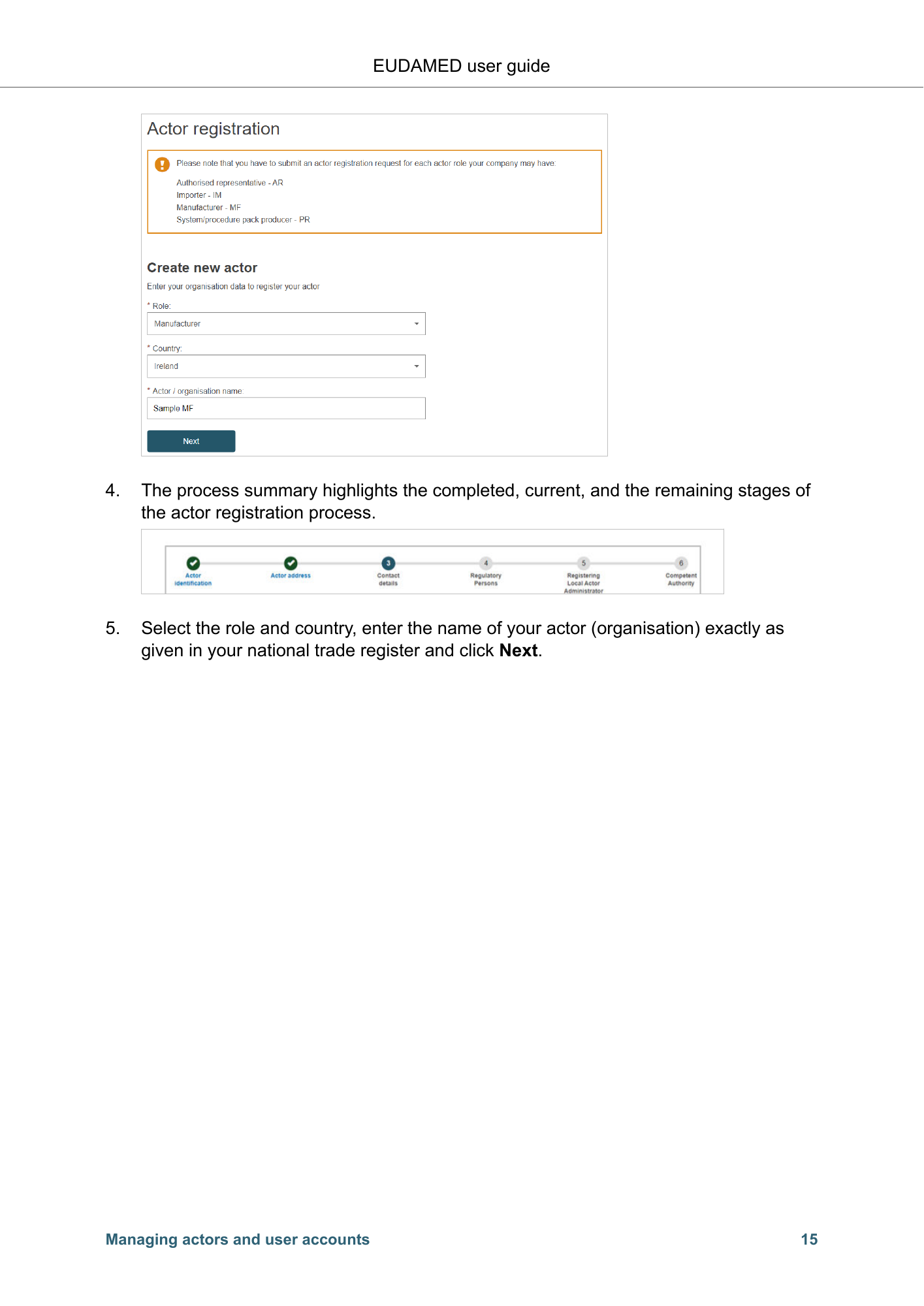
EUDAMED user guide 4. The process summary highlights the completed, current, and the remaining stages of the actor registration process. 5. Select the role and country, enter the name of your actor (organisation) exactly as given in your national trade register and click Next. Managing actors and user accounts 15
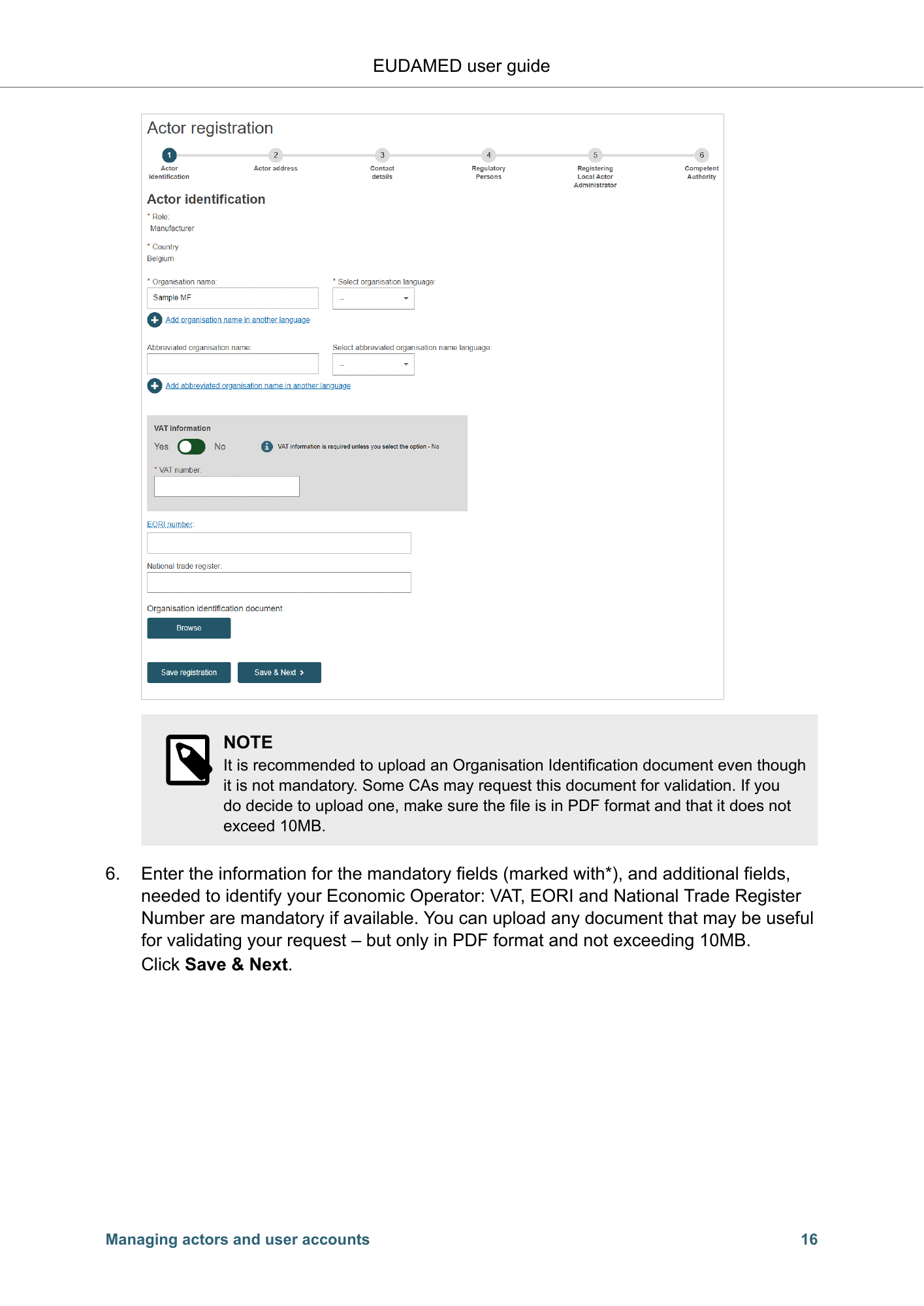
EUDAMED user guide NOTE It is recommended to upload an Organisation Identification document even though it is not mandatory. Some CAs may request this document for validation. If you do decide to upload one, make sure the file is in PDF format and that it does not exceed 10MB. 6. Enter the information for the mandatory fields (marked with*), and additional fields, needed to identify your Economic Operator: VAT, EORI and National Trade Register Number are mandatory if available. You can upload any document that may be useful for validating your request – but only in PDF format and not exceeding 10MB. Click Save & Next. Managing actors and user accounts 16
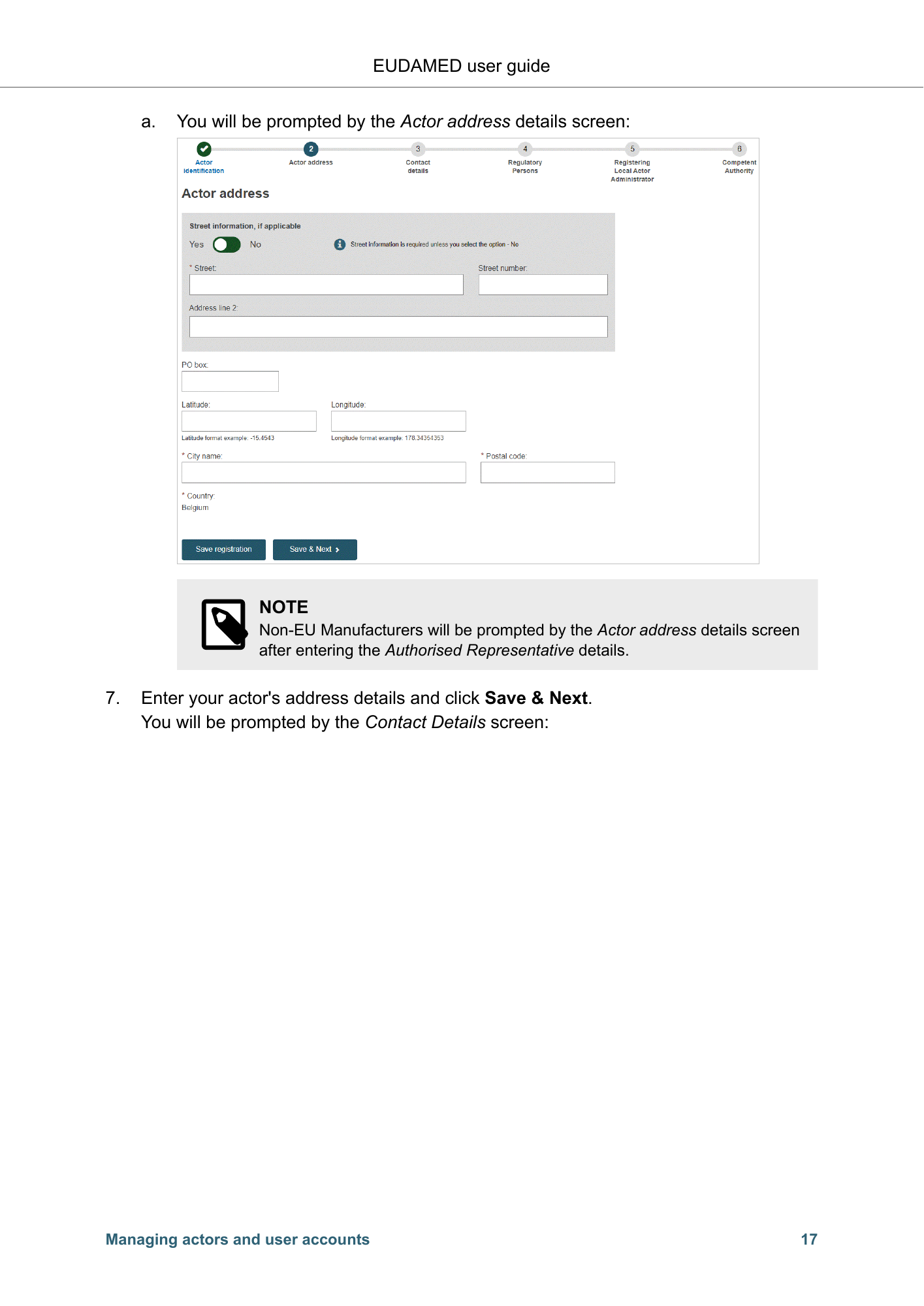
EUDAMED user guide a. You will be prompted by the Actor address details screen: NOTE Non-EU Manufacturers will be prompted by the Actor address details screen after entering the Authorised Representative details. 7. Enter your actor's address details and click Save & Next. You will be prompted by the Contact Details screen: Managing actors and user accounts 17
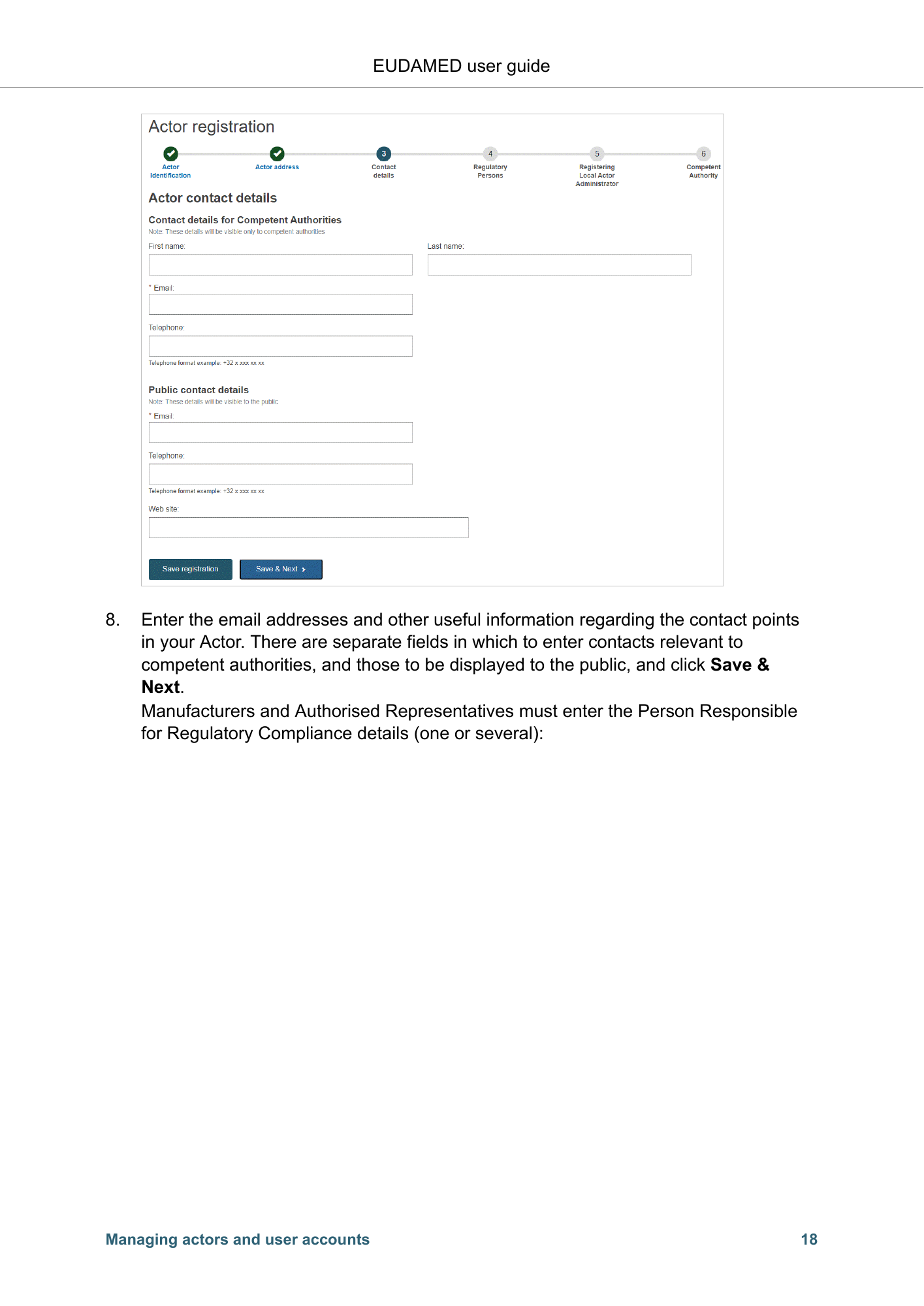
EUDAMED user guide 8. Enter the email addresses and other useful information regarding the contact points in your Actor. There are separate fields in which to enter contacts relevant to competent authorities, and those to be displayed to the public, and click Save & Next. Manufacturers and Authorised Representatives must enter the Person Responsible for Regulatory Compliance details (one or several): Managing actors and user accounts 18
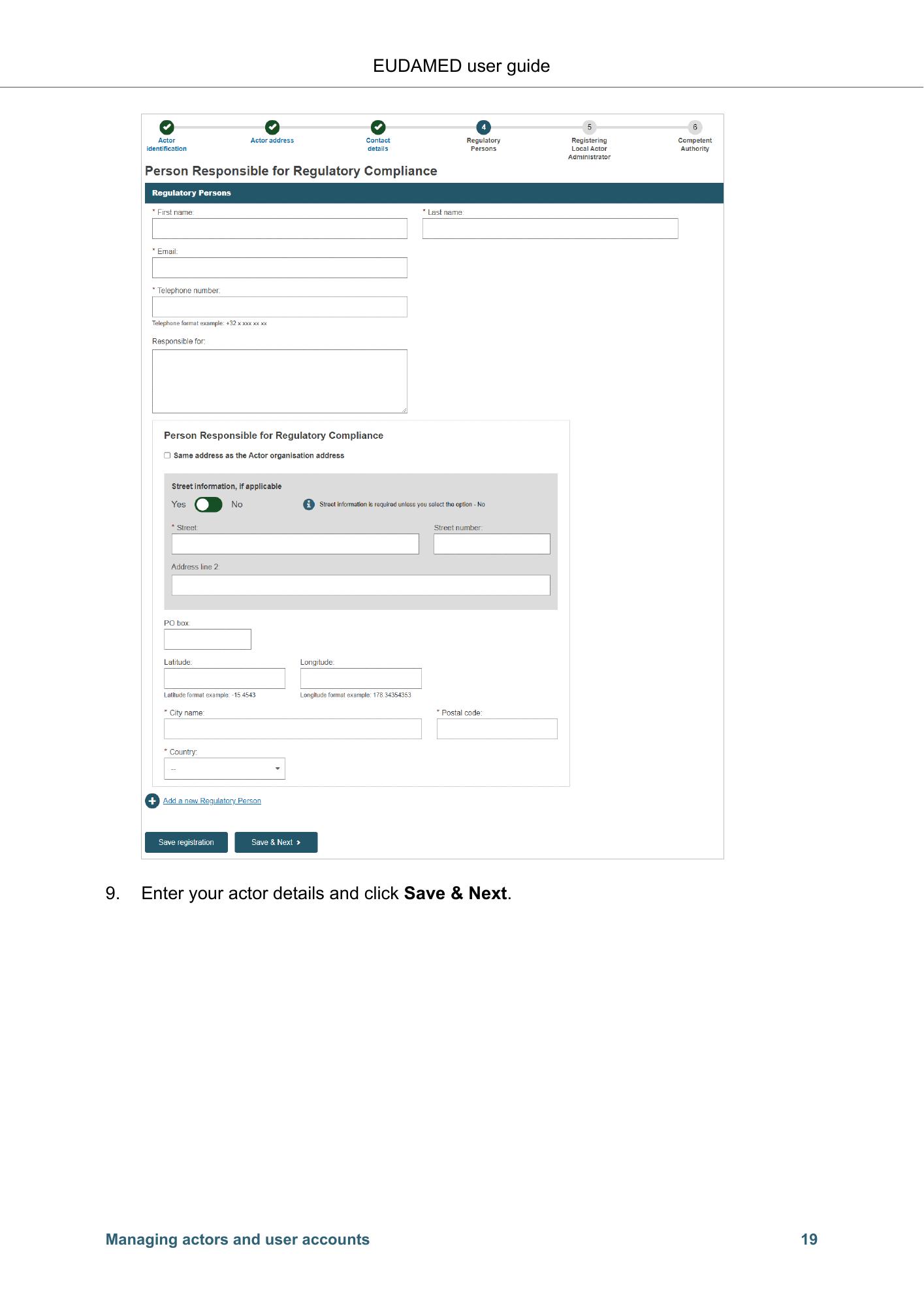
EUDAMED user guide 9. Enter your actor details and click Save & Next. Managing actors and user accounts 19
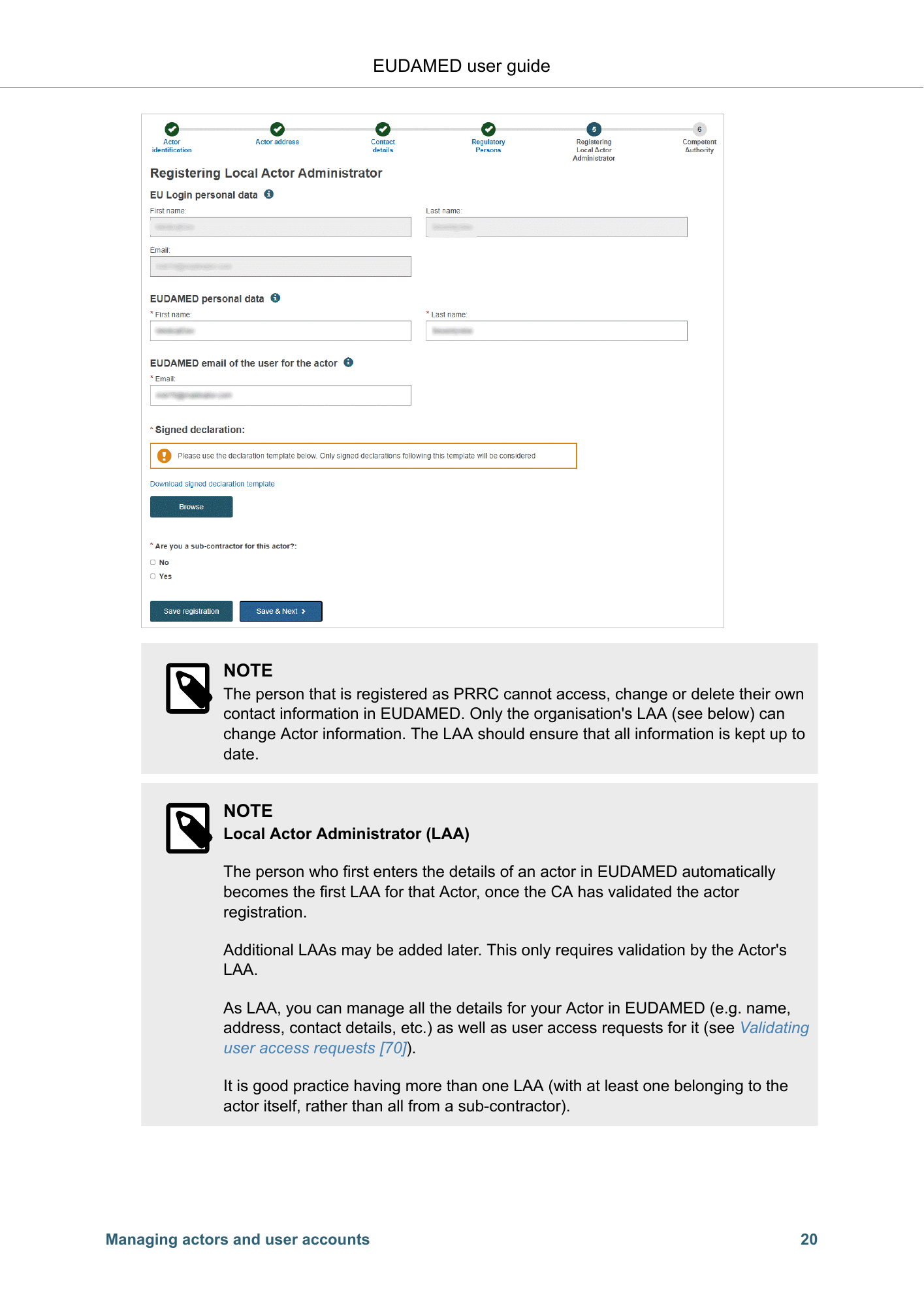
EUDAMED user guide NOTE The person that is registered as PRRC cannot access, change or delete their own contact information in EUDAMED. Only the organisation's LAA (see below) can change Actor information. The LAA should ensure that all information is kept up to date. NOTE Local Actor Administrator (LAA) The person who first enters the details of an actor in EUDAMED automatically becomes the first LAA for that Actor, once the CA has validated the actor registration. Additional LAAs may be added later. This only requires validation by the Actor's LAA. As LAA, you can manage all the details for your Actor in EUDAMED (e.g. name, address, contact details, etc.) as well as user access requests for it (see Validating user access requests [70]). It is good practice having more than one LAA (with at least one belonging to the actor itself, rather than all from a sub-contractor). Managing actors and user accounts 20
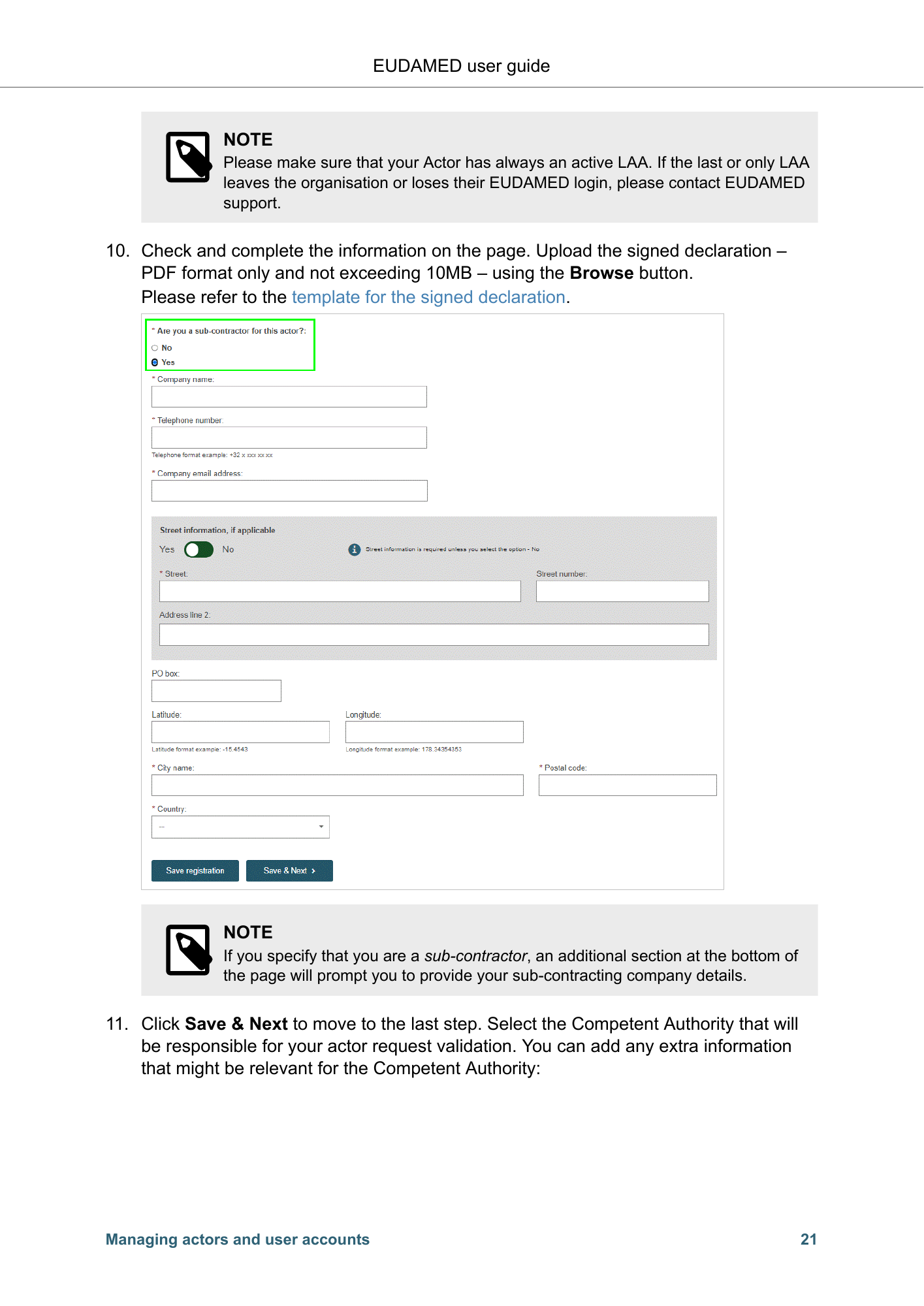
EUDAMED user guide NOTE Please make sure that your Actor has always an active LAA. If the last or only LAA leaves the organisation or loses their EUDAMED login, please contact EUDAMED support. 10. Check and complete the information on the page. Upload the signed declaration – PDF format only and not exceeding 10MB – using the Browse button. Please refer to the template for the signed declaration. NOTE If you specify that you are a sub-contractor, an additional section at the bottom of the page will prompt you to provide your sub-contracting company details. 11. Click Save & Next to move to the last step. Select the Competent Authority that will be responsible for your actor request validation. You can add any extra information that might be relevant for the Competent Authority: Managing actors and user accounts 21
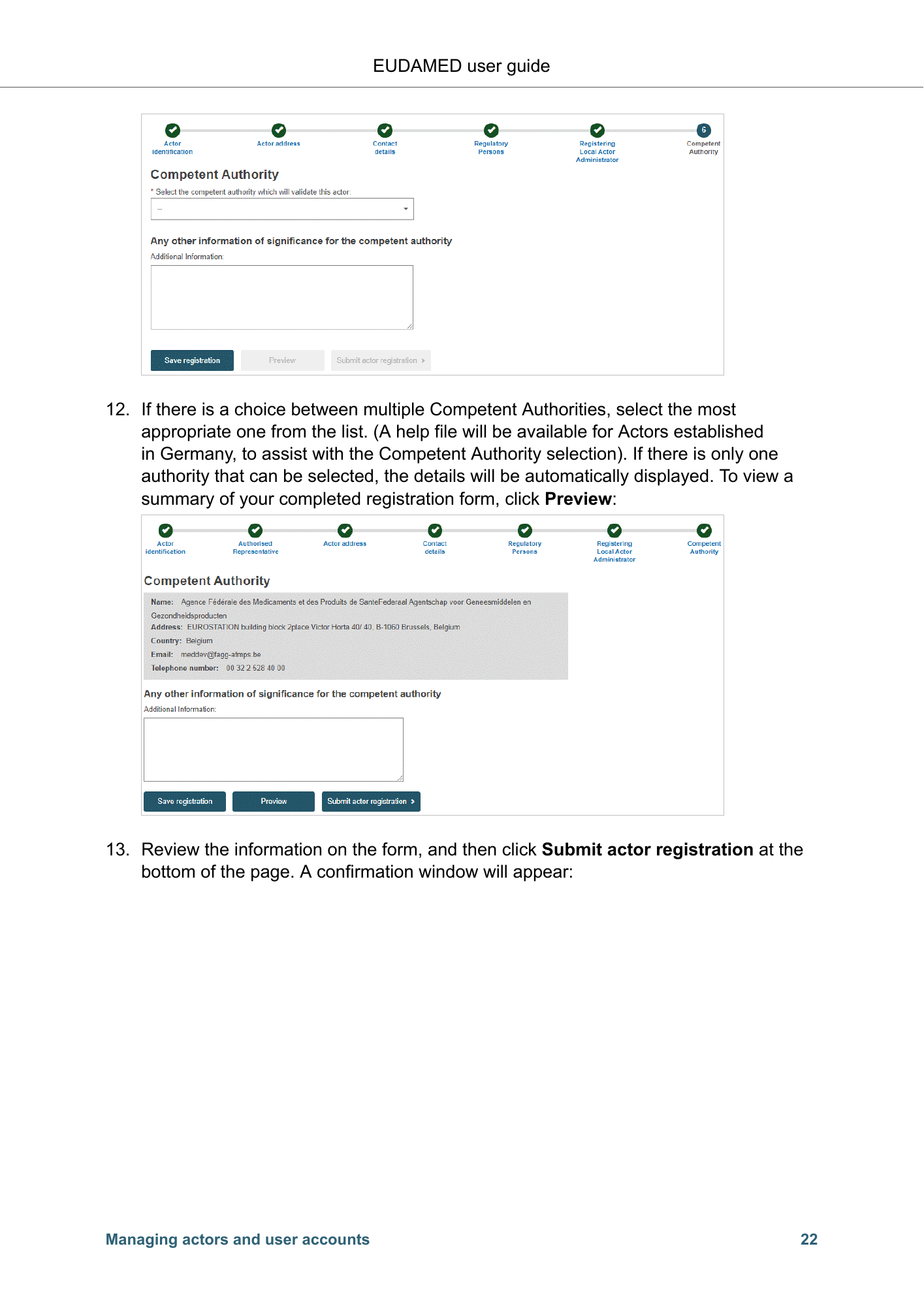
EUDAMED user guide 12. If there is a choice between multiple Competent Authorities, select the most appropriate one from the list. (A help file will be available for Actors established in Germany, to assist with the Competent Authority selection). If there is only one authority that can be selected, the details will be automatically displayed. To view a summary of your completed registration form, click Preview: 13. Review the information on the form, and then click Submit actor registration at the bottom of the page. A confirmation window will appear: Managing actors and user accounts 22
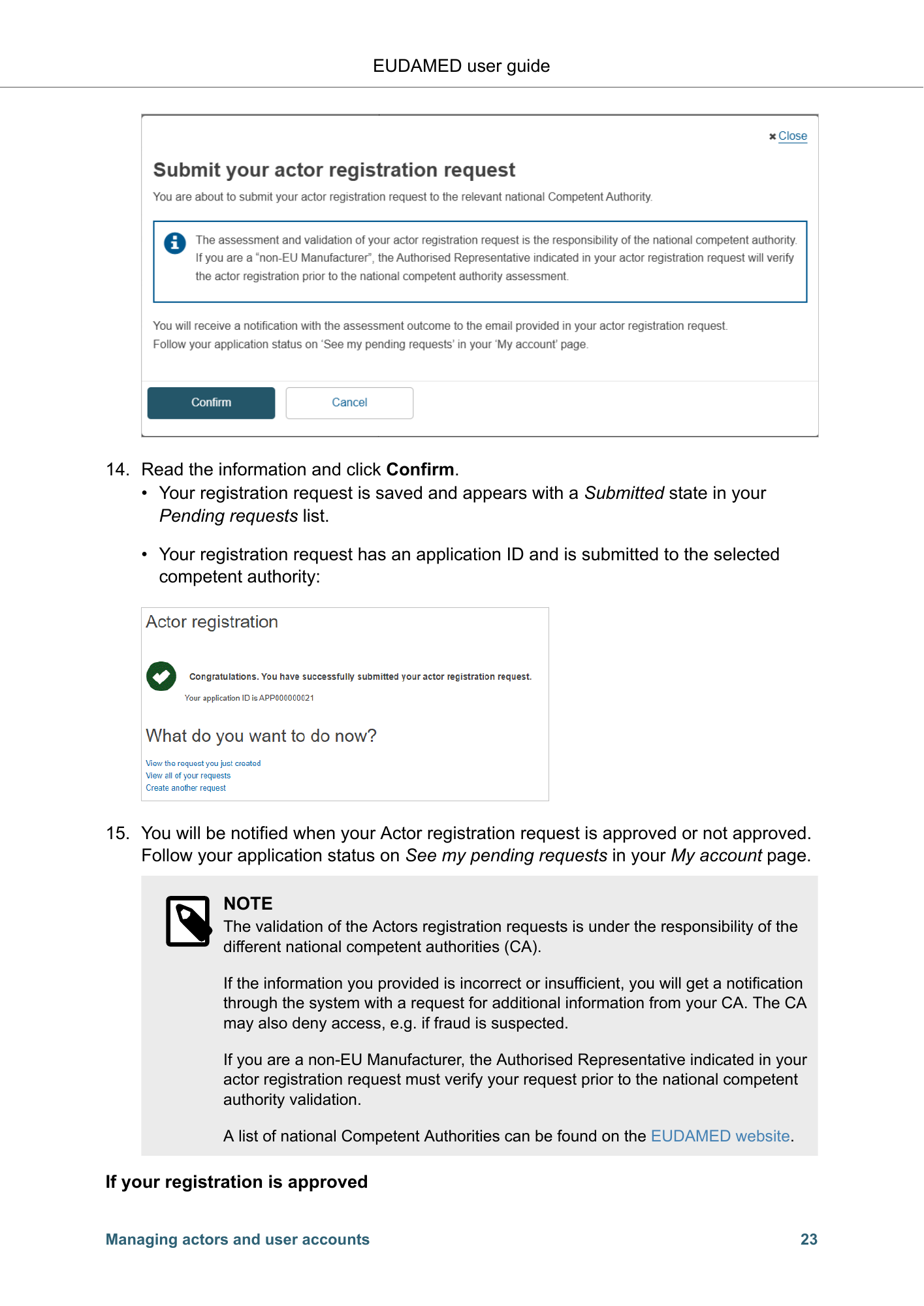
EUDAMED user guide 14. Read the information and click Confirm. • Your registration request is saved and appears with a Submitted state in your Pending requests list. • Your registration request has an application ID and is submitted to the selected competent authority: 15. You will be notified when your Actor registration request is approved or not approved. Follow your application status on See my pending requests in your My account page. NOTE The validation of the Actors registration requests is under the responsibility of the different national competent authorities (CA). If the information you provided is incorrect or insufficient, you will get a notification through the system with a request for additional information from your CA. The CA may also deny access, e.g. if fraud is suspected. If you are a non-EU Manufacturer, the Authorised Representative indicated in your actor registration request must verify your request prior to the national competent authority validation. A list of national Competent Authorities can be found on the EUDAMED website. If your registration is approved Managing actors and user accounts 23
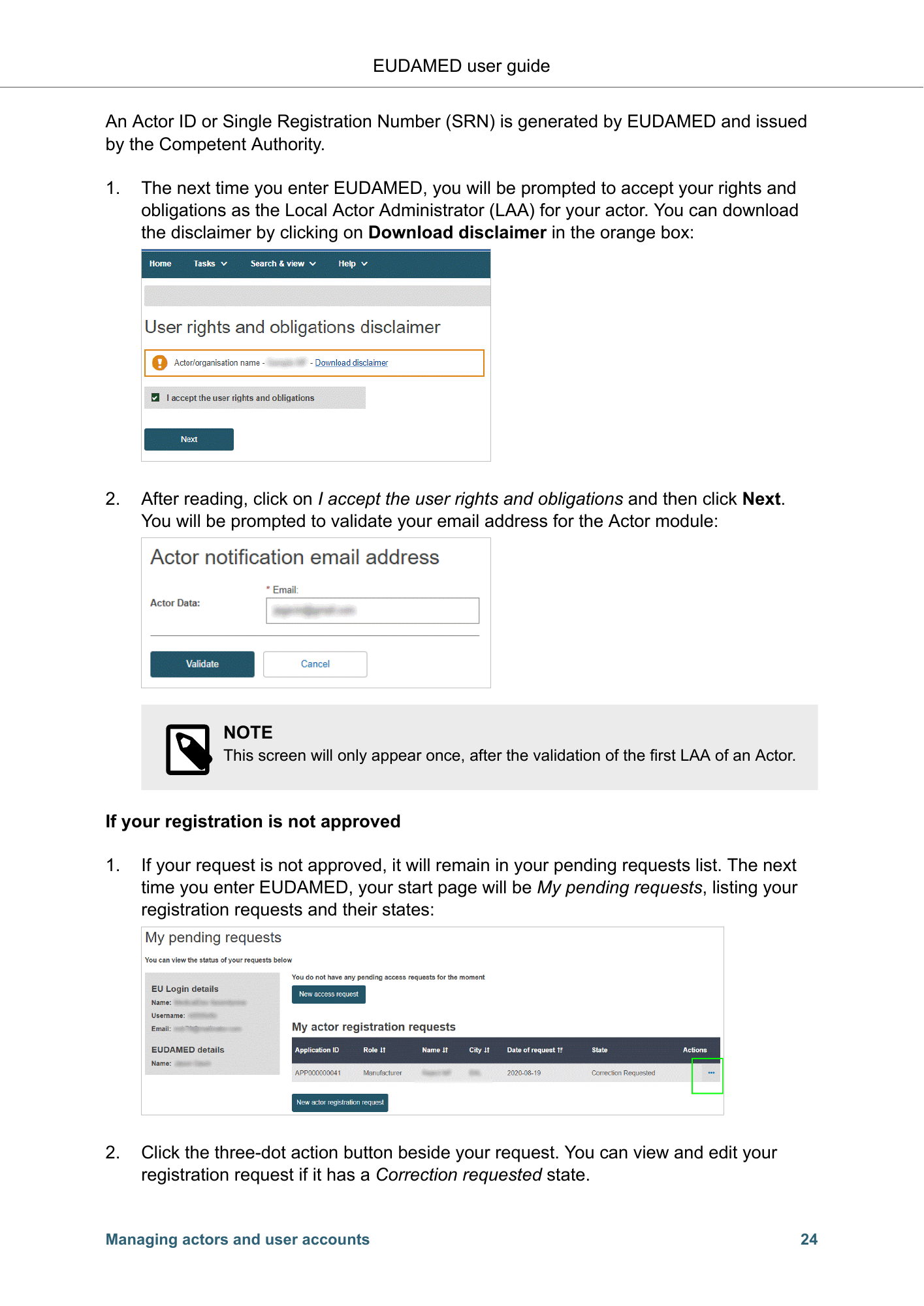
EUDAMED user guide An Actor ID or Single Registration Number (SRN) is generated by EUDAMED and issued by the Competent Authority. 1. The next time you enter EUDAMED, you will be prompted to accept your rights and obligations as the Local Actor Administrator (LAA) for your actor. You can download the disclaimer by clicking on Download disclaimer in the orange box: 2. After reading, click on I accept the user rights and obligations and then click Next. You will be prompted to validate your email address for the Actor module: NOTE This screen will only appear once, after the validation of the first LAA of an Actor. If your registration is not approved 1. If your request is not approved, it will remain in your pending requests list. The next time you enter EUDAMED, your start page will be My pending requests, listing your registration requests and their states: 2. Click the three-dot action button beside your request. You can view and edit your registration request if it has a Correction requested state. Managing actors and user accounts 24
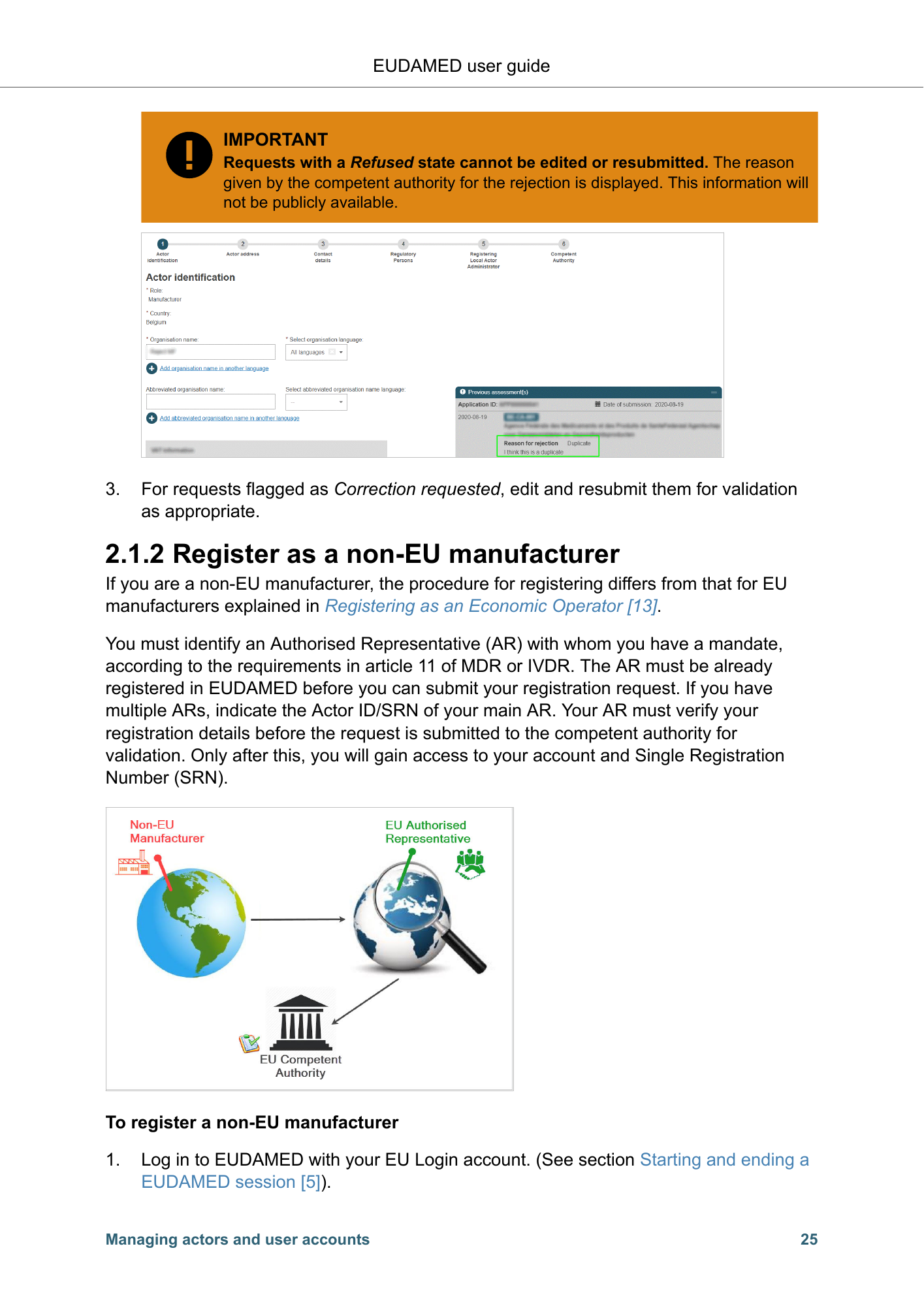
EUDAMED user guide IMPORTANT Requests with a Refused state cannot be edited or resubmitted. The reason given by the competent authority for the rejection is displayed. This information will not be publicly available. 3. For requests flagged as Correction requested, edit and resubmit them for validation as appropriate. 2.1.2 Register as a non-EU manufacturer If you are a non-EU manufacturer, the procedure for registering differs from that for EU manufacturers explained in Registering as an Economic Operator [13]. You must identify an Authorised Representative (AR) with whom you have a mandate, according to the requirements in article 11 of MDR or IVDR. The AR must be already registered in EUDAMED before you can submit your registration request. If you have multiple ARs, indicate the Actor ID/SRN of your main AR. Your AR must verify your registration details before the request is submitted to the competent authority for validation. Only after this, you will gain access to your account and Single Registration Number (SRN). To register a non-EU manufacturer 1. Log in to EUDAMED with your EU Login account. (See section Starting and ending a EUDAMED session [5]). Managing actors and user accounts 25
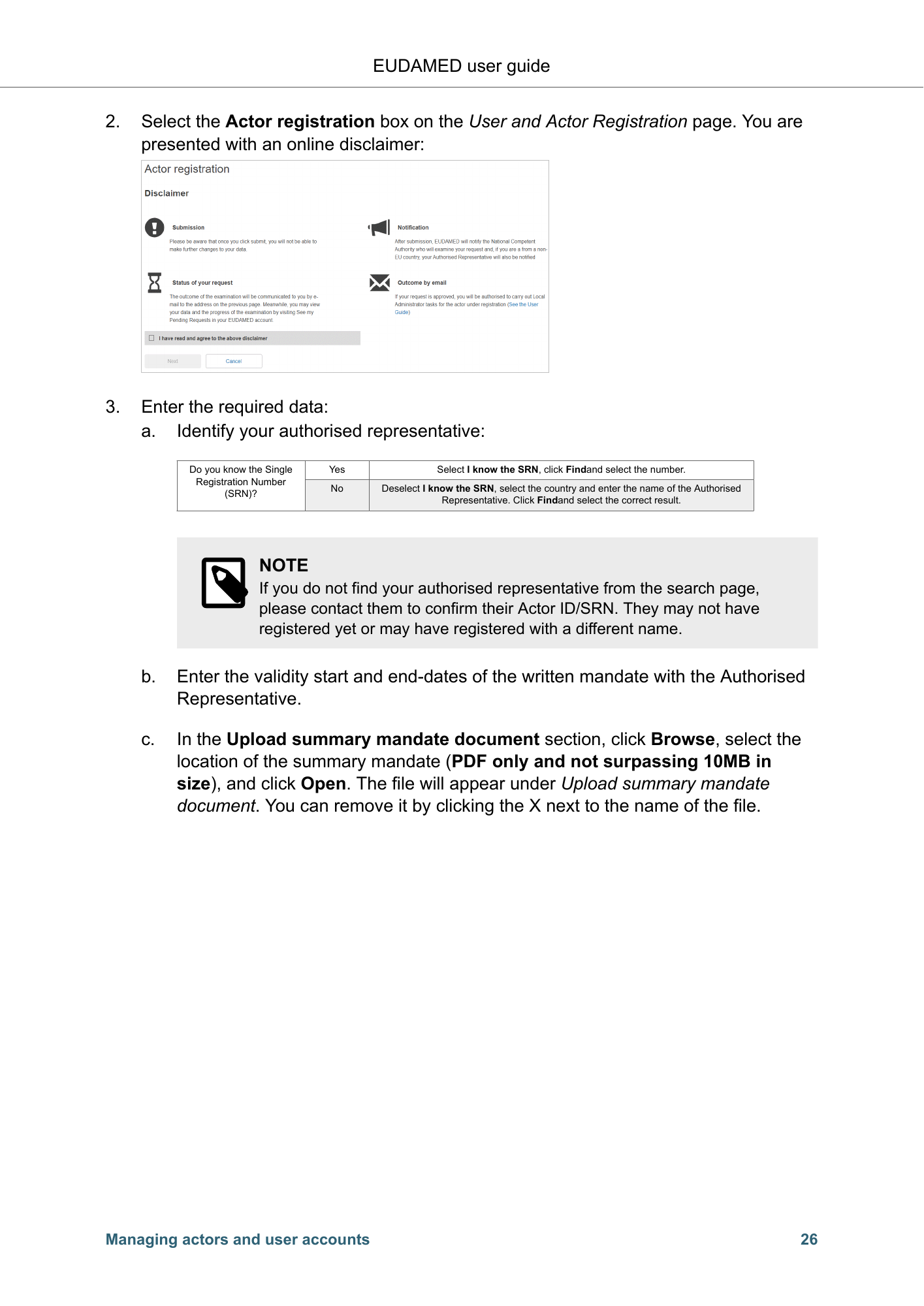
EUDAMED user guide 2. Select the Actor registration box on the User and Actor Registration page. You are presented with an online disclaimer: 3. Enter the required data: a. Identify your authorised representative: Do you know the Single Yes Select I know the SRN, click Findand select the number. Registration Number No Deselect I know the SRN, select the country and enter the name of the Authorised (SRN)? Representative. Click Findand select the correct result. NOTE If you do not find your authorised representative from the search page, please contact them to confirm their Actor ID/SRN. They may not have registered yet or may have registered with a different name. b. Enter the validity start and end-dates of the written mandate with the Authorised Representative. c. In the Upload summary mandate document section, click Browse, select the location of the summary mandate (PDF only and not surpassing 10MB in size), and click Open. The file will appear under Upload summary mandate document. You can remove it by clicking the X next to the name of the file. Managing actors and user accounts 26
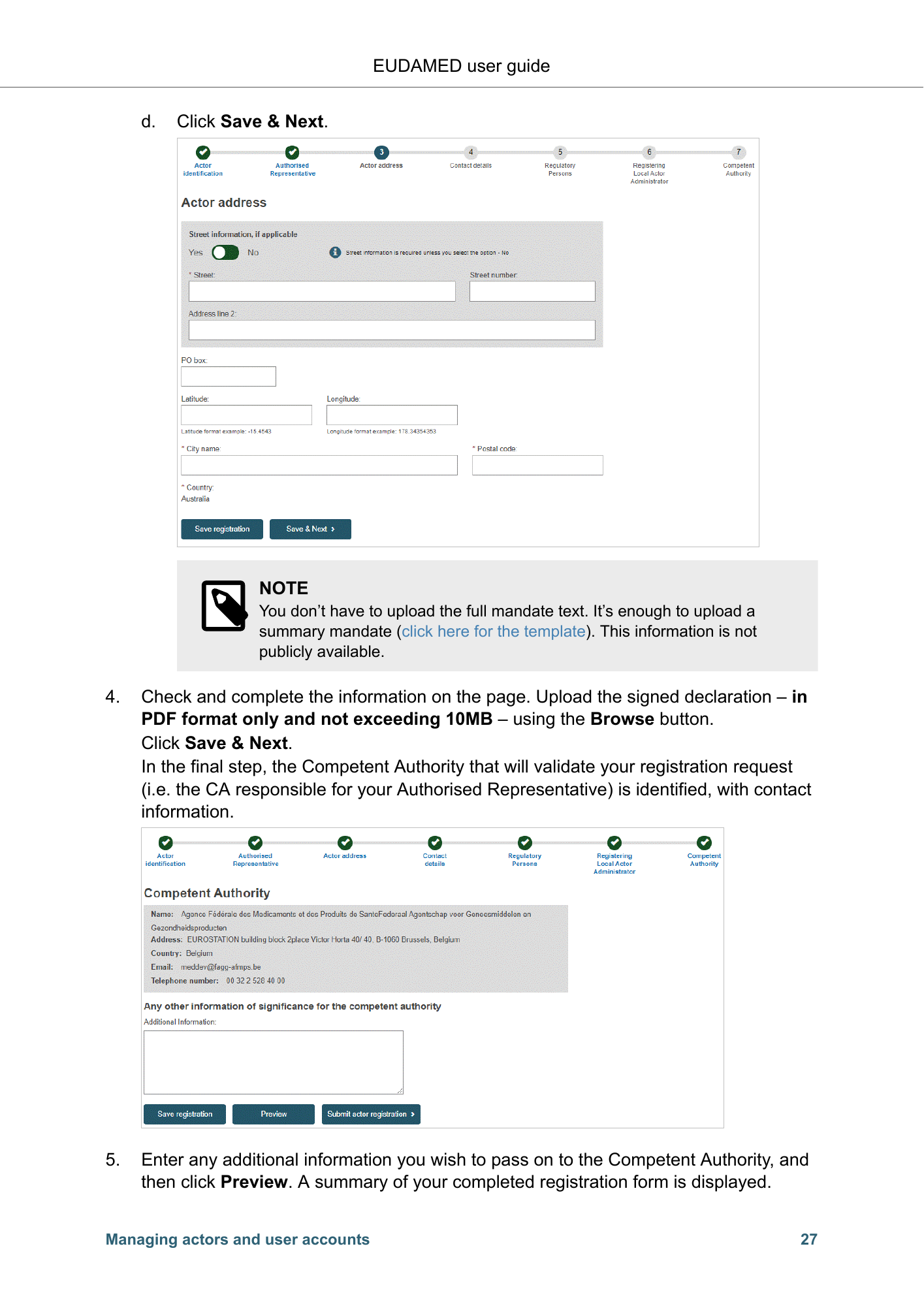
EUDAMED user guide d. Click Save & Next. NOTE You don’t have to upload the full mandate text. It’s enough to upload a summary mandate (click here for the template). This information is not publicly available. 4. Check and complete the information on the page. Upload the signed declaration – in PDF format only and not exceeding 10MB – using the Browse button. Click Save & Next. In the final step, the Competent Authority that will validate your registration request (i.e. the CA responsible for your Authorised Representative) is identified, with contact information. 5. Enter any additional information you wish to pass on to the Competent Authority, and then click Preview. A summary of your completed registration form is displayed. Managing actors and user accounts 27
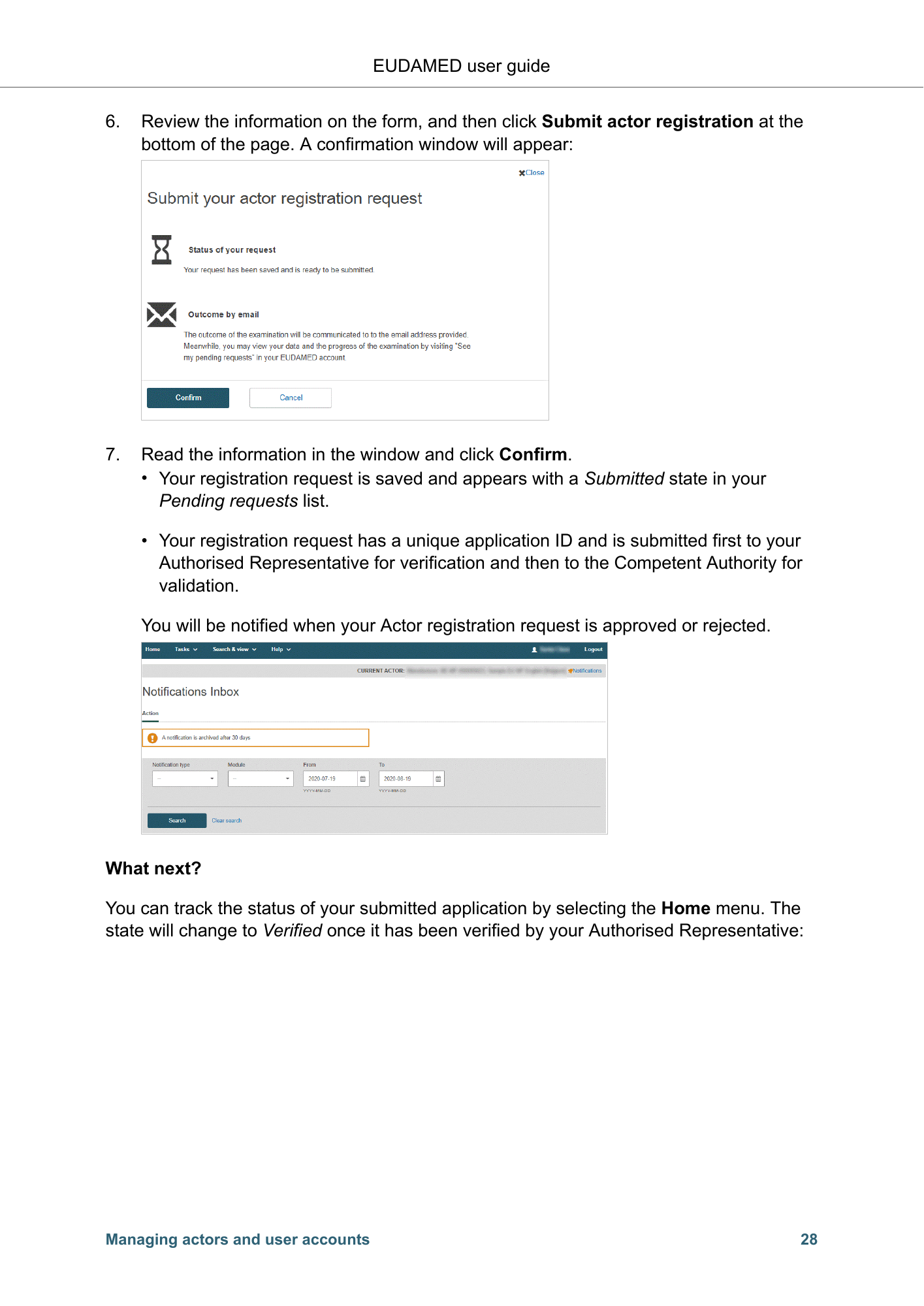
EUDAMED user guide 6. Review the information on the form, and then click Submit actor registration at the bottom of the page. A confirmation window will appear: 7. Read the information in the window and click Confirm. • Your registration request is saved and appears with a Submitted state in your Pending requests list. • Your registration request has a unique application ID and is submitted first to your Authorised Representative for verification and then to the Competent Authority for validation. You will be notified when your Actor registration request is approved or rejected. What next? You can track the status of your submitted application by selecting the Home menu. The state will change to Verified once it has been verified by your Authorised Representative: Managing actors and user accounts 28
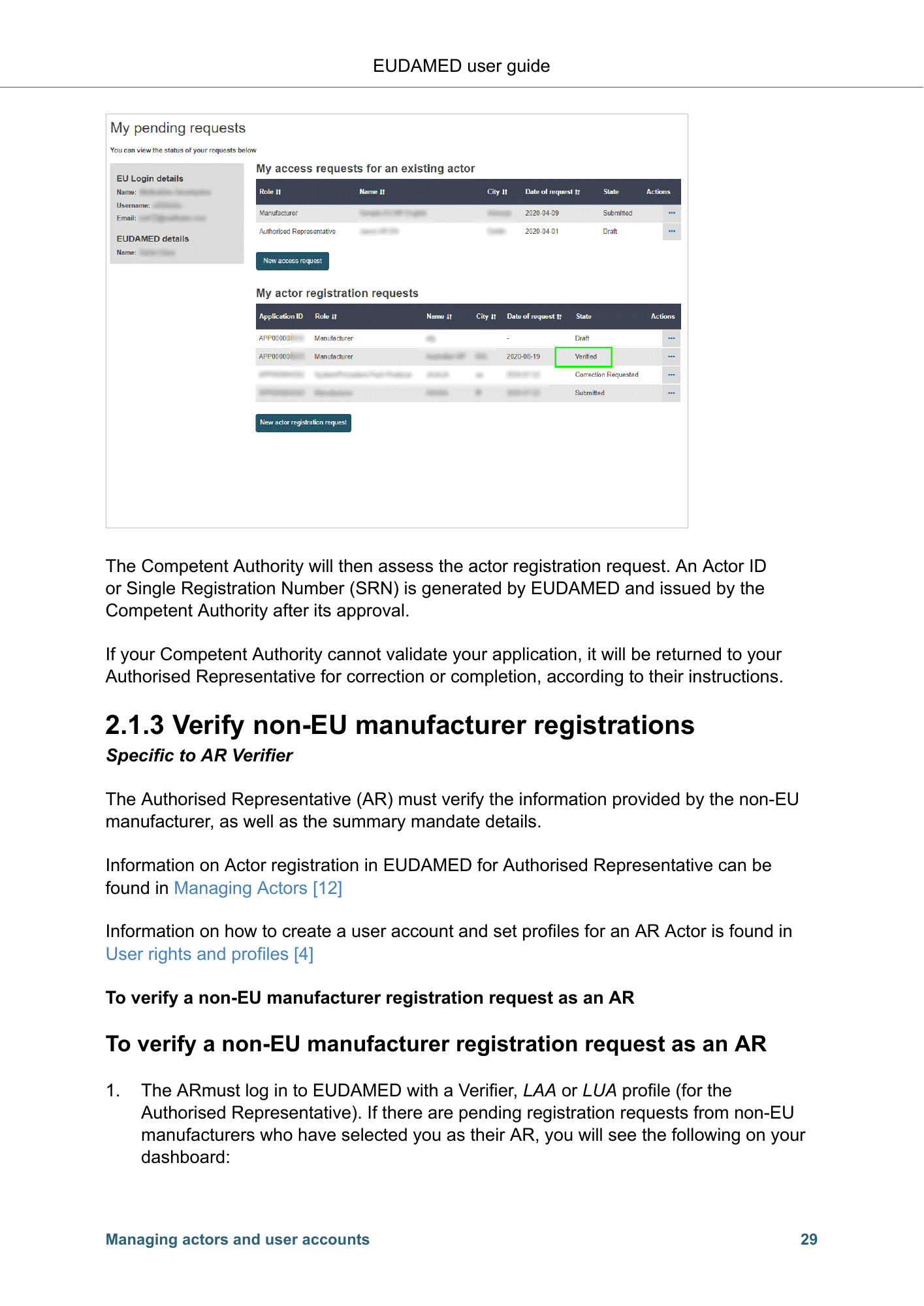
EUDAMED user guide The Competent Authority will then assess the actor registration request. An Actor ID or Single Registration Number (SRN) is generated by EUDAMED and issued by the Competent Authority after its approval. If your Competent Authority cannot validate your application, it will be returned to your Authorised Representative for correction or completion, according to their instructions. 2.1.3 Verify non-EU manufacturer registrations Specific to AR Verifier The Authorised Representative (AR) must verify the information provided by the non-EU manufacturer, as well as the summary mandate details. Information on Actor registration in EUDAMED for Authorised Representative can be found in Managing Actors [12] Information on how to create a user account and set profiles for an AR Actor is found in User rights and profiles [4] To verify a non-EU manufacturer registration request as an AR To verify a non-EU manufacturer registration request as an AR 1. The ARmust log in to EUDAMED with a Verifier, LAA or LUA profile (for the Authorised Representative). If there are pending registration requests from non-EU manufacturers who have selected you as their AR, you will see the following on your dashboard: Managing actors and user accounts 29
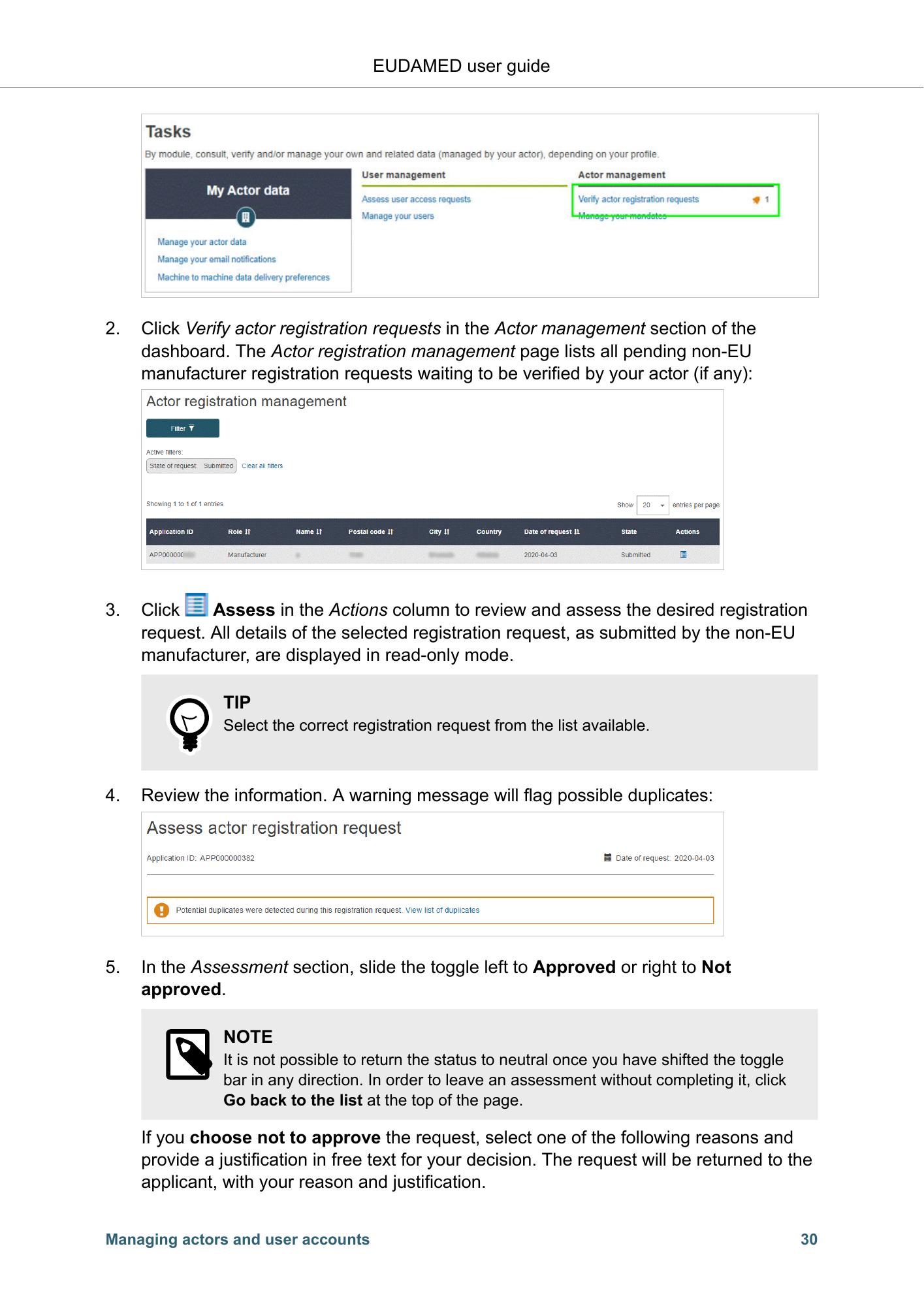
EUDAMED user guide 2. Click Verify actor registration requests in the Actor management section of the dashboard. The Actor registration management page lists all pending non-EU manufacturer registration requests waiting to be verified by your actor (if any): 3. Click Assess in the Actions column to review and assess the desired registration request. All details of the selected registration request, as submitted by the non-EU manufacturer, are displayed in read-only mode. TIP Select the correct registration request from the list available. 4. Review the information. A warning message will flag possible duplicates: 5. In the Assessment section, slide the toggle left to Approved or right to Not approved. NOTE It is not possible to return the status to neutral once you have shifted the toggle bar in any direction. In order to leave an assessment without completing it, click Go back to the list at the top of the page. If you choose not to approve the request, select one of the following reasons and provide a justification in free text for your decision. The request will be returned to the applicant, with your reason and justification. Managing actors and user accounts 30
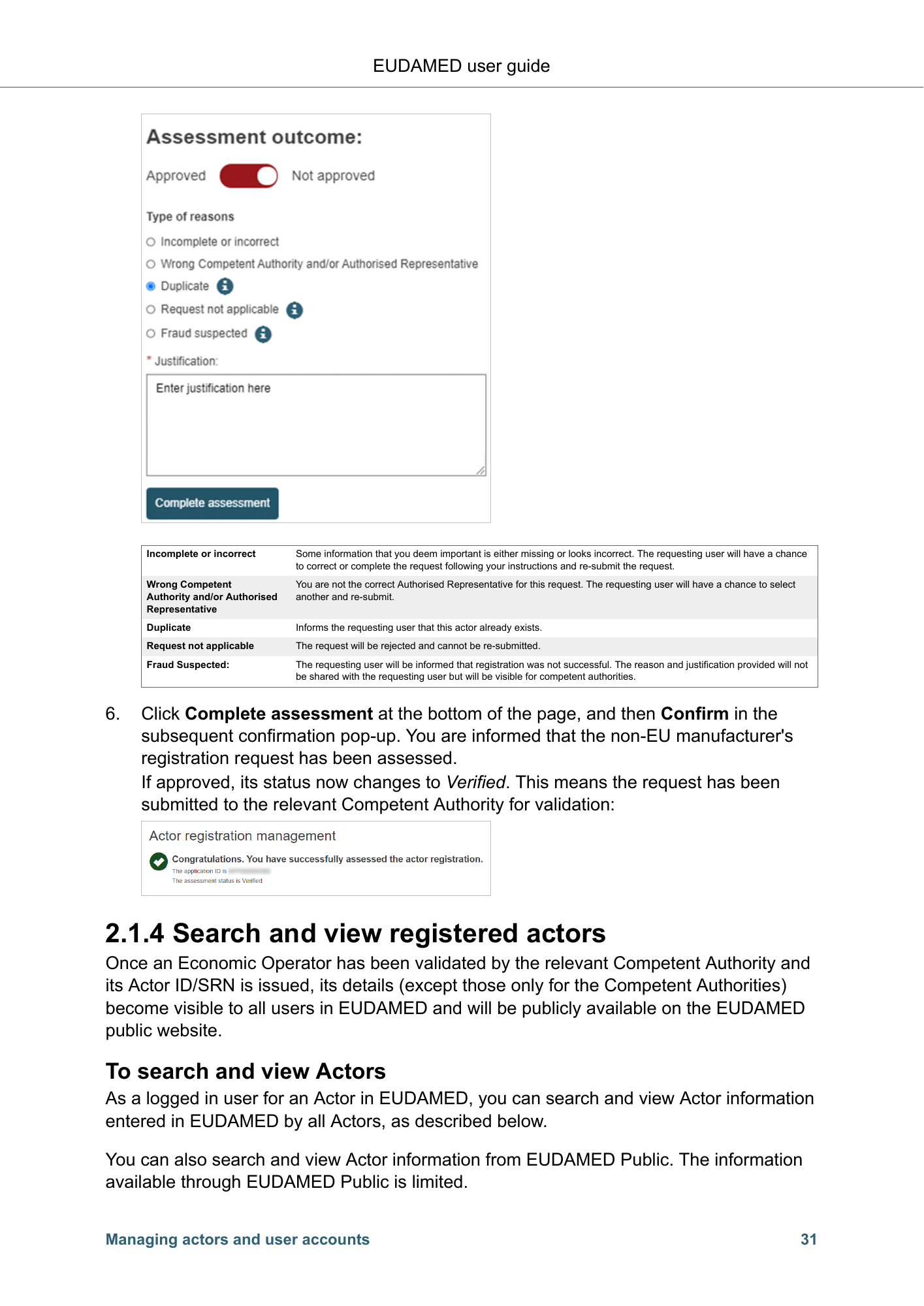
EUDAMED user guide Incomplete or incorrect Some information that you deem important is either missing or looks incorrect. The requesting user will have a chance to correct or complete the request following your instructions and re-submit the request. Wrong Competent You are not the correct Authorised Representative for this request. The requesting user will have a chance to select Authority and/or Authorised another and re-submit. Representative Duplicate Informs the requesting user that this actor already exists. Request not applicable The request will be rejected and cannot be re-submitted. Fraud Suspected: The requesting user will be informed that registration was not successful. The reason and justification provided will not be shared with the requesting user but will be visible for competent authorities. 6. Click Complete assessment at the bottom of the page, and then Confirm in the subsequent confirmation pop-up. You are informed that the non-EU manufacturer's registration request has been assessed. If approved, its status now changes to Verified. This means the request has been submitted to the relevant Competent Authority for validation: 2.1.4 Search and view registered actors Once an Economic Operator has been validated by the relevant Competent Authority and its Actor ID/SRN is issued, its details (except those only for the Competent Authorities) become visible to all users in EUDAMED and will be publicly available on the EUDAMED public website. To search and view Actors As a logged in user for an Actor in EUDAMED, you can search and view Actor information entered in EUDAMED by all Actors, as described below. You can also search and view Actor information from EUDAMED Public. The information available through EUDAMED Public is limited. Managing actors and user accounts 31
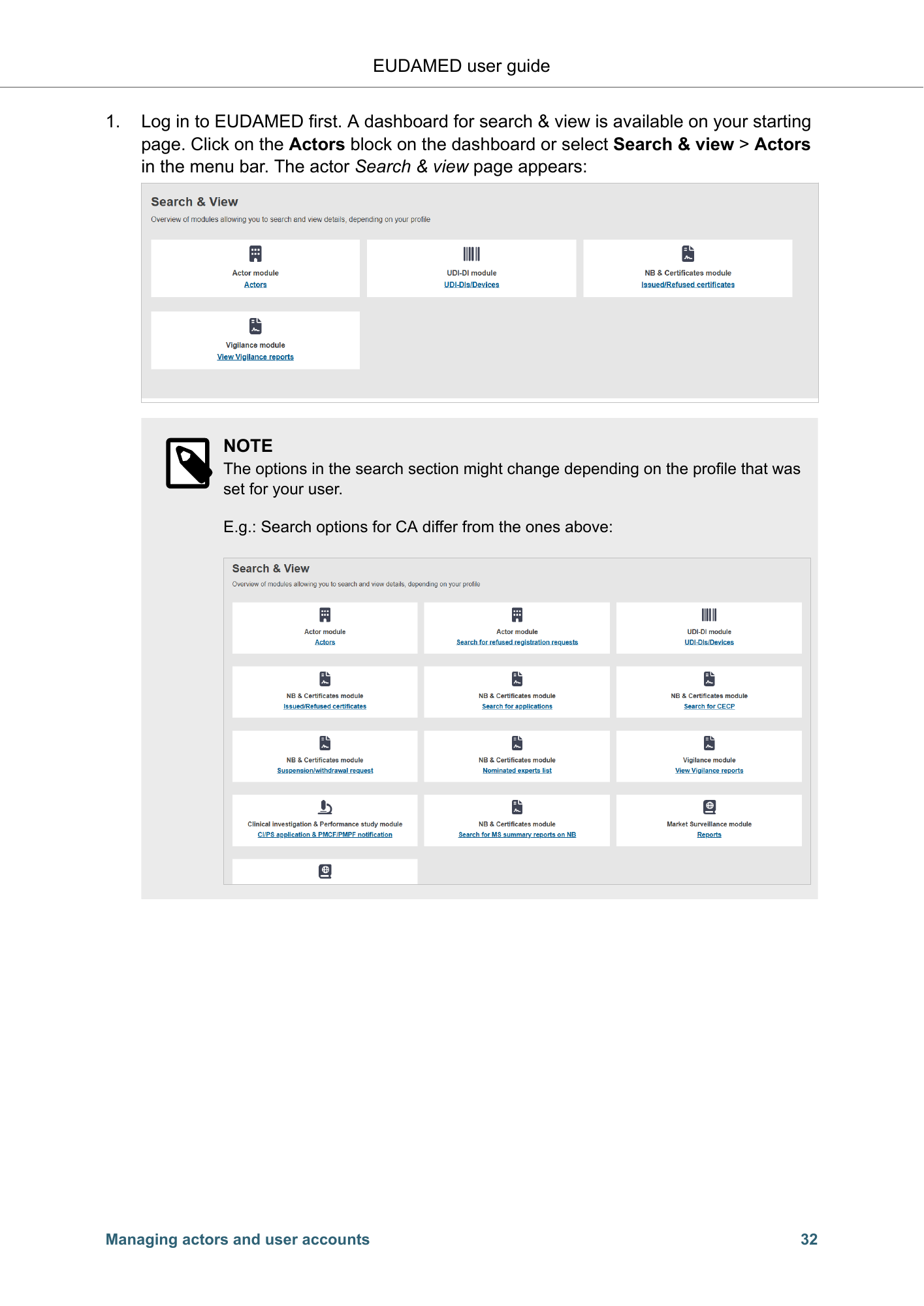
EUDAMED user guide 1. Log in to EUDAMED first. A dashboard for search & view is available on your starting page. Click on the Actors block on the dashboard or select Search & view > Actors in the menu bar. The actor Search & view page appears: NOTE The options in the search section might change depending on the profile that was set for your user. E.g.: Search options for CA differ from the ones above: Managing actors and user accounts 32
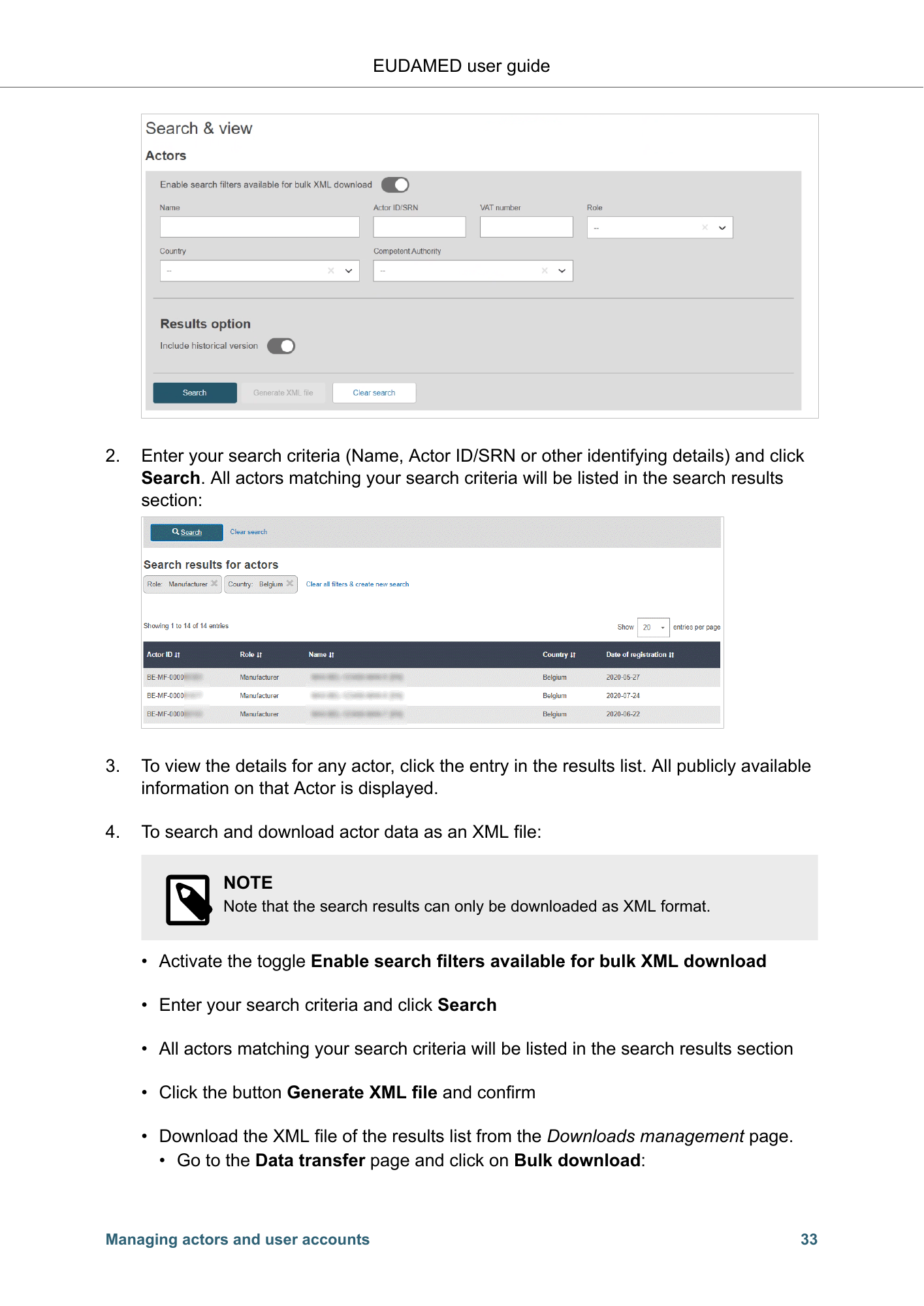
EUDAMED user guide 2. Enter your search criteria (Name, Actor ID/SRN or other identifying details) and click Search. All actors matching your search criteria will be listed in the search results section: 3. To view the details for any actor, click the entry in the results list. All publicly available information on that Actor is displayed. 4. To search and download actor data as an XML file: NOTE Note that the search results can only be downloaded as XML format. • Activate the toggle Enable search filters available for bulk XML download • Enter your search criteria and click Search • All actors matching your search criteria will be listed in the search results section • Click the button Generate XML file and confirm • Download the XML file of the results list from the Downloads management page. • Go to the Data transfer page and click on Bulk download: Managing actors and user accounts 33
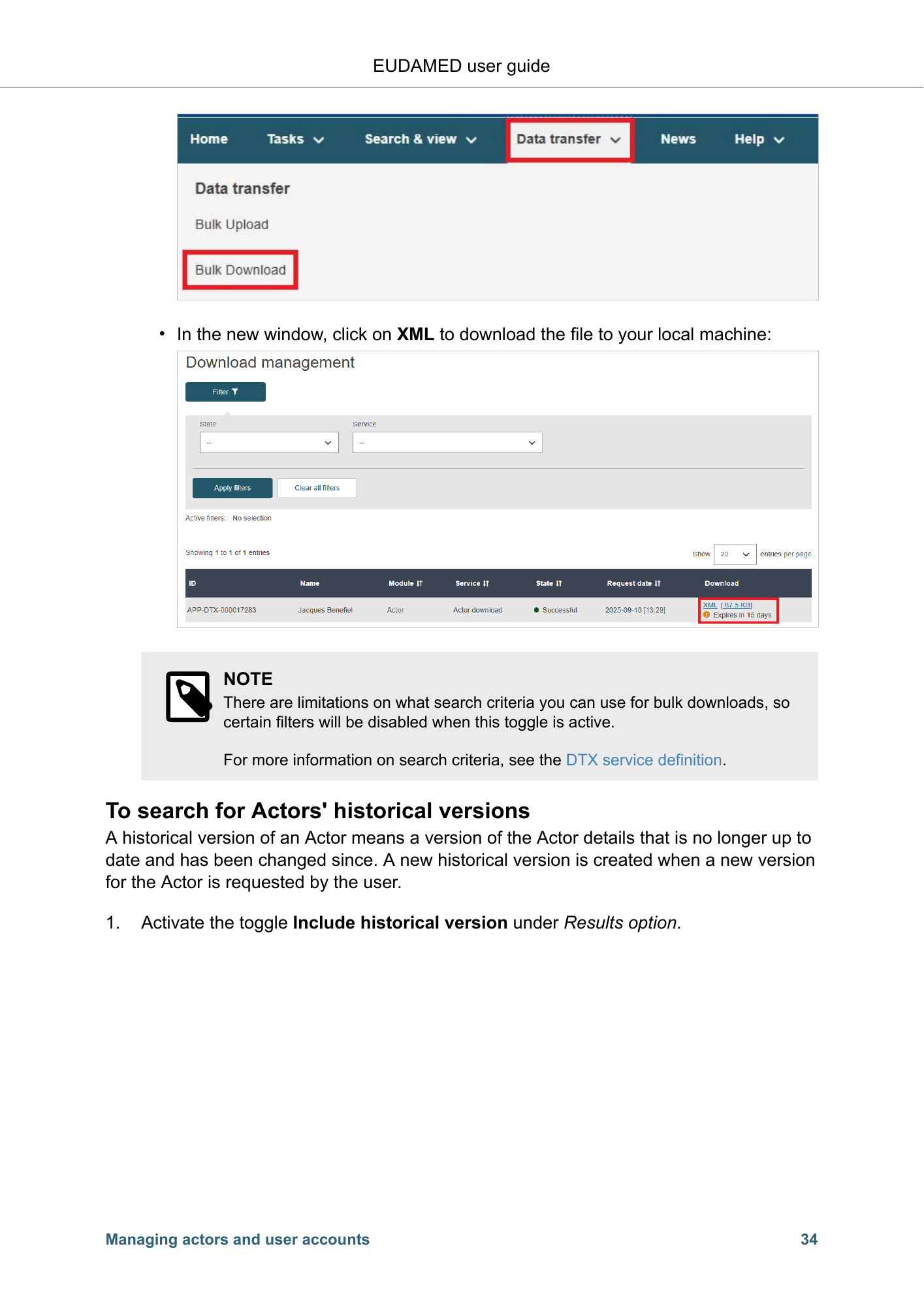
EUDAMED user guide • In the new window, click on XML to download the file to your local machine: NOTE There are limitations on what search criteria you can use for bulk downloads, so certain filters will be disabled when this toggle is active. For more information on search criteria, see the DTX service definition. To search for Actors' historical versions A historical version of an Actor means a version of the Actor details that is no longer up to date and has been changed since. A new historical version is created when a new version for the Actor is requested by the user. 1. Activate the toggle Include historical version under Results option. Managing actors and user accounts 34
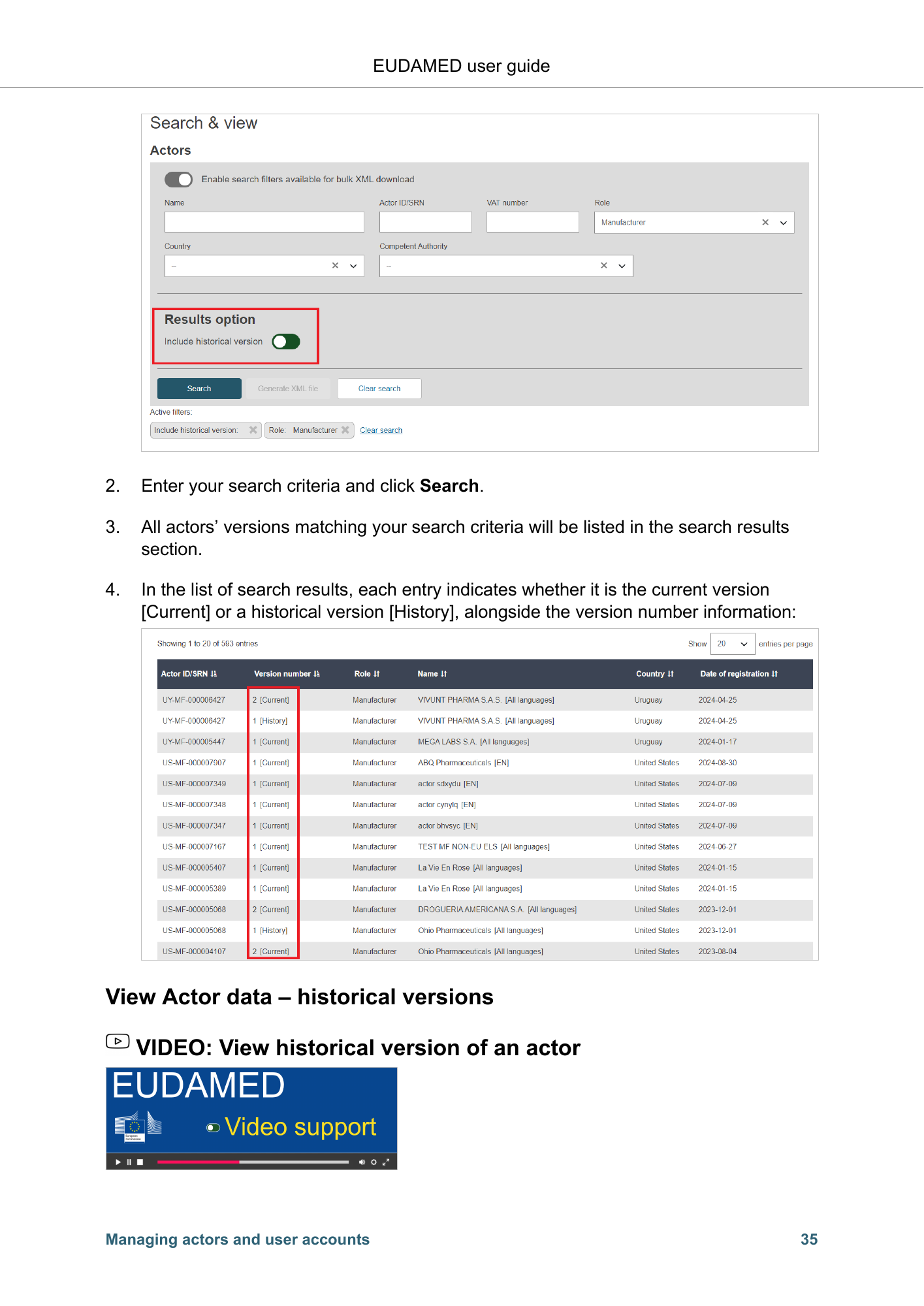
EUDAMED user guide 2. Enter your search criteria and click Search. 3. All actors’ versions matching your search criteria will be listed in the search results section. 4. In the list of search results, each entry indicates whether it is the current version [Current] or a historical version [History], alongside the version number information: View Actor data – historical versions VIDEO: View historical version of an actor Managing actors and user accounts 35
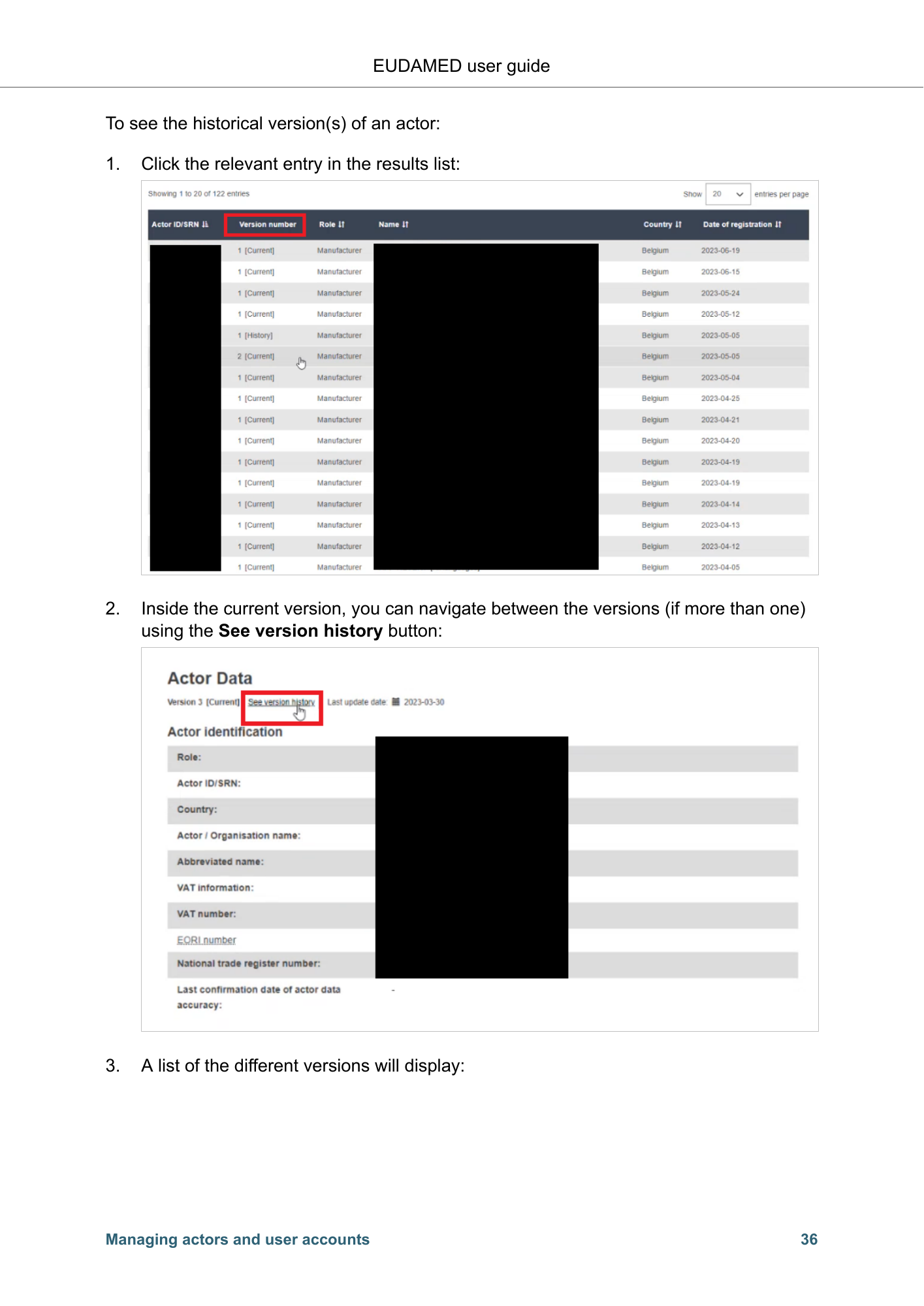
EUDAMED user guide To see the historical version(s) of an actor: 1. Click the relevant entry in the results list: 2. Inside the current version, you can navigate between the versions (if more than one) using the See version history button: 3. A list of the different versions will display: Managing actors and user accounts 36
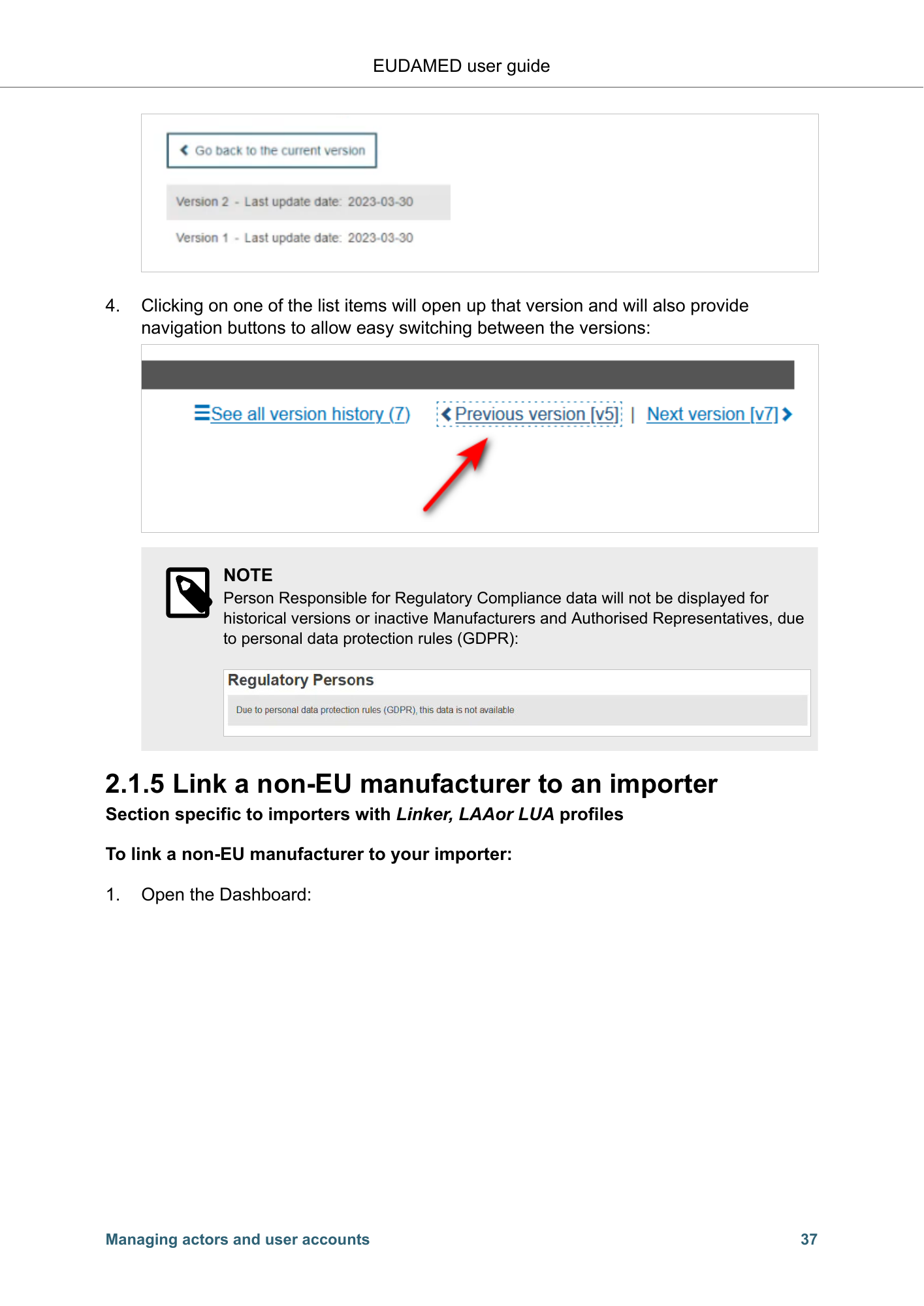
EUDAMED user guide 4. Clicking on one of the list items will open up that version and will also provide navigation buttons to allow easy switching between the versions: NOTE Person Responsible for Regulatory Compliance data will not be displayed for historical versions or inactive Manufacturers and Authorised Representatives, due to personal data protection rules (GDPR): 2.1.5 Link a non-EU manufacturer to an importer Section specific to importers with Linker, LAAor LUA profiles To link a non-EU manufacturer to your importer: 1. Open the Dashboard: Managing actors and user accounts 37
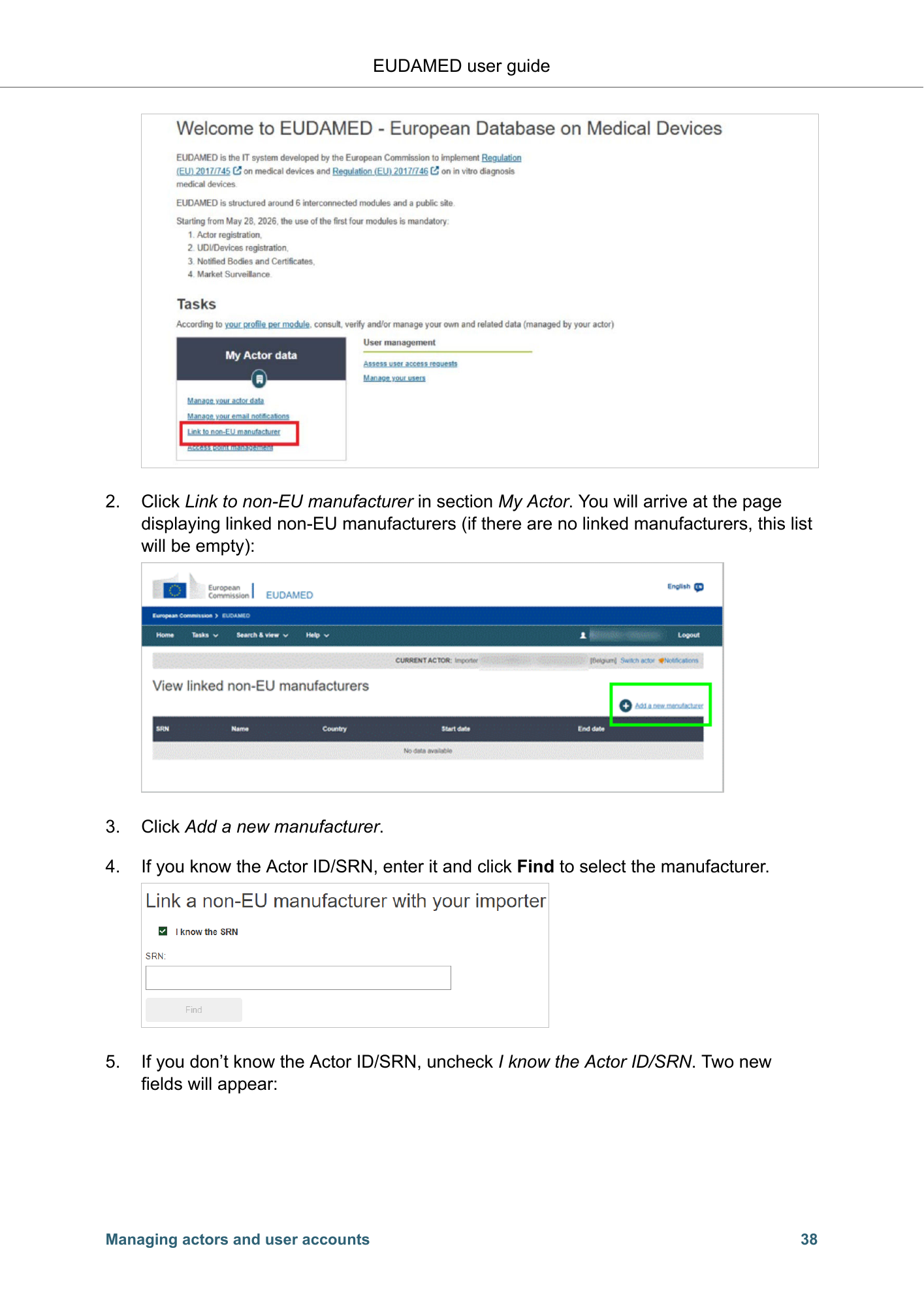
EUDAMED user guide 2. Click Link to non-EU manufacturer in section My Actor. You will arrive at the page displaying linked non-EU manufacturers (if there are no linked manufacturers, this list will be empty): 3. Click Add a new manufacturer. 4. If you know the Actor ID/SRN, enter it and click Find to select the manufacturer. 5. If you don’t know the Actor ID/SRN, uncheck I know the Actor ID/SRN. Two new fields will appear: Managing actors and user accounts 38
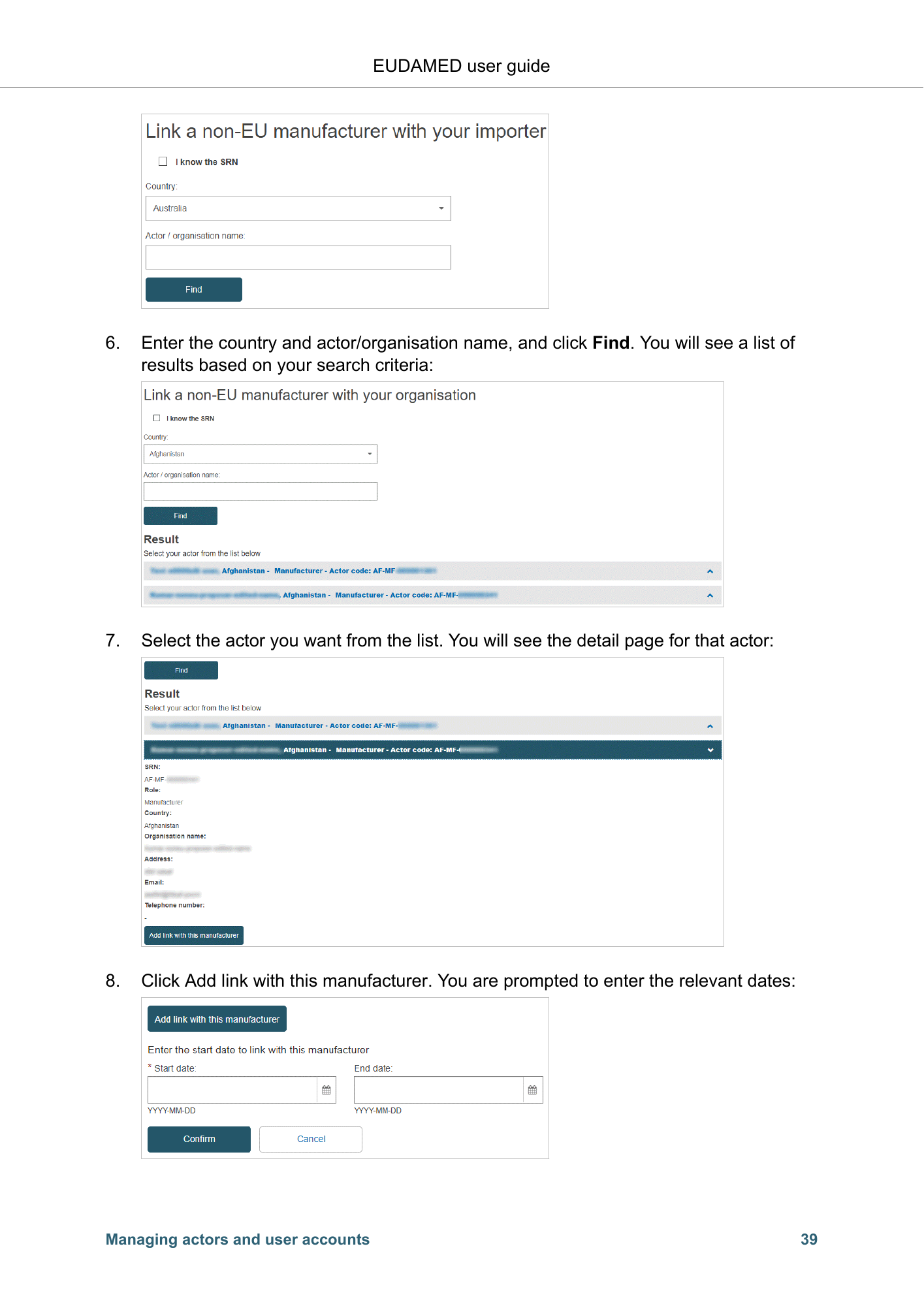
EUDAMED user guide 6. Enter the country and actor/organisation name, and click Find. You will see a list of results based on your search criteria: 7. Select the actor you want from the list. You will see the detail page for that actor: 8. Click Add link with this manufacturer. You are prompted to enter the relevant dates: Managing actors and user accounts 39
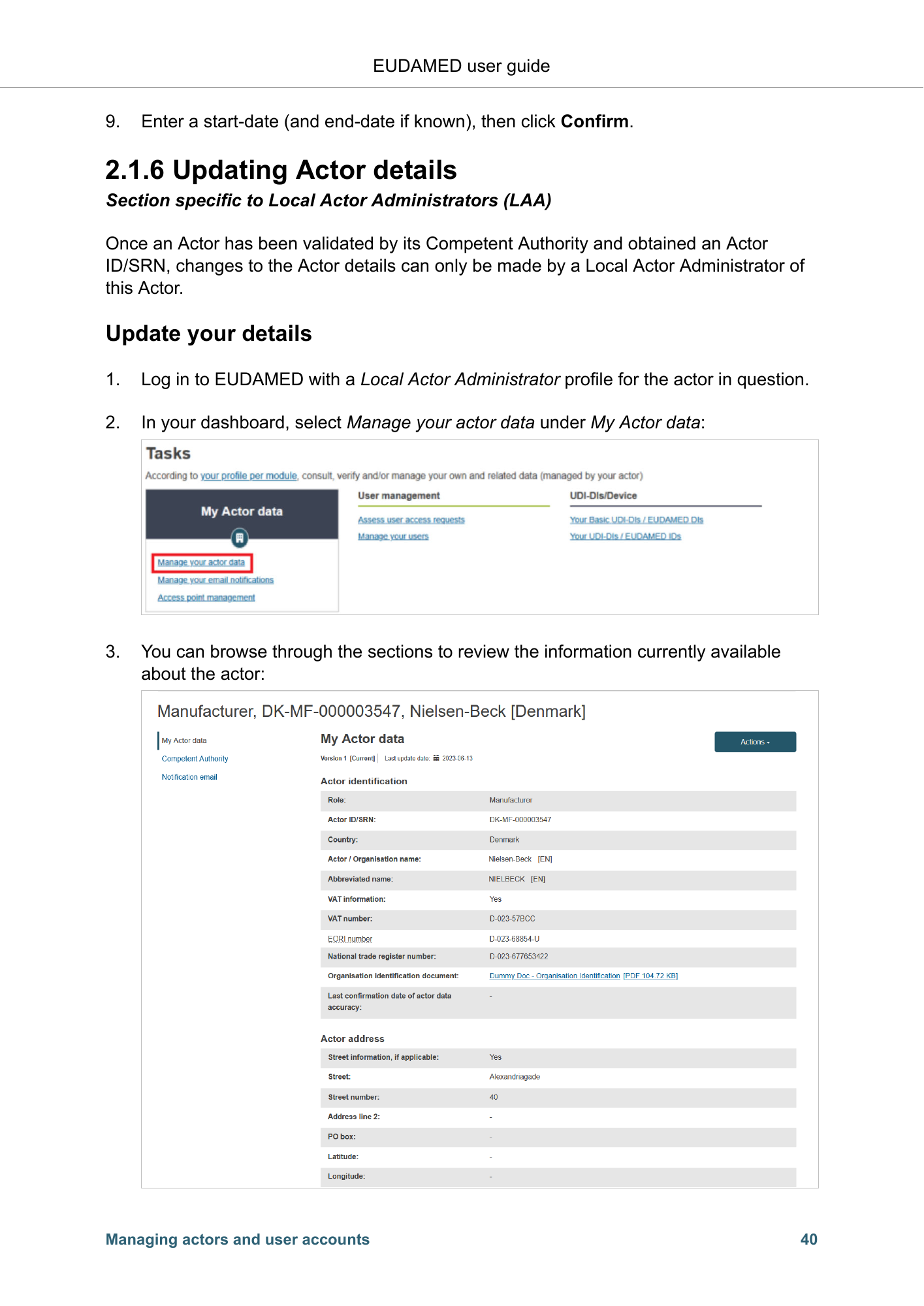
EUDAMED user guide 9. Enter a start-date (and end-date if known), then click Confirm. 2.1.6 Updating Actor details Section specific to Local Actor Administrators (LAA) Once an Actor has been validated by its Competent Authority and obtained an Actor ID/SRN, changes to the Actor details can only be made by a Local Actor Administrator of this Actor. Update your details 1. Log in to EUDAMED with a Local Actor Administrator profile for the actor in question. 2. In your dashboard, select Manage your actor data under My Actor data: 3. You can browse through the sections to review the information currently available about the actor: Managing actors and user accounts 40
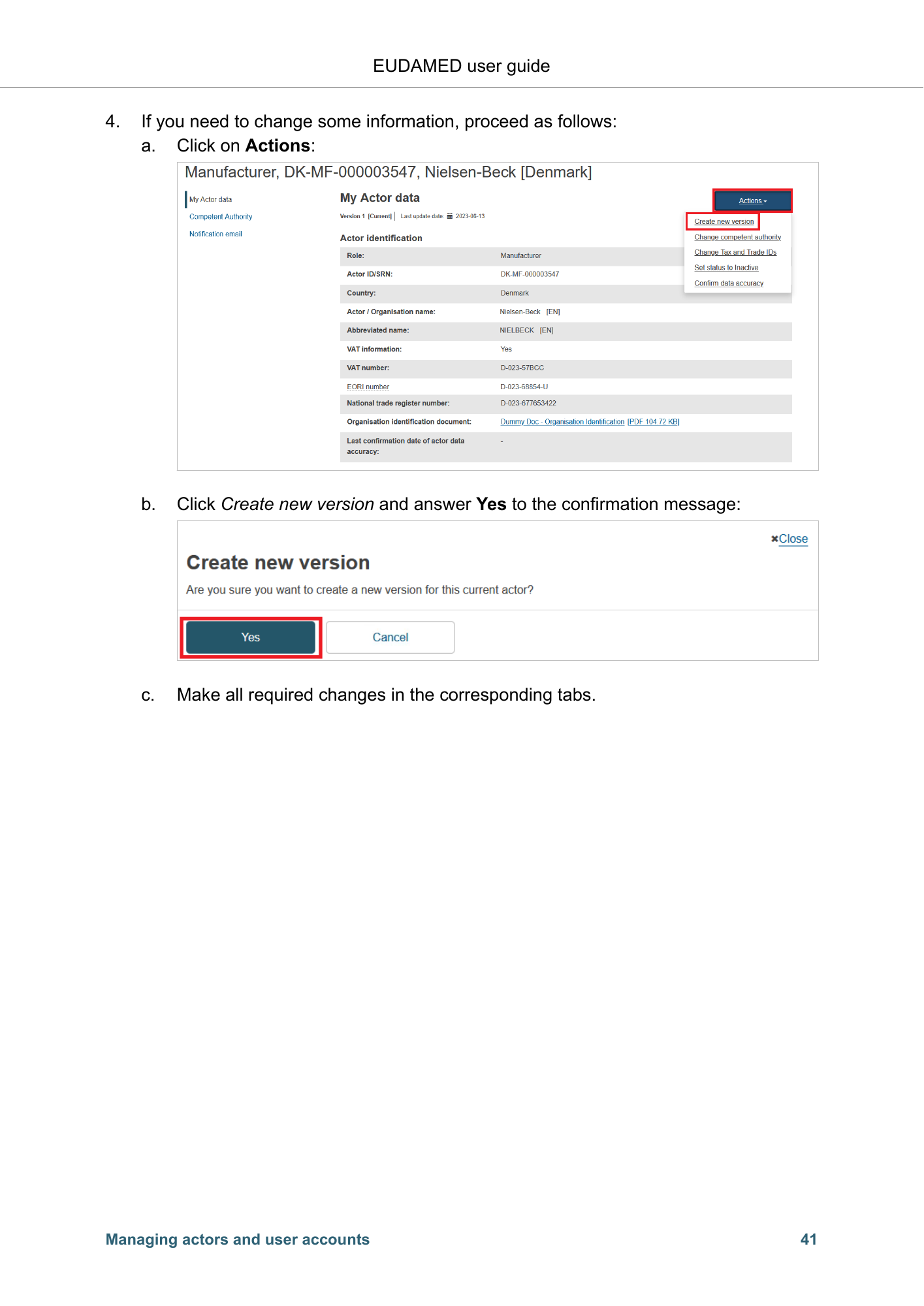
EUDAMED user guide 4. If you need to change some information, proceed as follows: a. Click on Actions: b. Click Create new version and answer Yes to the confirmation message: c. Make all required changes in the corresponding tabs. Managing actors and user accounts 41
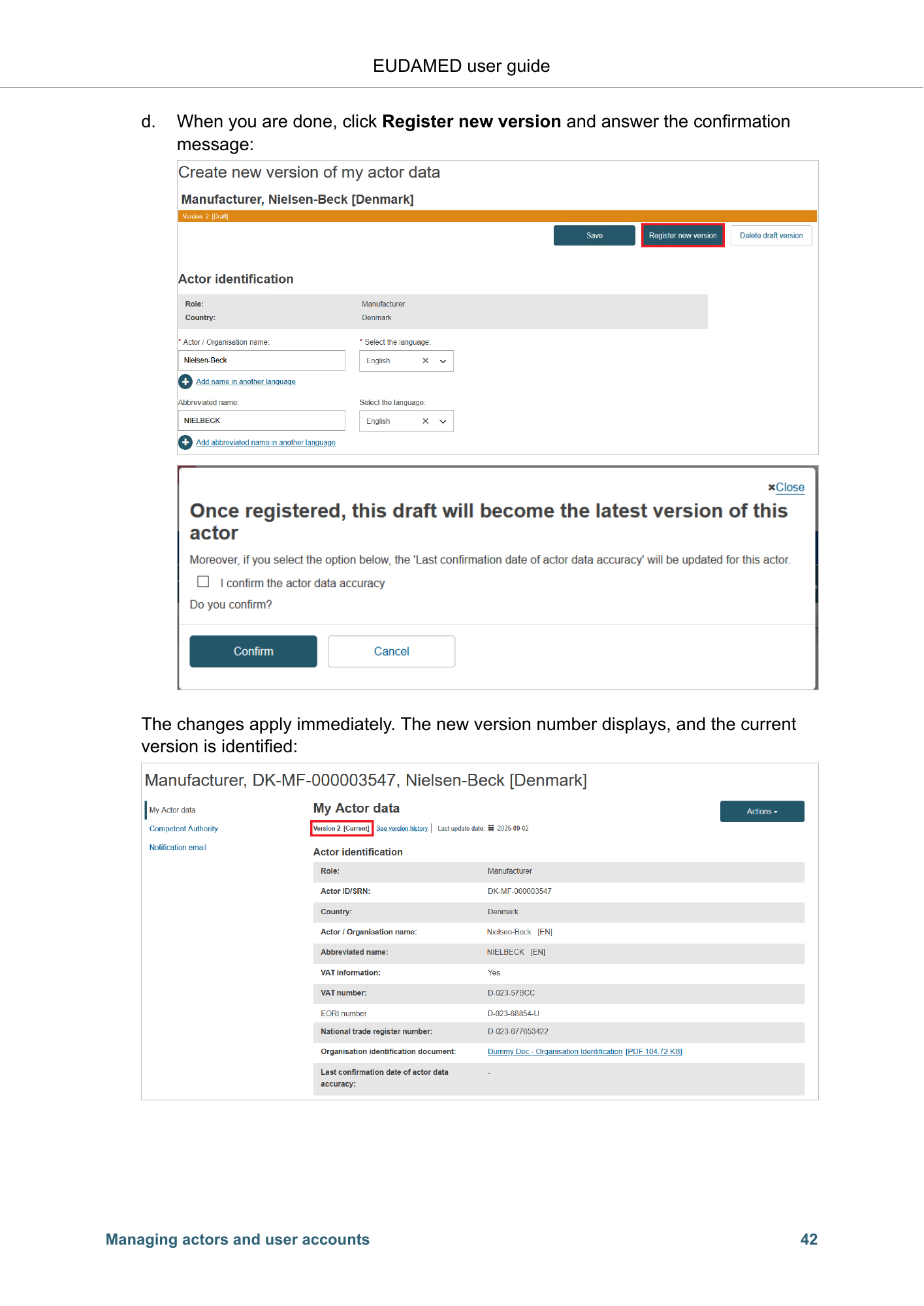
EUDAMED user guide d. When you are done, click Register new version and answer the confirmation message: The changes apply immediately. The new version number displays, and the current version is identified: Managing actors and user accounts 42
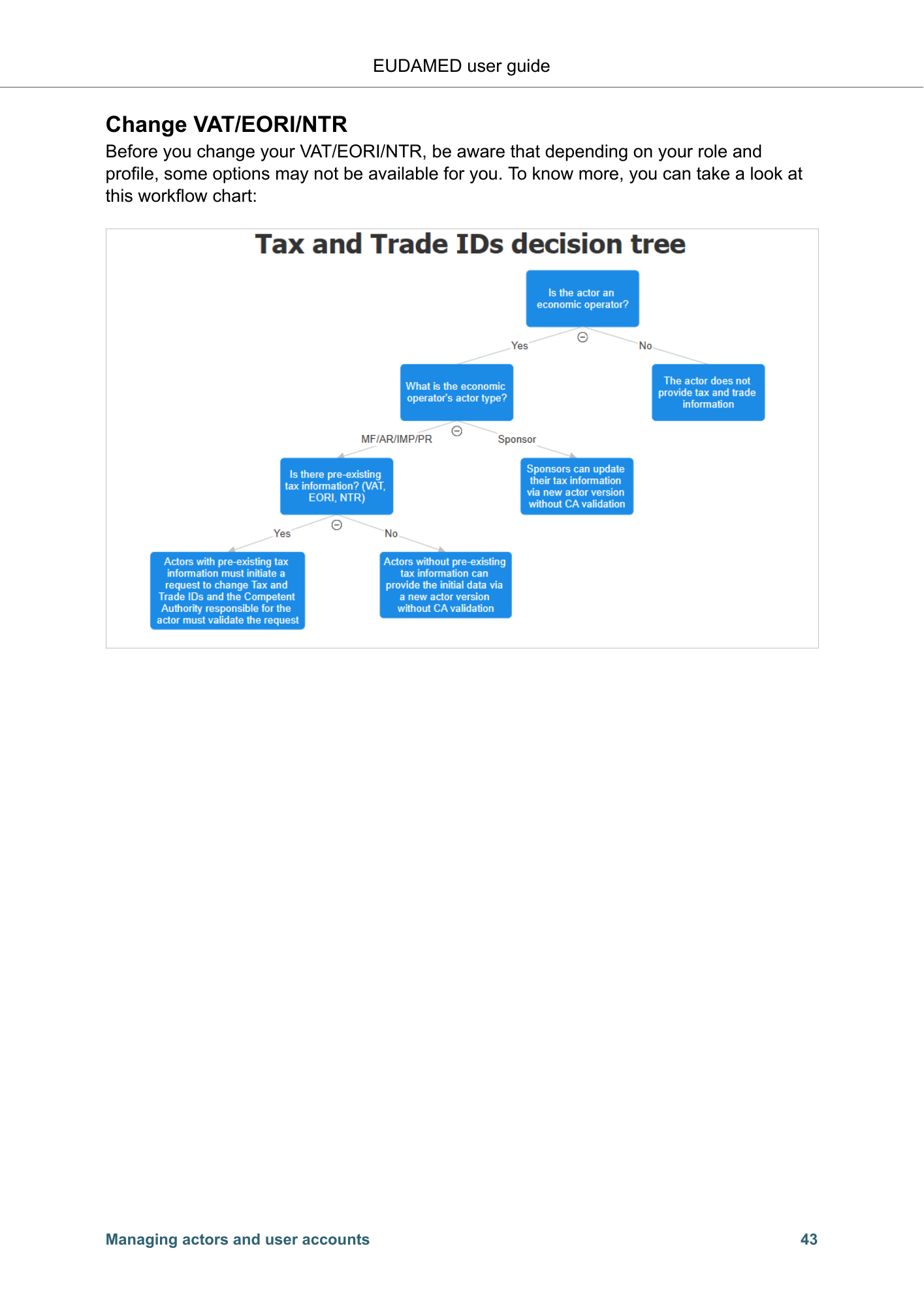
EUDAMED user guide Change VAT/EORI/NTR Before you change your VAT/EORI/NTR, be aware that depending on your role and profile, some options may not be available for you. To know more, you can take a look at this workflow chart: Managing actors and user accounts 43
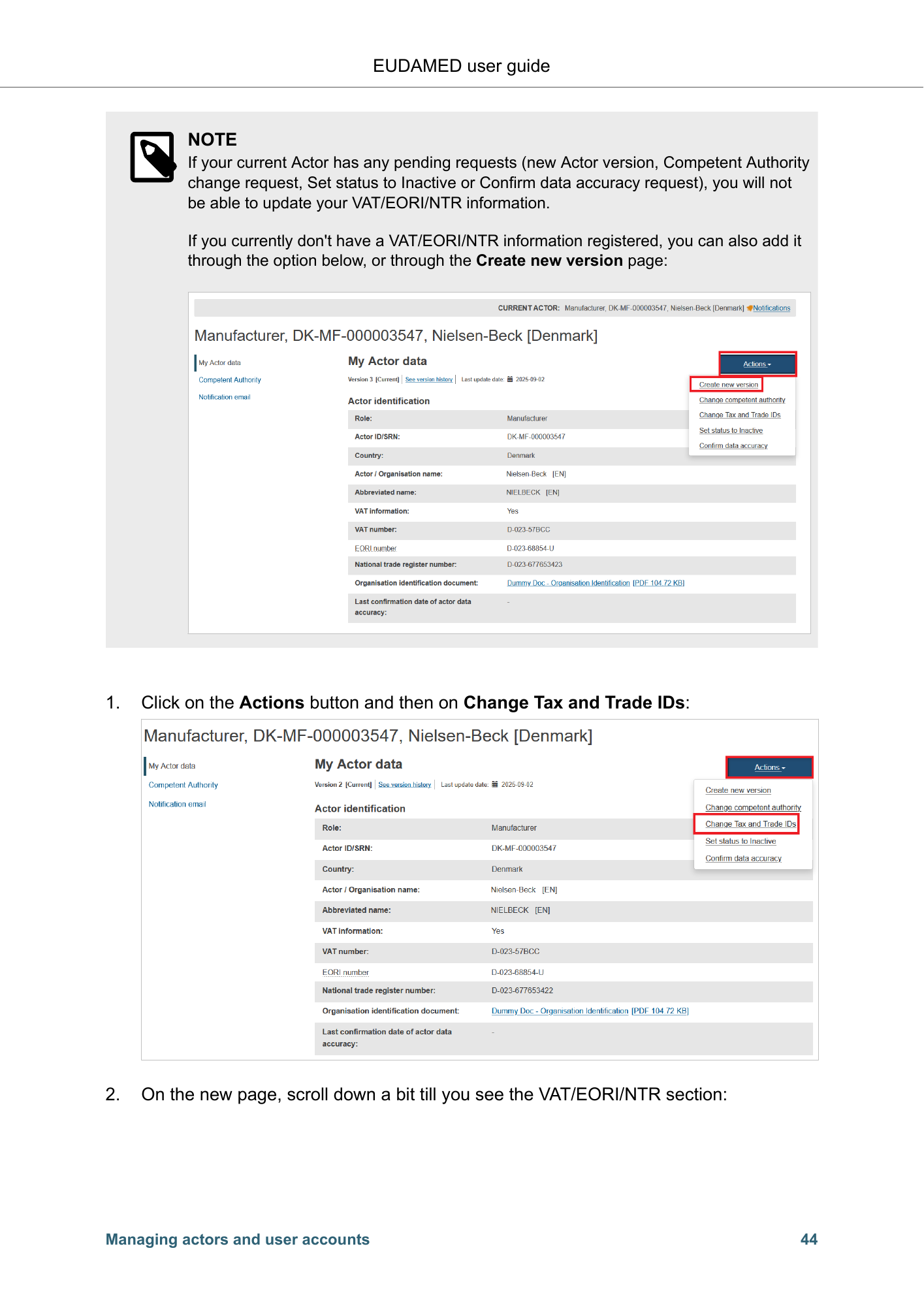
EUDAMED user guide NOTE If your current Actor has any pending requests (new Actor version, Competent Authority change request, Set status to Inactive or Confirm data accuracy request), you will not be able to update your VAT/EORI/NTR information. If you currently don't have a VAT/EORI/NTR information registered, you can also add it through the option below, or through the Create new version page: 1. Click on the Actions button and then on Change Tax and Trade IDs: 2. On the new page, scroll down a bit till you see the VAT/EORI/NTR section: Managing actors and user accounts 44
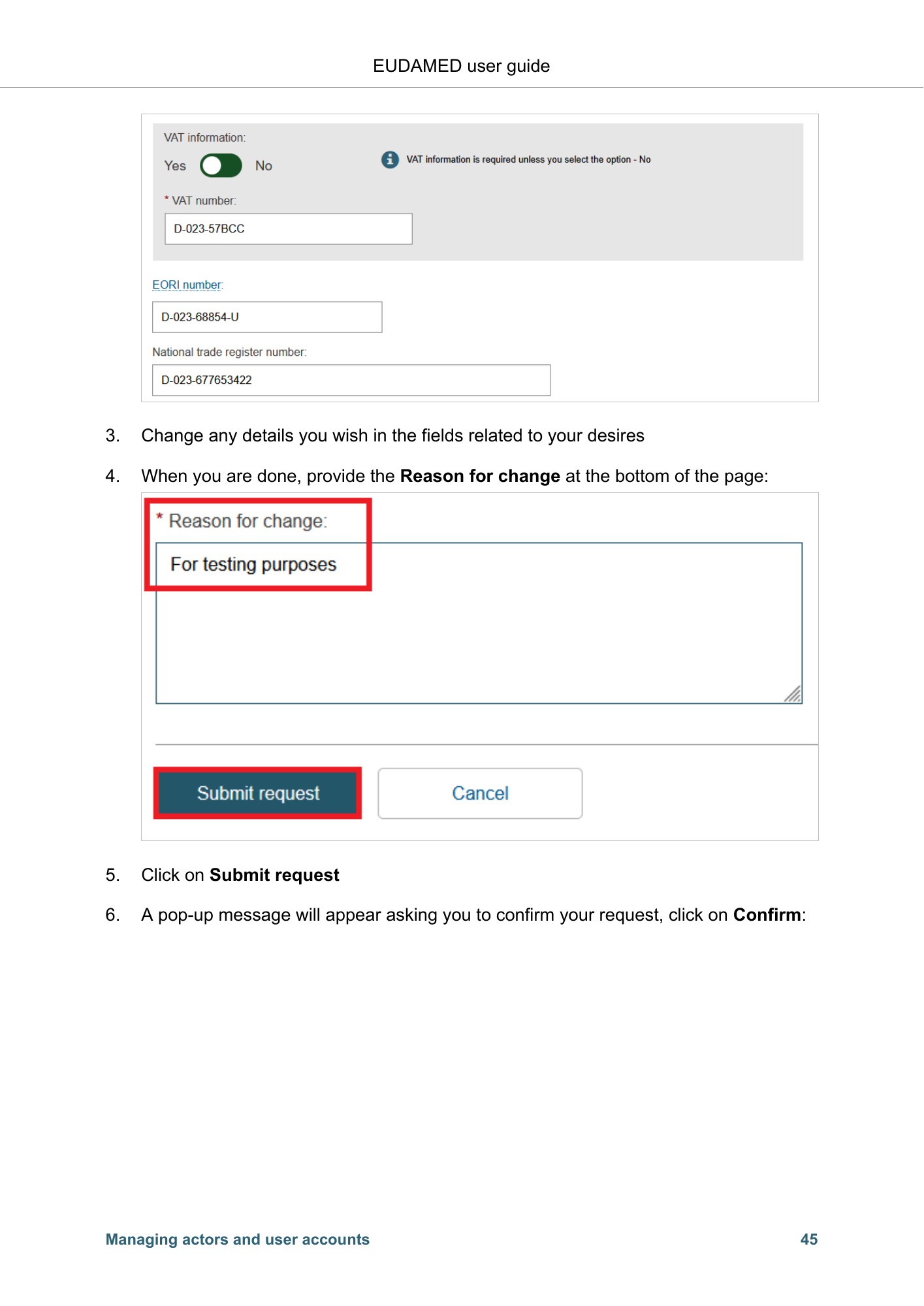
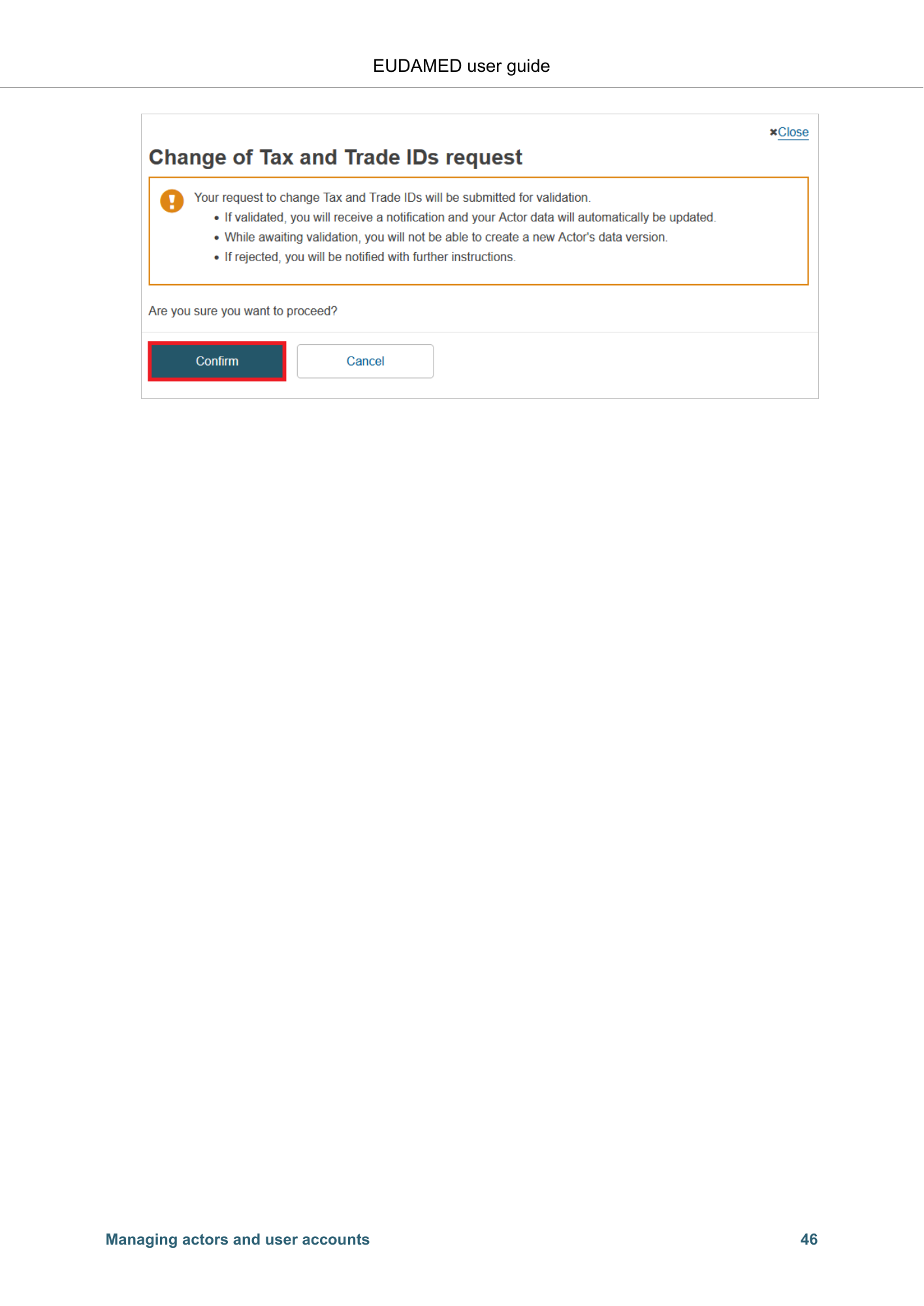
EUDAMED user guide 3. Change any details you wish in the fields related to your desires 4. When you are done, provide the Reason for change at the bottom of the page: 5. Click on Submit request 6. A pop-up message will appear asking you to confirm your request, click on Confirm: Managing actors and user accounts 45
EUDAMED user guide Managing actors and user accounts 46
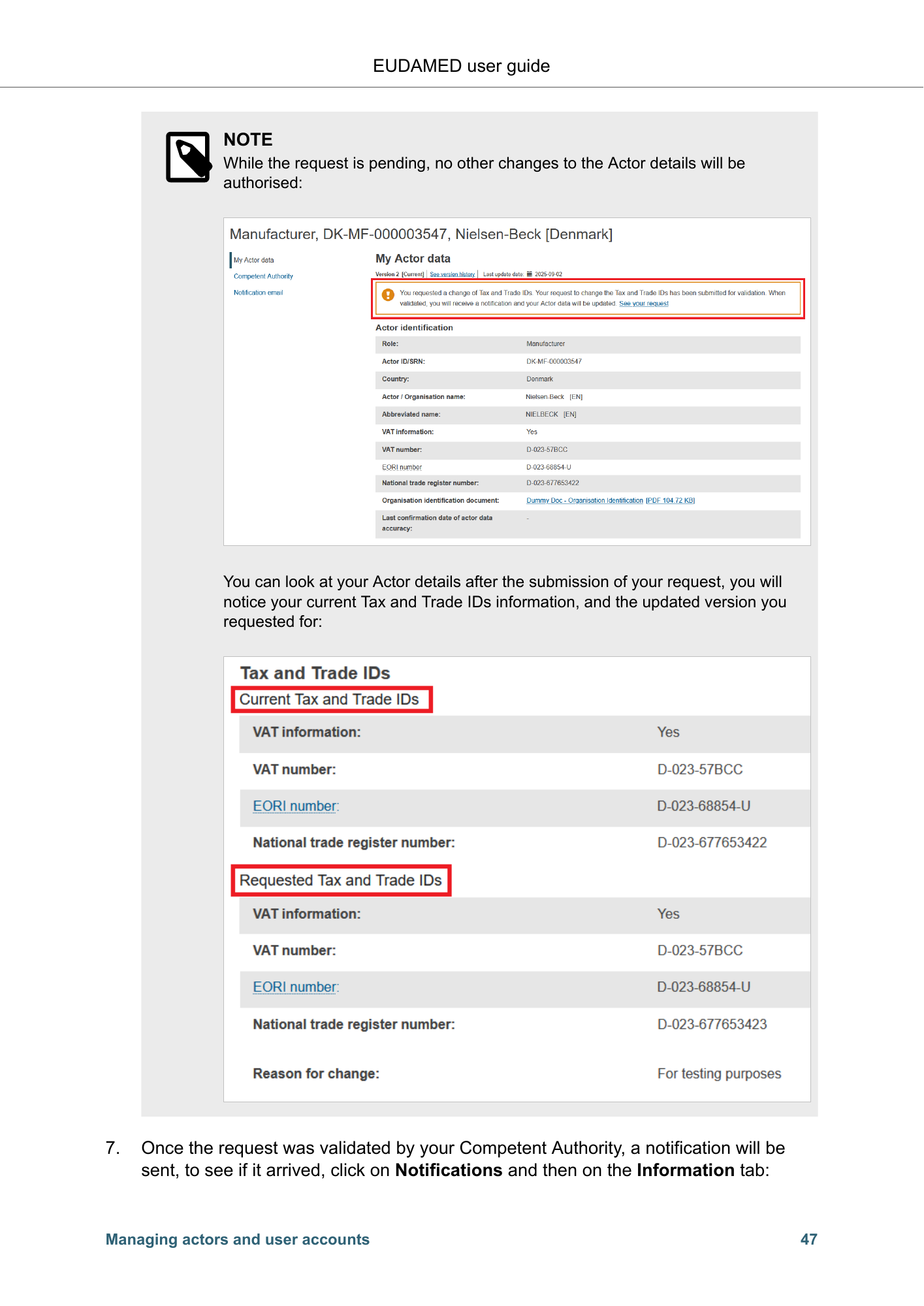
EUDAMED user guide NOTE While the request is pending, no other changes to the Actor details will be authorised: You can look at your Actor details after the submission of your request, you will notice your current Tax and Trade IDs information, and the updated version you requested for: 7. Once the request was validated by your Competent Authority, a notification will be sent, to see if it arrived, click on Notifications and then on the Information tab: Managing actors and user accounts 47
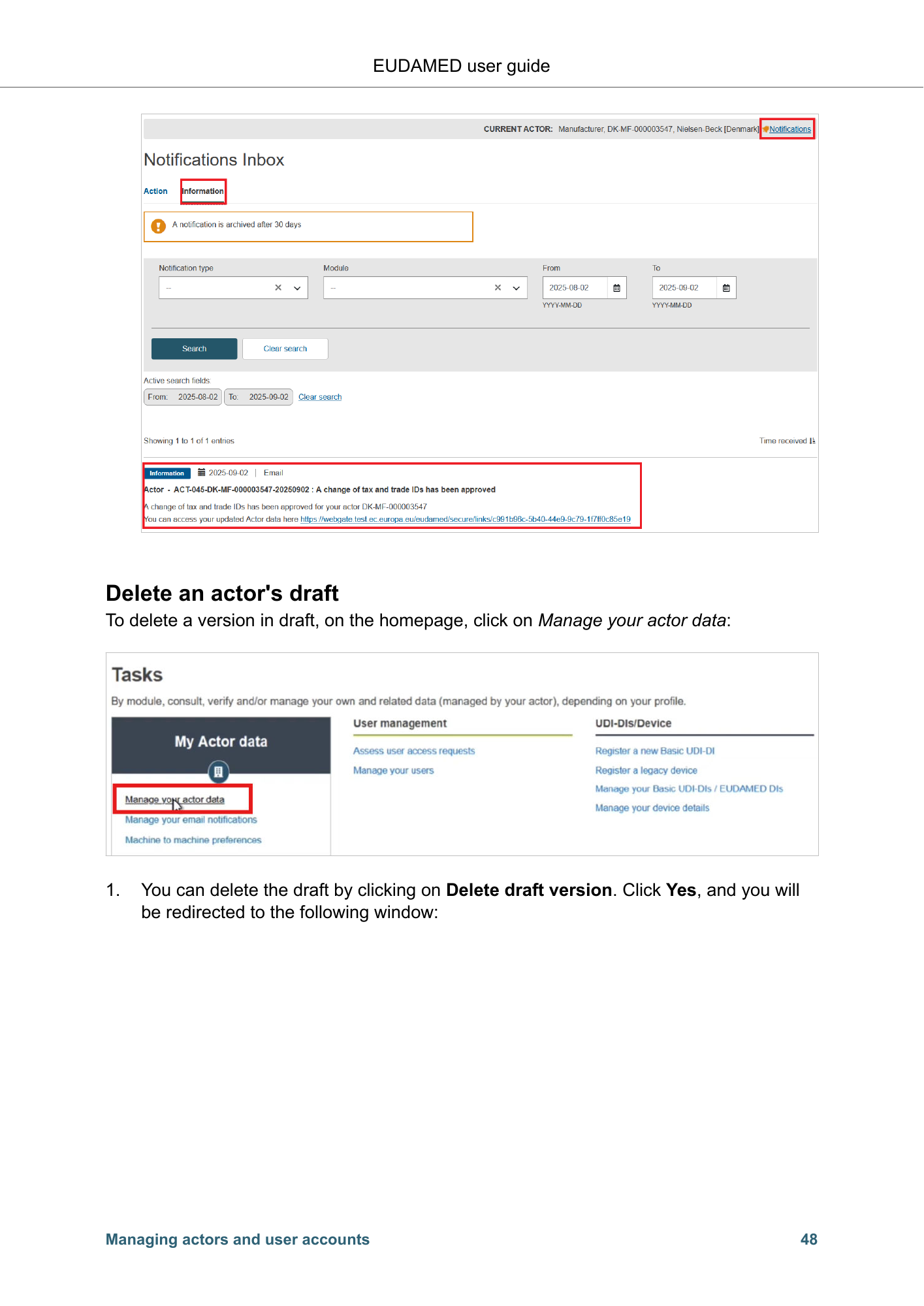
EUDAMED user guide Delete an actor's draft To delete a version in draft, on the homepage, click on Manage your actor data: 1. You can delete the draft by clicking on Delete draft version. Click Yes, and you will be redirected to the following window: Managing actors and user accounts 48
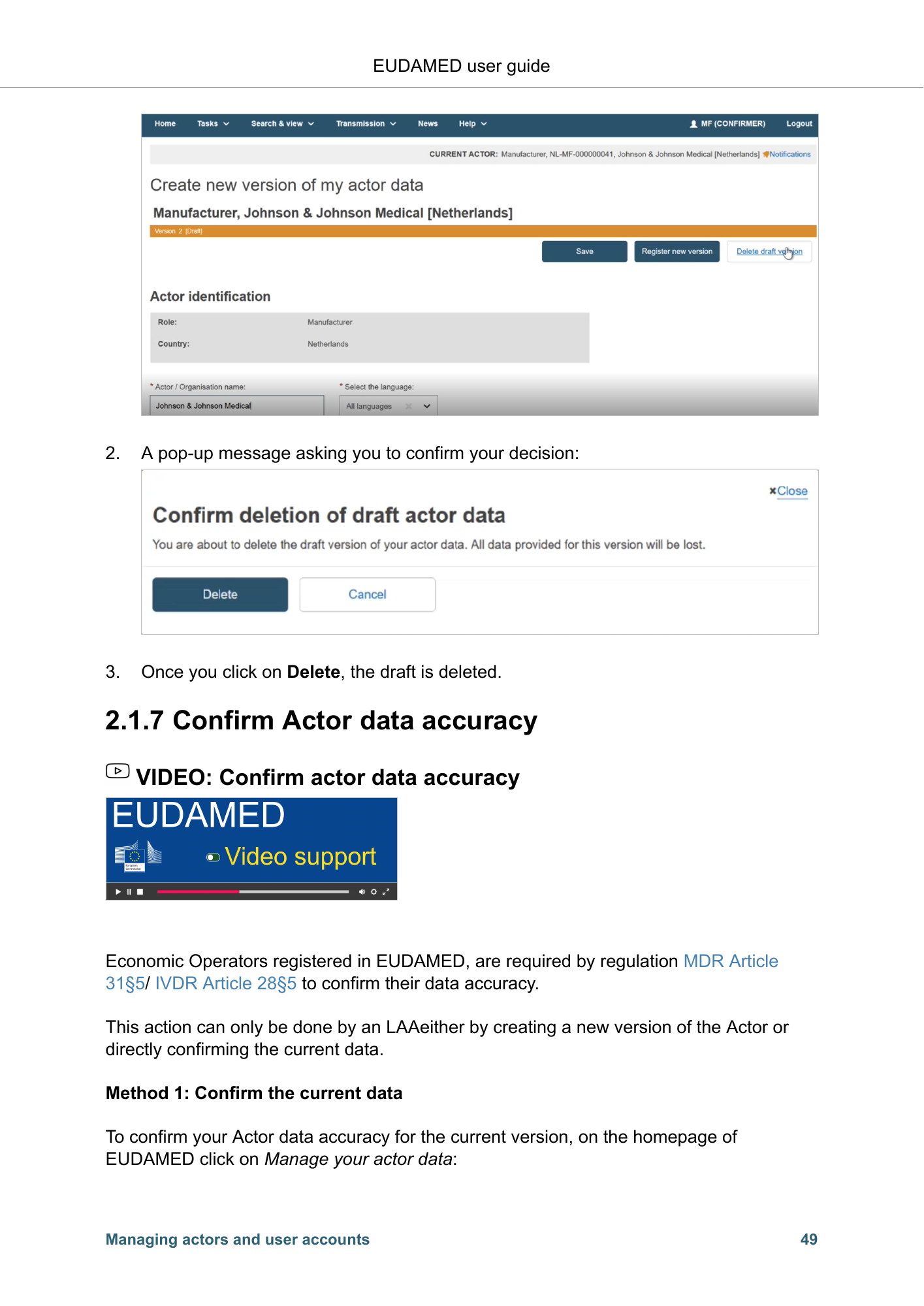
EUDAMED user guide 2. A pop-up message asking you to confirm your decision: 3. Once you click on Delete, the draft is deleted. 2.1.7 Confirm Actor data accuracy VIDEO: Confirm actor data accuracy Economic Operators registered in EUDAMED, are required by regulation MDR Article 31§5/ IVDR Article 28§5 to confirm their data accuracy. This action can only be done by an LAAeither by creating a new version of the Actor or directly confirming the current data. Method 1: Confirm the current data To confirm your Actor data accuracy for the current version, on the homepage of EUDAMED click on Manage your actor data: Managing actors and user accounts 49
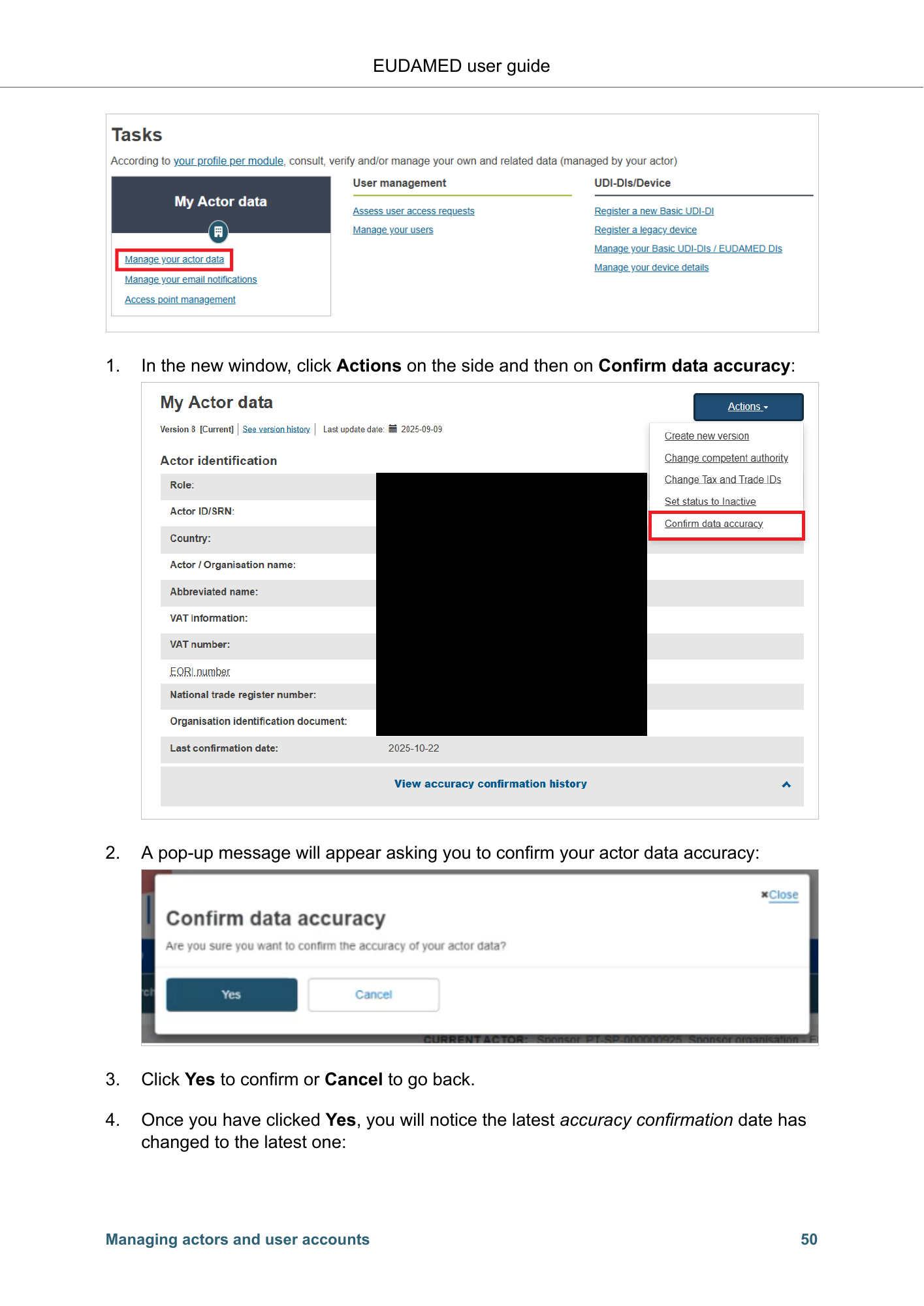
EUDAMED user guide 1. In the new window, click Actions on the side and then on Confirm data accuracy: 2. A pop-up message will appear asking you to confirm your actor data accuracy: 3. Click Yes to confirm or Cancel to go back. 4. Once you have clicked Yes, you will notice the latest accuracy confirmation date has changed to the latest one: Managing actors and user accounts 50
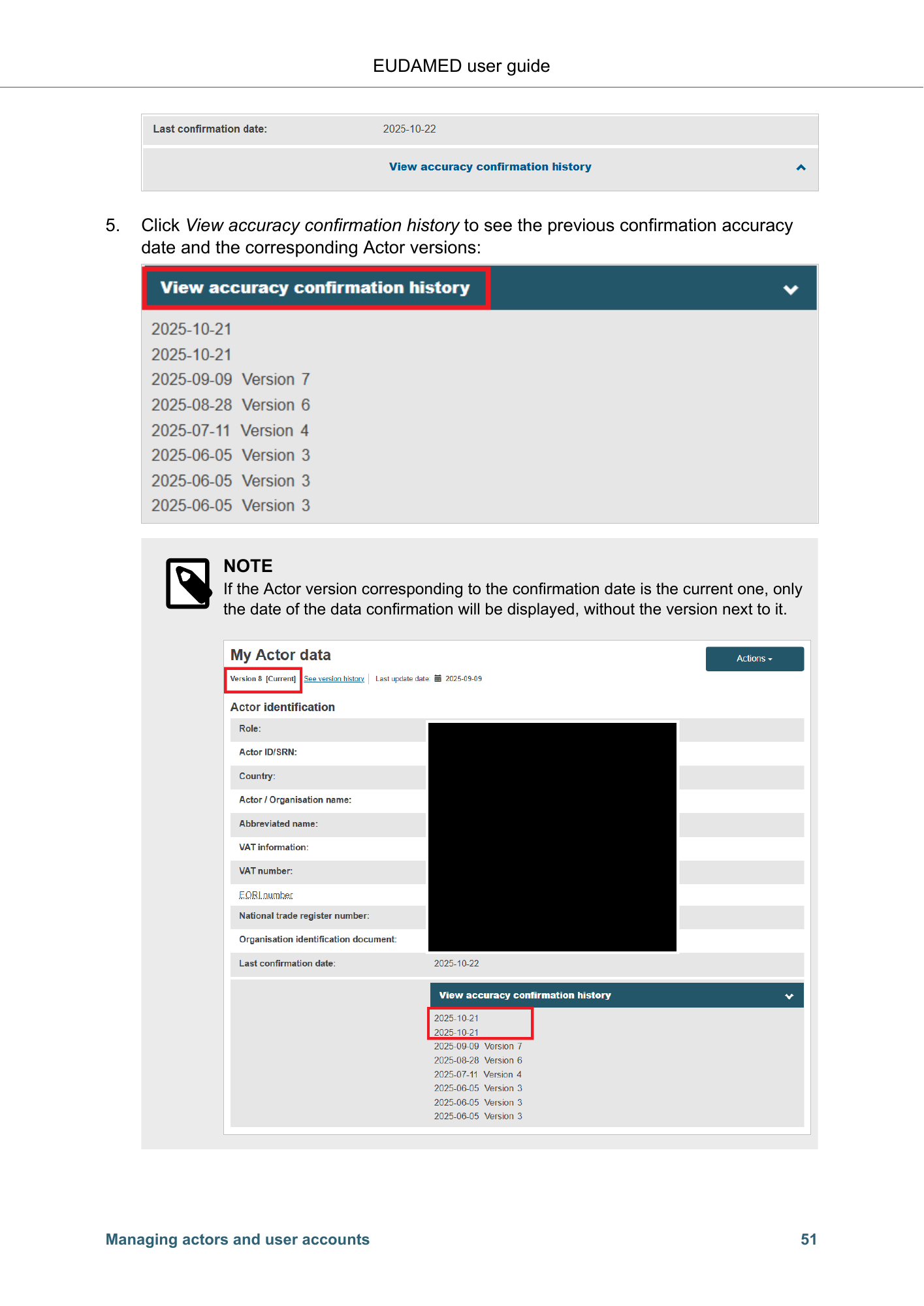
EUDAMED user guide 5. Click View accuracy confirmation history to see the previous confirmation accuracy date and the corresponding Actor versions: NOTE If the Actor version corresponding to the confirmation date is the current one, only the date of the data confirmation will be displayed, without the version next to it. Managing actors and user accounts 51
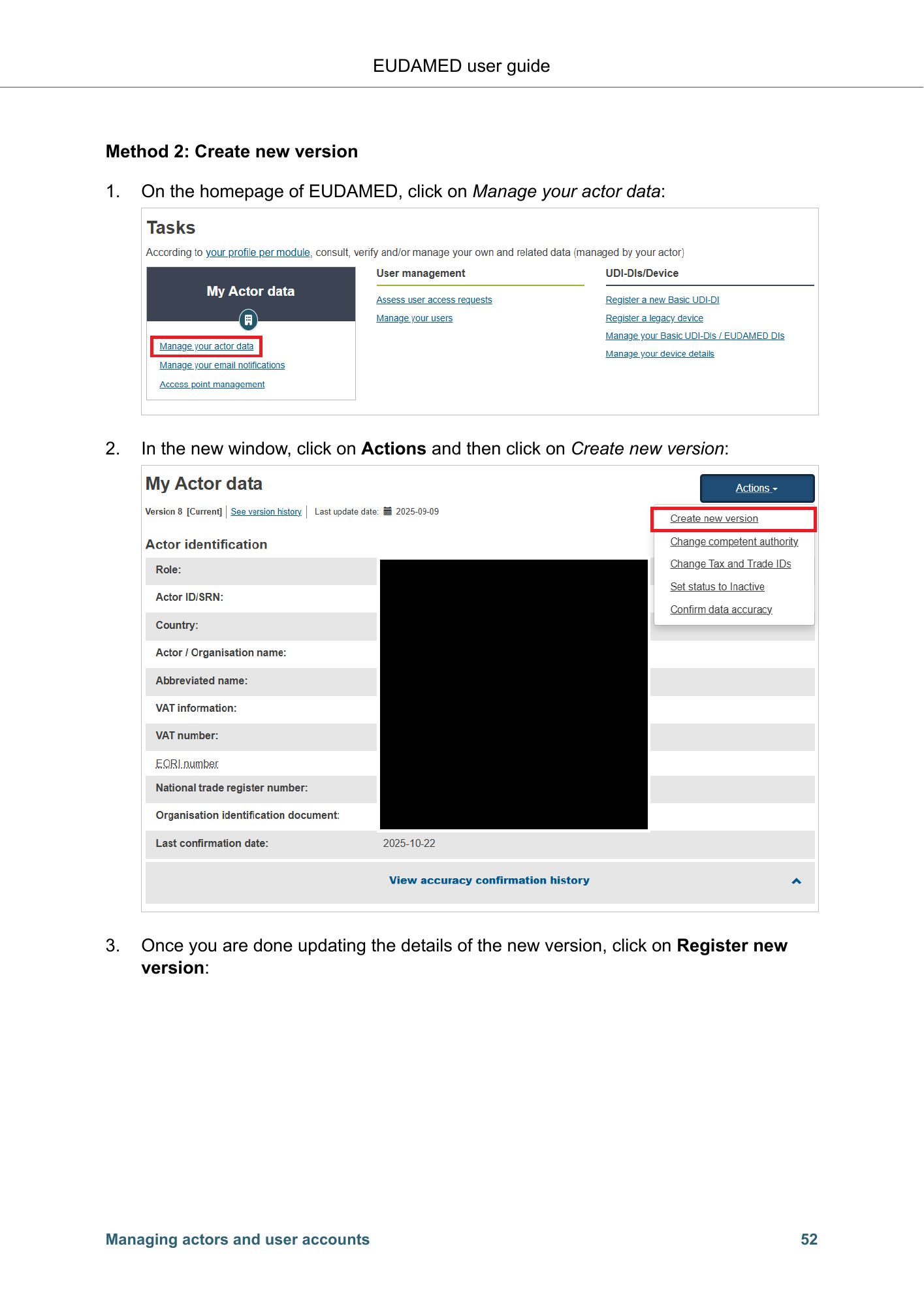
EUDAMED user guide Method 2: Create new version 1. On the homepage of EUDAMED, click on Manage your actor data: 2. In the new window, click on Actions and then click on Create new version: 3. Once you are done updating the details of the new version, click on Register new version: Managing actors and user accounts 52
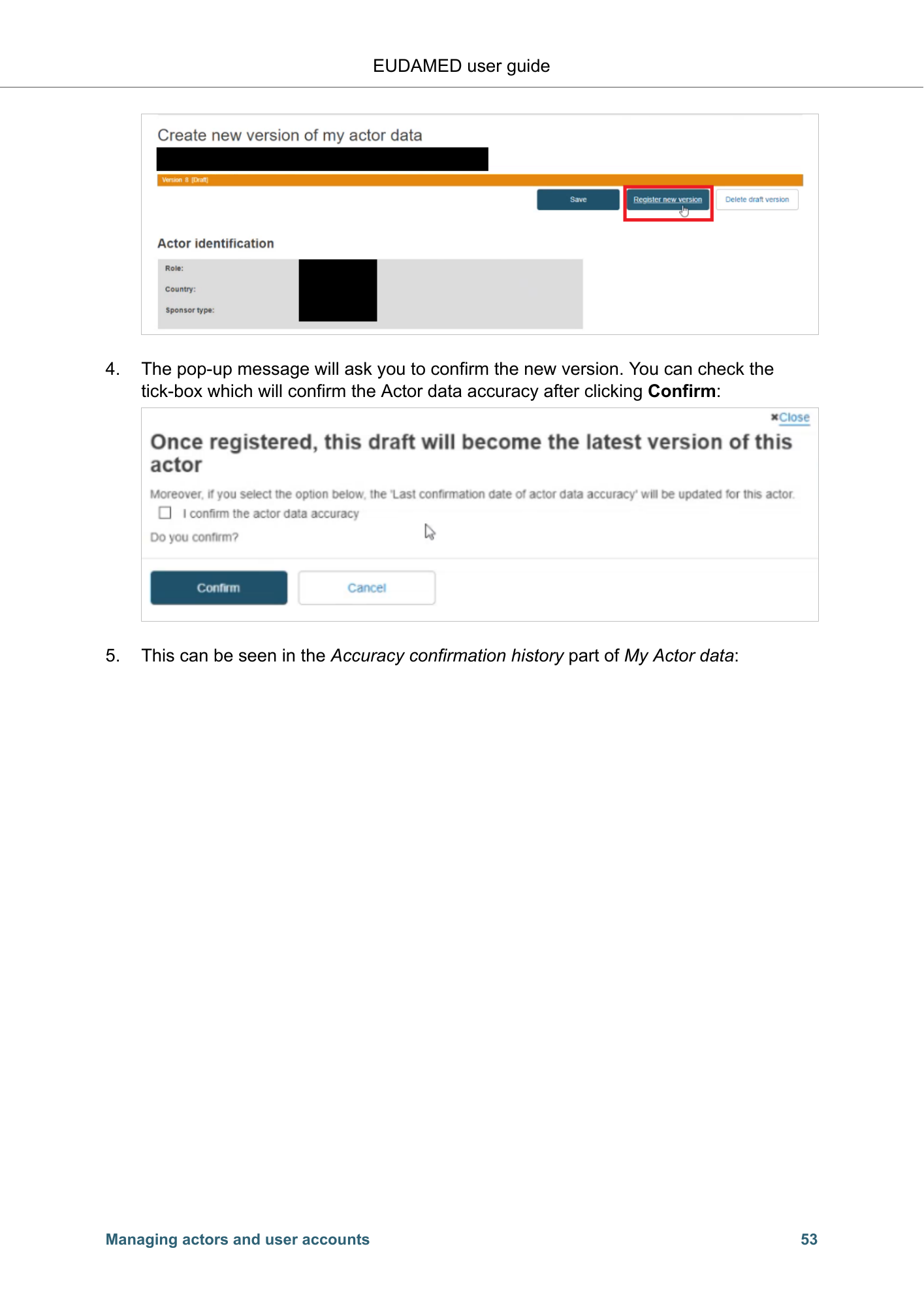
EUDAMED user guide 4. The pop-up message will ask you to confirm the new version. You can check the tick-box which will confirm the Actor data accuracy after clicking Confirm: 5. This can be seen in the Accuracy confirmation history part of My Actor data: Managing actors and user accounts 53
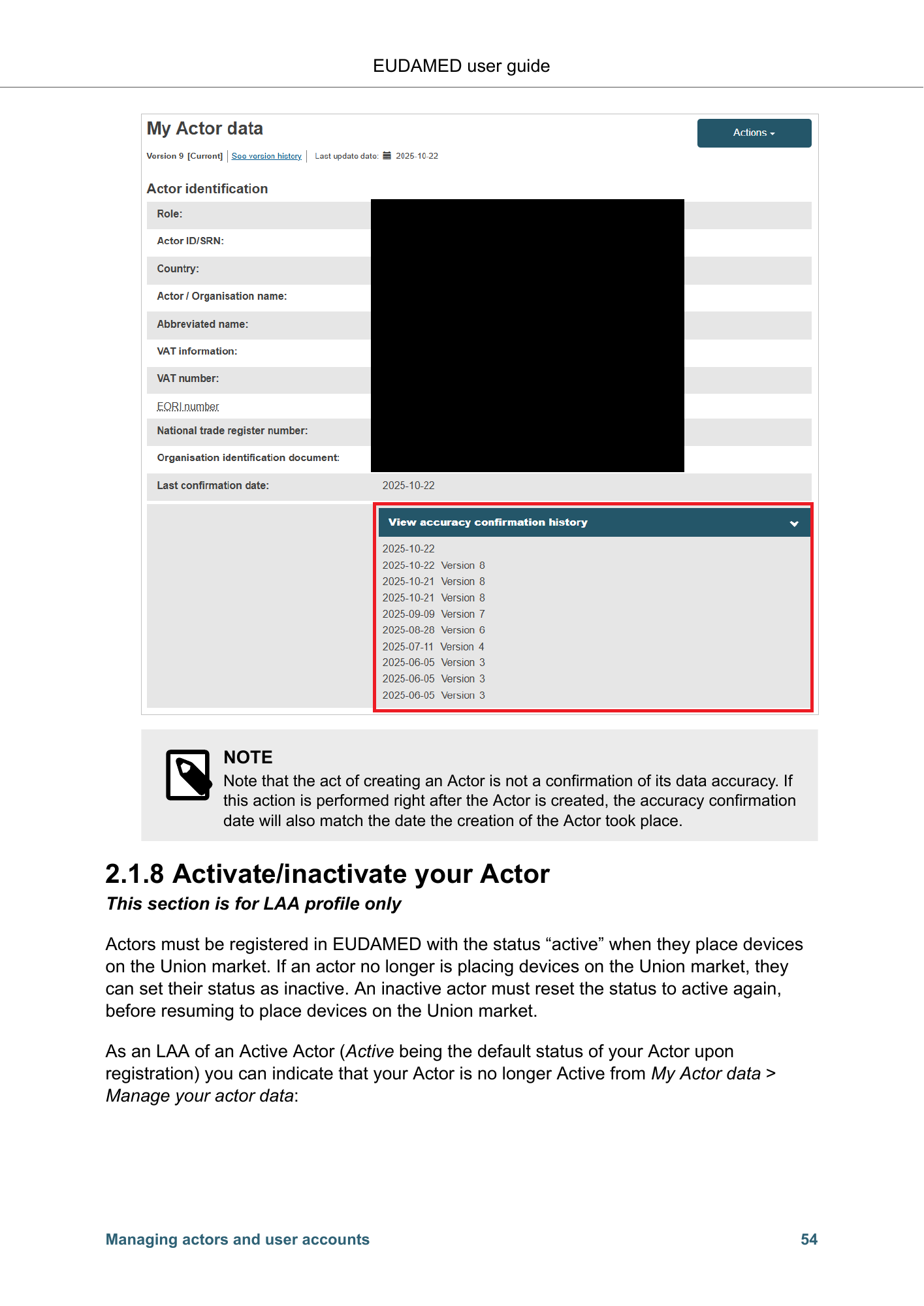
EUDAMED user guide NOTE Note that the act of creating an Actor is not a confirmation of its data accuracy. If this action is performed right after the Actor is created, the accuracy confirmation date will also match the date the creation of the Actor took place. 2.1.8 Activate/inactivate your Actor This section is for LAA profile only Actors must be registered in EUDAMED with the status “active” when they place devices on the Union market. If an actor no longer is placing devices on the Union market, they can set their status as inactive. An inactive actor must reset the status to active again, before resuming to place devices on the Union market. As an LAA of an Active Actor (Active being the default status of your Actor upon registration) you can indicate that your Actor is no longer Active from My Actor data > Manage your actor data: Managing actors and user accounts 54
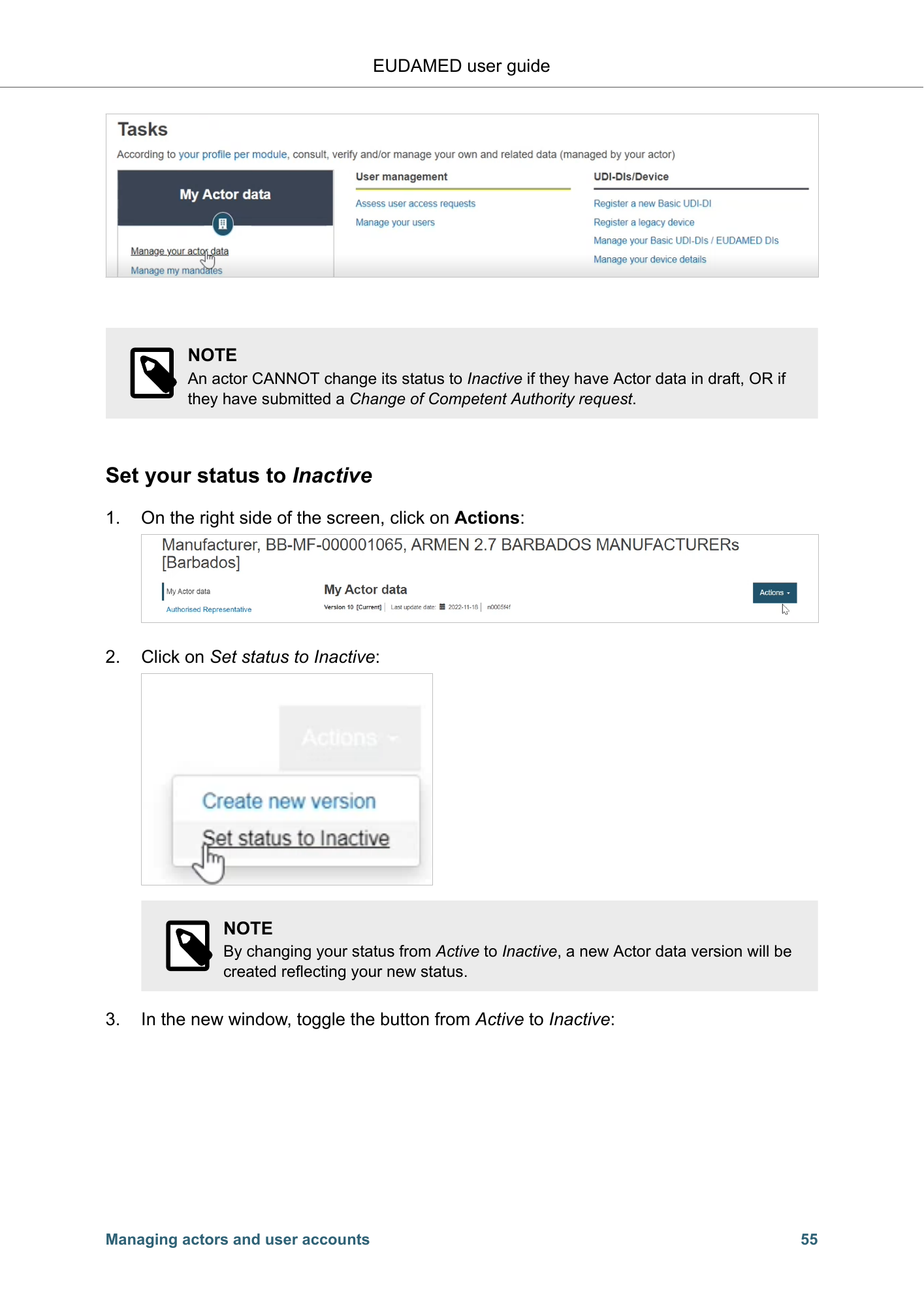
EUDAMED user guide NOTE An actor CANNOT change its status to Inactive if they have Actor data in draft, OR if they have submitted a Change of Competent Authority request. Set your status to Inactive 1. On the right side of the screen, click on Actions: 2. Click on Set status to Inactive: NOTE By changing your status from Active to Inactive, a new Actor data version will be created reflecting your new status. 3. In the new window, toggle the button from Active to Inactive: Managing actors and user accounts 55
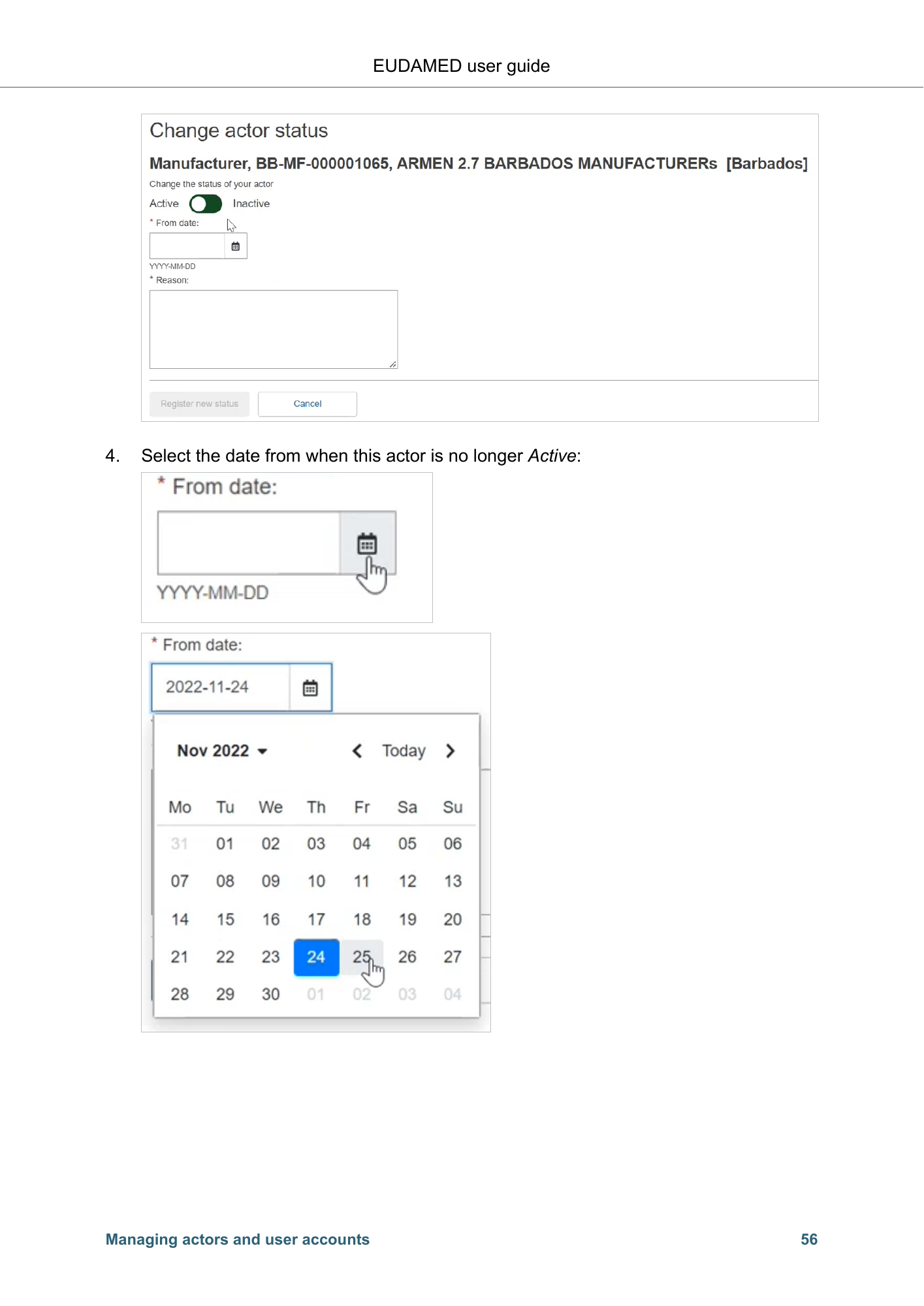
EUDAMED user guide 4. Select the date from when this actor is no longer Active: Managing actors and user accounts 56
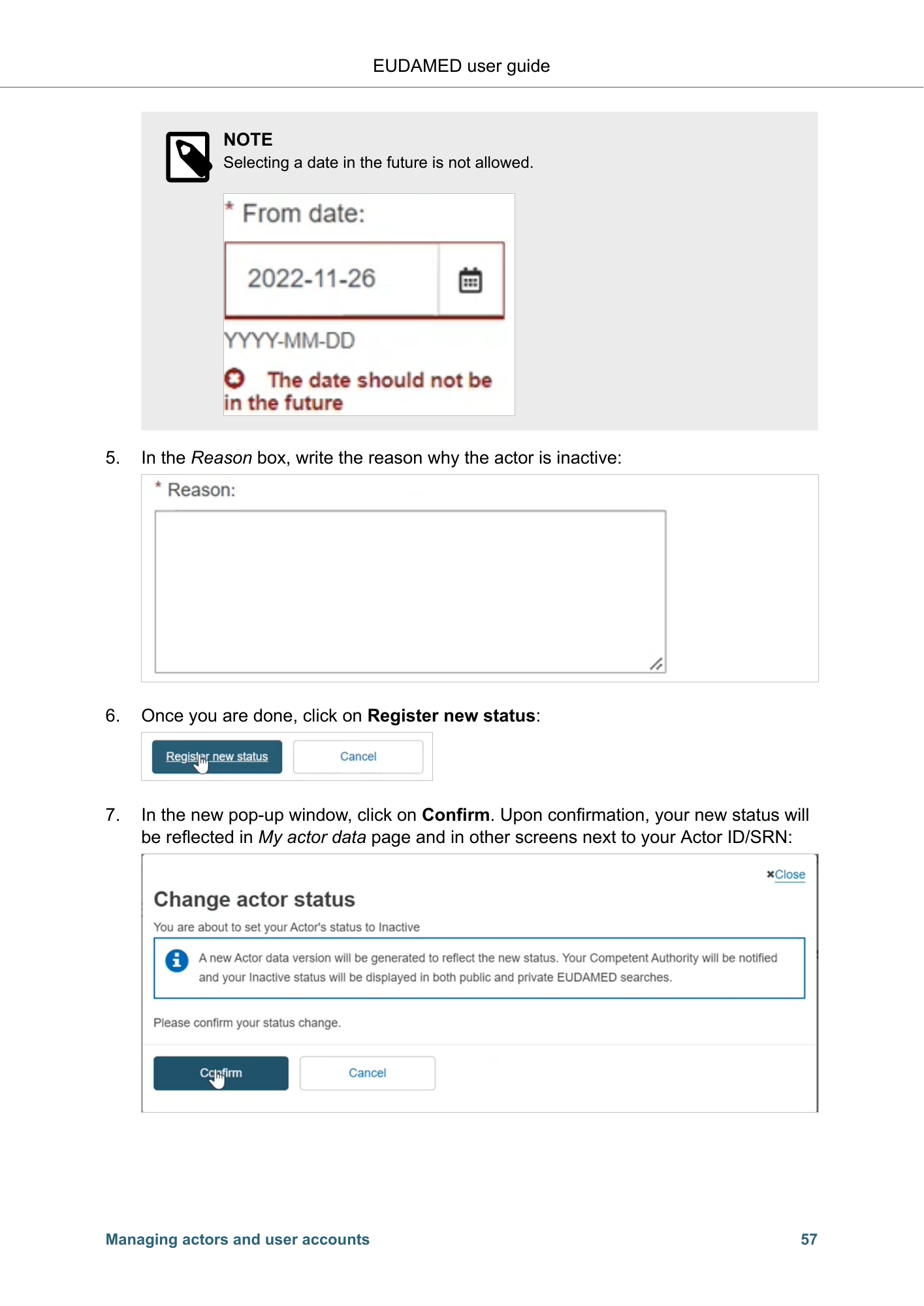
EUDAMED user guide NOTE Selecting a date in the future is not allowed. 5. In the Reason box, write the reason why the actor is inactive: 6. Once you are done, click on Register new status: 7. In the new pop-up window, click on Confirm. Upon confirmation, your new status will be reflected in My actor data page and in other screens next to your Actor ID/SRN: Managing actors and user accounts 57
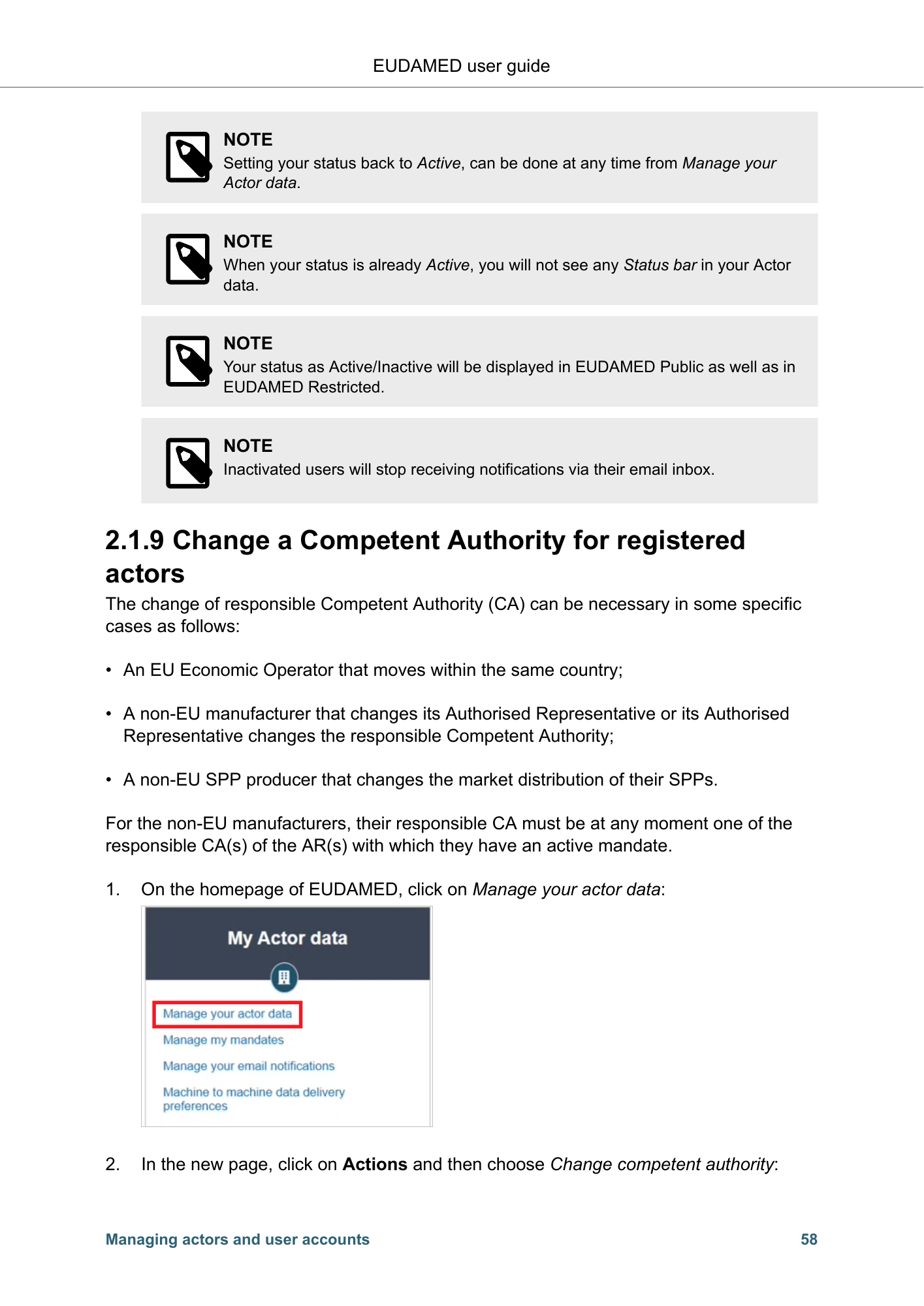
EUDAMED user guide NOTE Setting your status back to Active, can be done at any time from Manage your Actor data. NOTE When your status is already Active, you will not see any Status bar in your Actor data. NOTE Your status as Active/Inactive will be displayed in EUDAMED Public as well as in EUDAMED Restricted. NOTE Inactivated users will stop receiving notifications via their email inbox. 2.1.9 Change a Competent Authority for registered actors The change of responsible Competent Authority (CA) can be necessary in some specific cases as follows: • An EU Economic Operator that moves within the same country; • A non-EU manufacturer that changes its Authorised Representative or its Authorised Representative changes the responsible Competent Authority; • A non-EU SPP producer that changes the market distribution of their SPPs. For the non-EU manufacturers, their responsible CA must be at any moment one of the responsible CA(s) of the AR(s) with which they have an active mandate. 1. On the homepage of EUDAMED, click on Manage your actor data: 2. In the new page, click on Actions and then choose Change competent authority: Managing actors and user accounts 58
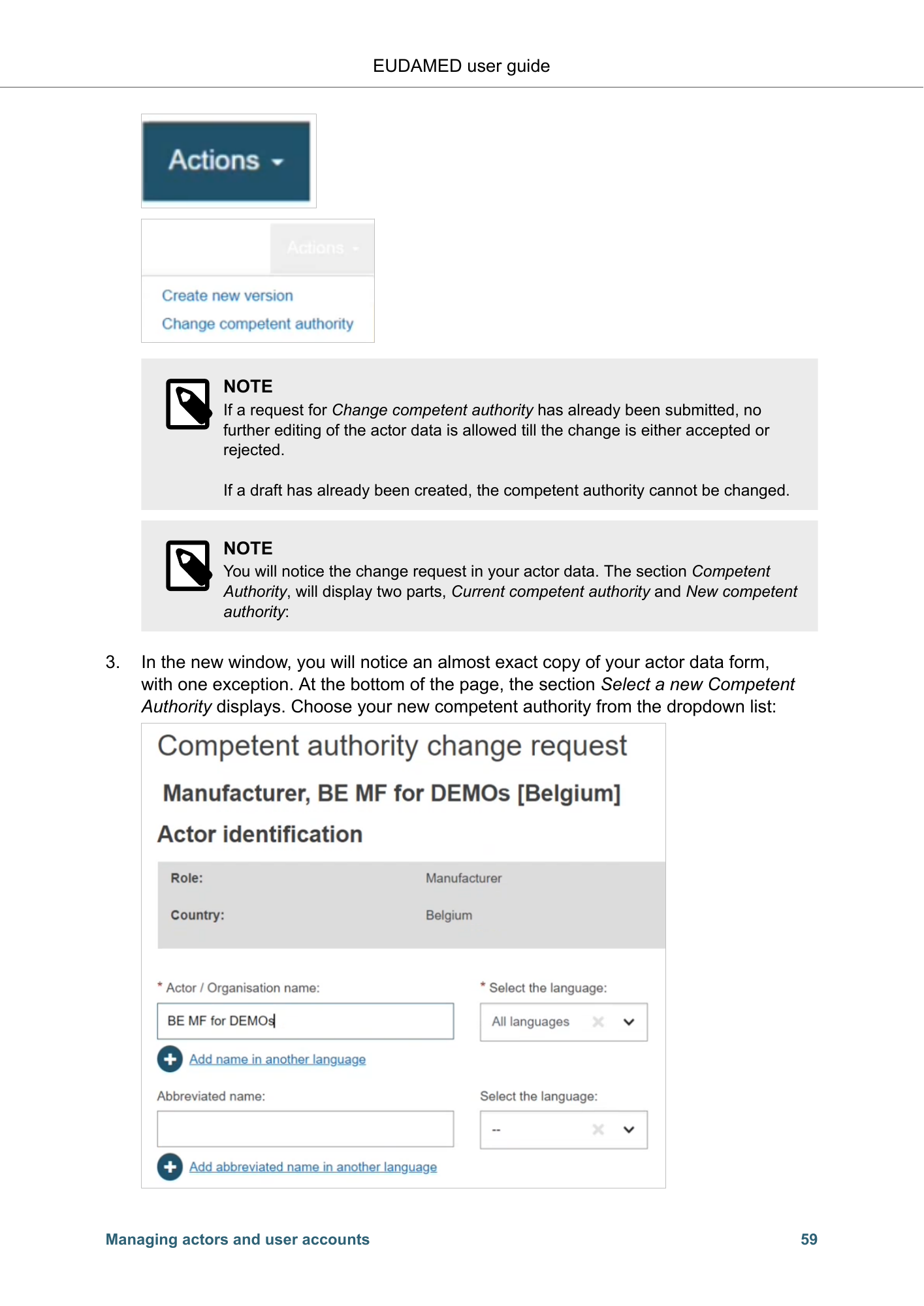
EUDAMED user guide NOTE If a request for Change competent authority has already been submitted, no further editing of the actor data is allowed till the change is either accepted or rejected. If a draft has already been created, the competent authority cannot be changed. NOTE You will notice the change request in your actor data. The section Competent Authority, will display two parts, Current competent authority and New competent authority: 3. In the new window, you will notice an almost exact copy of your actor data form, with one exception. At the bottom of the page, the section Select a new Competent Authority displays. Choose your new competent authority from the dropdown list: Managing actors and user accounts 59
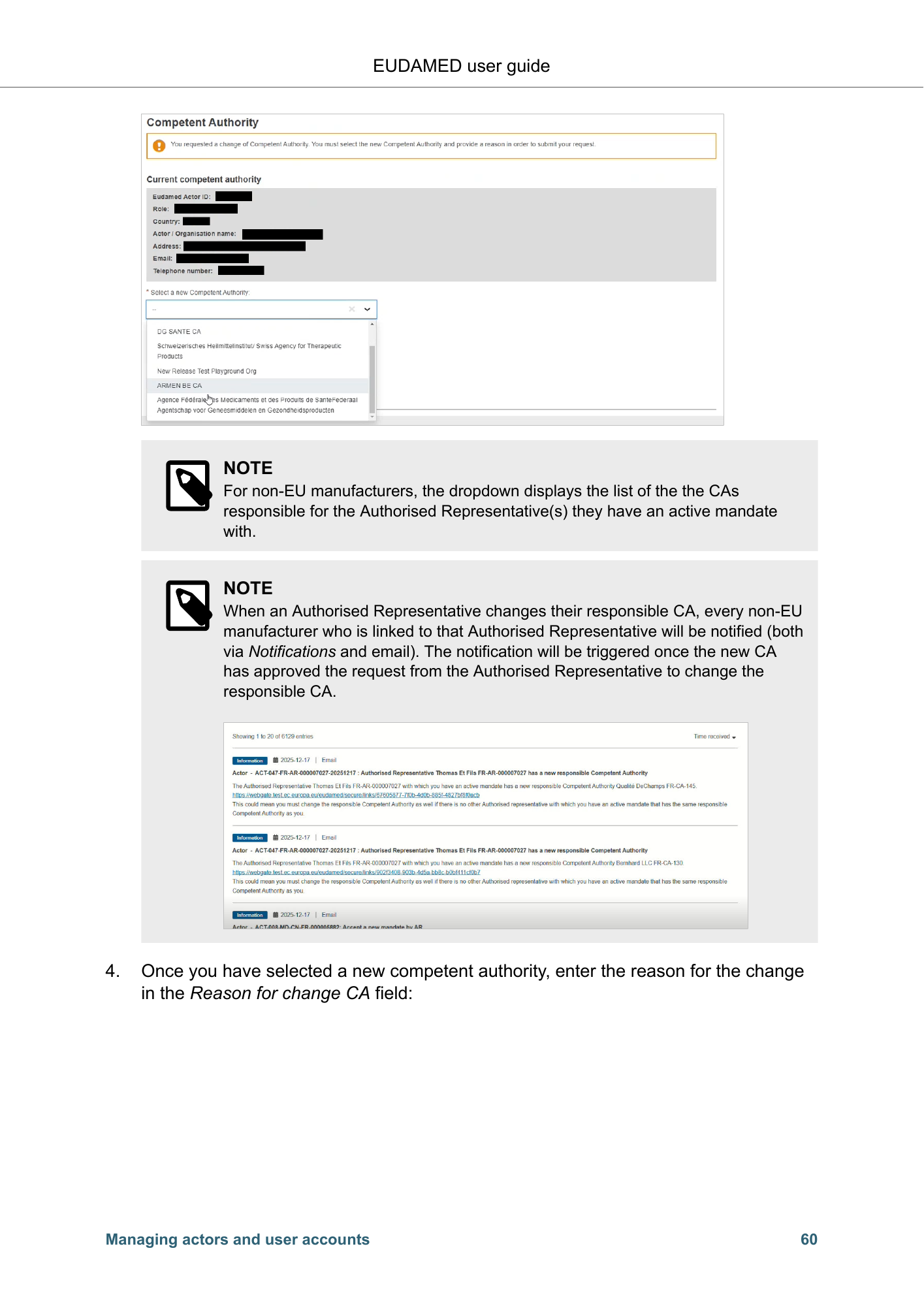
EUDAMED user guide NOTE For non-EU manufacturers, the dropdown displays the list of the the CAs responsible for the Authorised Representative(s) they have an active mandate with. NOTE When an Authorised Representative changes their responsible CA, every non-EU manufacturer who is linked to that Authorised Representative will be notified (both via Notifications and email). The notification will be triggered once the new CA has approved the request from the Authorised Representative to change the responsible CA. 4. Once you have selected a new competent authority, enter the reason for the change in the Reason for change CA field: Managing actors and user accounts 60
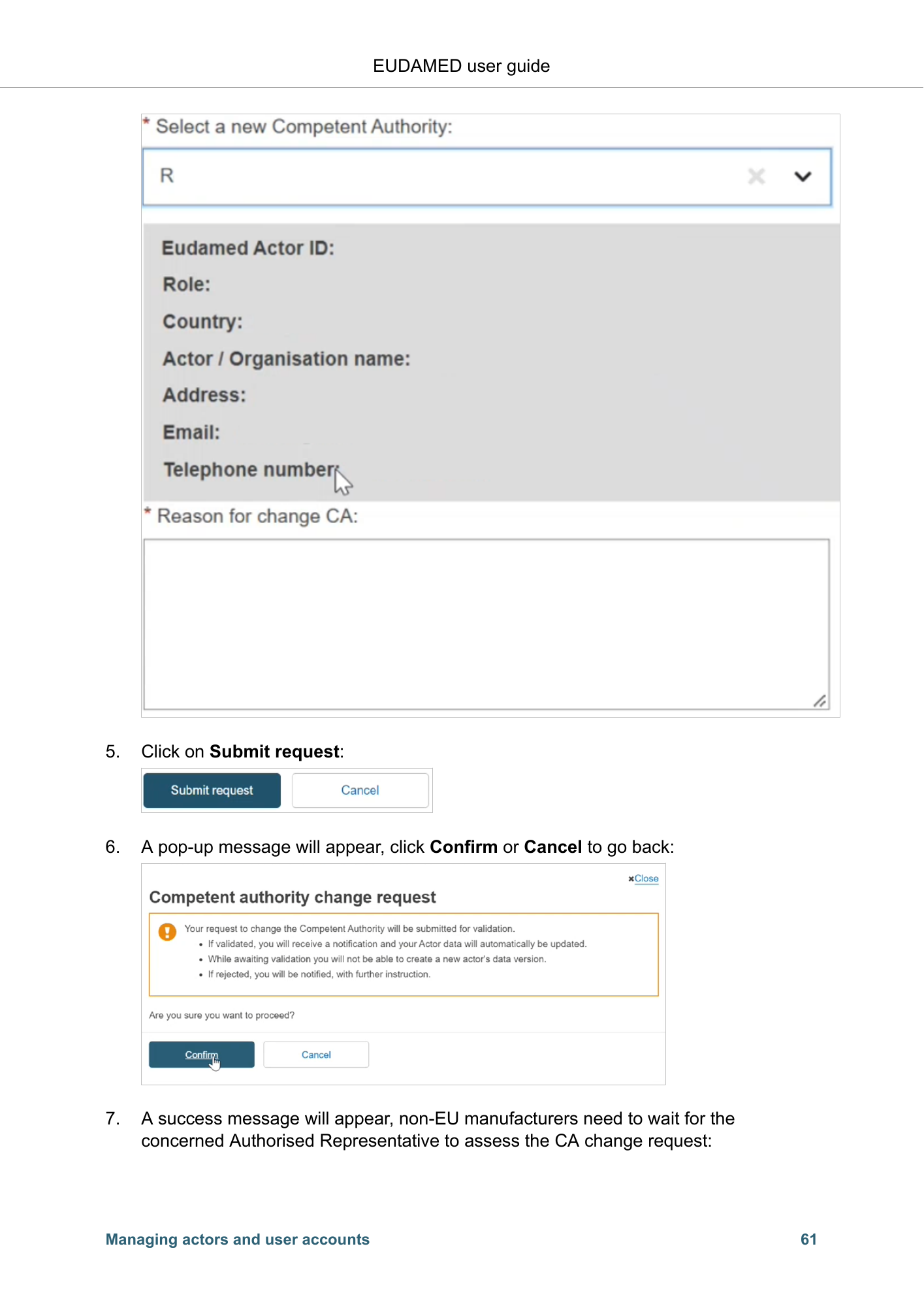
EUDAMED user guide 5. Click on Submit request: 6. A pop-up message will appear, click Confirm or Cancel to go back: 7. A success message will appear, non-EU manufacturers need to wait for the concerned Authorised Representative to assess the CA change request: Managing actors and user accounts 61
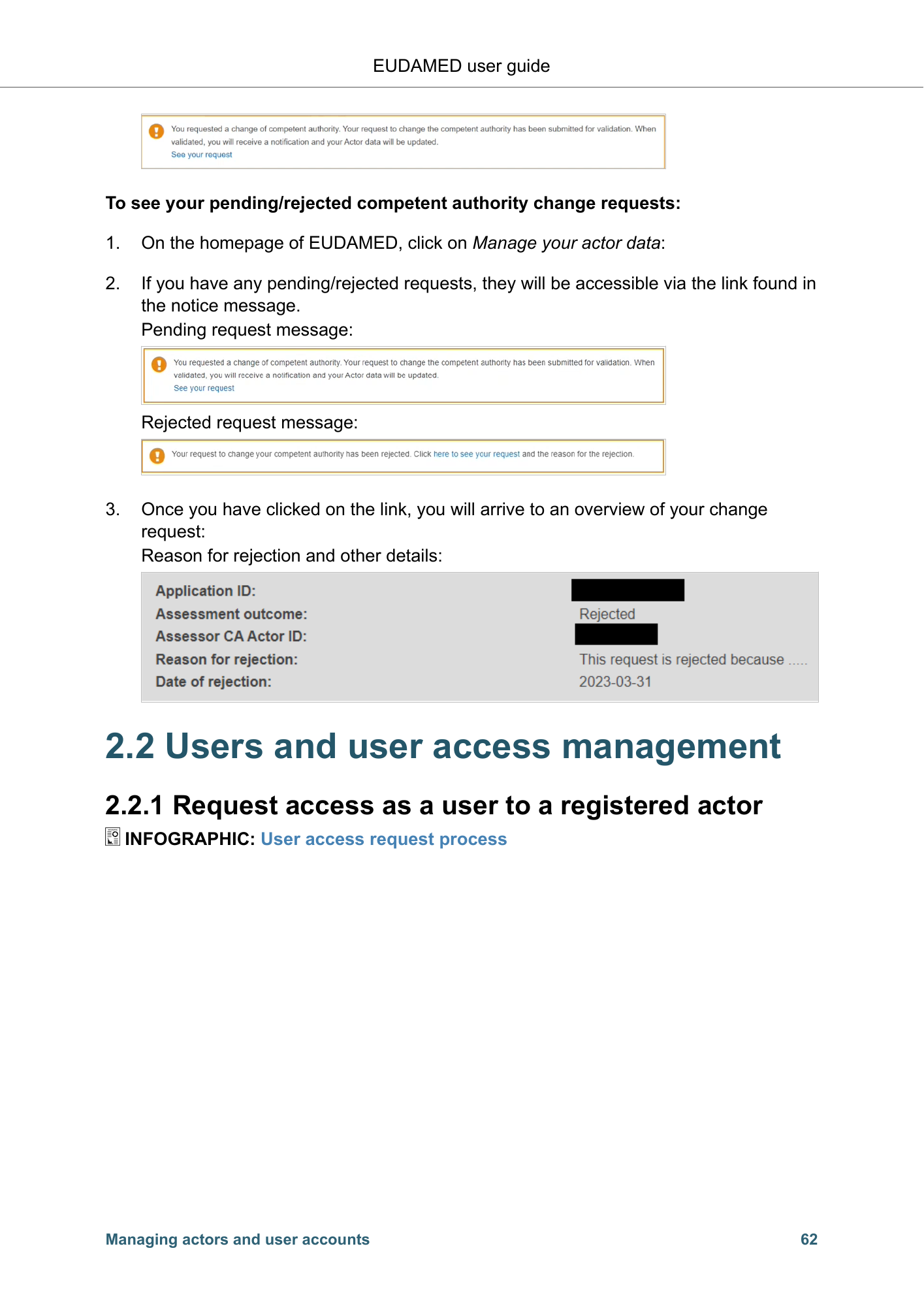
EUDAMED user guide To see your pending/rejected competent authority change requests: 1. On the homepage of EUDAMED, click on Manage your actor data: 2. If you have any pending/rejected requests, they will be accessible via the link found in the notice message. Pending request message: Rejected request message: 3. Once you have clicked on the link, you will arrive to an overview of your change request: Reason for rejection and other details: 2.2 Users and user access management 2.2.1 Request access as a user to a registered actor INFOGRAPHIC: User access request process Managing actors and user accounts 62
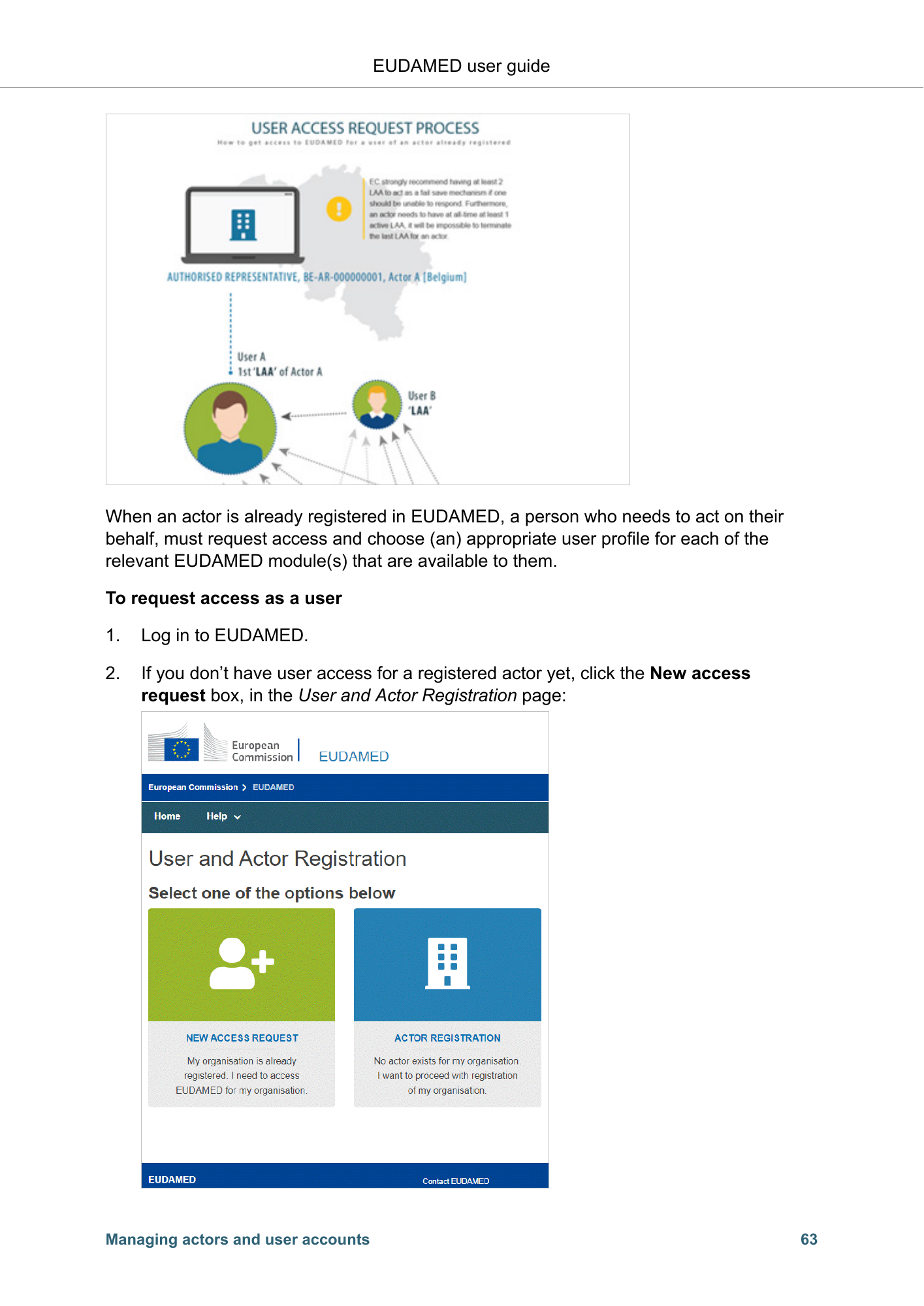
EUDAMED user guide When an actor is already registered in EUDAMED, a person who needs to act on their behalf, must request access and choose (an) appropriate user profile for each of the relevant EUDAMED module(s) that are available to them. To request access as a user 1. Log in to EUDAMED. 2. If you don’t have user access for a registered actor yet, click the New access request box, in the User and Actor Registration page: Managing actors and user accounts 63
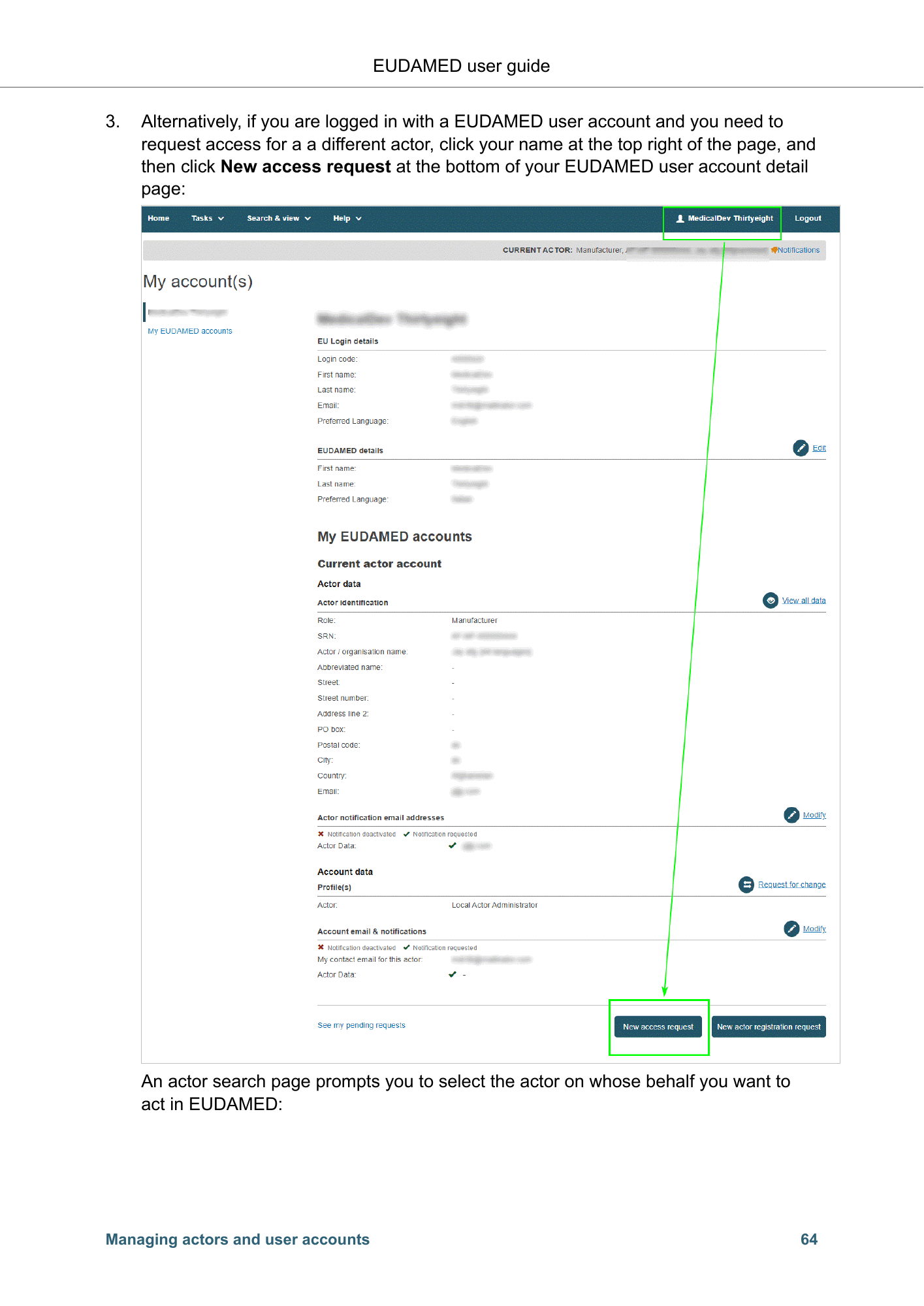
EUDAMED user guide 3. Alternatively, if you are logged in with a EUDAMED user account and you need to request access for a a different actor, click your name at the top right of the page, and then click New access request at the bottom of your EUDAMED user account detail page: An actor search page prompts you to select the actor on whose behalf you want to act in EUDAMED: Managing actors and user accounts 64
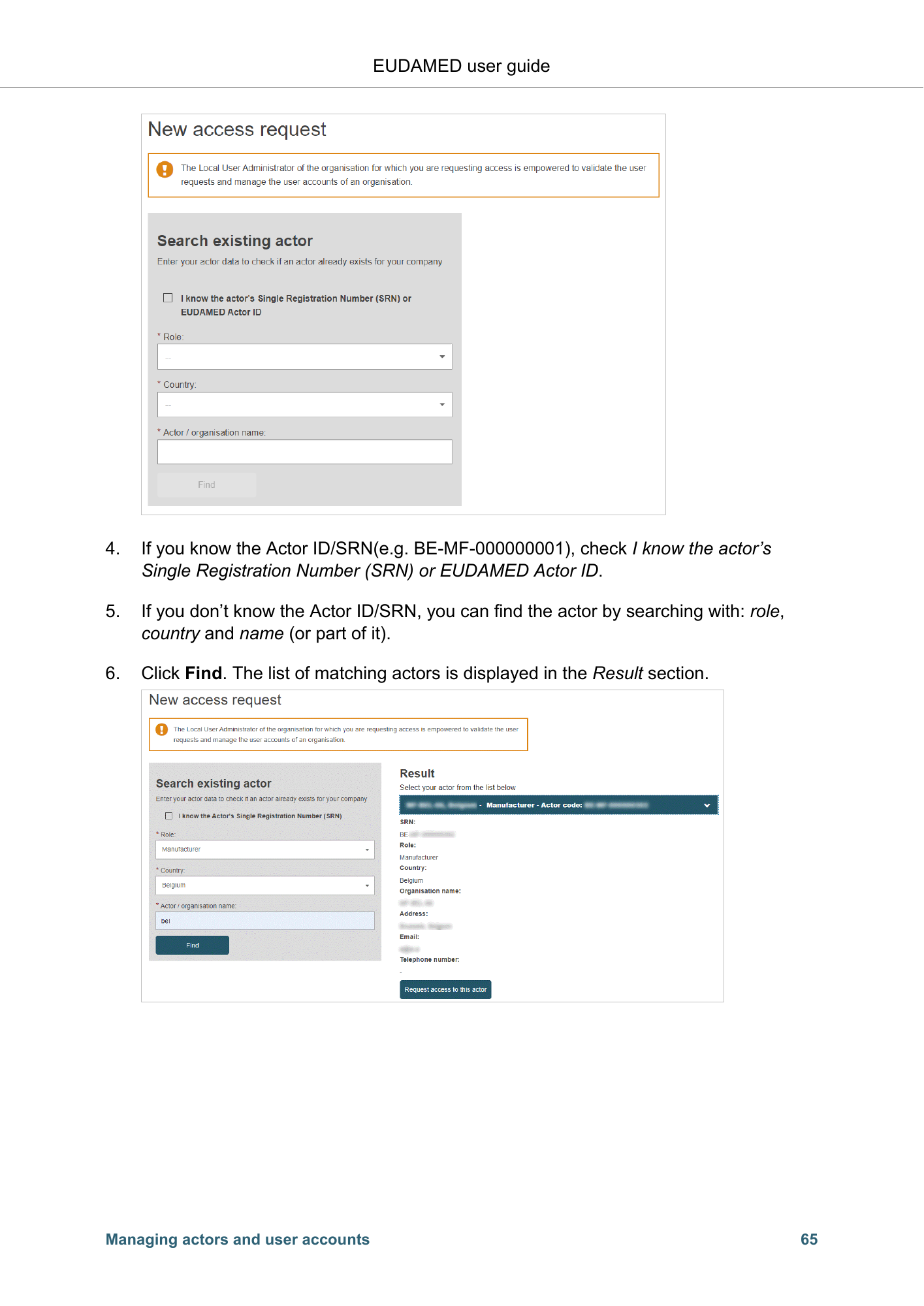
EUDAMED user guide 4. If you know the Actor ID/SRN(e.g. BE-MF-000000001), check I know the actor’s Single Registration Number (SRN) or EUDAMED Actor ID. 5. If you don’t know the Actor ID/SRN, you can find the actor by searching with: role, country and name (or part of it). 6. Click Find. The list of matching actors is displayed in the Result section. Managing actors and user accounts 65
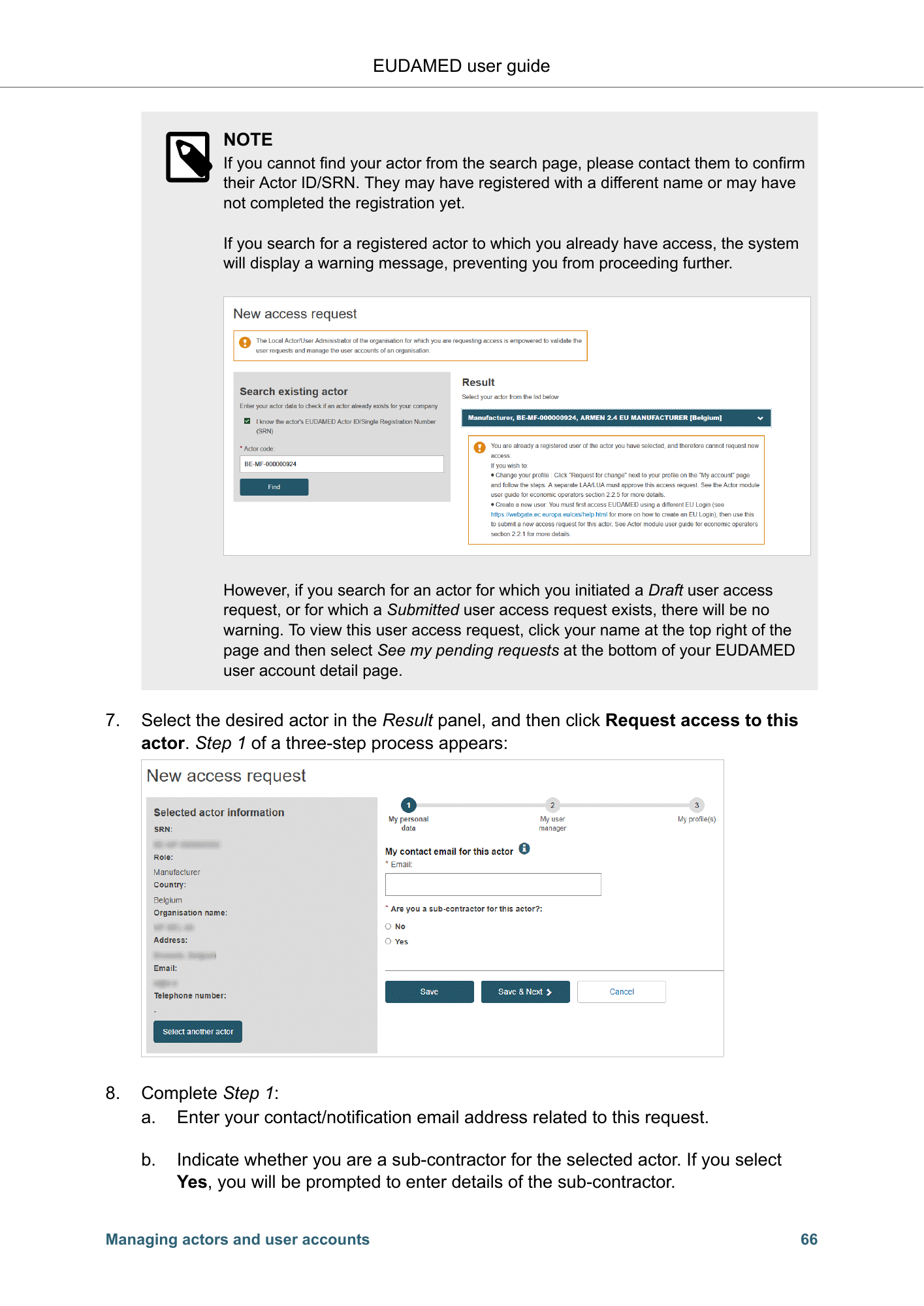
EUDAMED user guide NOTE If you cannot find your actor from the search page, please contact them to confirm their Actor ID/SRN. They may have registered with a different name or may have not completed the registration yet. If you search for a registered actor to which you already have access, the system will display a warning message, preventing you from proceeding further. However, if you search for an actor for which you initiated a Draft user access request, or for which a Submitted user access request exists, there will be no warning. To view this user access request, click your name at the top right of the page and then select See my pending requests at the bottom of your EUDAMED user account detail page. 7. Select the desired actor in the Result panel, and then click Request access to this actor. Step 1 of a three-step process appears: 8. Complete Step 1: a. Enter your contact/notification email address related to this request. b. Indicate whether you are a sub-contractor for the selected actor. If you select Yes, you will be prompted to enter details of the sub-contractor. Managing actors and user accounts 66
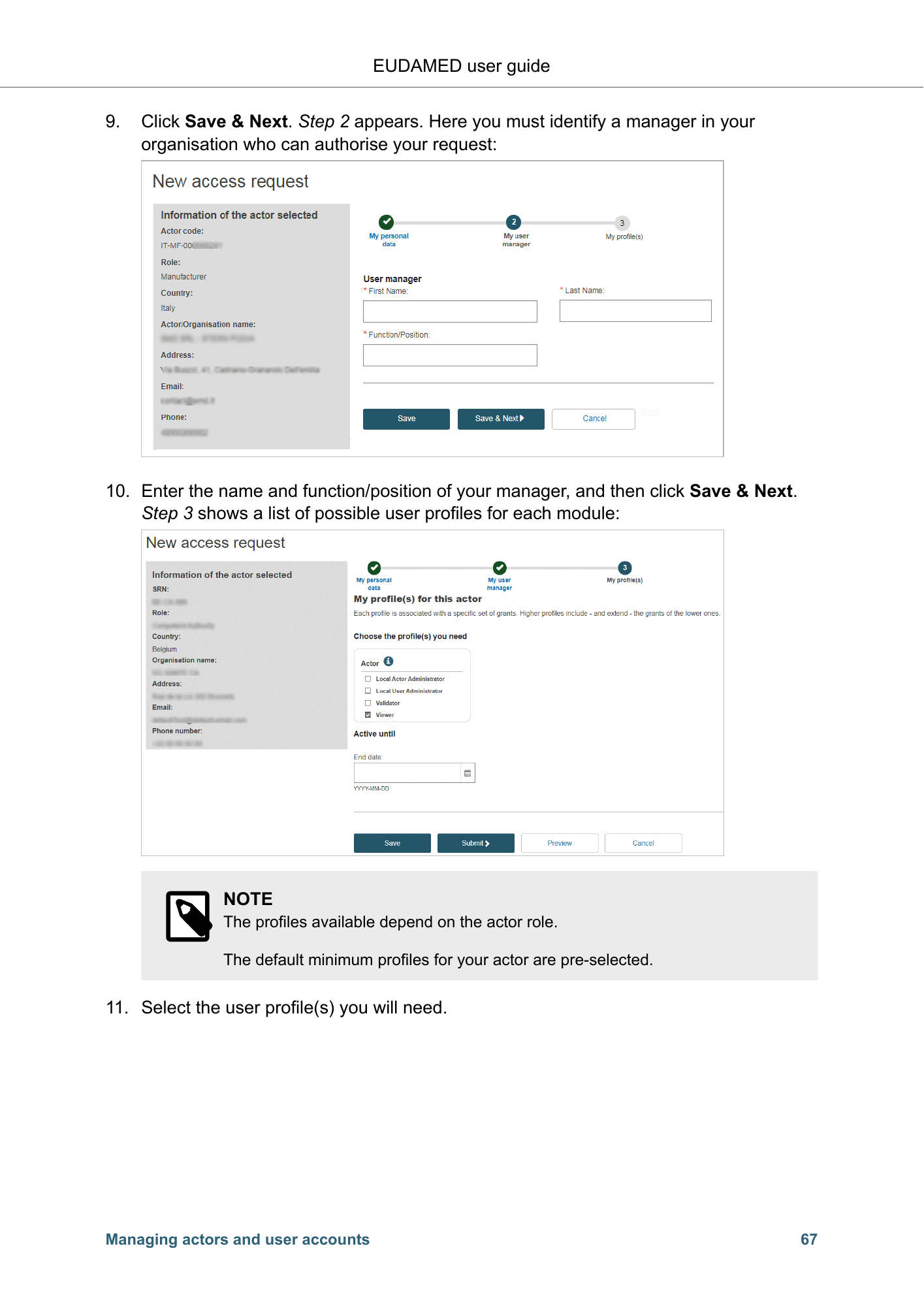
EUDAMED user guide 9. Click Save & Next. Step 2 appears. Here you must identify a manager in your organisation who can authorise your request: 10. Enter the name and function/position of your manager, and then click Save & Next. Step 3 shows a list of possible user profiles for each module: NOTE The profiles available depend on the actor role. The default minimum profiles for your actor are pre-selected. 11. Select the user profile(s) you will need. Managing actors and user accounts 67
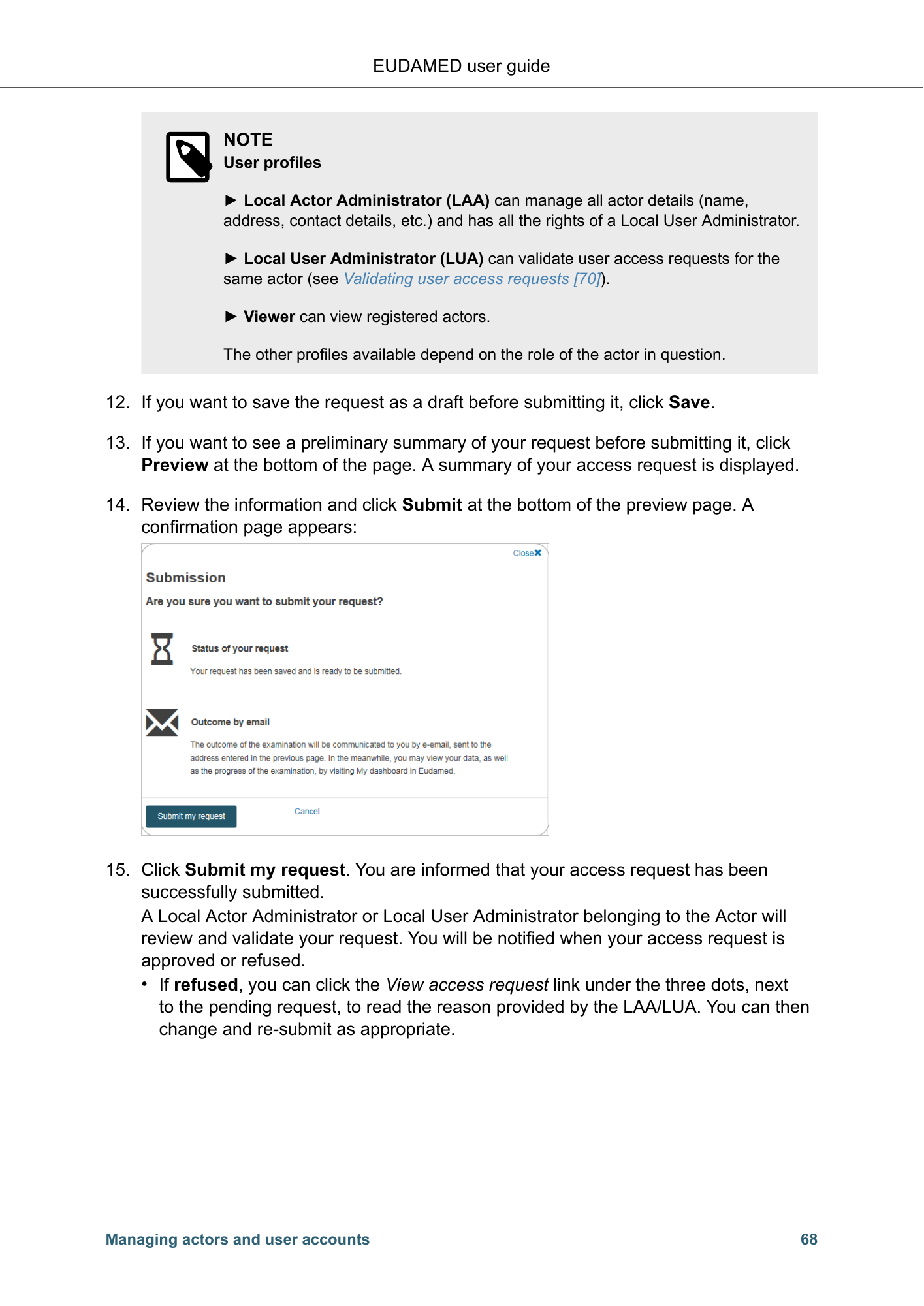
EUDAMED user guide NOTE User profiles ► Local Actor Administrator (LAA) can manage all actor details (name, address, contact details, etc.) and has all the rights of a Local User Administrator. ► Local User Administrator (LUA) can validate user access requests for the same actor (see Validating user access requests [70]). ► Viewer can view registered actors. The other profiles available depend on the role of the actor in question. 12. If you want to save the request as a draft before submitting it, click Save. 13. If you want to see a preliminary summary of your request before submitting it, click Preview at the bottom of the page. A summary of your access request is displayed. 14. Review the information and click Submit at the bottom of the preview page. A confirmation page appears: 15. Click Submit my request. You are informed that your access request has been successfully submitted. A Local Actor Administrator or Local User Administrator belonging to the Actor will review and validate your request. You will be notified when your access request is approved or refused. • If refused, you can click the View access request link under the three dots, next to the pending request, to read the reason provided by the LAA/LUA. You can then change and re-submit as appropriate. Managing actors and user accounts 68
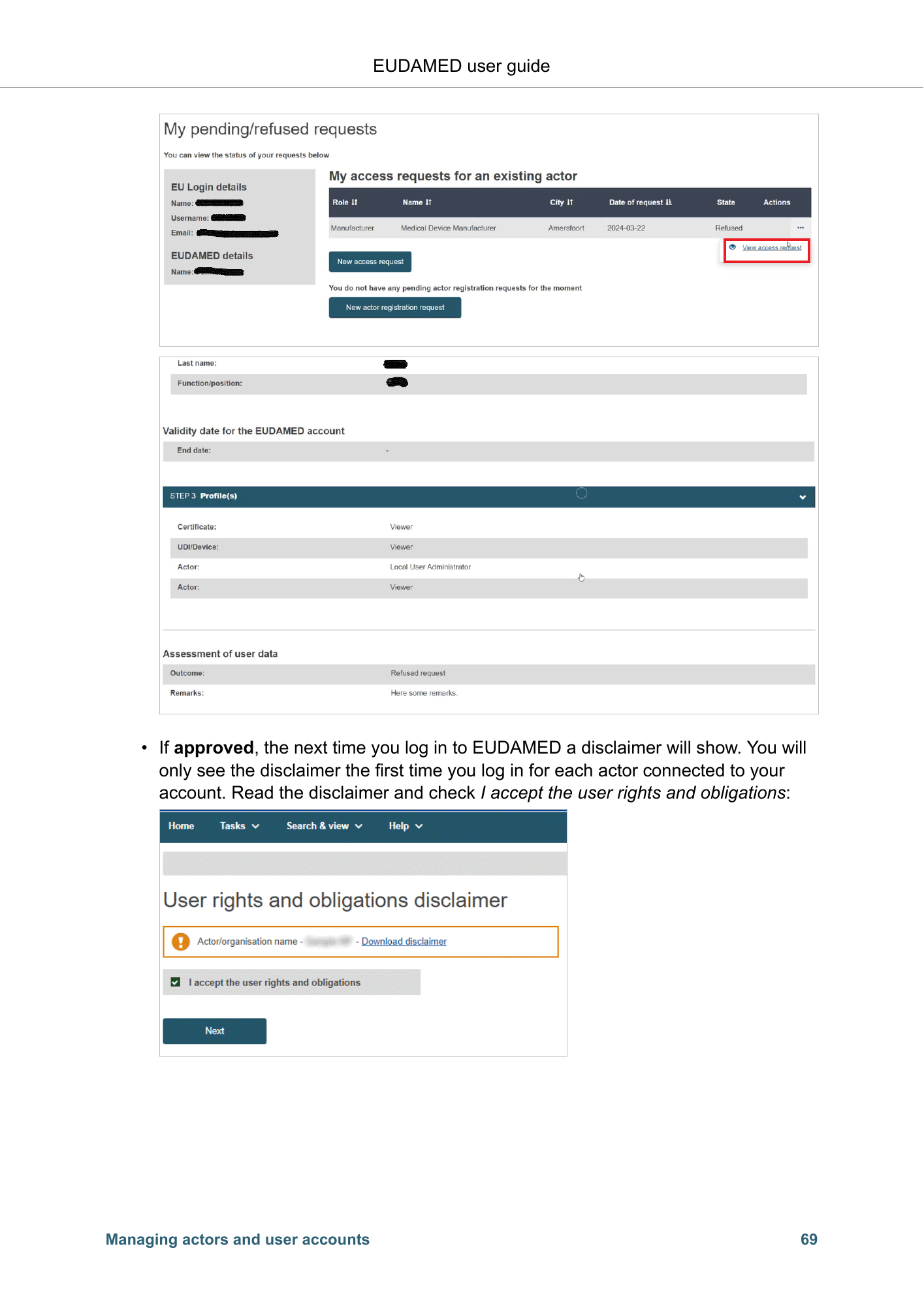
EUDAMED user guide • If approved, the next time you log in to EUDAMED a disclaimer will show. You will only see the disclaimer the first time you log in for each actor connected to your account. Read the disclaimer and check I accept the user rights and obligations: Managing actors and user accounts 69
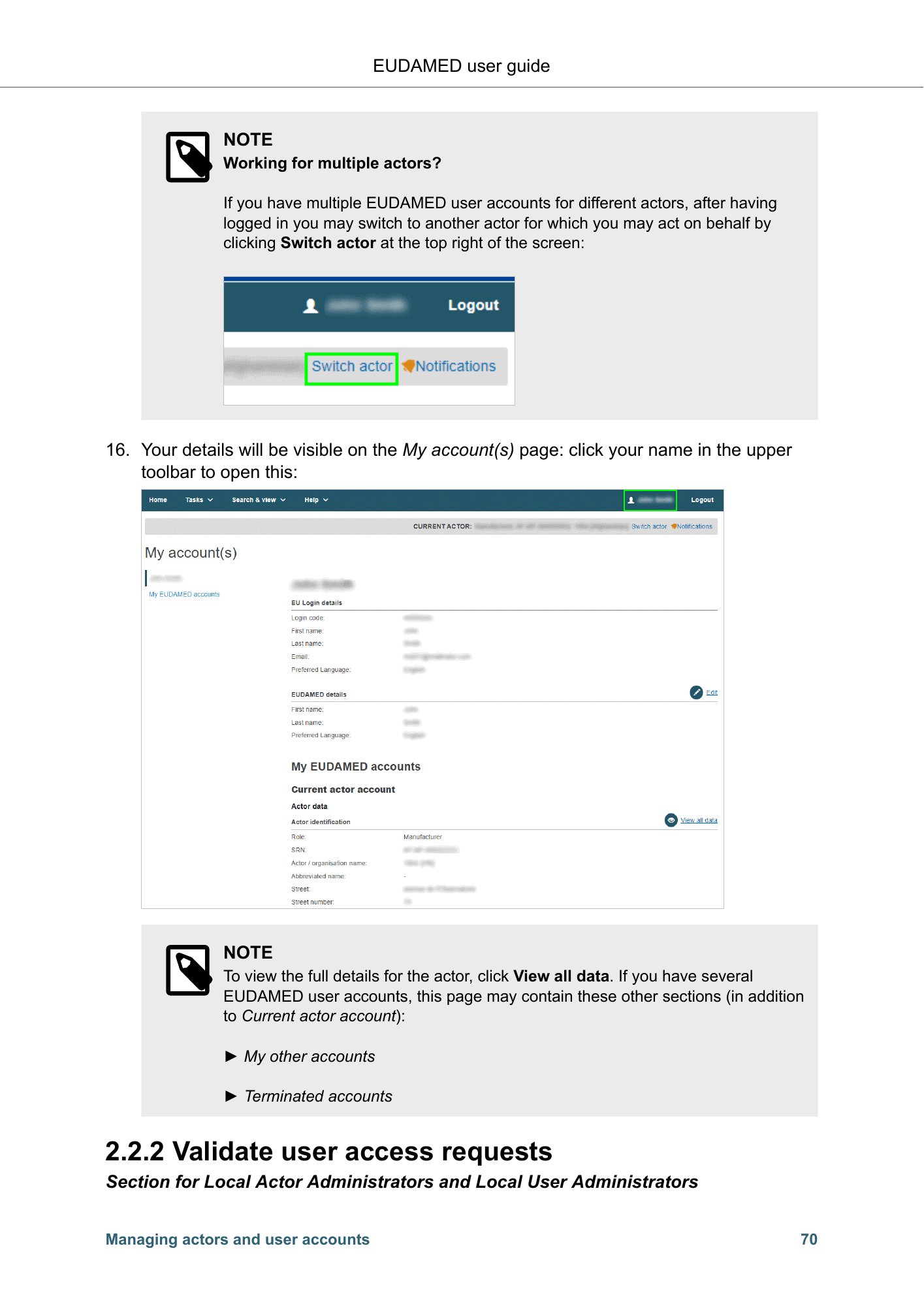
EUDAMED user guide NOTE Working for multiple actors? If you have multiple EUDAMED user accounts for different actors, after having logged in you may switch to another actor for which you may act on behalf by clicking Switch actor at the top right of the screen: 16. Your details will be visible on the My account(s) page: click your name in the upper toolbar to open this: NOTE To view the full details for the actor, click View all data. If you have several EUDAMED user accounts, this page may contain these other sections (in addition to Current actor account): ► My other accounts ► Terminated accounts 2.2.2 Validate user access requests Section for Local Actor Administrators and Local User Administrators Managing actors and user accounts 70
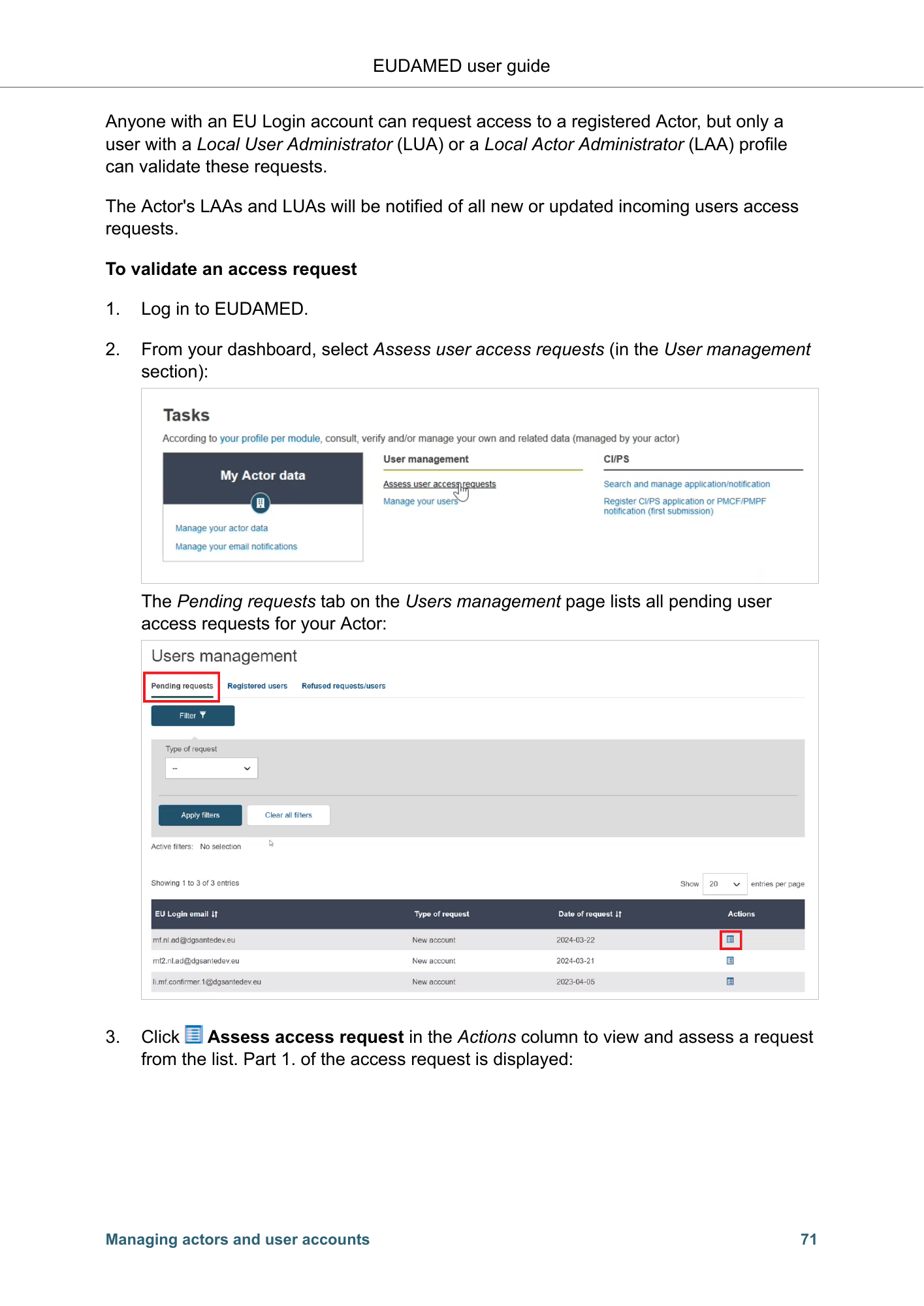
EUDAMED user guide Anyone with an EU Login account can request access to a registered Actor, but only a user with a Local User Administrator (LUA) or a Local Actor Administrator (LAA) profile can validate these requests. The Actor's LAAs and LUAs will be notified of all new or updated incoming users access requests. To validate an access request 1. Log in to EUDAMED. 2. From your dashboard, select Assess user access requests (in the User management section): The Pending requests tab on the Users management page lists all pending user access requests for your Actor: 3. Click Assess access request in the Actions column to view and assess a request from the list. Part 1. of the access request is displayed: Managing actors and user accounts 71
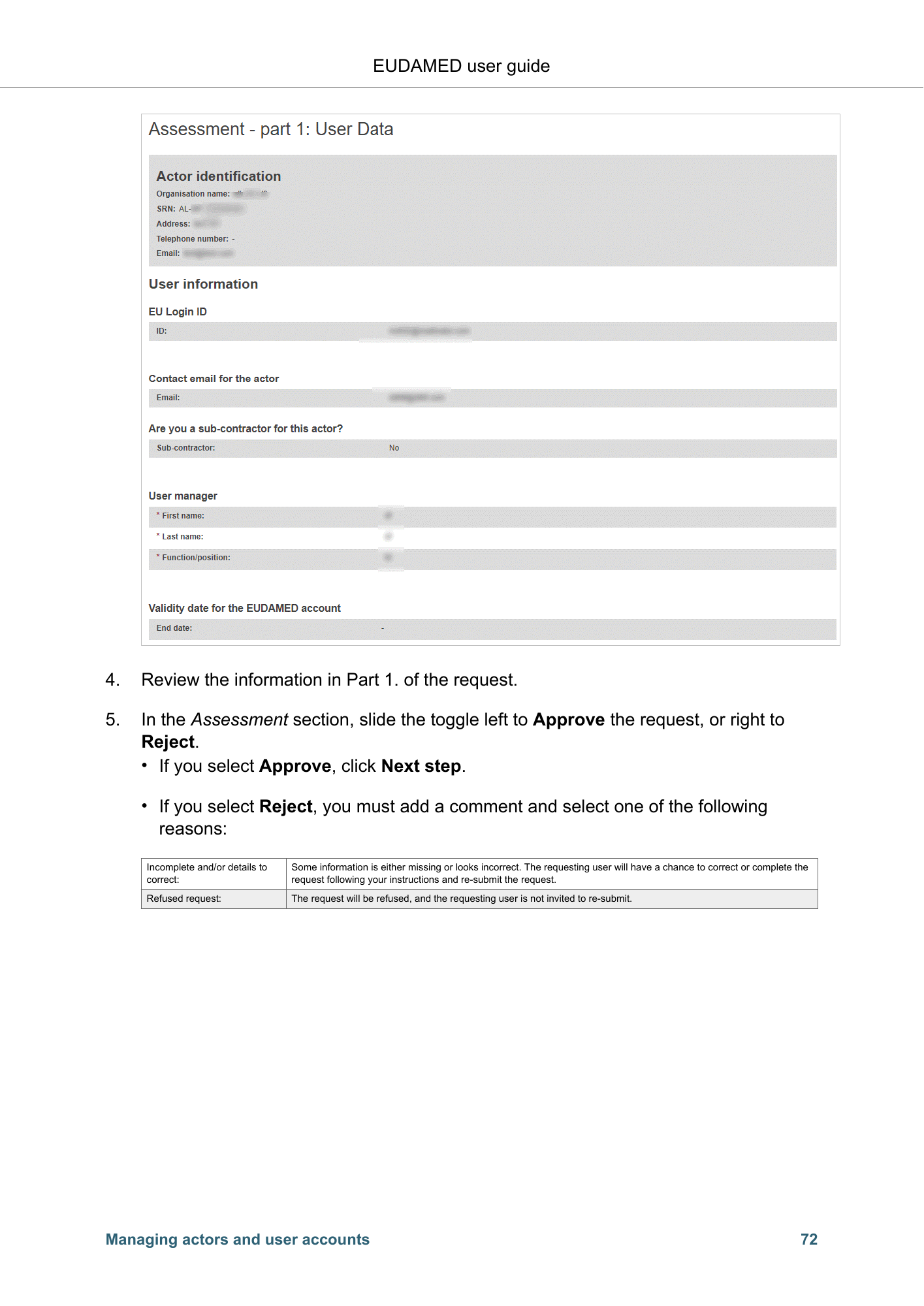
EUDAMED user guide 4. Review the information in Part 1. of the request. 5. In the Assessment section, slide the toggle left to Approve the request, or right to Reject. • If you select Approve, click Next step. • If you select Reject, you must add a comment and select one of the following reasons: Incomplete and/or details to Some information is either missing or looks incorrect. The requesting user will have a chance to correct or complete the correct: request following your instructions and re-submit the request. Refused request: The request will be refused, and the requesting user is not invited to re-submit. Managing actors and user accounts 72
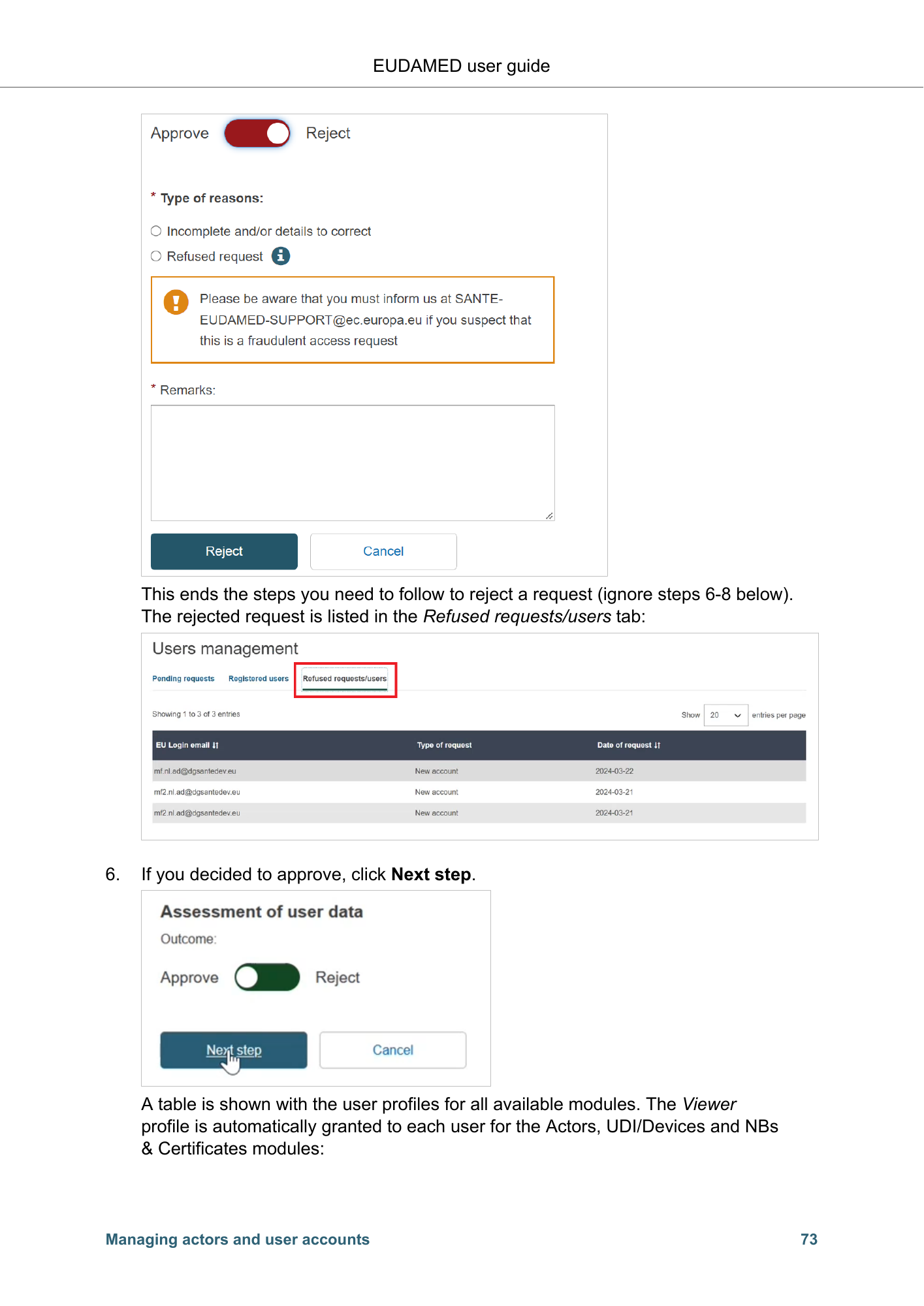
EUDAMED user guide This ends the steps you need to follow to reject a request (ignore steps 6-8 below). The rejected request is listed in the Refused requests/users tab: 6. If you decided to approve, click Next step. A table is shown with the user profiles for all available modules. The Viewer profile is automatically granted to each user for the Actors, UDI/Devices and NBs & Certificates modules: Managing actors and user accounts 73
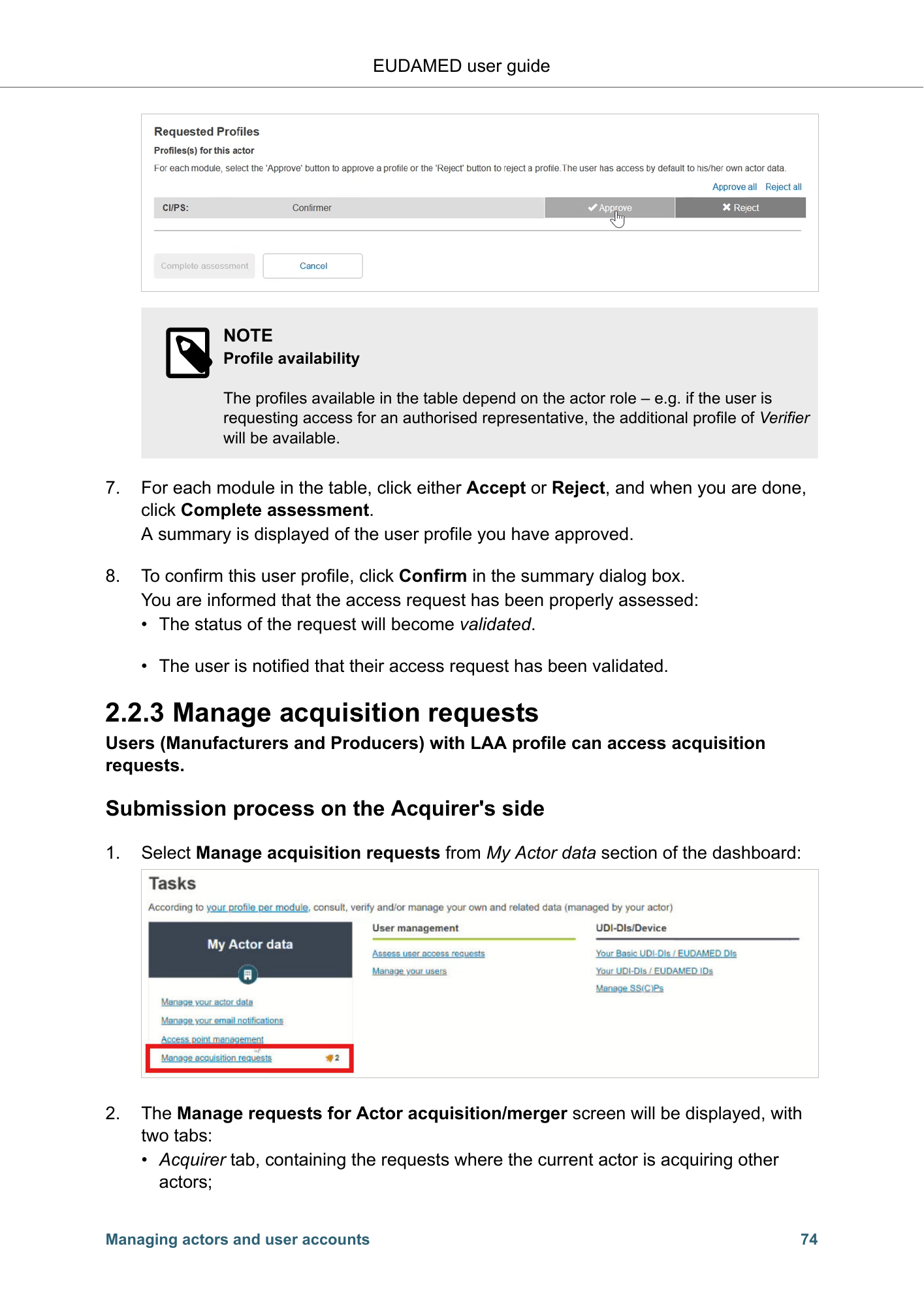
EUDAMED user guide NOTE Profile availability The profiles available in the table depend on the actor role – e.g. if the user is requesting access for an authorised representative, the additional profile of Verifier will be available. 7. For each module in the table, click either Accept or Reject, and when you are done, click Complete assessment. A summary is displayed of the user profile you have approved. 8. To confirm this user profile, click Confirm in the summary dialog box. You are informed that the access request has been properly assessed: • The status of the request will become validated. • The user is notified that their access request has been validated. 2.2.3 Manage acquisition requests Users (Manufacturers and Producers) with LAA profile can access acquisition requests. Submission process on the Acquirer's side 1. Select Manage acquisition requests from My Actor data section of the dashboard: 2. The Manage requests for Actor acquisition/merger screen will be displayed, with two tabs: • Acquirer tab, containing the requests where the current actor is acquiring other actors; Managing actors and user accounts 74
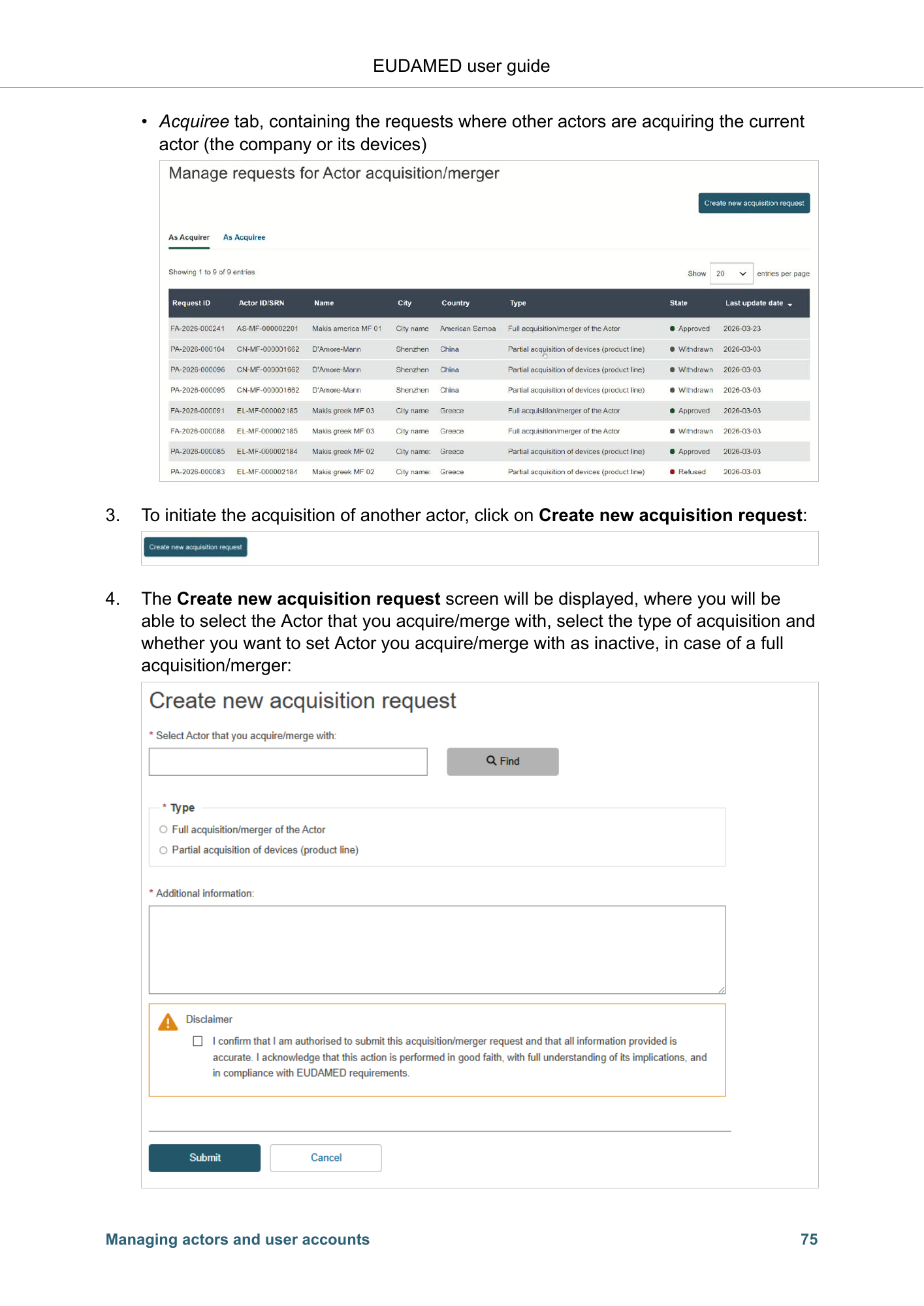
EUDAMED user guide • Acquiree tab, containing the requests where other actors are acquiring the current actor (the company or its devices) 3. To initiate the acquisition of another actor, click on Create new acquisition request: 4. The Create new acquisition request screen will be displayed, where you will be able to select the Actor that you acquire/merge with, select the type of acquisition and whether you want to set Actor you acquire/merge with as inactive, in case of a full acquisition/merger: Managing actors and user accounts 75
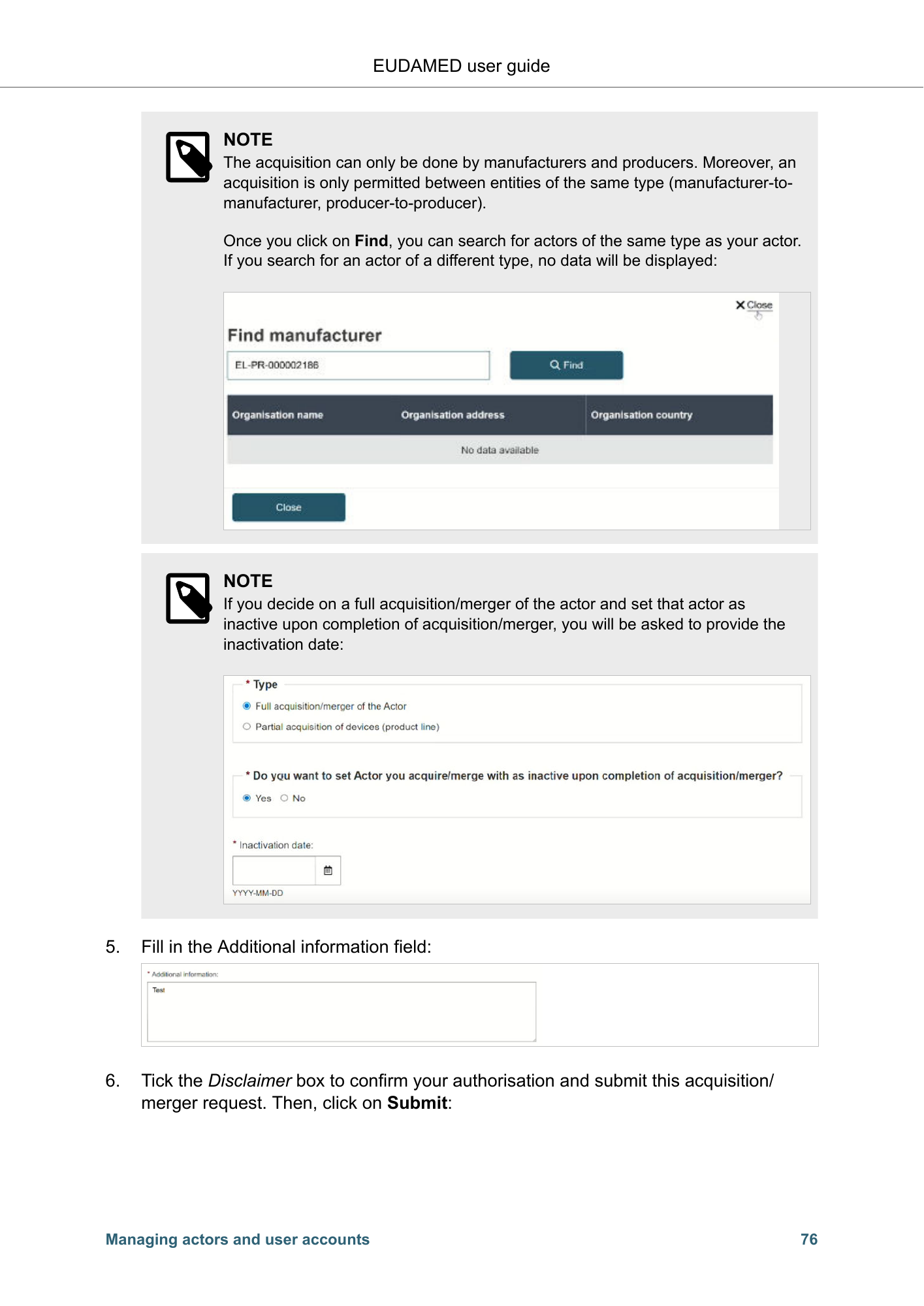
EUDAMED user guide NOTE The acquisition can only be done by manufacturers and producers. Moreover, an acquisition is only permitted between entities of the same type (manufacturer-to- manufacturer, producer-to-producer). Once you click on Find, you can search for actors of the same type as your actor. If you search for an actor of a different type, no data will be displayed: NOTE If you decide on a full acquisition/merger of the actor and set that actor as inactive upon completion of acquisition/merger, you will be asked to provide the inactivation date: 5. Fill in the Additional information field: 6. Tick the Disclaimer box to confirm your authorisation and submit this acquisition/ merger request. Then, click on Submit: Managing actors and user accounts 76
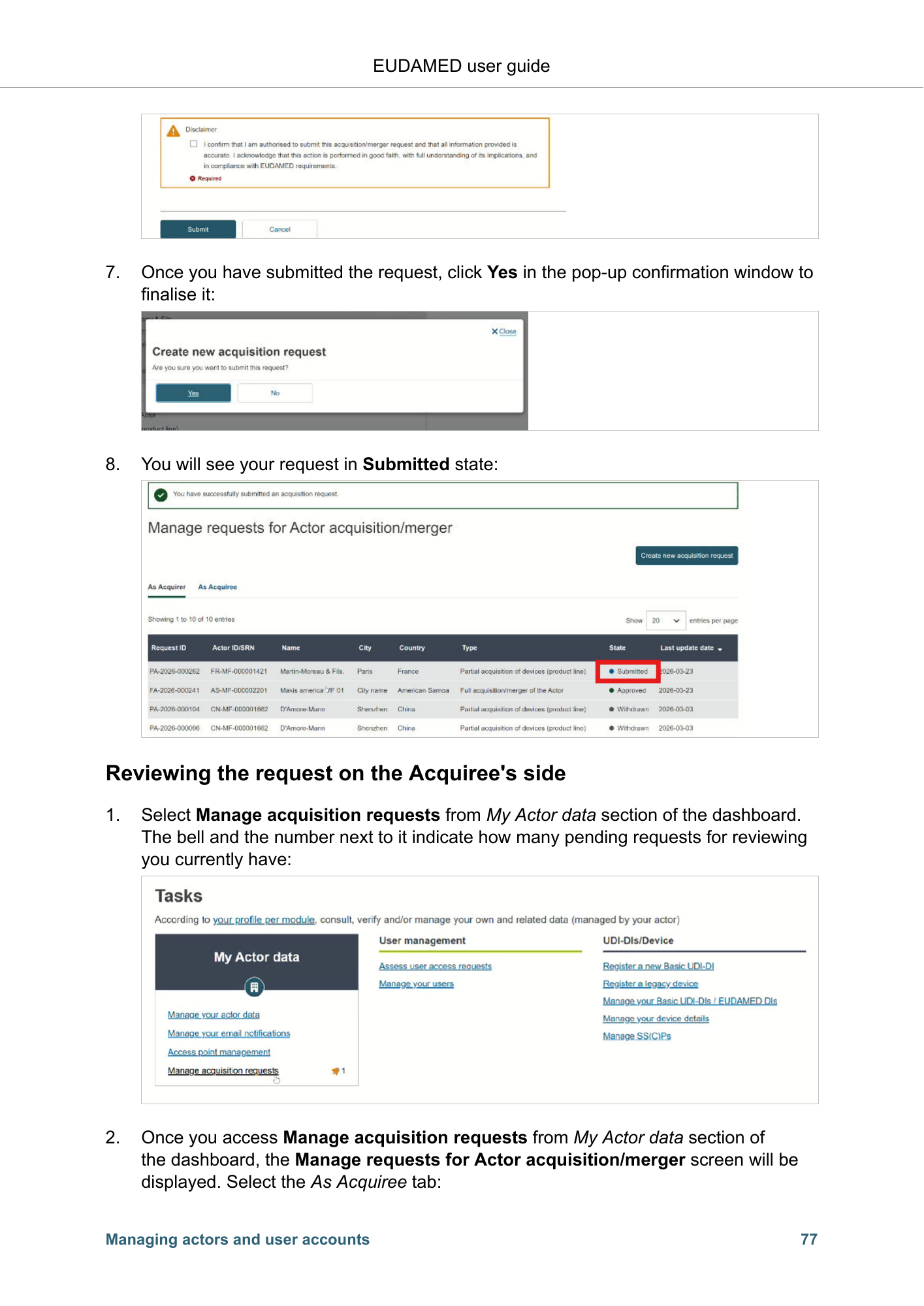
EUDAMED user guide 7. Once you have submitted the request, click Yes in the pop-up confirmation window to finalise it: 8. You will see your request in Submitted state: Reviewing the request on the Acquiree's side 1. Select Manage acquisition requests from My Actor data section of the dashboard. The bell and the number next to it indicate how many pending requests for reviewing you currently have: 2. Once you access Manage acquisition requests from My Actor data section of the dashboard, the Manage requests for Actor acquisition/merger screen will be displayed. Select the As Acquiree tab: Managing actors and user accounts 77
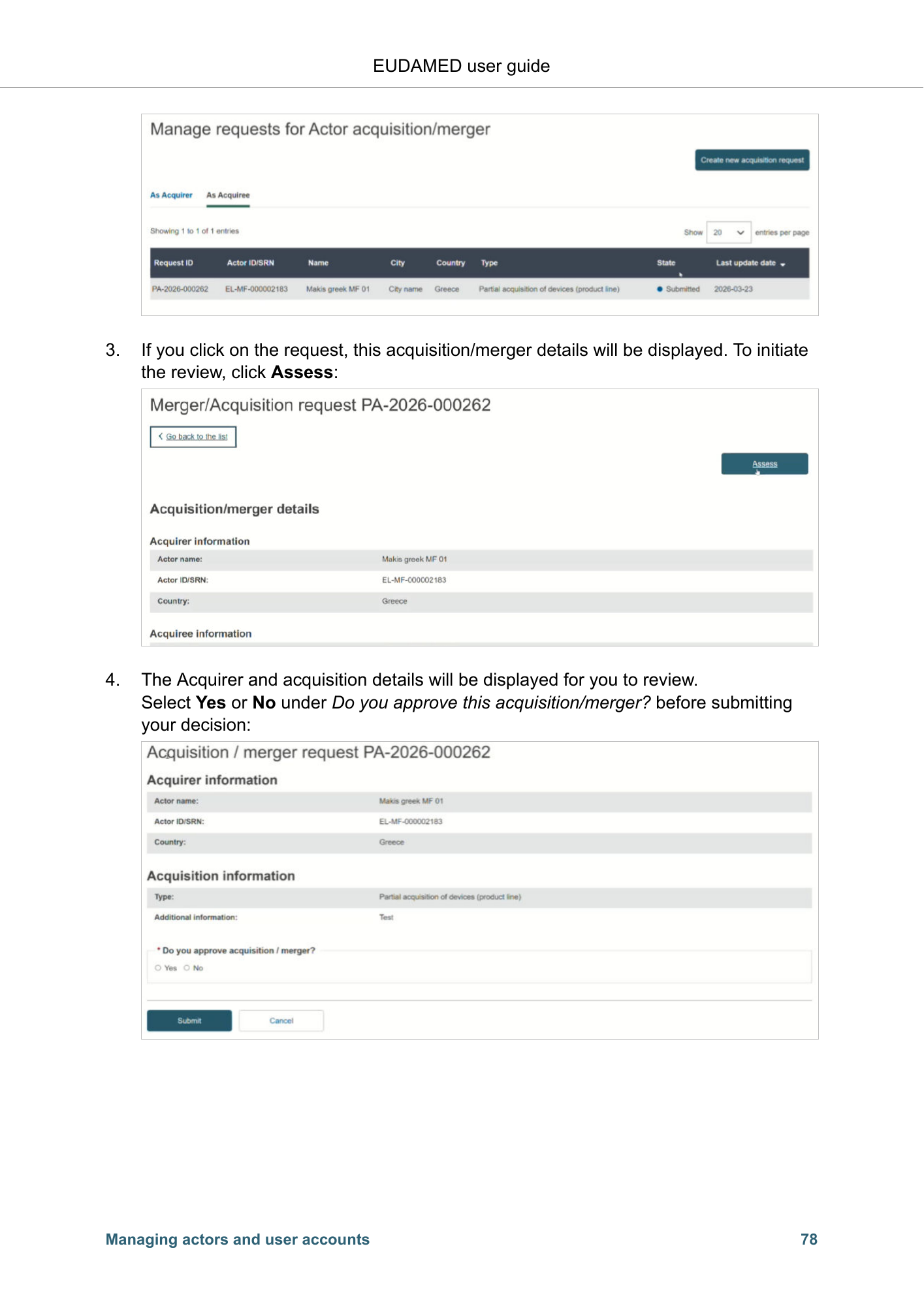
EUDAMED user guide 3. If you click on the request, this acquisition/merger details will be displayed. To initiate the review, click Assess: 4. The Acquirer and acquisition details will be displayed for you to review. Select Yes or No under Do you approve this acquisition/merger? before submitting your decision: Managing actors and user accounts 78
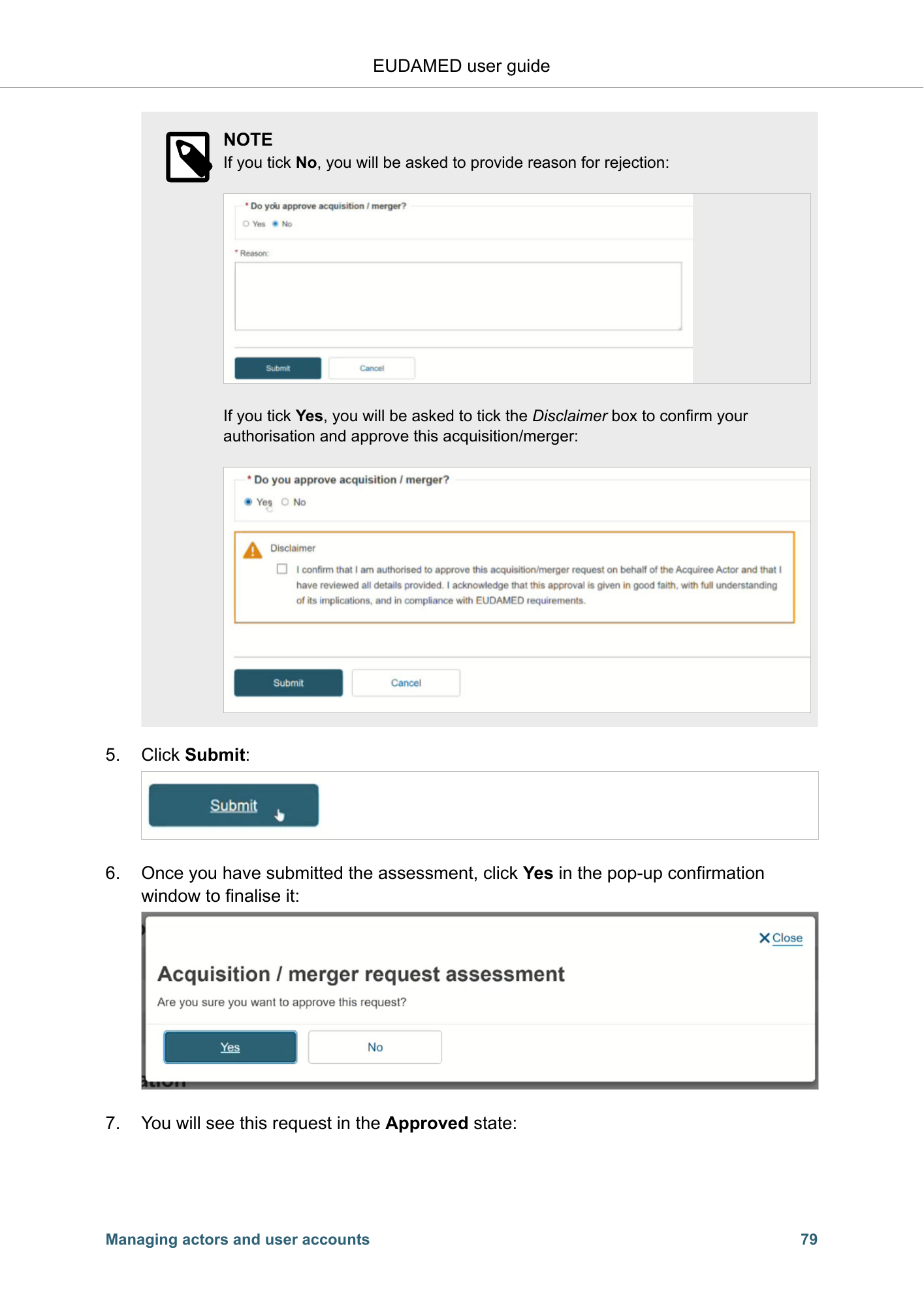
EUDAMED user guide NOTE If you tick No, you will be asked to provide reason for rejection: If you tick Yes, you will be asked to tick the Disclaimer box to confirm your authorisation and approve this acquisition/merger: 5. Click Submit: 6. Once you have submitted the assessment, click Yes in the pop-up confirmation window to finalise it: 7. You will see this request in the Approved state: Managing actors and user accounts 79
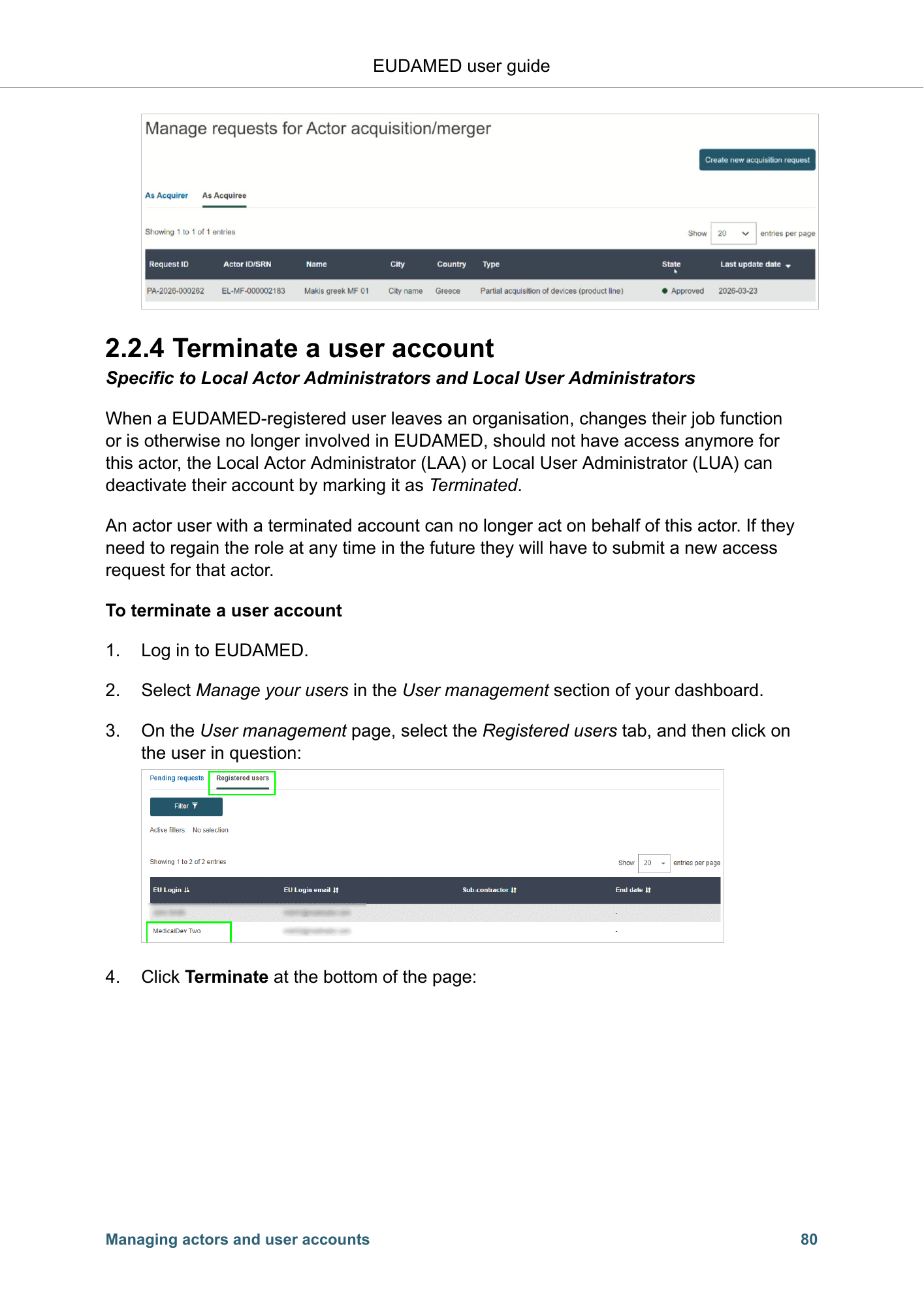
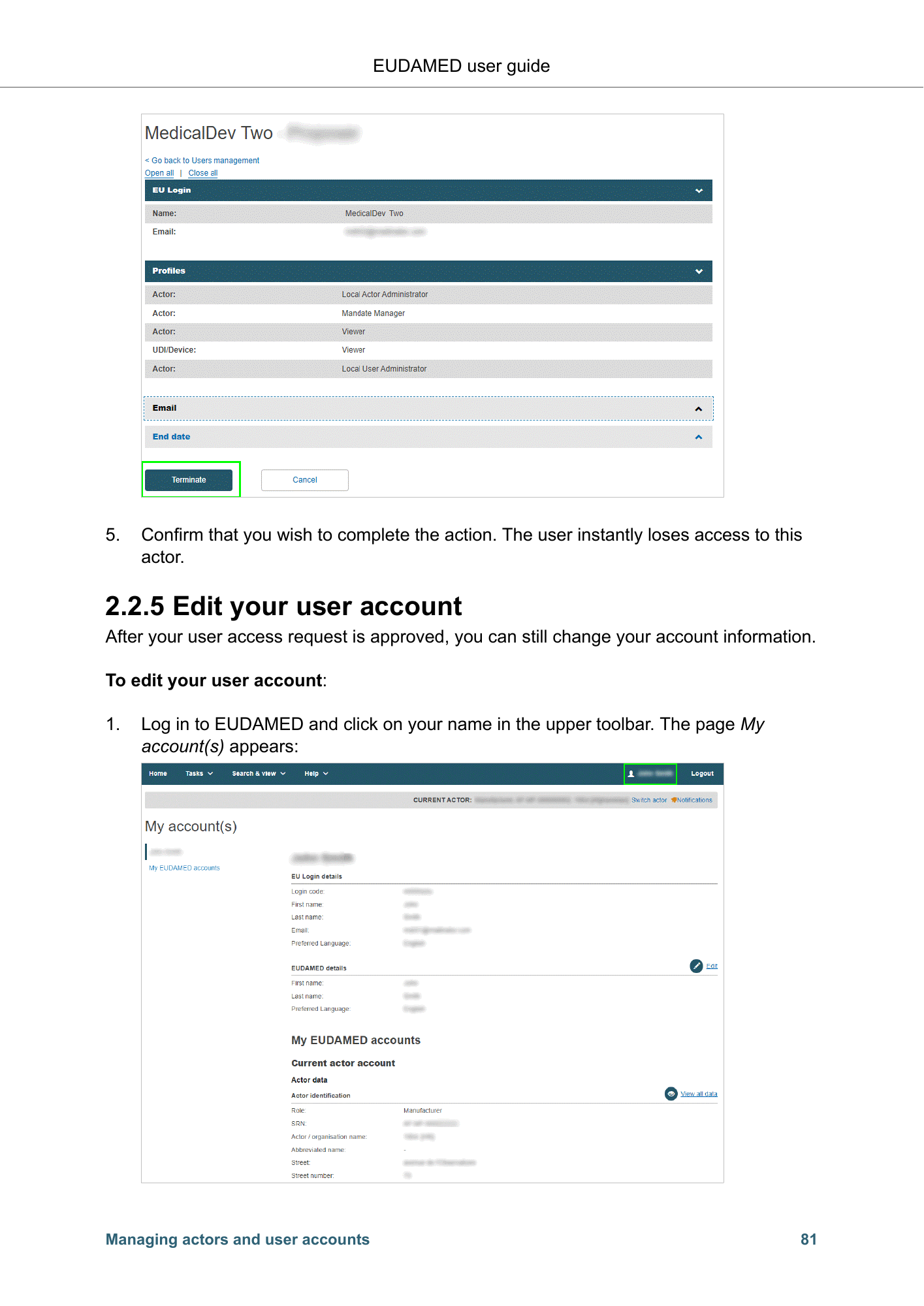
EUDAMED user guide 2.2.4 Terminate a user account Specific to Local Actor Administrators and Local User Administrators When a EUDAMED-registered user leaves an organisation, changes their job function or is otherwise no longer involved in EUDAMED, should not have access anymore for this actor, the Local Actor Administrator (LAA) or Local User Administrator (LUA) can deactivate their account by marking it as Terminated. An actor user with a terminated account can no longer act on behalf of this actor. If they need to regain the role at any time in the future they will have to submit a new access request for that actor. To terminate a user account 1. Log in to EUDAMED. 2. Select Manage your users in the User management section of your dashboard. 3. On the User management page, select the Registered users tab, and then click on the user in question: 4. Click Terminate at the bottom of the page: Managing actors and user accounts 80
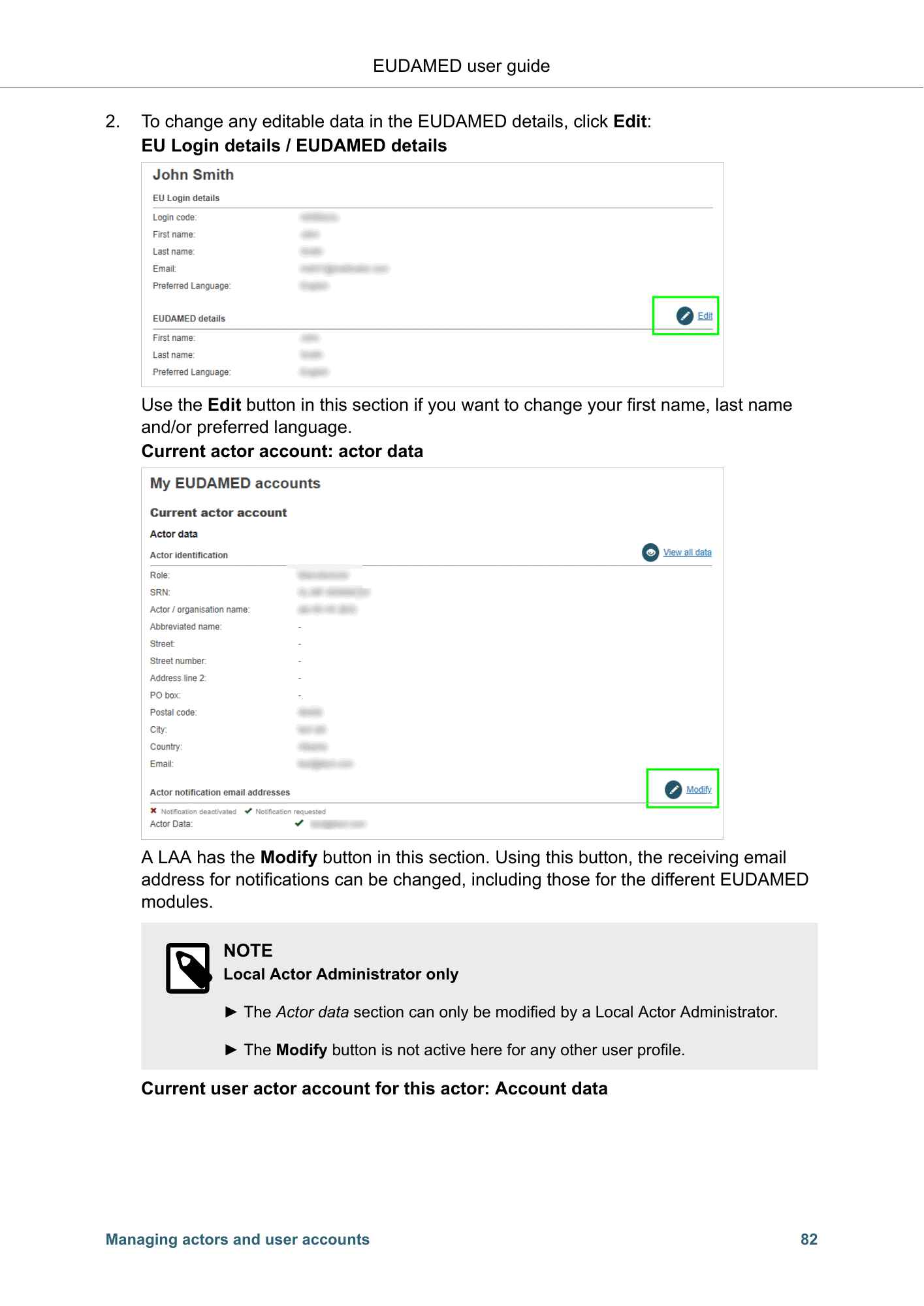
EUDAMED user guide 5. Confirm that you wish to complete the action. The user instantly loses access to this actor. 2.2.5 Edit your user account After your user access request is approved, you can still change your account information. To edit your user account: 1. Log in to EUDAMED and click on your name in the upper toolbar. The page My account(s) appears: Managing actors and user accounts 81
EUDAMED user guide 2. To change any editable data in the EUDAMED details, click Edit: EU Login details / EUDAMED details Use the Edit button in this section if you want to change your first name, last name and/or preferred language. Current actor account: actor data A LAA has the Modify button in this section. Using this button, the receiving email address for notifications can be changed, including those for the different EUDAMED modules. NOTE Local Actor Administrator only ► The Actor data section can only be modified by a Local Actor Administrator. ► The Modify button is not active here for any other user profile. Current user actor account for this actor: Account data Managing actors and user accounts 82
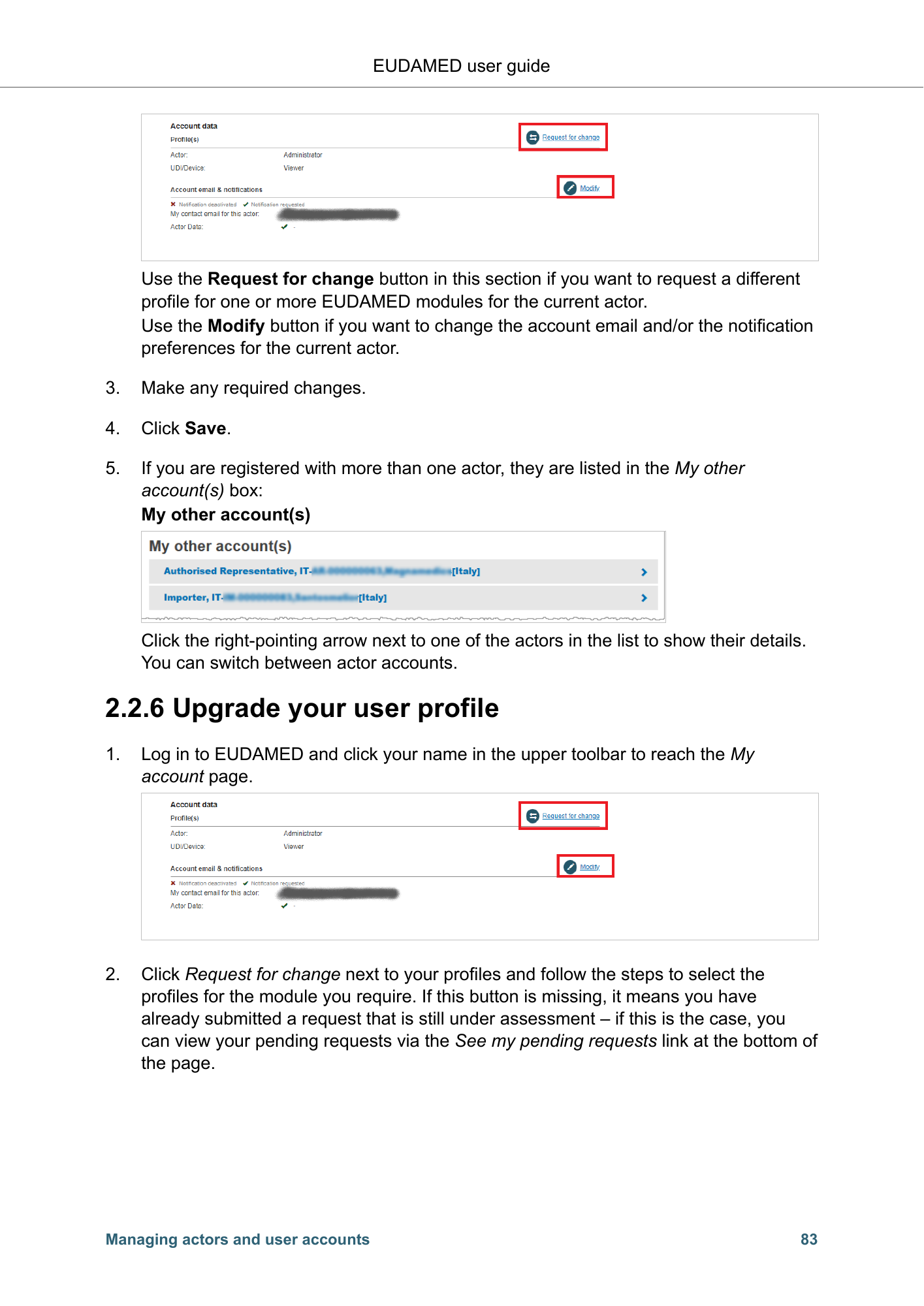
EUDAMED user guide Use the Request for change button in this section if you want to request a different profile for one or more EUDAMED modules for the current actor. Use the Modify button if you want to change the account email and/or the notification preferences for the current actor. 3. Make any required changes. 4. Click Save. 5. If you are registered with more than one actor, they are listed in the My other account(s) box: My other account(s) Click the right-pointing arrow next to one of the actors in the list to show their details. You can switch between actor accounts. 2.2.6 Upgrade your user profile 1. Log in to EUDAMED and click your name in the upper toolbar to reach the My account page. 2. Click Request for change next to your profiles and follow the steps to select the profiles for the module you require. If this button is missing, it means you have already submitted a request that is still under assessment – if this is the case, you can view your pending requests via the See my pending requests link at the bottom of the page. Managing actors and user accounts 83
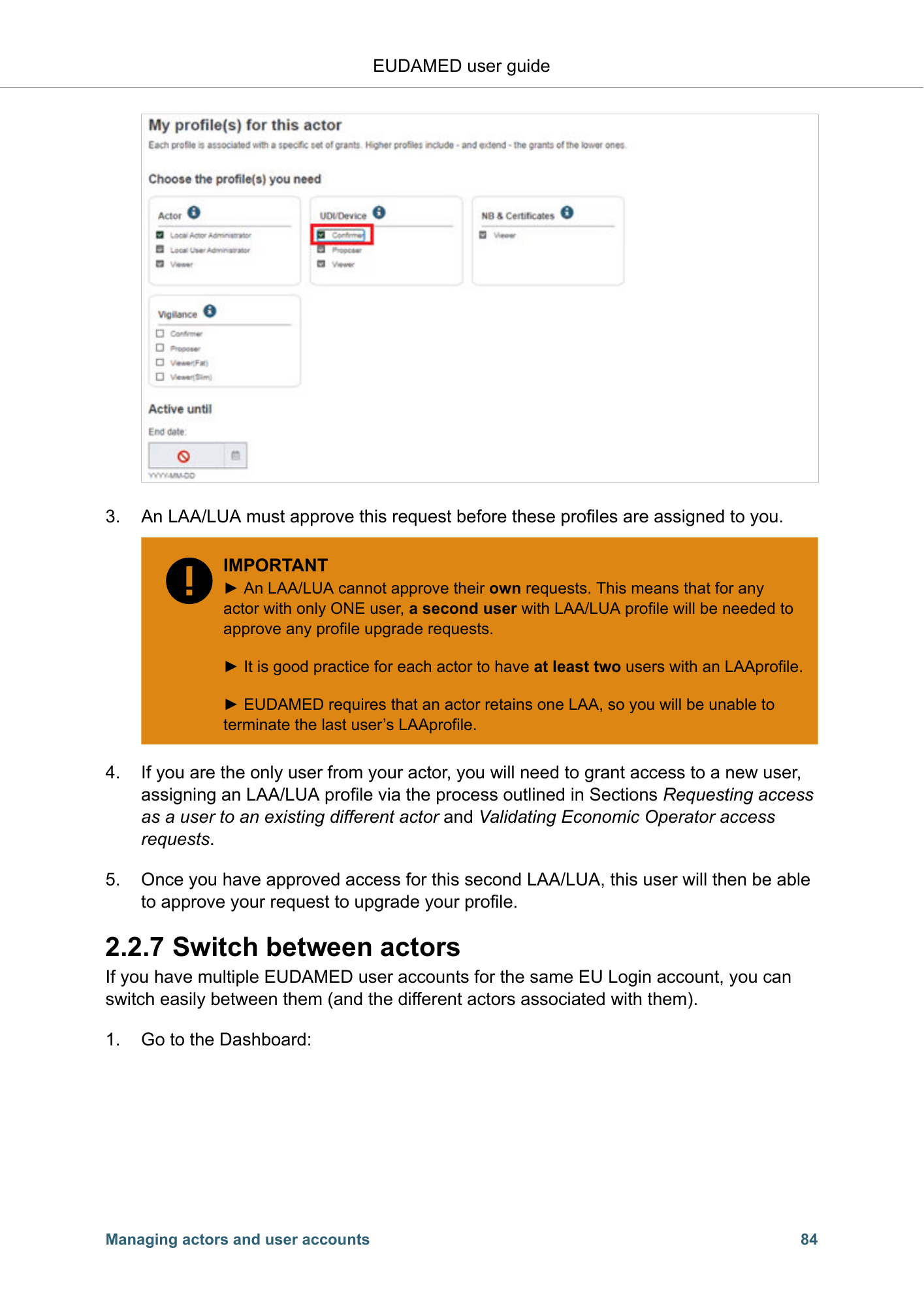
EUDAMED user guide 3. An LAA/LUA must approve this request before these profiles are assigned to you. IMPORTANT ► An LAA/LUA cannot approve their own requests. This means that for any actor with only ONE user, a second user with LAA/LUA profile will be needed to approve any profile upgrade requests. ► It is good practice for each actor to have at least two users with an LAAprofile. ► EUDAMED requires that an actor retains one LAA, so you will be unable to terminate the last user’s LAAprofile. 4. If you are the only user from your actor, you will need to grant access to a new user, assigning an LAA/LUA profile via the process outlined in Sections Requesting access as a user to an existing different actor and Validating Economic Operator access requests. 5. Once you have approved access for this second LAA/LUA, this user will then be able to approve your request to upgrade your profile. 2.2.7 Switch between actors If you have multiple EUDAMED user accounts for the same EU Login account, you can switch easily between them (and the different actors associated with them). 1. Go to the Dashboard: Managing actors and user accounts 84
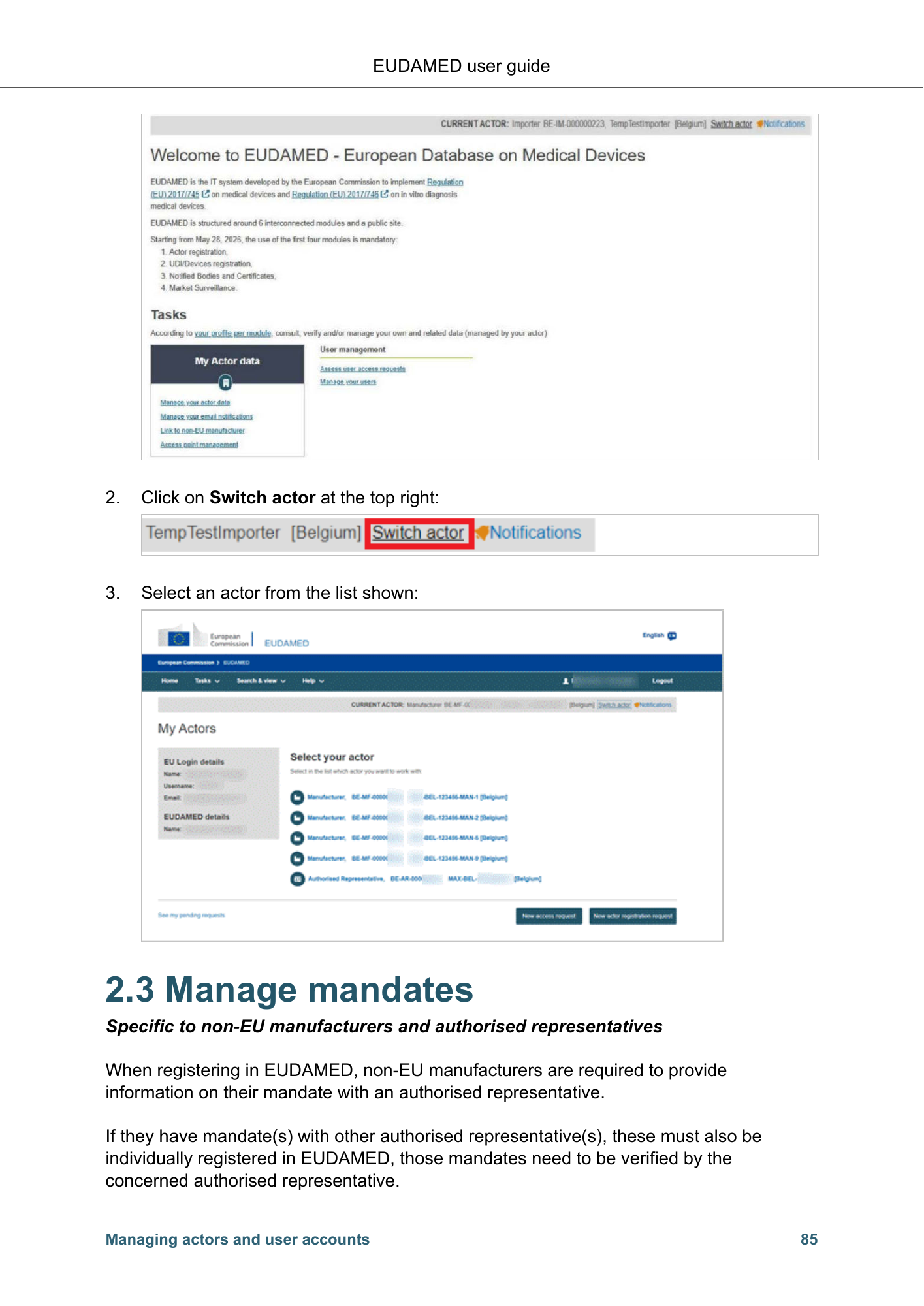
EUDAMED user guide 2. Click on Switch actor at the top right: 3. Select an actor from the list shown: 2.3 Manage mandates Specific to non-EU manufacturers and authorised representatives When registering in EUDAMED, non-EU manufacturers are required to provide information on their mandate with an authorised representative. If they have mandate(s) with other authorised representative(s), these must also be individually registered in EUDAMED, those mandates need to be verified by the concerned authorised representative. Managing actors and user accounts 85
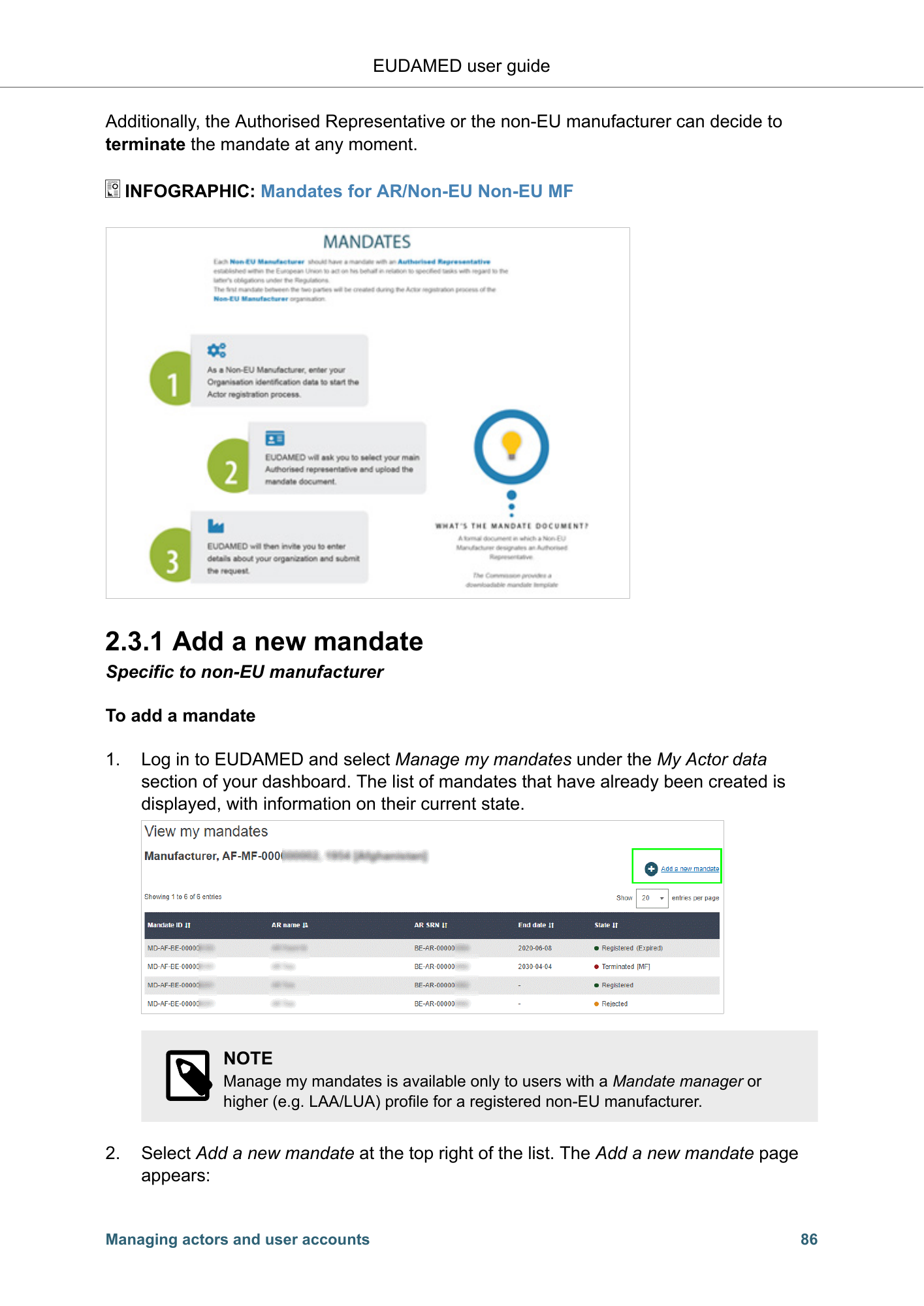
EUDAMED user guide Additionally, the Authorised Representative or the non-EU manufacturer can decide to terminate the mandate at any moment. INFOGRAPHIC: Mandates for AR/Non-EU Non-EU MF 2.3.1 Add a new mandate Specific to non-EU manufacturer To add a mandate 1. Log in to EUDAMED and select Manage my mandates under the My Actor data section of your dashboard. The list of mandates that have already been created is displayed, with information on their current state. NOTE Manage my mandates is available only to users with a Mandate manager or higher (e.g. LAA/LUA) profile for a registered non-EU manufacturer. 2. Select Add a new mandate at the top right of the list. The Add a new mandate page appears: Managing actors and user accounts 86
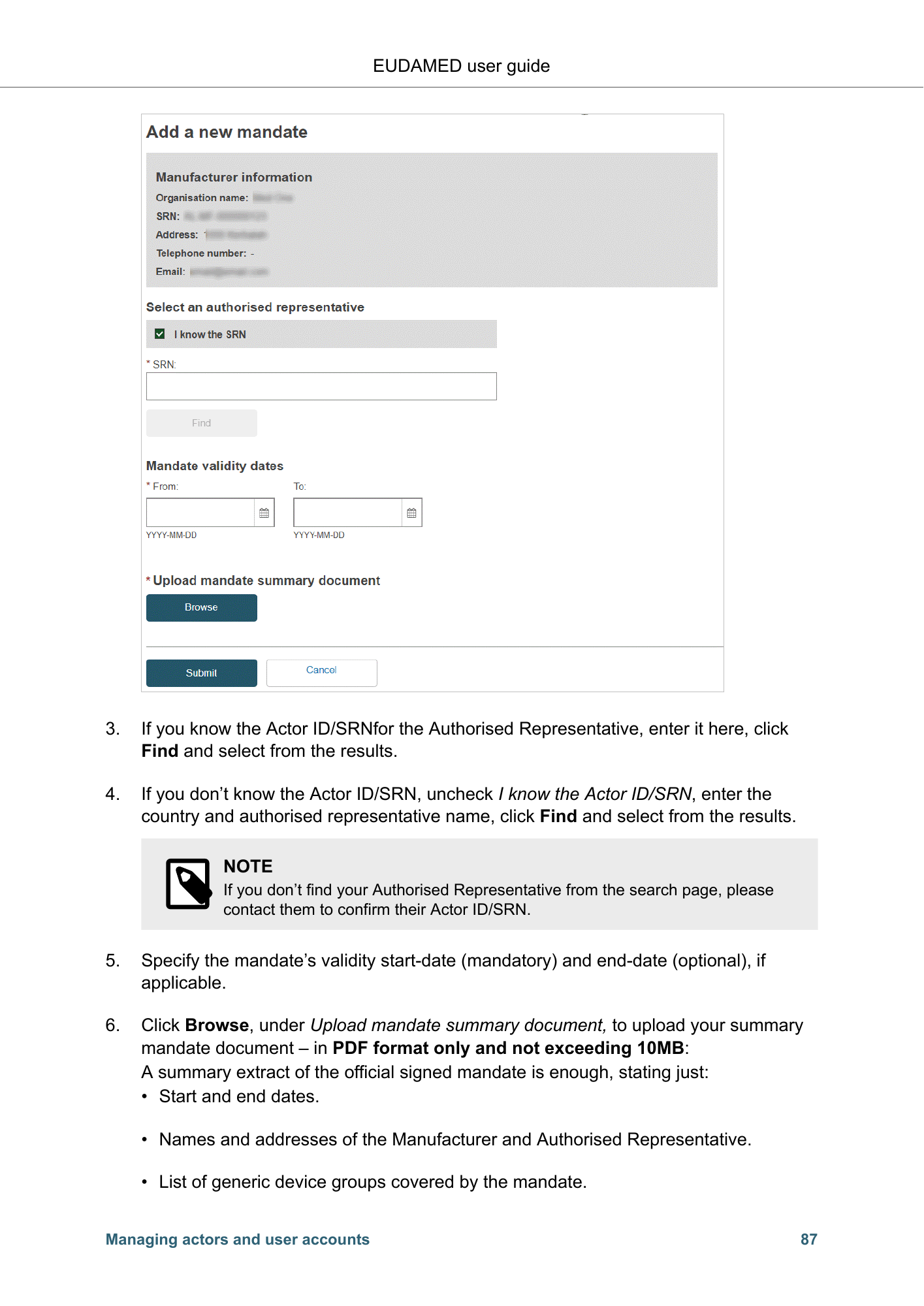
EUDAMED user guide 3. If you know the Actor ID/SRNfor the Authorised Representative, enter it here, click Find and select from the results. 4. If you don’t know the Actor ID/SRN, uncheck I know the Actor ID/SRN, enter the country and authorised representative name, click Find and select from the results. NOTE If you don’t find your Authorised Representative from the search page, please contact them to confirm their Actor ID/SRN. 5. Specify the mandate’s validity start-date (mandatory) and end-date (optional), if applicable. 6. Click Browse, under Upload mandate summary document, to upload your summary mandate document – in PDF format only and not exceeding 10MB: A summary extract of the official signed mandate is enough, stating just: • Start and end dates. • Names and addresses of the Manufacturer and Authorised Representative. • List of generic device groups covered by the mandate. Managing actors and user accounts 87
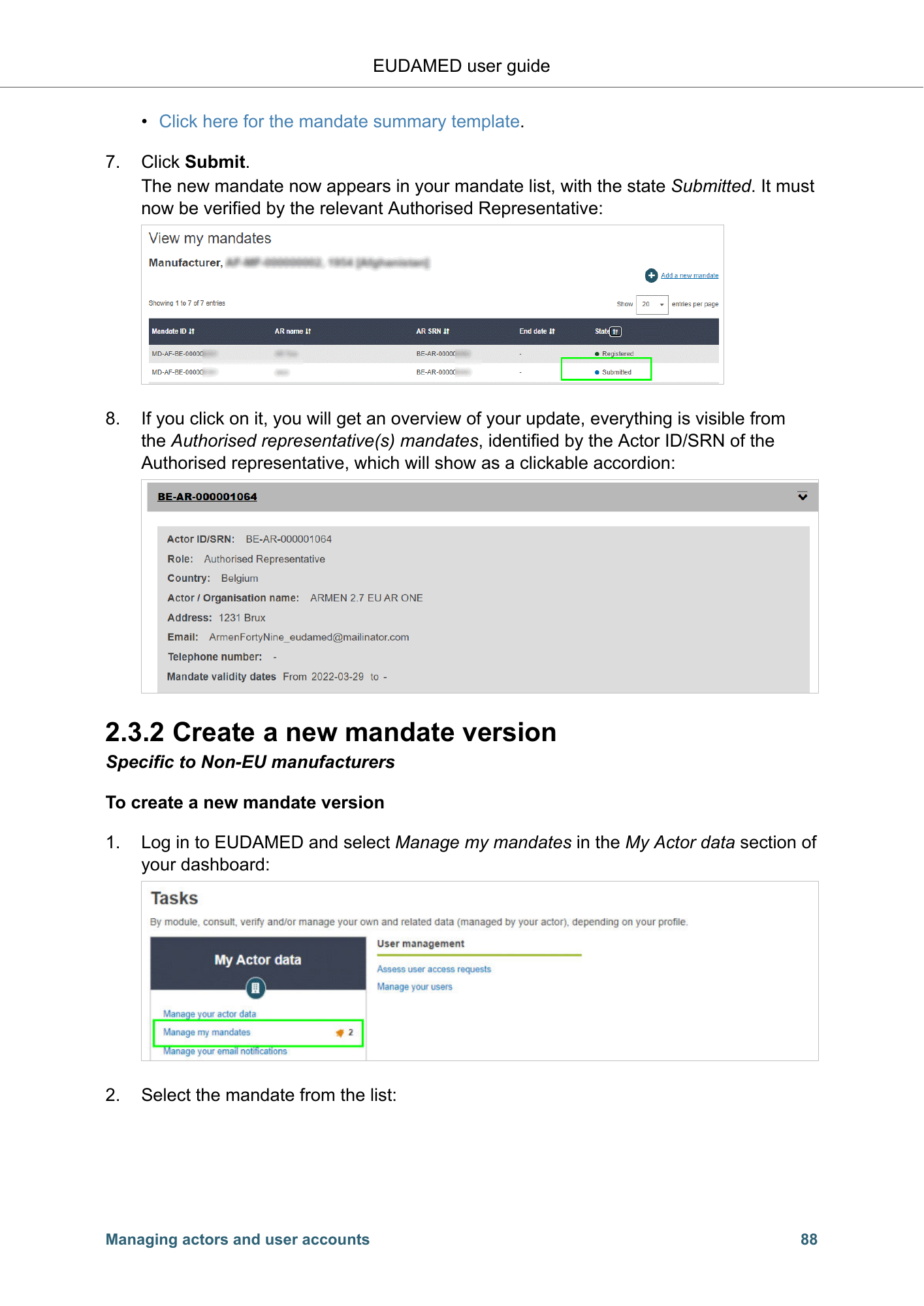
EUDAMED user guide • Click here for the mandate summary template. 7. Click Submit. The new mandate now appears in your mandate list, with the state Submitted. It must now be verified by the relevant Authorised Representative: 8. If you click on it, you will get an overview of your update, everything is visible from the Authorised representative(s) mandates, identified by the Actor ID/SRN of the Authorised representative, which will show as a clickable accordion: 2.3.2 Create a new mandate version Specific to Non-EU manufacturers To create a new mandate version 1. Log in to EUDAMED and select Manage my mandates in the My Actor data section of your dashboard: 2. Select the mandate from the list: Managing actors and user accounts 88
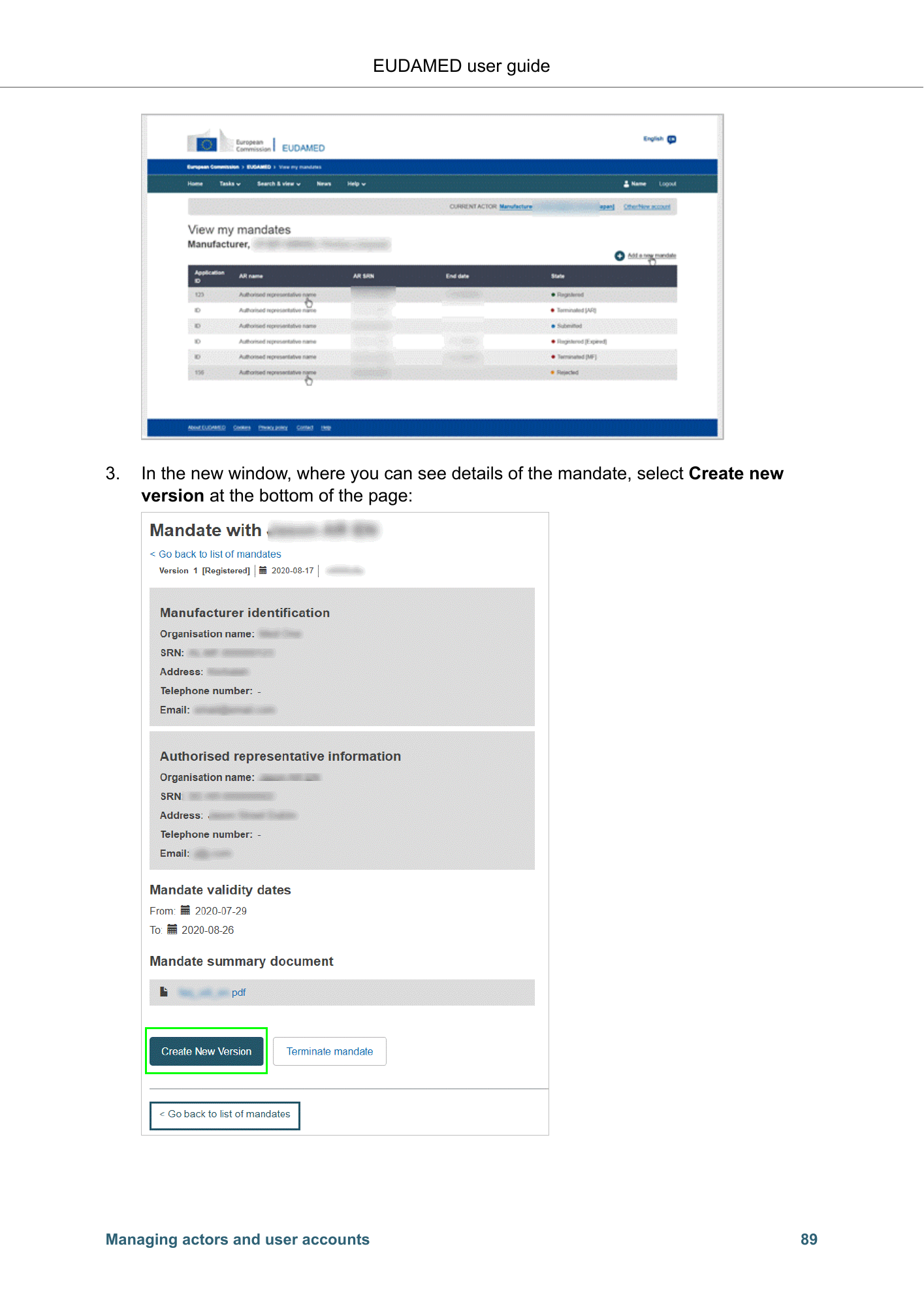
EUDAMED user guide 3. In the new window, where you can see details of the mandate, select Create new version at the bottom of the page: Managing actors and user accounts 89
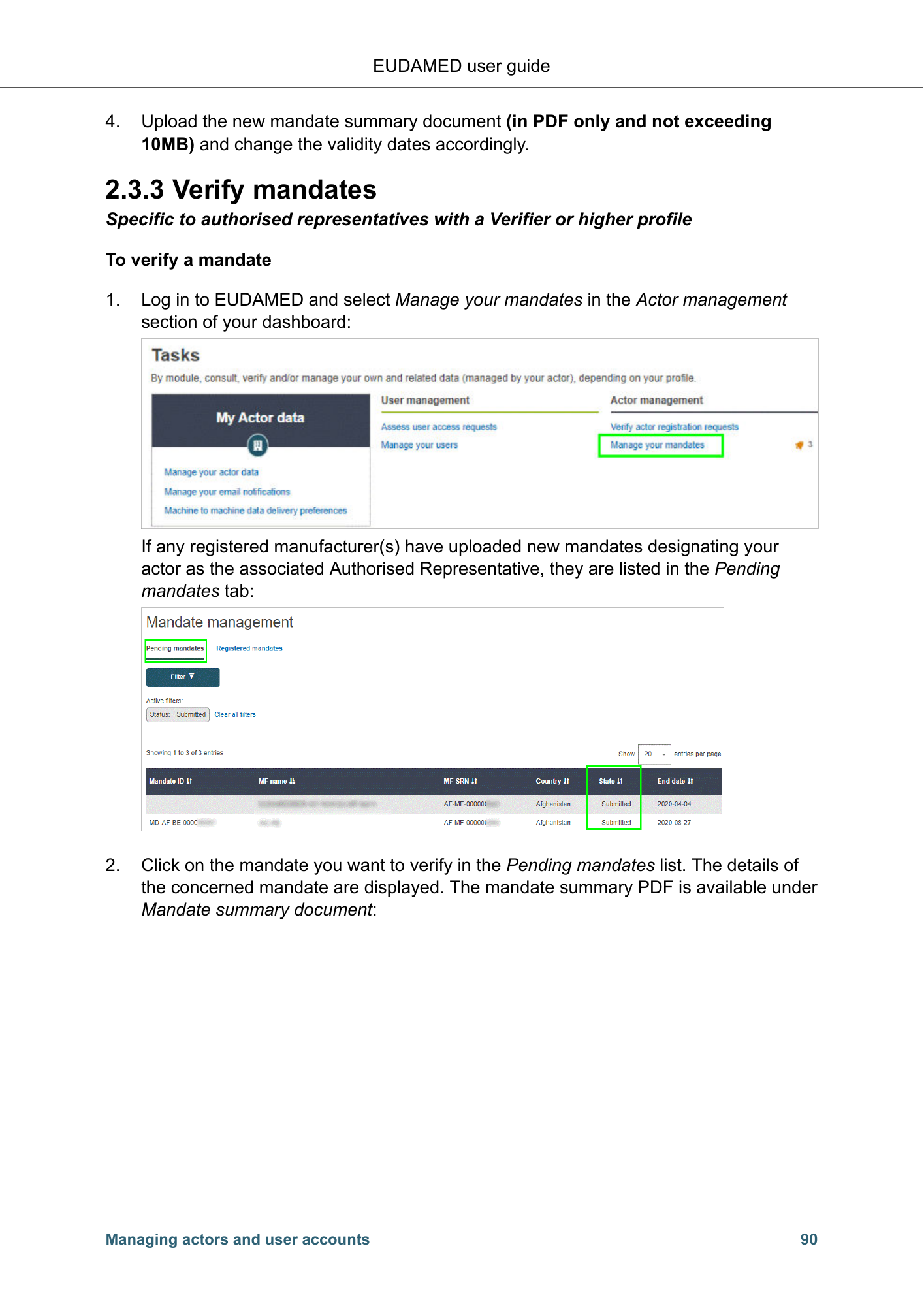
EUDAMED user guide 4. Upload the new mandate summary document (in PDF only and not exceeding 10MB) and change the validity dates accordingly. 2.3.3 Verify mandates Specific to authorised representatives with a Verifier or higher profile To verify a mandate 1. Log in to EUDAMED and select Manage your mandates in the Actor management section of your dashboard: If any registered manufacturer(s) have uploaded new mandates designating your actor as the associated Authorised Representative, they are listed in the Pending mandates tab: 2. Click on the mandate you want to verify in the Pending mandates list. The details of the concerned mandate are displayed. The mandate summary PDF is available under Mandate summary document: Managing actors and user accounts 90
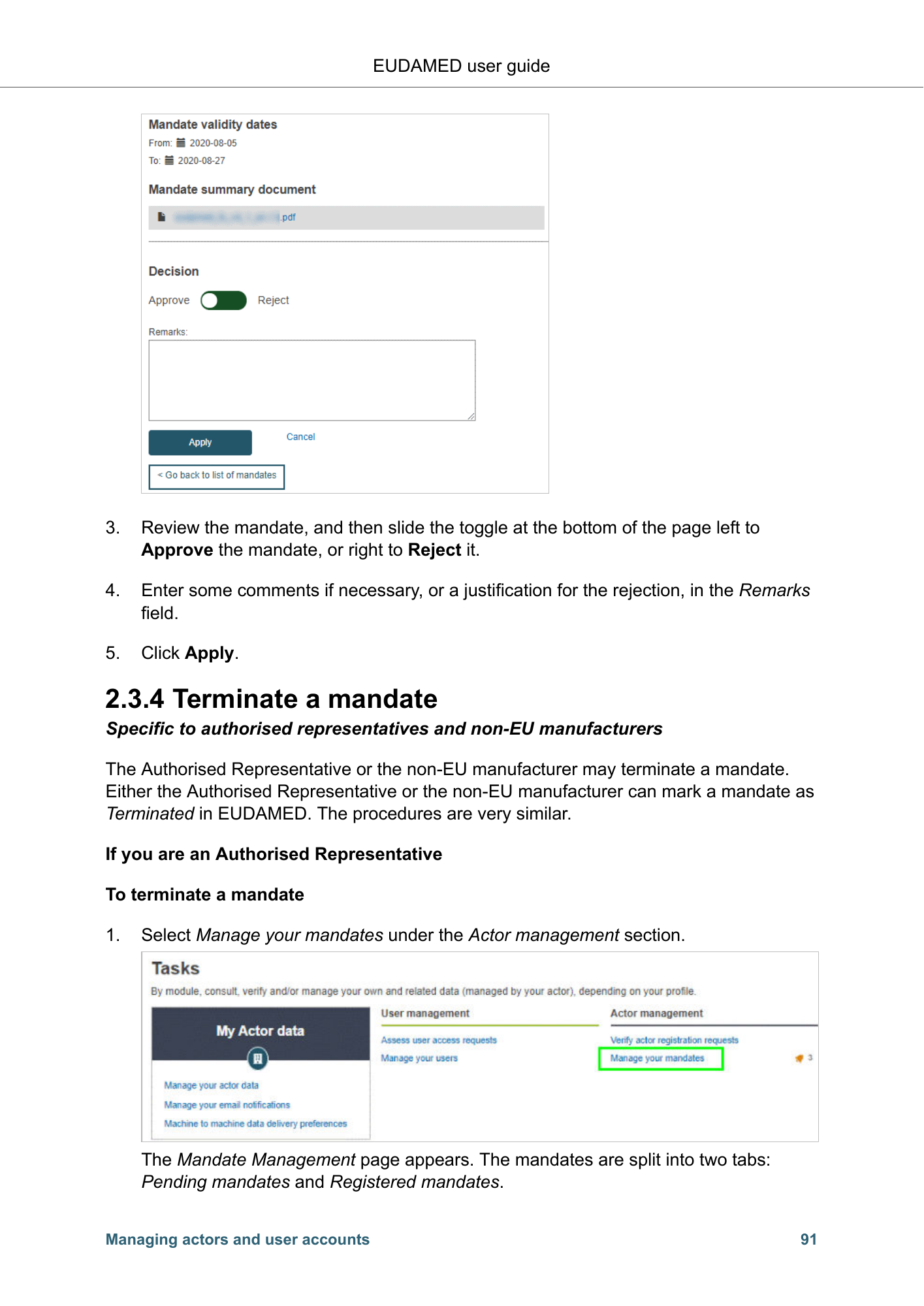
EUDAMED user guide 3. Review the mandate, and then slide the toggle at the bottom of the page left to Approve the mandate, or right to Reject it. 4. Enter some comments if necessary, or a justification for the rejection, in the Remarks field. 5. Click Apply. 2.3.4 Terminate a mandate Specific to authorised representatives and non-EU manufacturers The Authorised Representative or the non-EU manufacturer may terminate a mandate. Either the Authorised Representative or the non-EU manufacturer can mark a mandate as Terminated in EUDAMED. The procedures are very similar. If you are an Authorised Representative To terminate a mandate 1. Select Manage your mandates under the Actor management section. The Mandate Management page appears. The mandates are split into two tabs: Pending mandates and Registered mandates. Managing actors and user accounts 91
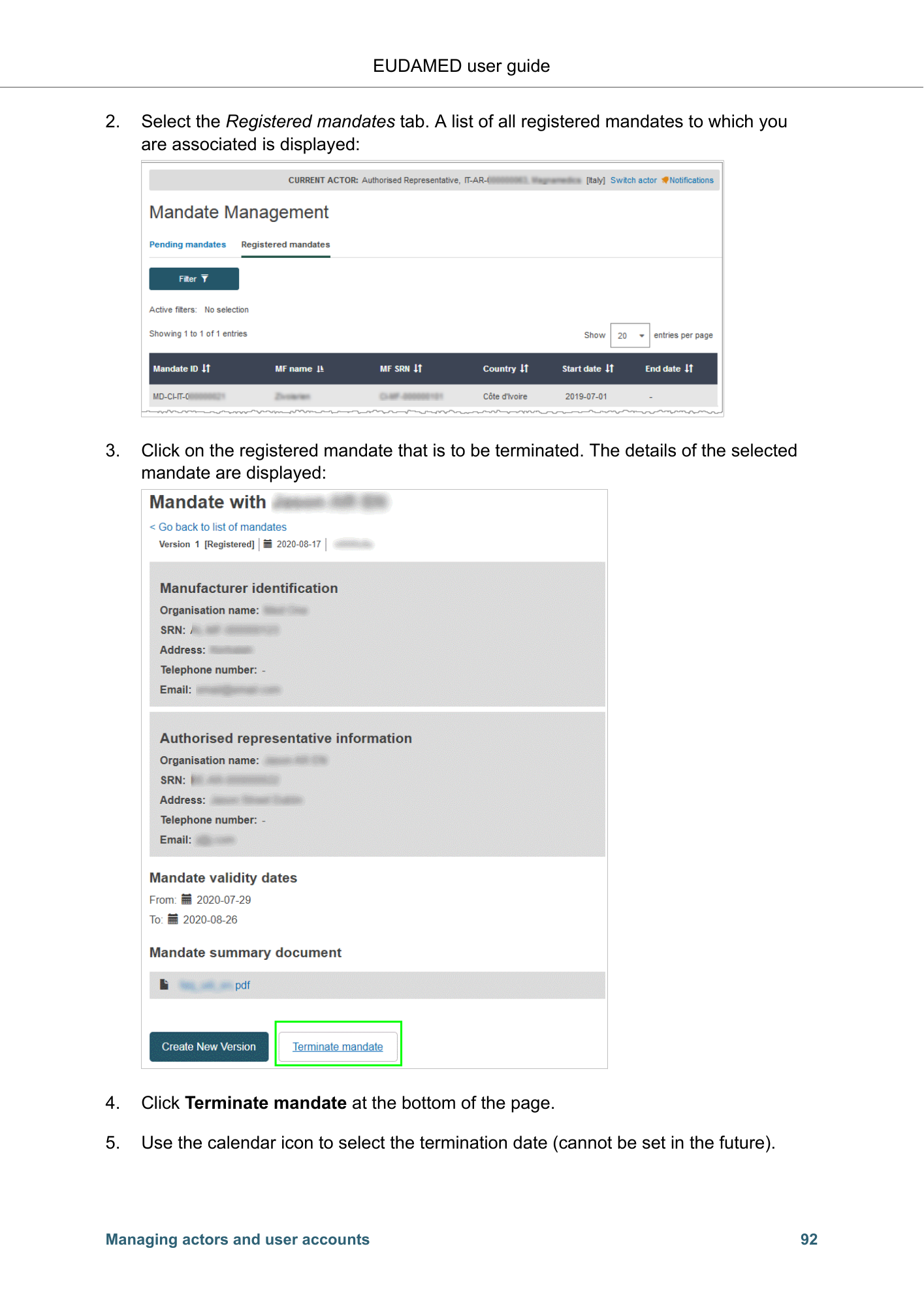
EUDAMED user guide 2. Select the Registered mandates tab. A list of all registered mandates to which you are associated is displayed: 3. Click on the registered mandate that is to be terminated. The details of the selected mandate are displayed: 4. Click Terminate mandate at the bottom of the page. 5. Use the calendar icon to select the termination date (cannot be set in the future). Managing actors and user accounts 92
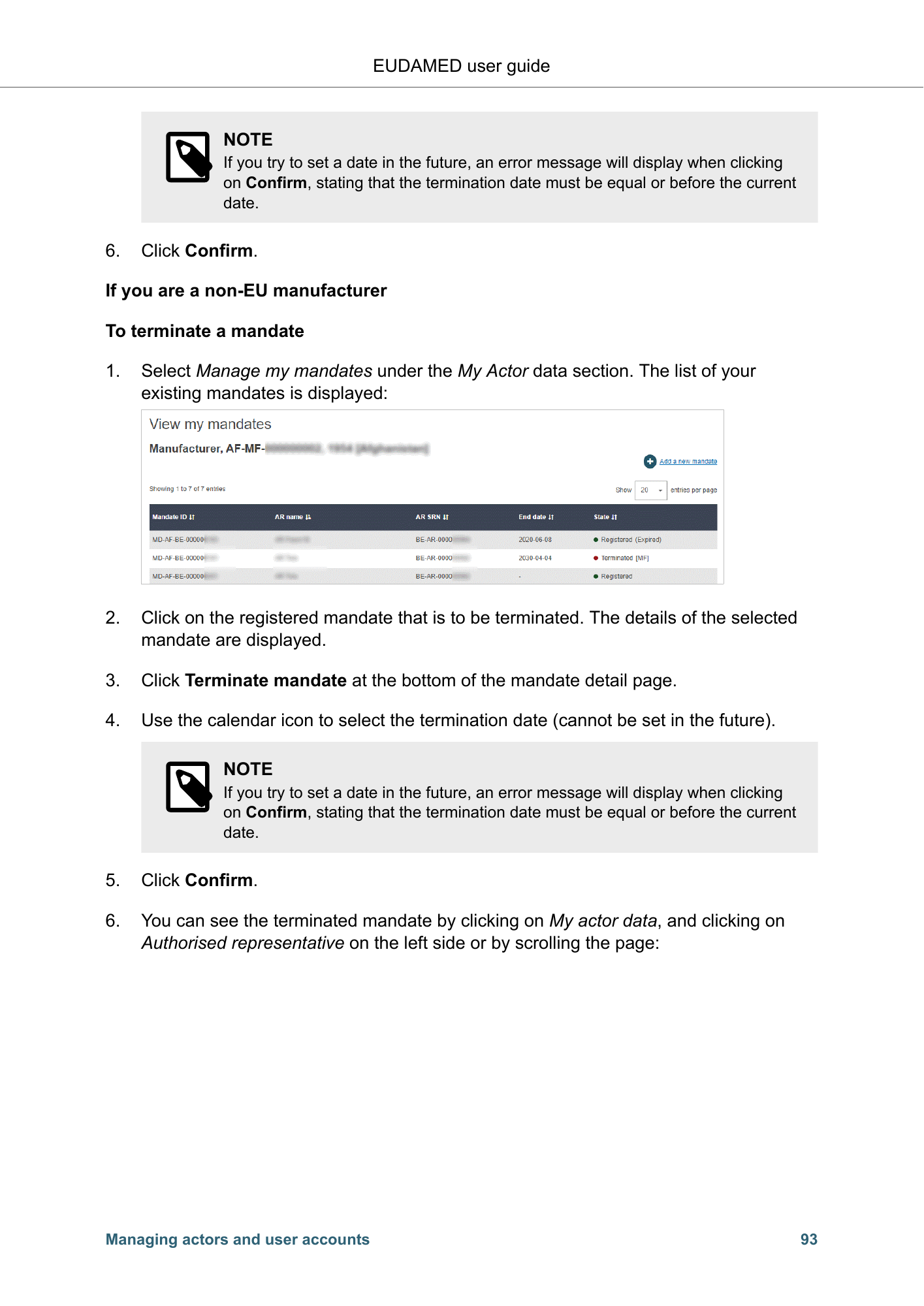
EUDAMED user guide NOTE If you try to set a date in the future, an error message will display when clicking on Confirm, stating that the termination date must be equal or before the current date. 6. Click Confirm. If you are a non-EU manufacturer To terminate a mandate 1. Select Manage my mandates under the My Actor data section. The list of your existing mandates is displayed: 2. Click on the registered mandate that is to be terminated. The details of the selected mandate are displayed. 3. Click Terminate mandate at the bottom of the mandate detail page. 4. Use the calendar icon to select the termination date (cannot be set in the future). NOTE If you try to set a date in the future, an error message will display when clicking on Confirm, stating that the termination date must be equal or before the current date. 5. Click Confirm. 6. You can see the terminated mandate by clicking on My actor data, and clicking on Authorised representative on the left side or by scrolling the page: Managing actors and user accounts 93
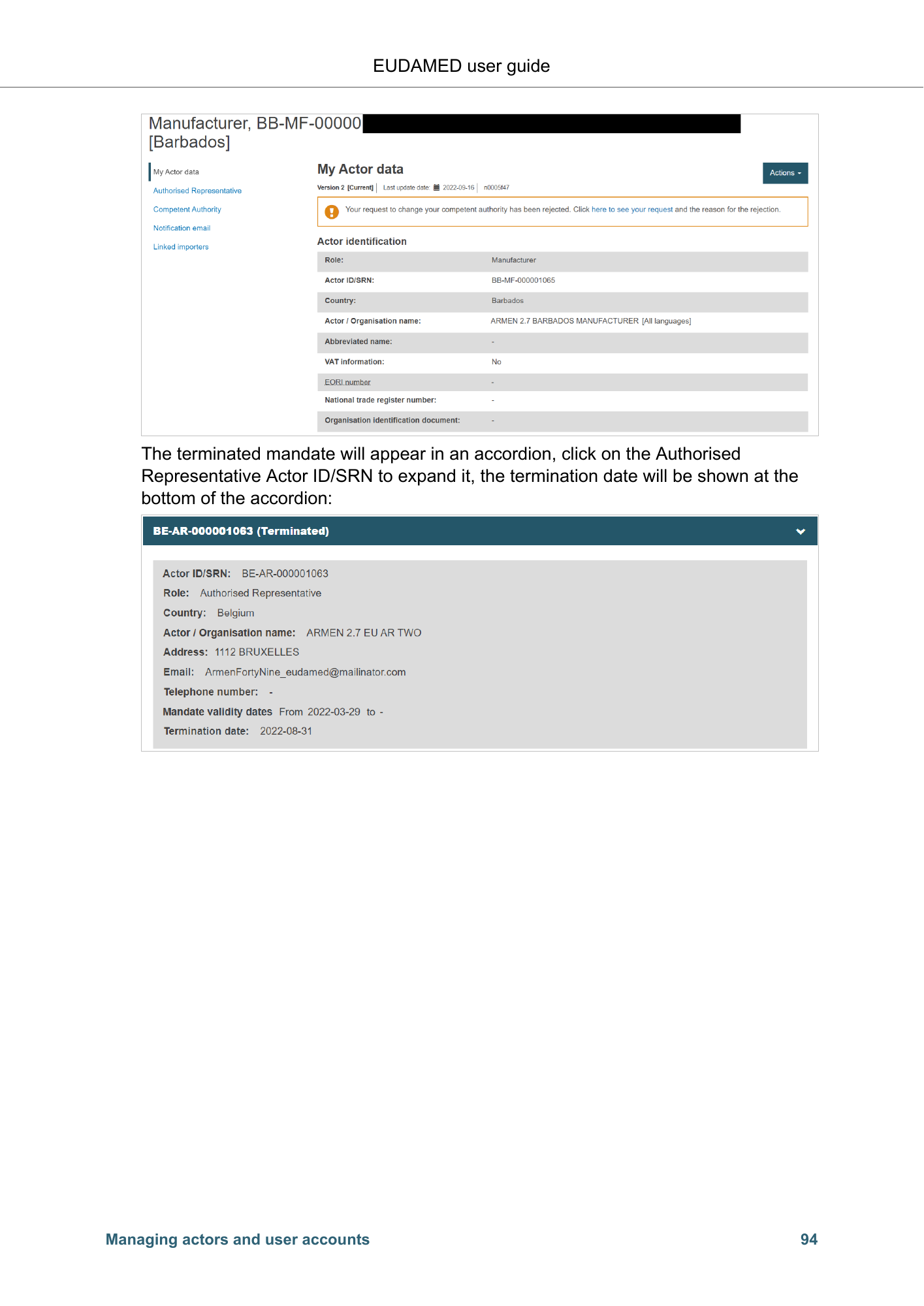
EUDAMED user guide The terminated mandate will appear in an accordion, click on the Authorised Representative Actor ID/SRN to expand it, the termination date will be shown at the bottom of the accordion: Managing actors and user accounts 94
PDF page 98

This page has no native PDF search text. Read the original page image above.