Searchable PDF text layer
British Account Management Reference Guide Please do not print this document. View online only to ensure you have the latest version. © Crown Copyright 2026
Currentness under review. Whether this instrument remains applicable is under review. Consult the later instruments and source context below before relying on it.
Original page images are authoritative. Searchable text is the PDF text layer and may omit image text or contain extraction artifacts. Quote and verify against the page images.
Link directly to a passage with its anchor — for example #pdf-page-1 — to open it highlighted. This reference version is generated from the authority’s publication and does not replace it. Language: English.
British Account Management Reference Guide Please do not print this document. View online only to ensure you have the latest version. © Crown Copyright 2026
MHRA Account Management Reference Guide Contents – Account Management Reference Guide Contents – Account Management Reference Guide ................. 1 MHRA – Agency Services ........................................................... 2 Logging in ............................................................................ 3 Username and Password ..................................................... 4 New Users > Change temporary password .......................... 5 Forgot password > resets ..................................................... 5 My profile ..................................................................................... 7 Updating profile information ................................................. 8 Enter Agency Services ............................................................... 9 Organisation page ................................................................ 9 News Feed ......................................................................... 10 Managing organisations ..................................................... 11 Annual Fee ........................................................................ 12 Editing organisation details ................................................ 14 Uploading new Letter of Designation .................................. 19 Review Registration ........................................................... 23 Account Suspension .......................................................... 24 Account Closure................................................................. 26 Adding contacts and users ................................................. 27 Removing contacts............................................................. 29 Editing contacts.................................................................. 30 Deactivating a user account ............................................... 30 Managing other addresses ................................................. 31 Unregister Manufacturer..................................................... 38 Updating Role from Authorised Representative to UKRP ... 40 Annex I – MHRA Agency Services terms and conditions and Reference Guides........................................................................................ 46 Version April 2026 v1 1|P a g e
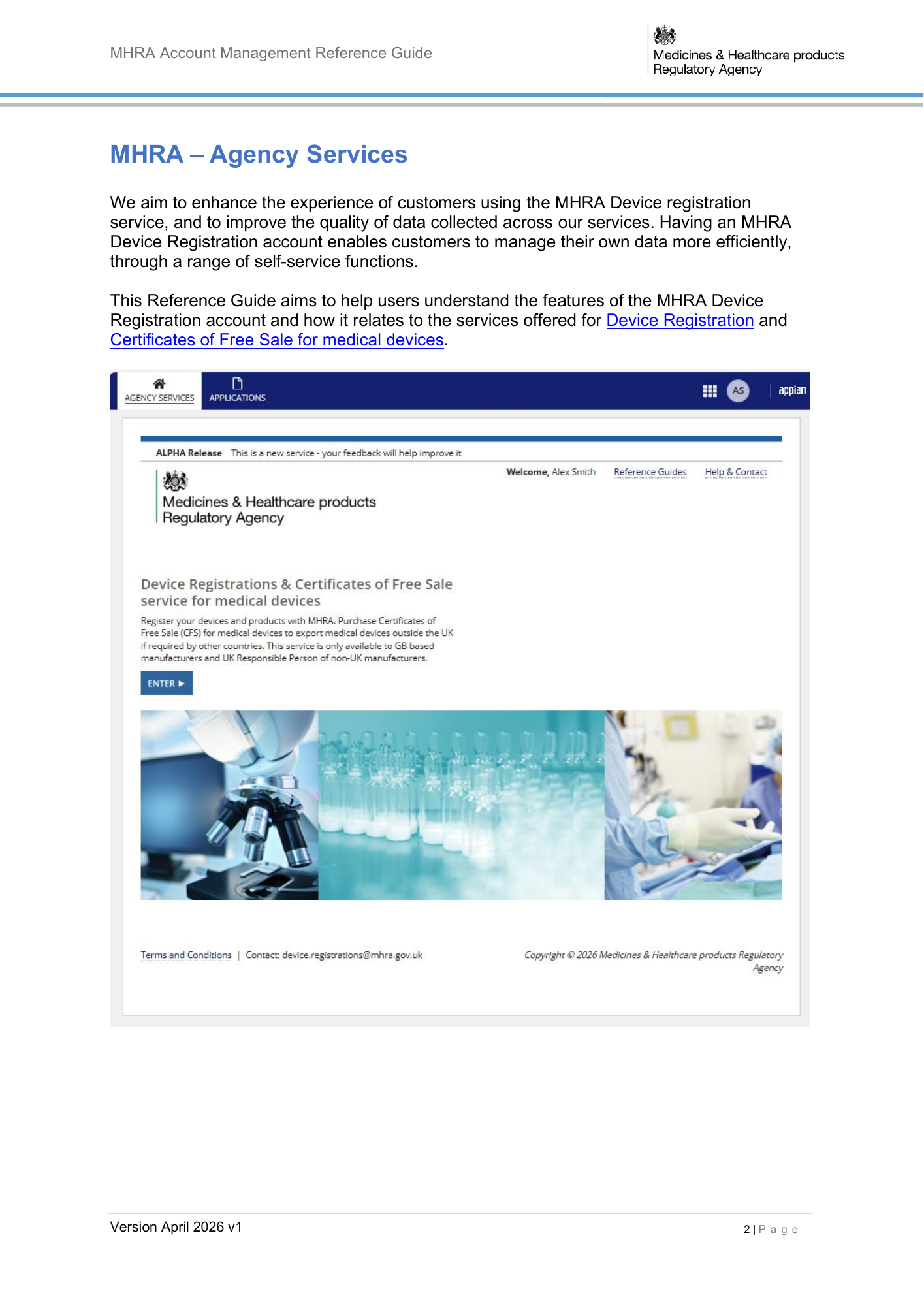
MHRA Account Management Reference Guide MHRA – Agency Services We aim to enhance the experience of customers using the MHRA Device registration service, and to improve the quality of data collected across our services. Having an MHRA Device Registration account enables customers to manage their own data more efficiently, through a range of self-service functions. This Reference Guide aims to help users understand the features of the MHRA Device Registration account and how it relates to the services offered for Device Registration and Certificates of Free Sale for medical devices. Version April 2026 v1 2|P a g e
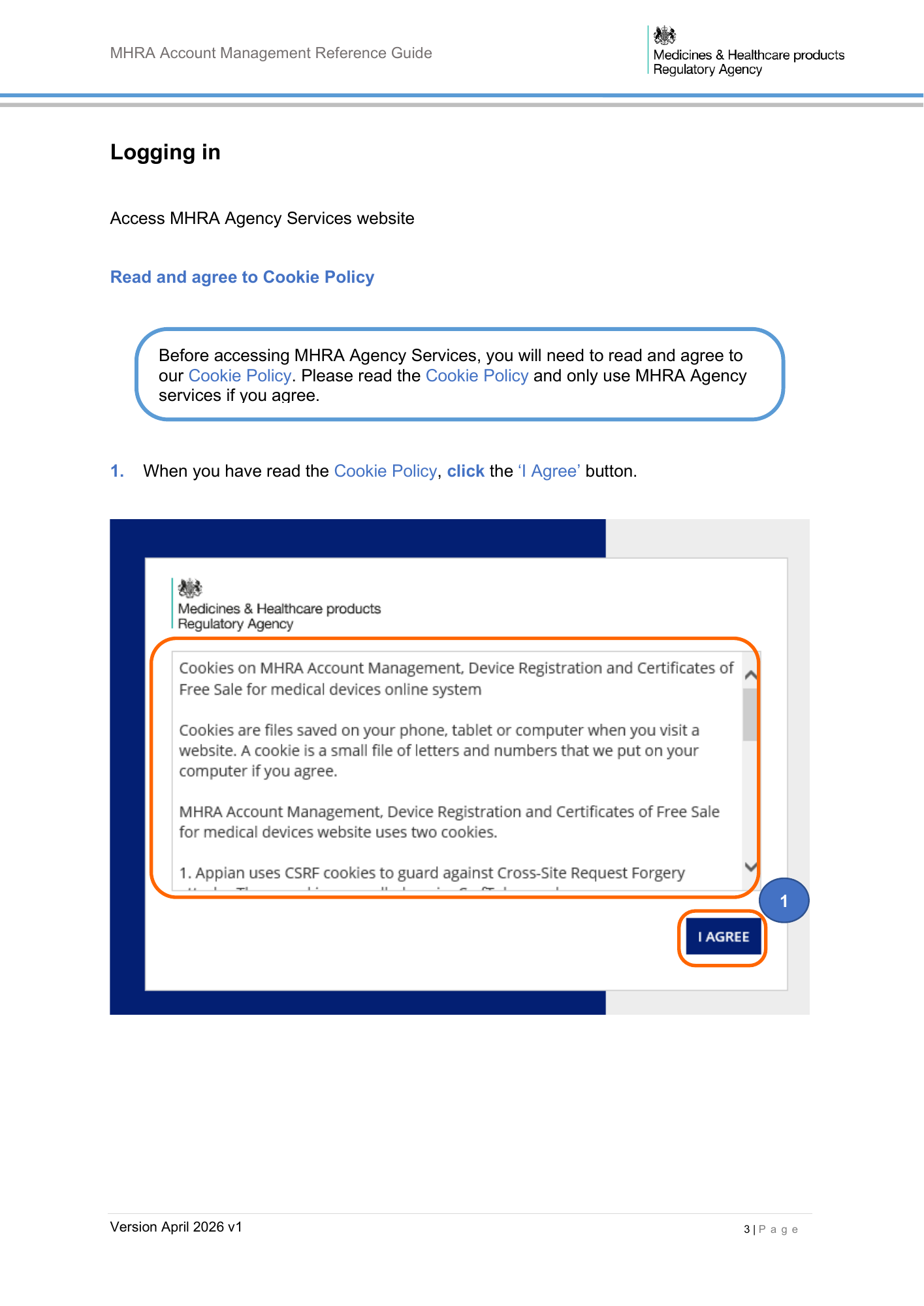
MHRA Account Management Reference Guide Logging in Access MHRA Agency Services website Read and agree to Cookie Policy Before accessing MHRA Agency Services, you will need to read and agree to our Cookie Policy. Please read the Cookie Policy and only use MHRA Agency services if you agree. 1. When you have read the Cookie Policy, click the ‘I Agree’ button. 1 Version April 2026 v1 3|P a g e
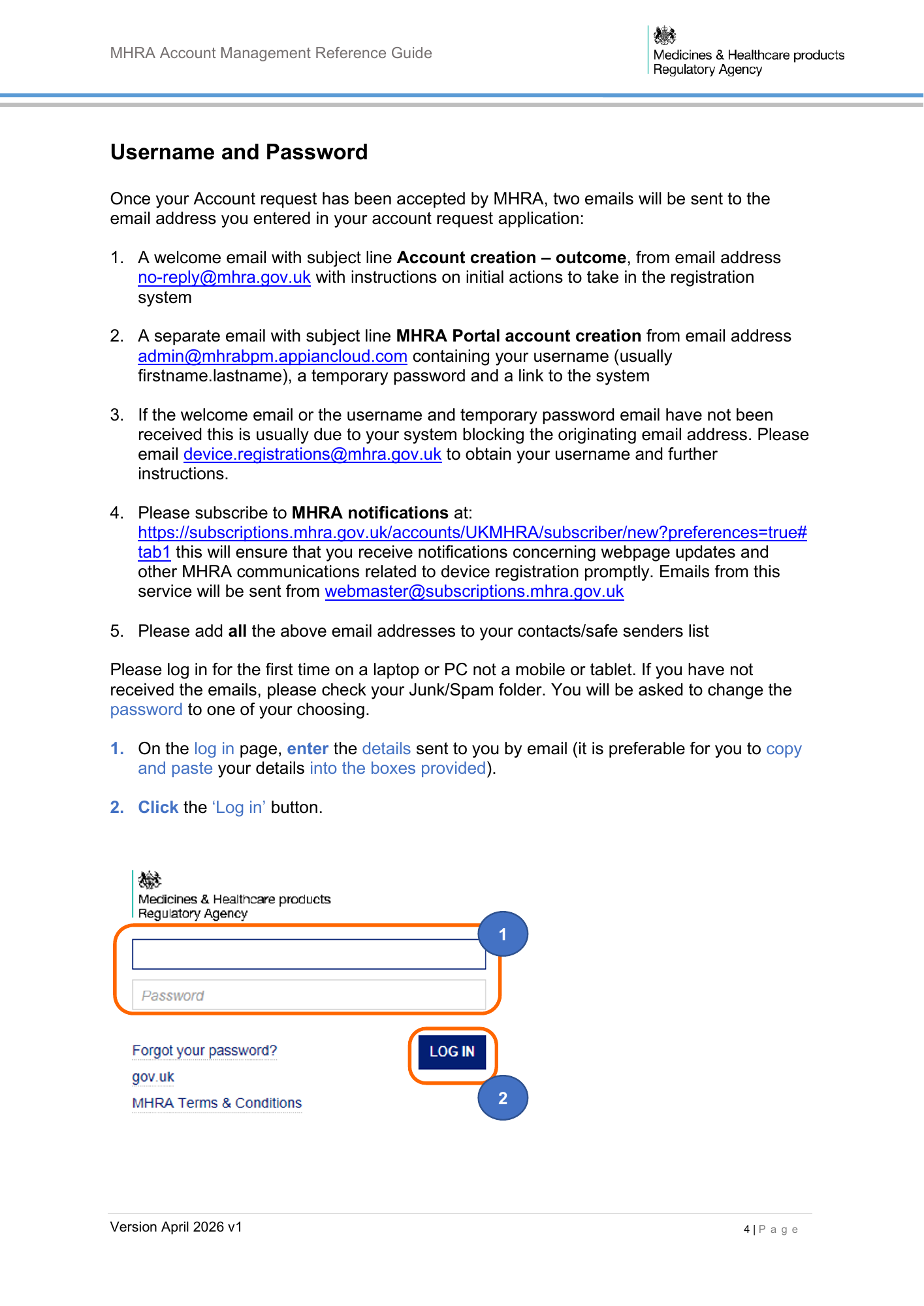
MHRA Account Management Reference Guide Username and Password Once your Account request has been accepted by MHRA, two emails will be sent to the email address you entered in your account request application: 1. A welcome email with subject line Account creation – outcome, from email address no-reply@mhra.gov.uk with instructions on initial actions to take in the registration system 2. A separate email with subject line MHRA Portal account creation from email address admin@mhrabpm.appiancloud.com containing your username (usually firstname.lastname), a temporary password and a link to the system 3. If the welcome email or the username and temporary password email have not been received this is usually due to your system blocking the originating email address. Please email device.registrations@mhra.gov.uk to obtain your username and further instructions. 4. Please subscribe to MHRA notifications at: https://subscriptions.mhra.gov.uk/accounts/UKMHRA/subscriber/new?preferences=true# tab1 this will ensure that you receive notifications concerning webpage updates and other MHRA communications related to device registration promptly. Emails from this service will be sent from webmaster@subscriptions.mhra.gov.uk 5. Please add all the above email addresses to your contacts/safe senders list Please log in for the first time on a laptop or PC not a mobile or tablet. If you have not received the emails, please check your Junk/Spam folder. You will be asked to change the password to one of your choosing. 1. On the log in page, enter the details sent to you by email (it is preferable for you to copy and paste your details into the boxes provided). 2. Click the ‘Log in’ button. 1 2 Version April 2026 v1 4|P a g e
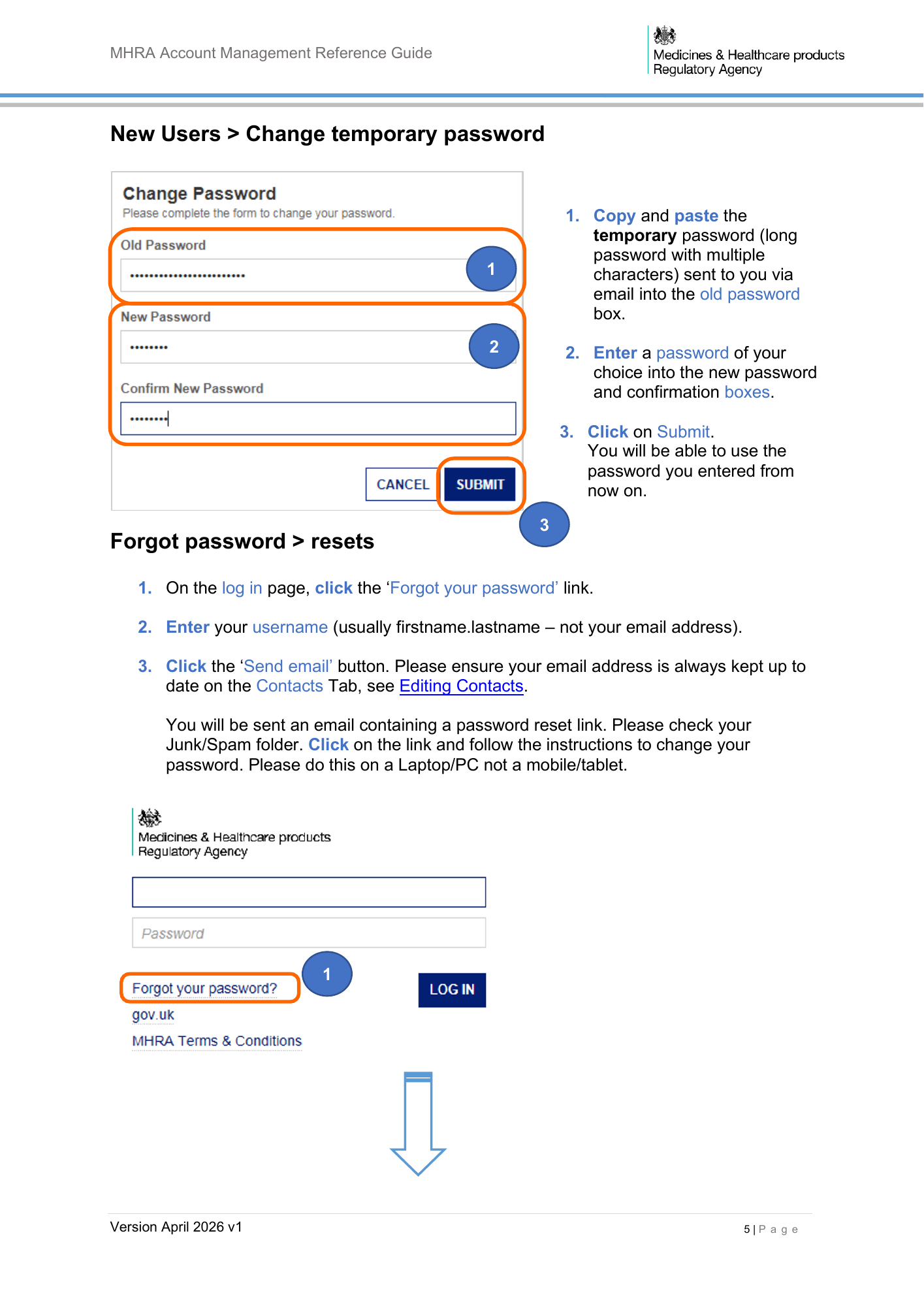
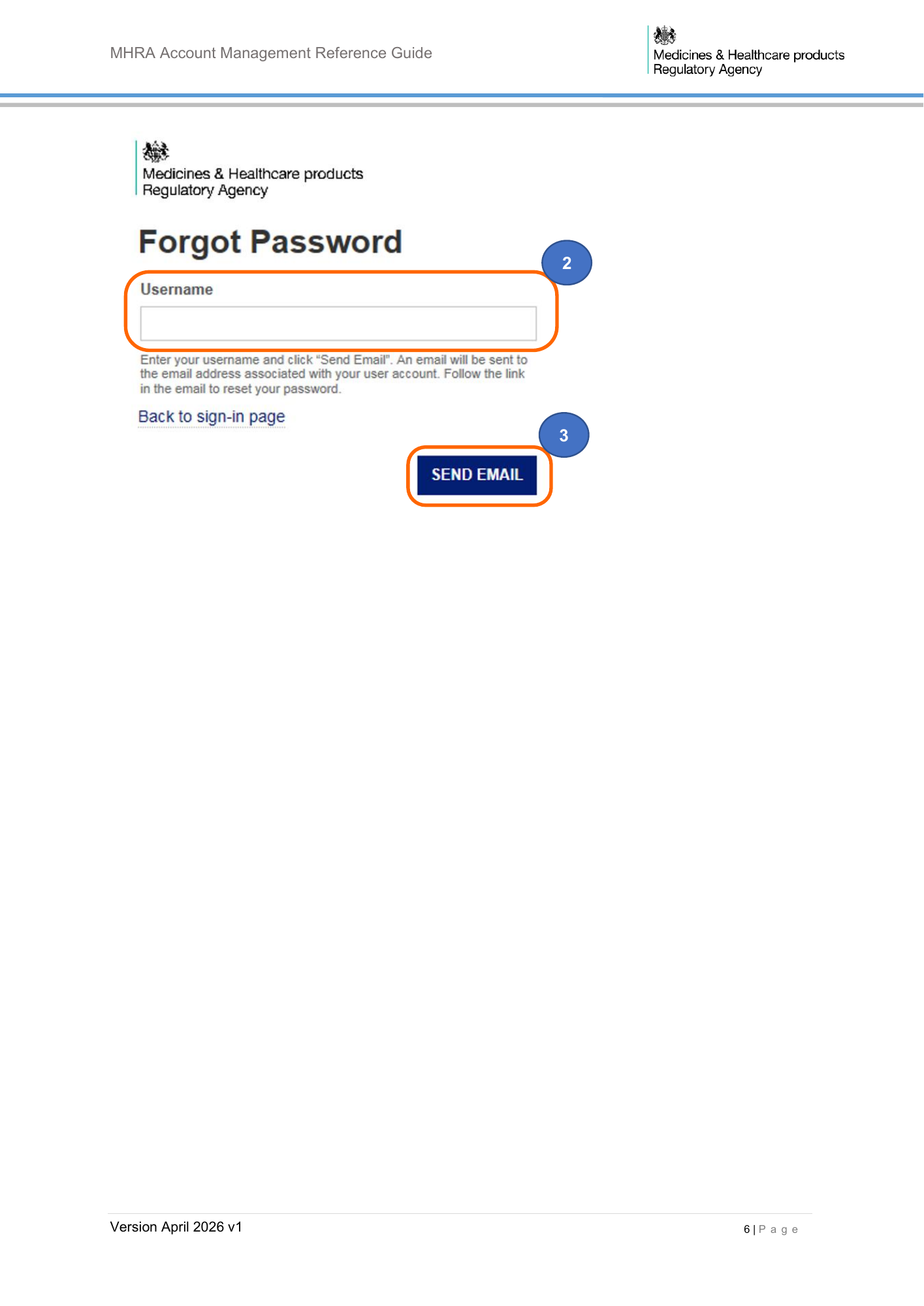
MHRA Account Management Reference Guide New Users > Change temporary password 1. Copy and paste the temporary password (long password with multiple 1 characters) sent to you via email into the old password box. 2 2. Enter a password of your choice into the new password and confirmation boxes. 3. Click on Submit. You will be able to use the password you entered from now on. 3 Forgot password > resets 1. On the log in page, click the ‘Forgot your password’ link. 2. Enter your username (usually firstname.lastname – not your email address). 3. Click the ‘Send email’ button. Please ensure your email address is always kept up to date on the Contacts Tab, see Editing Contacts. You will be sent an email containing a password reset link. Please check your Junk/Spam folder. Click on the link and follow the instructions to change your password. Please do this on a Laptop/PC not a mobile/tablet. 1 Version April 2026 v1 5|P a g e
MHRA Account Management Reference Guide 2 3 Version April 2026 v1 6|P a g e
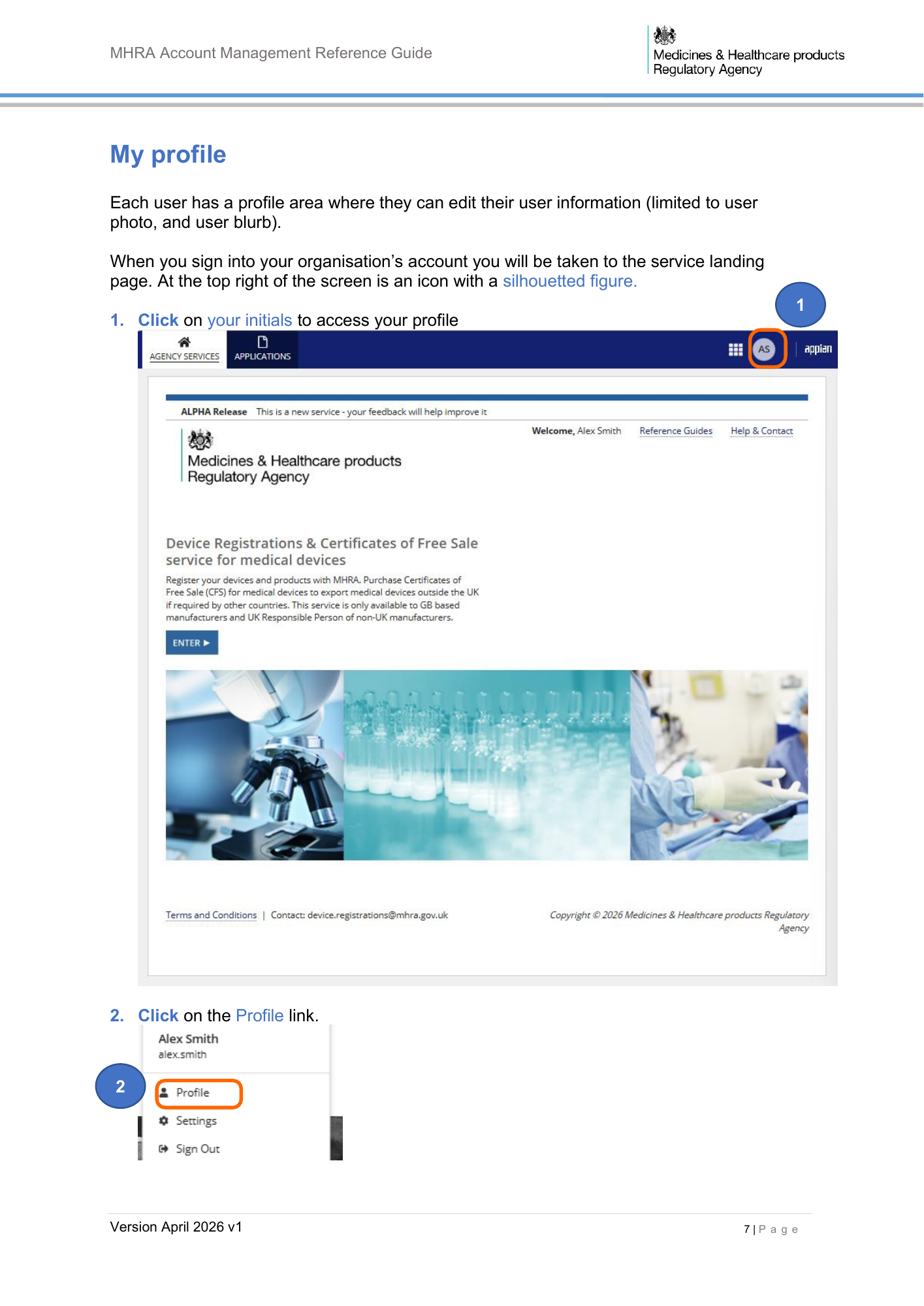
MHRA Account Management Reference Guide My profile Each user has a profile area where they can edit their user information (limited to user photo, and user blurb). When you sign into your organisation’s account you will be taken to the service landing page. At the top right of the screen is an icon with a silhouetted figure. 1 1. Click on your initials to access your profile 2. Click on the Profile link. 2 Version April 2026 v1 7|P a g e
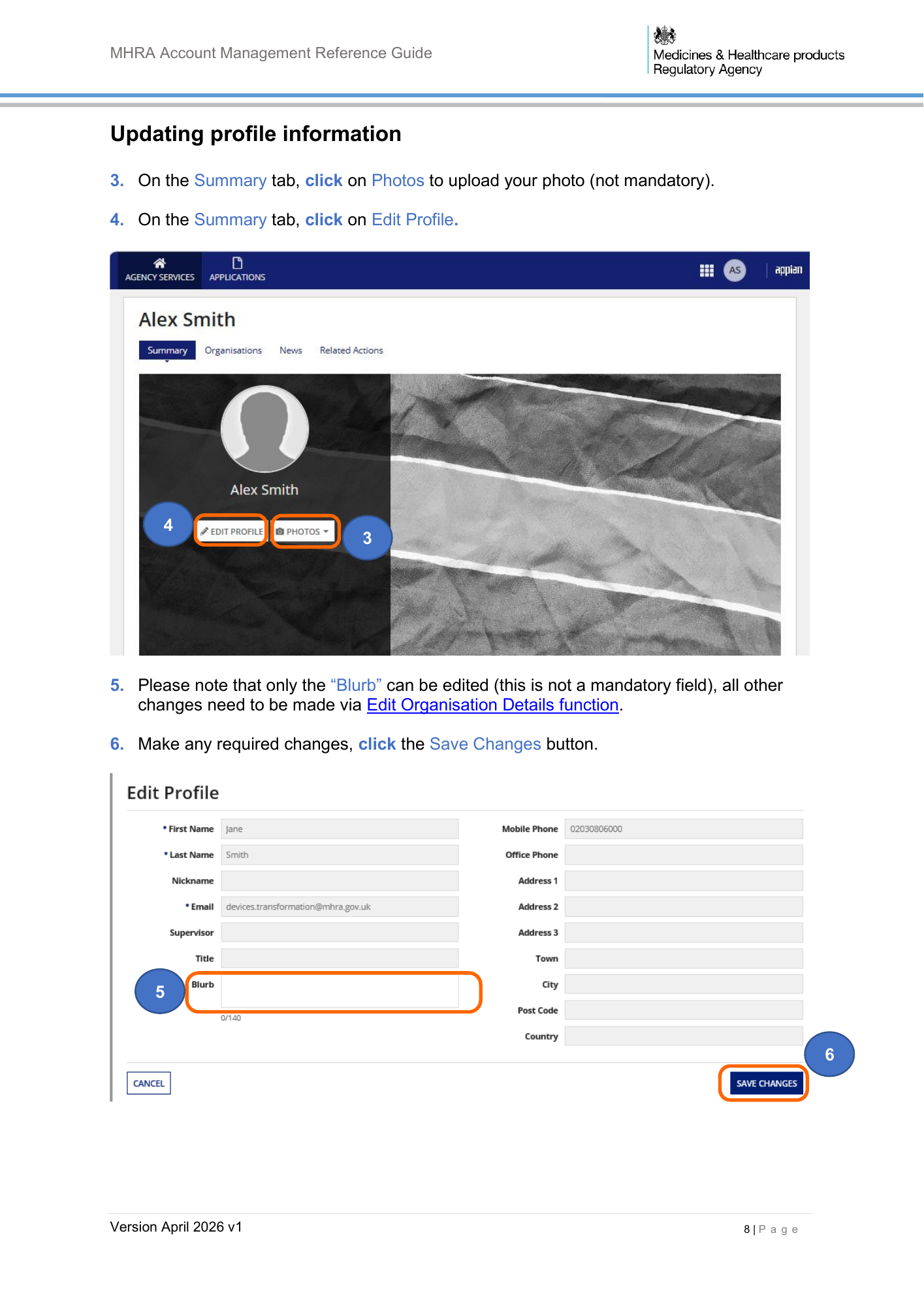
MHRA Account Management Reference Guide Updating profile information 3. On the Summary tab, click on Photos to upload your photo (not mandatory). 4. On the Summary tab, click on Edit Profile. 4 3 5. Please note that only the “Blurb” can be edited (this is not a mandatory field), all other changes need to be made via Edit Organisation Details function. 6. Make any required changes, click the Save Changes button. 5 6 Version April 2026 v1 8|P a g e
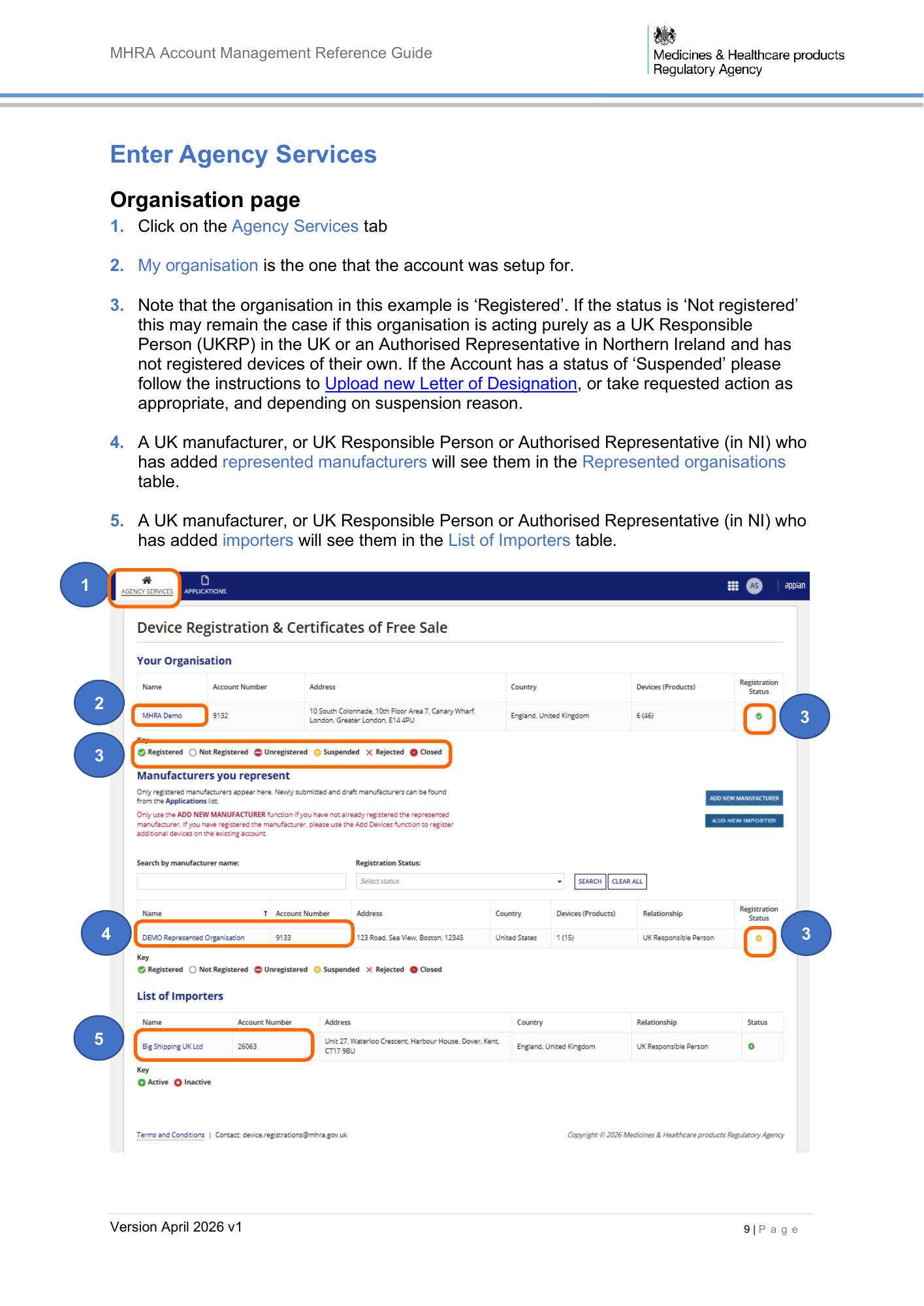
MHRA Account Management Reference Guide Enter Agency Services Organisation page 1. Click on the Agency Services tab 2. My organisation is the one that the account was setup for. 3. Note that the organisation in this example is ‘Registered’. If the status is ‘Not registered’ this may remain the case if this organisation is acting purely as a UK Responsible Person (UKRP) in the UK or an Authorised Representative in Northern Ireland and has not registered devices of their own. If the Account has a status of ‘Suspended’ please follow the instructions to Upload new Letter of Designation, or take requested action as appropriate, and depending on suspension reason. 4. A UK manufacturer, or UK Responsible Person or Authorised Representative (in NI) who has added represented manufacturers will see them in the Represented organisations table. 5. A UK manufacturer, or UK Responsible Person or Authorised Representative (in NI) who has added importers will see them in the List of Importers table. 1 2 3 3 4 3 5 Version April 2026 v1 9|P a g e
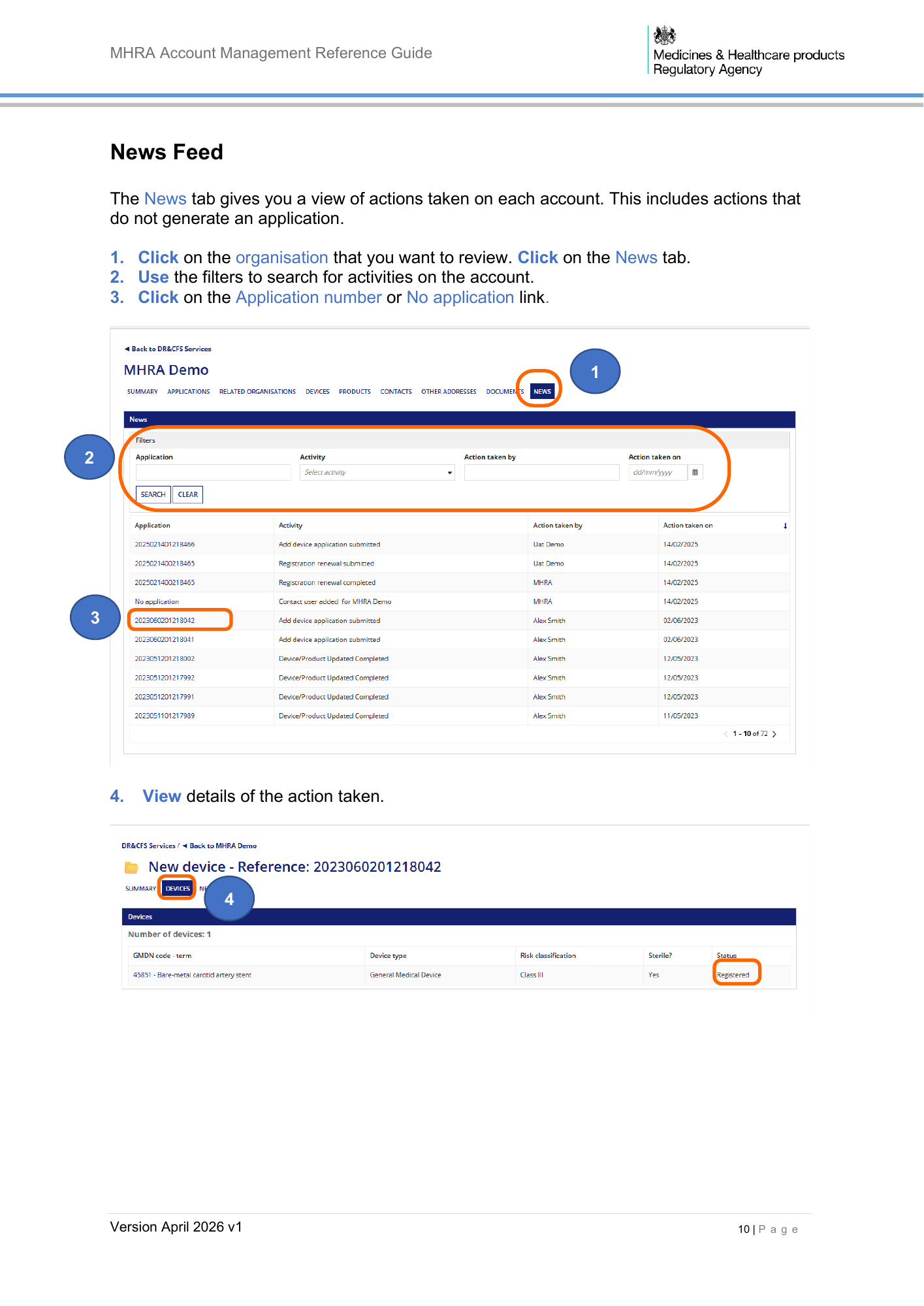
MHRA Account Management Reference Guide News Feed The News tab gives you a view of actions taken on each account. This includes actions that do not generate an application. 1. Click on the organisation that you want to review. Click on the News tab. 2. Use the filters to search for activities on the account. 3. Click on the Application number or No application link. 1 2 3 4. View details of the action taken. 4 Version April 2026 v1 10 | P a g e
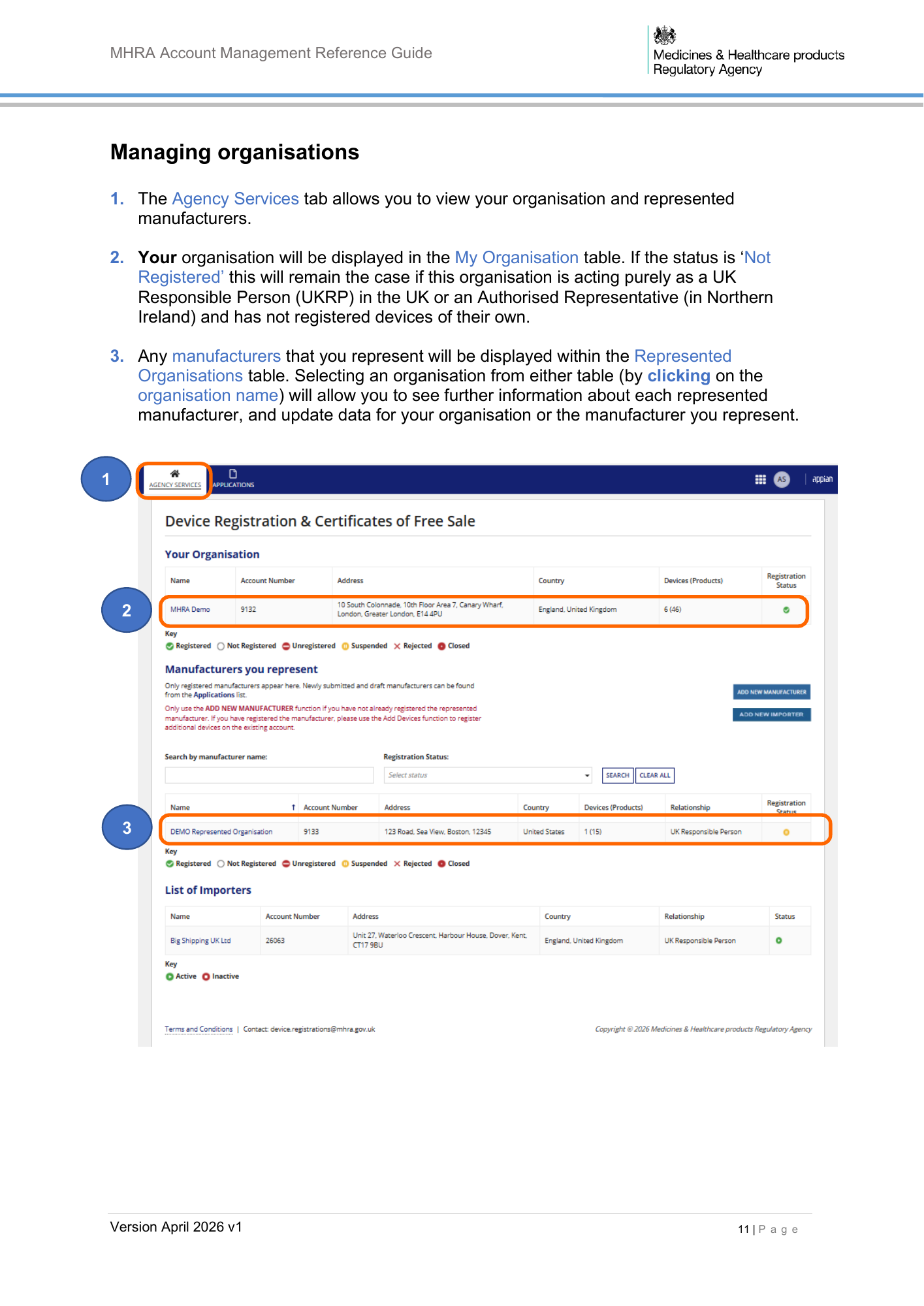
MHRA Account Management Reference Guide Managing organisations 1. The Agency Services tab allows you to view your organisation and represented manufacturers. 2. Your organisation will be displayed in the My Organisation table. If the status is ‘Not Registered’ this will remain the case if this organisation is acting purely as a UK Responsible Person (UKRP) in the UK or an Authorised Representative (in Northern Ireland) and has not registered devices of their own. 3. Any manufacturers that you represent will be displayed within the Represented Organisations table. Selecting an organisation from either table (by clicking on the organisation name) will allow you to see further information about each represented manufacturer, and update data for your organisation or the manufacturer you represent. 1 2 3 Version April 2026 v1 11 | P a g e
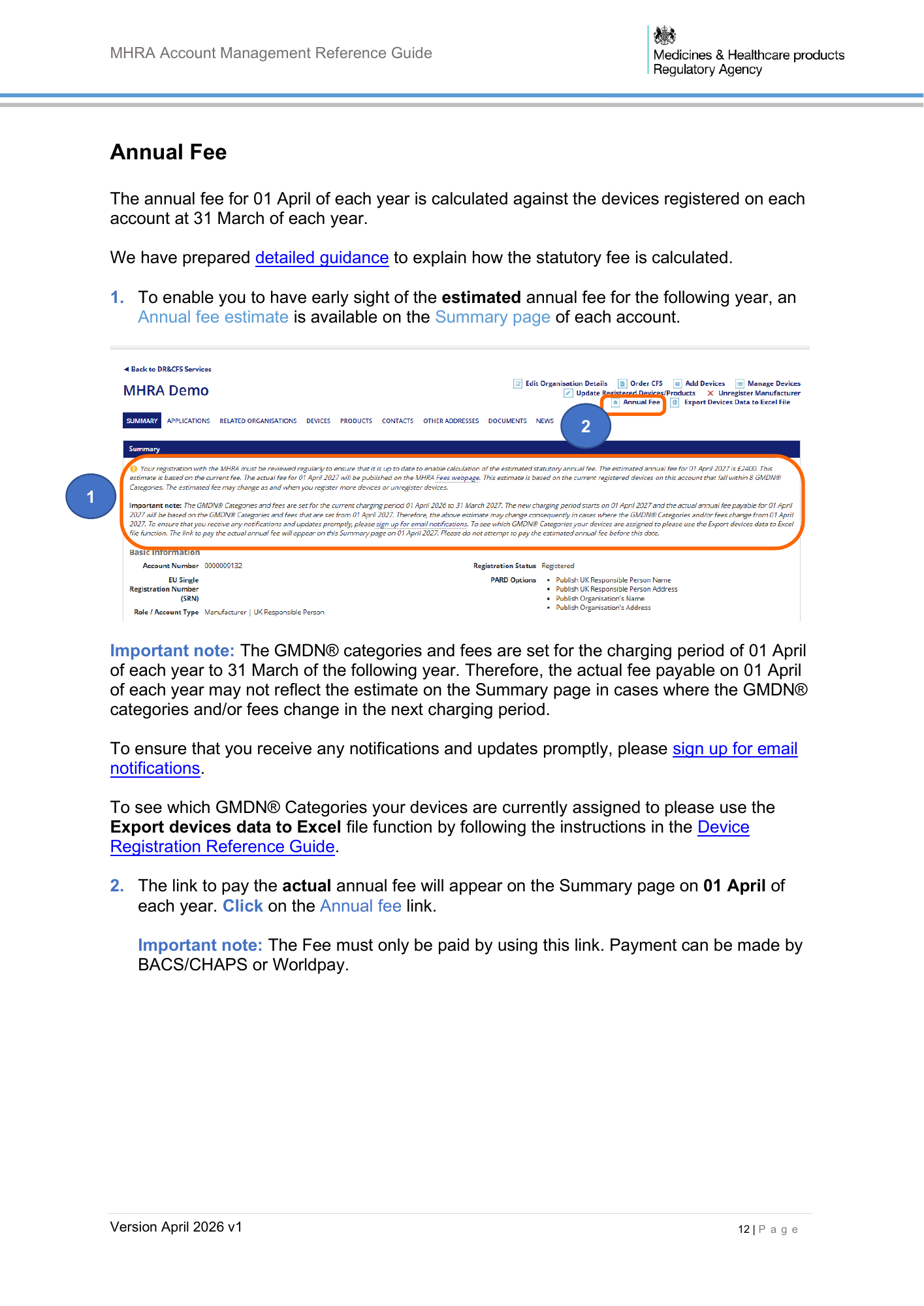
MHRA Account Management Reference Guide Annual Fee The annual fee for 01 April of each year is calculated against the devices registered on each account at 31 March of each year. We have prepared detailed guidance to explain how the statutory fee is calculated. 1. To enable you to have early sight of the estimated annual fee for the following year, an Annual fee estimate is available on the Summary page of each account. 2 1 Important note: The GMDN® categories and fees are set for the charging period of 01 April of each year to 31 March of the following year. Therefore, the actual fee payable on 01 April of each year may not reflect the estimate on the Summary page in cases where the GMDN® categories and/or fees change in the next charging period. To ensure that you receive any notifications and updates promptly, please sign up for email notifications. To see which GMDN® Categories your devices are currently assigned to please use the Export devices data to Excel file function by following the instructions in the Device Registration Reference Guide. 2. The link to pay the actual annual fee will appear on the Summary page on 01 April of each year. Click on the Annual fee link. Important note: The Fee must only be paid by using this link. Payment can be made by BACS/CHAPS or Worldpay. Version April 2026 v1 12 | P a g e
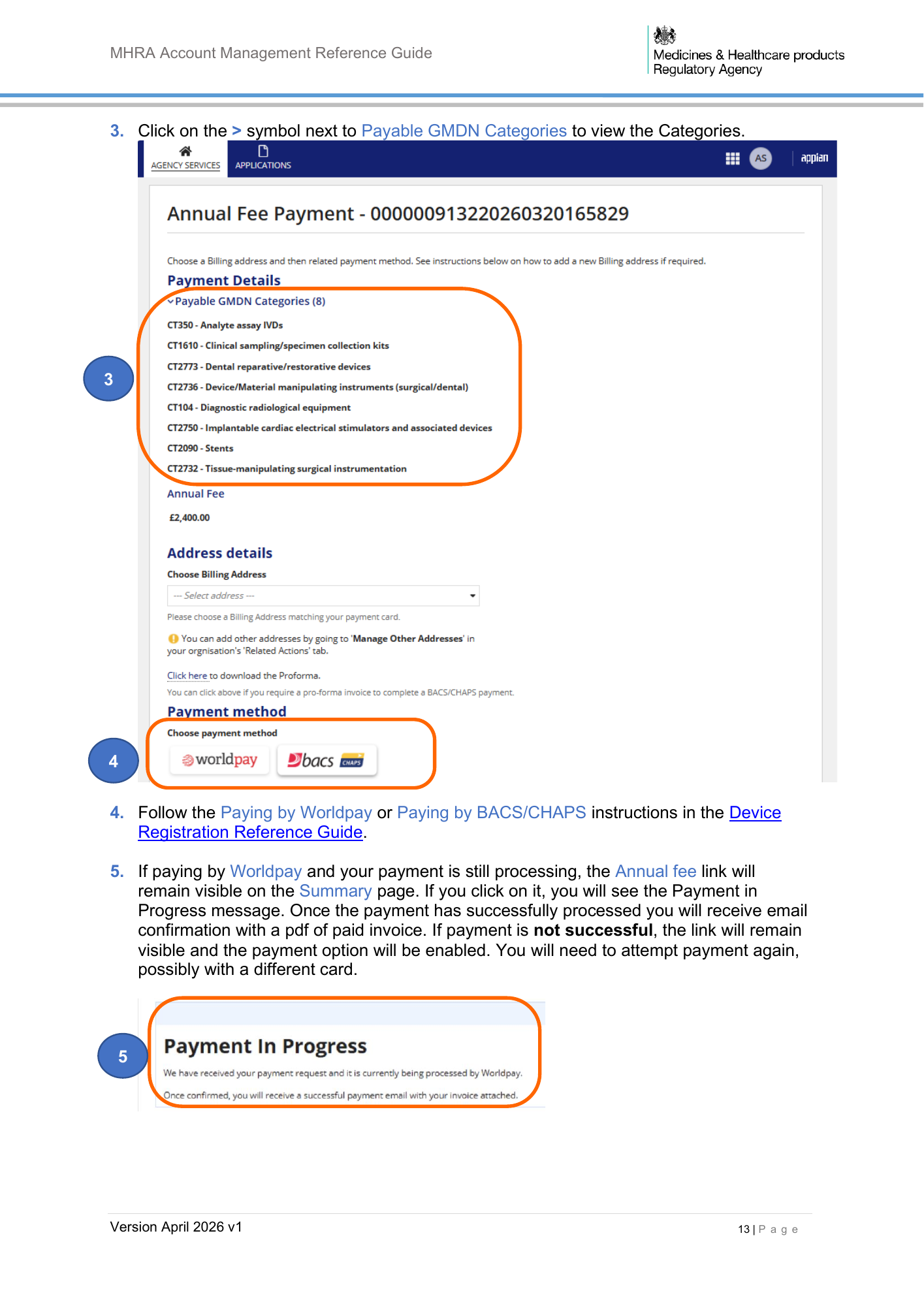
MHRA Account Management Reference Guide 3. Click on the > symbol next to Payable GMDN Categories to view the Categories. 3 4 4. Follow the Paying by Worldpay or Paying by BACS/CHAPS instructions in the Device Registration Reference Guide. 5. If paying by Worldpay and your payment is still processing, the Annual fee link will remain visible on the Summary page. If you click on it, you will see the Payment in Progress message. Once the payment has successfully processed you will receive email confirmation with a pdf of paid invoice. If payment is not successful, the link will remain visible and the payment option will be enabled. You will need to attempt payment again, possibly with a different card. 5 Version April 2026 v1 13 | P a g e
MHRA Account Management Reference Guide Editing organisation details 1. Users can edit their organisation details or details of manufacturers they represent. There is no charge to Edit organisation details. 2. Name and address changes are only permitted where there is no change in the legal entity of the organisation to which the change relates. 3. If a UK Responsible Person or Authorised Representative in Northern Ireland changes their organisation name, new Letters of Designation for each represented manufacturer must be uploaded to reflect the new name. You will be taken to a screen to upload new Letters of Designation. You must ensure that you review your represented manufacturers before making any changes to your organisation name. If any represented manufacturers are suspended due to Expired Letter of Designation or other reason, you will still need to upload a new Letter of Designation. If you no longer represent a manufacturer, please follow the Unregister manufacturer instructions. The changes will not be applied until MHRA has reviewed and accepted the change. 4. If a UK Responsible Person or Authorised Representative in Northern Ireland updates the organisation details of a represented organisation, they must upload a new letter of designation for the represented organisation. The changes will not be applied until MHRA has reviewed and accepted the change. 5. If a UK Responsible Person or Authorised Representative in Northern Ireland no longer represents a manufacturer, they must Unregister the represented organisation. Please follow the Unregister Manufacturer instructions. The registration status of the represented organisation will change to ‘Unregistered’, and that manufacturer will no longer be able to legally place medical devices on the UK market. 6. Please note that when an Edit Organisation application is submitted and whilst it is under review by MHRA you will not be able to make certain changes to your account until the application has been completed by MHRA. You will see warning messages in the system depending on the type of action you attempt to take. 7. Importer accounts can only be deactivated, no changes can be made. If you need to make changes to Importer details, you need to deactivate the Importer and add them again with the new details. There is currently no charge to do this. Importers can be added and deactivated from the organisation page via the Agency Services tab. See Adding Importers and Deactivating Importers in the Device Registration Reference Guide. Version April 2026 v1 14 | P a g e
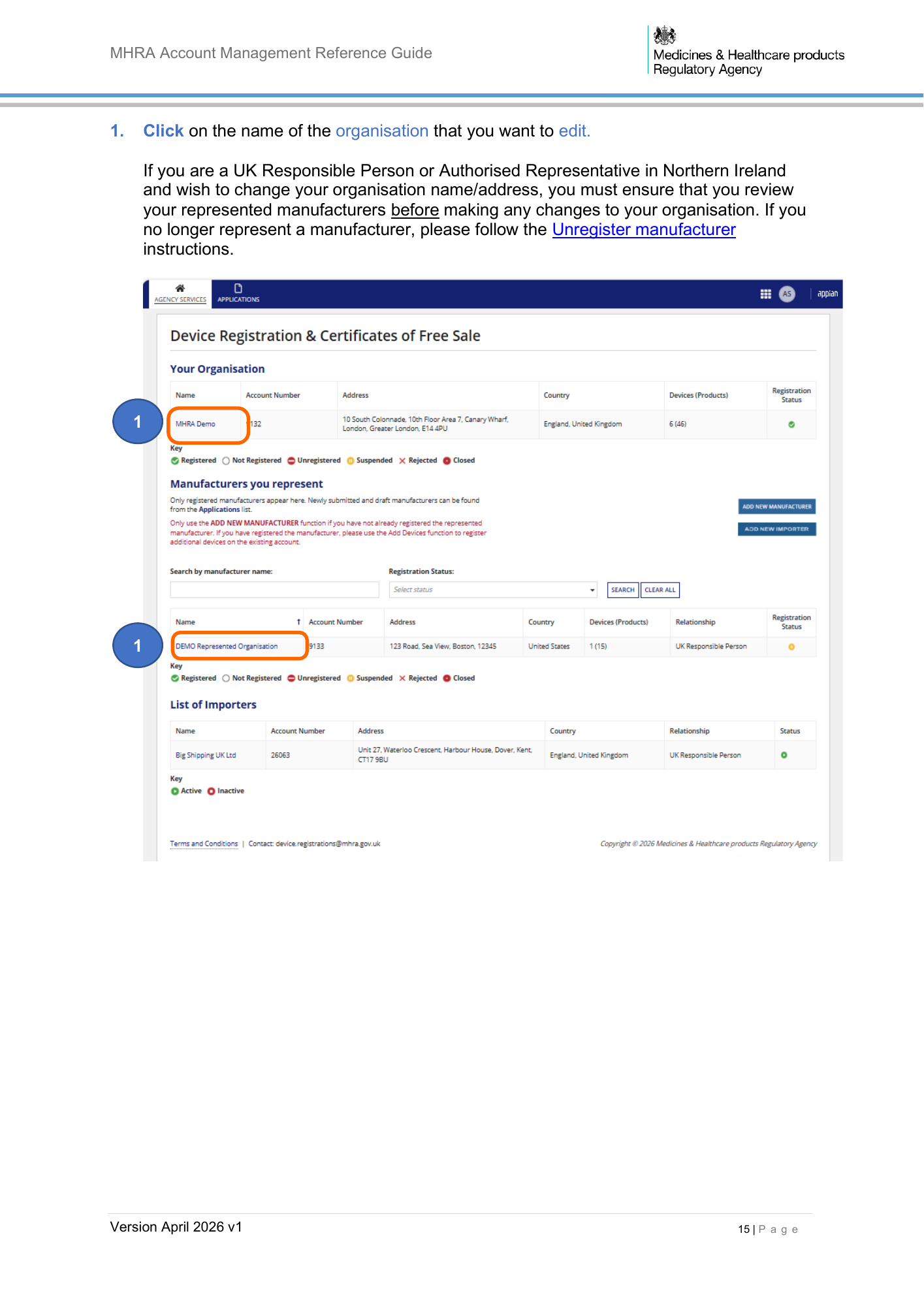
MHRA Account Management Reference Guide 1. Click on the name of the organisation that you want to edit. If you are a UK Responsible Person or Authorised Representative in Northern Ireland and wish to change your organisation name/address, you must ensure that you review your represented manufacturers before making any changes to your organisation. If you no longer represent a manufacturer, please follow the Unregister manufacturer instructions. 1 1 Version April 2026 v1 15 | P a g e
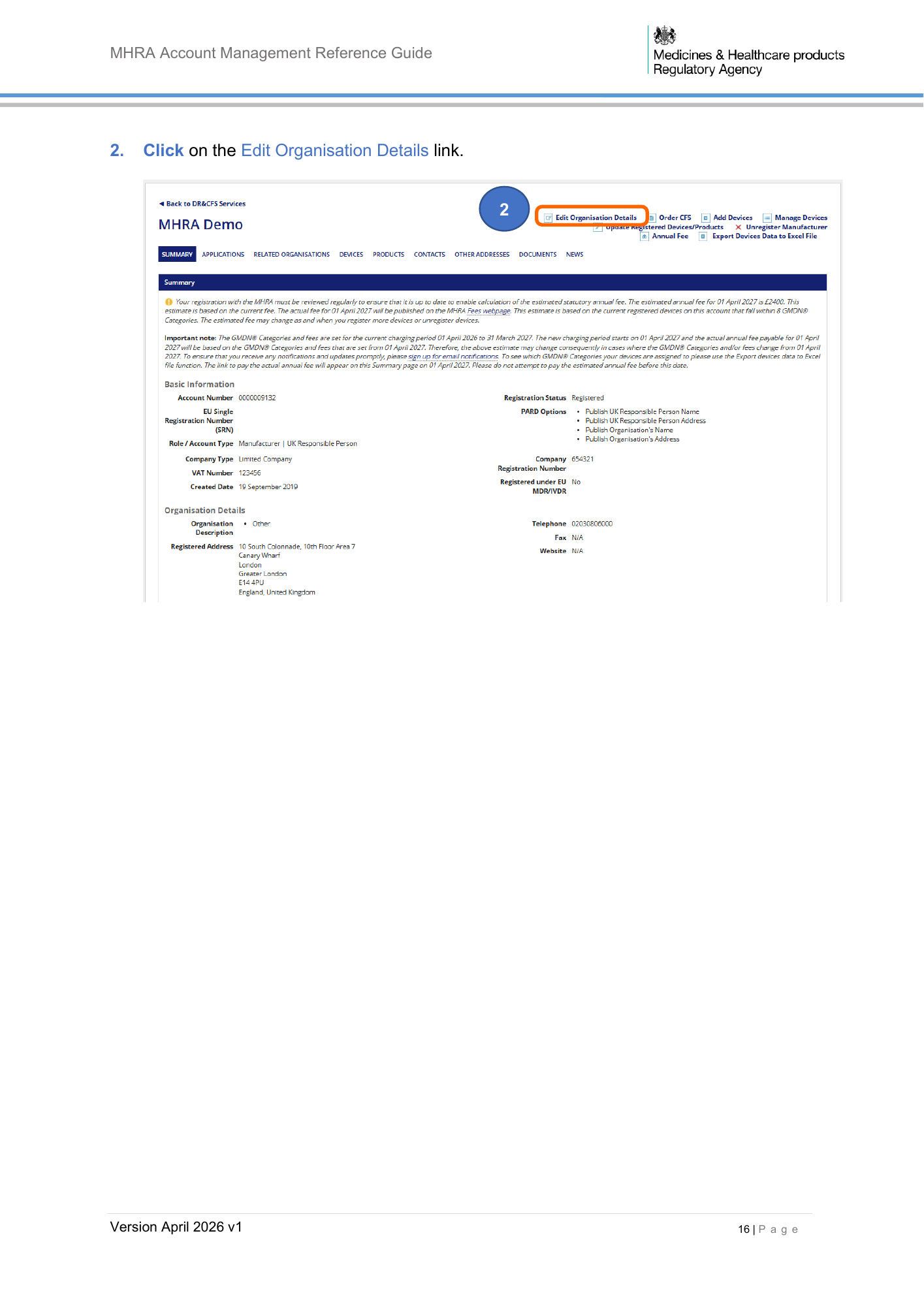
MHRA Account Management Reference Guide 2. Click on the Edit Organisation Details link. 2 Version April 2026 v1 16 | P a g e
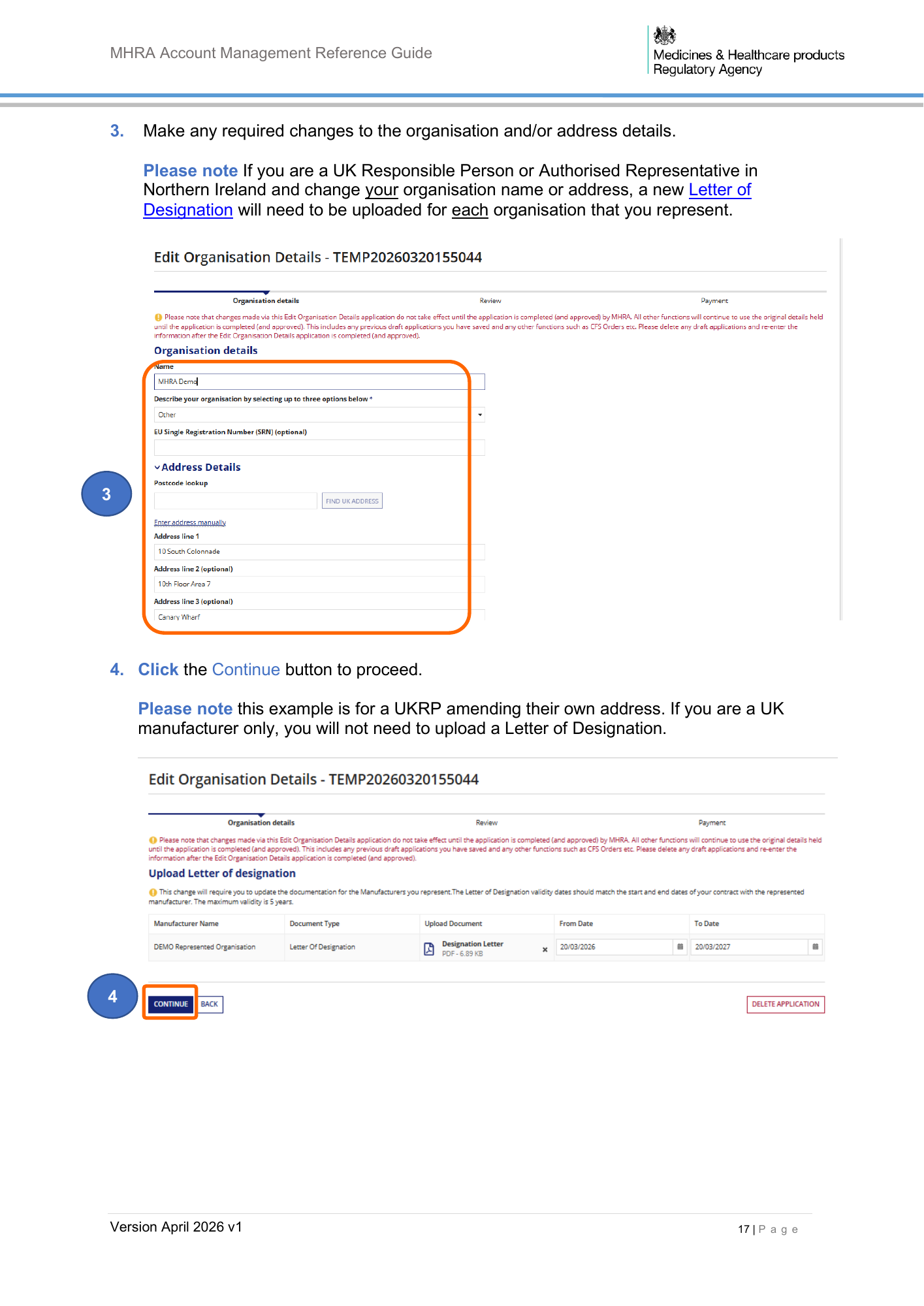
MHRA Account Management Reference Guide 3. Make any required changes to the organisation and/or address details. Please note If you are a UK Responsible Person or Authorised Representative in Northern Ireland and change your organisation name or address, a new Letter of Designation will need to be uploaded for each organisation that you represent. 3 4. Click the Continue button to proceed. Please note this example is for a UKRP amending their own address. If you are a UK manufacturer only, you will not need to upload a Letter of Designation. 4 Version April 2026 v1 17 | P a g e
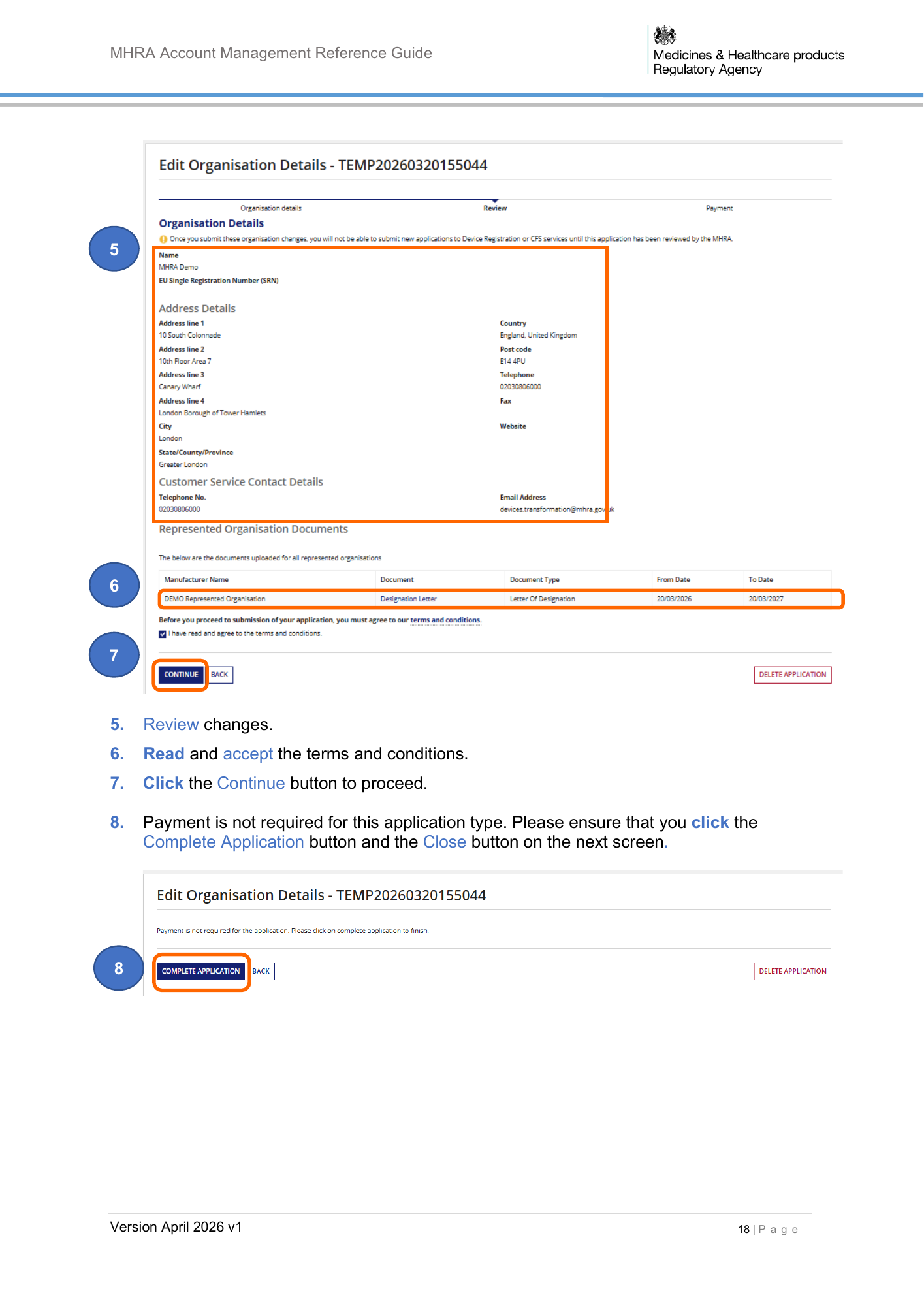
MHRA Account Management Reference Guide 5 6 7 5. Review changes. 6. Read and accept the terms and conditions. 7. Click the Continue button to proceed. 8. Payment is not required for this application type. Please ensure that you click the Complete Application button and the Close button on the next screen. 8 Version April 2026 v1 18 | P a g e
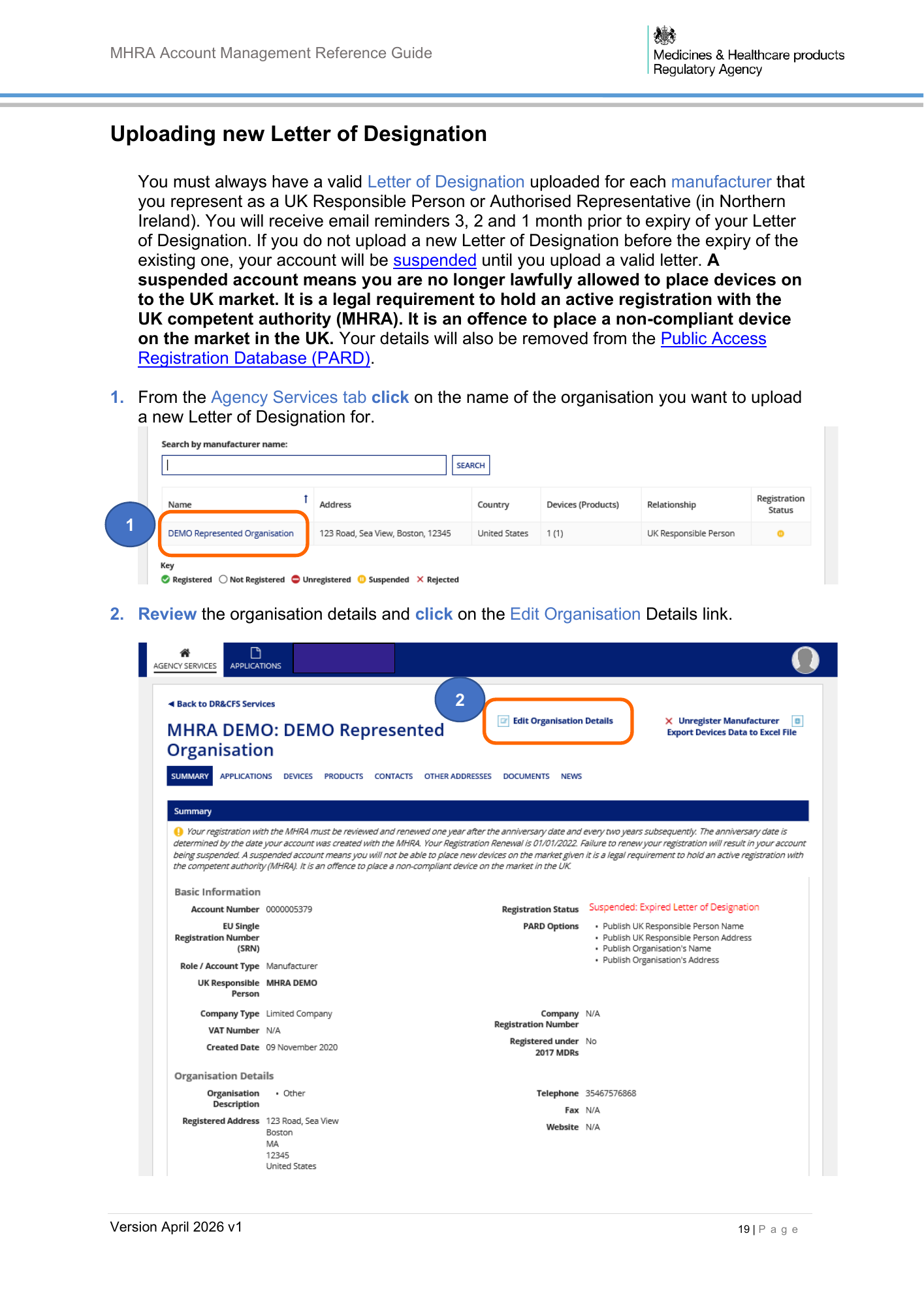
MHRA Account Management Reference Guide Uploading new Letter of Designation You must always have a valid Letter of Designation uploaded for each manufacturer that you represent as a UK Responsible Person or Authorised Representative (in Northern Ireland). You will receive email reminders 3, 2 and 1 month prior to expiry of your Letter of Designation. If you do not upload a new Letter of Designation before the expiry of the existing one, your account will be suspended until you upload a valid letter. A suspended account means you are no longer lawfully allowed to place devices on to the UK market. It is a legal requirement to hold an active registration with the UK competent authority (MHRA). It is an offence to place a non-compliant device on the market in the UK. Your details will also be removed from the Public Access Registration Database (PARD). 1. From the Agency Services tab click on the name of the organisation you want to upload a new Letter of Designation for. 1 2. Review the organisation details and click on the Edit Organisation Details link. 2 Version April 2026 v1 19 | P a g e
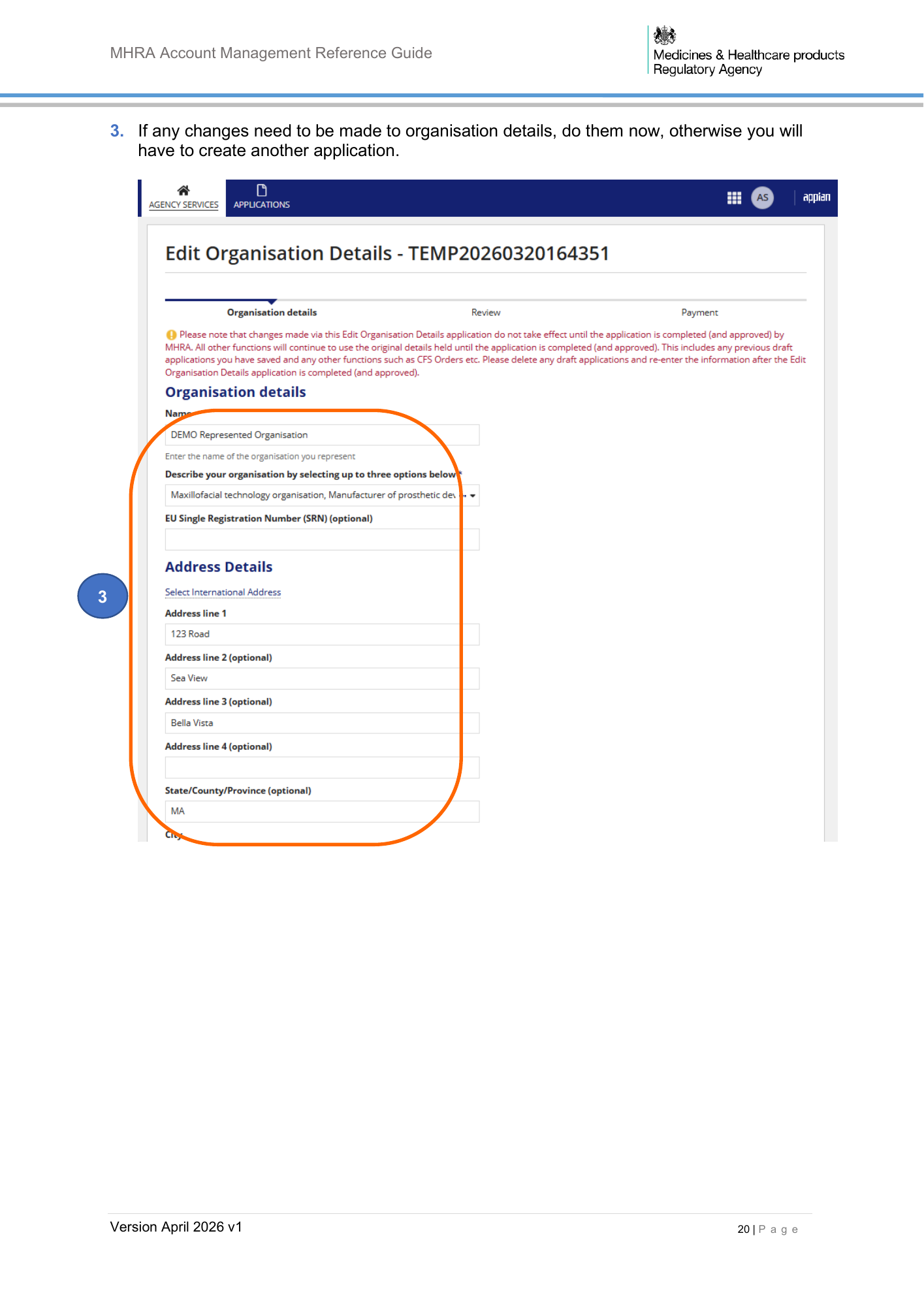
MHRA Account Management Reference Guide 3. If any changes need to be made to organisation details, do them now, otherwise you will have to create another application. 3 Version April 2026 v1 20 | P a g e
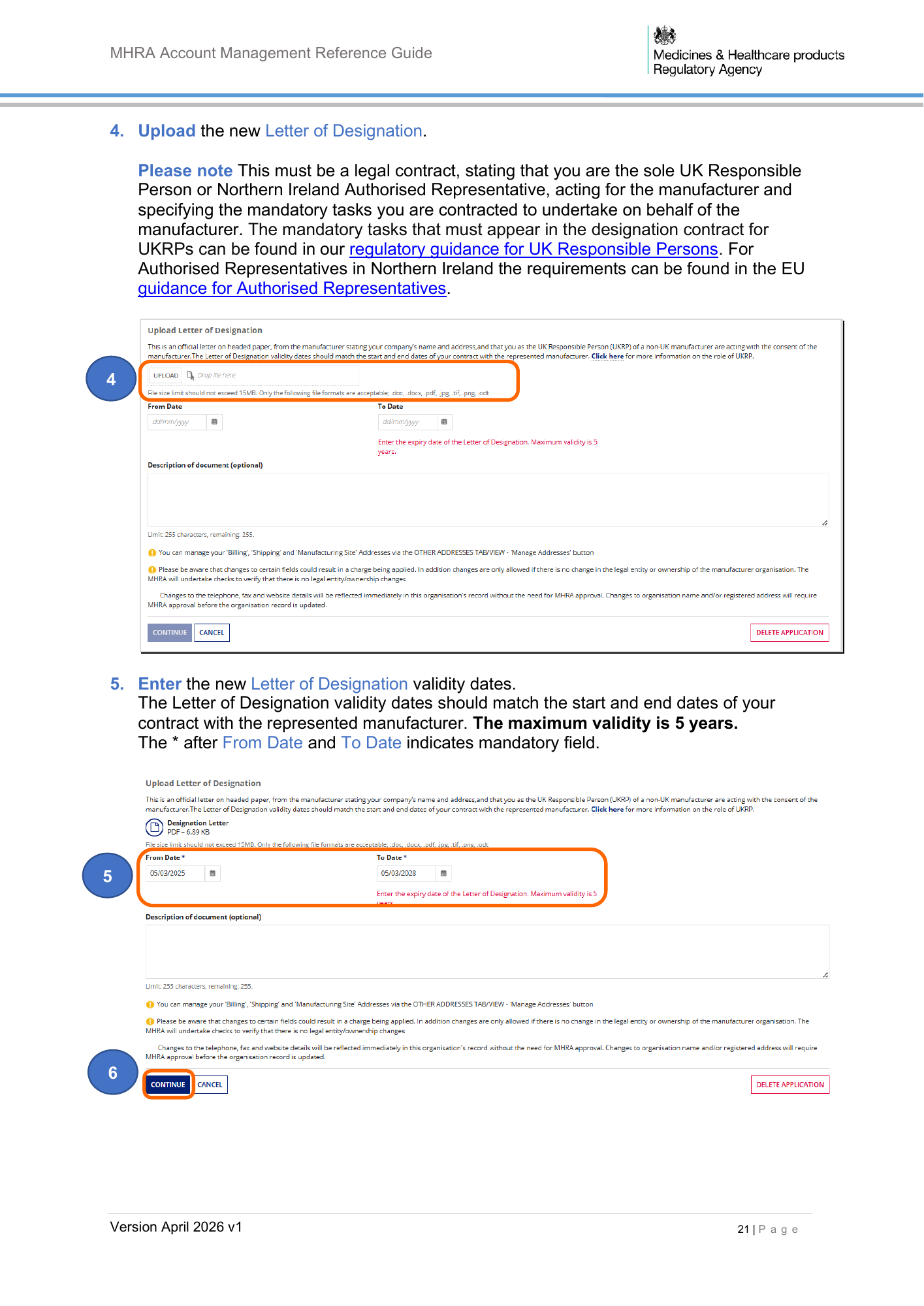
MHRA Account Management Reference Guide 4. Upload the new Letter of Designation. Please note This must be a legal contract, stating that you are the sole UK Responsible Person or Northern Ireland Authorised Representative, acting for the manufacturer and specifying the mandatory tasks you are contracted to undertake on behalf of the manufacturer. The mandatory tasks that must appear in the designation contract for UKRPs can be found in our regulatory guidance for UK Responsible Persons. For Authorised Representatives in Northern Ireland the requirements can be found in the EU guidance for Authorised Representatives. 4 5. Enter the new Letter of Designation validity dates. The Letter of Designation validity dates should match the start and end dates of your contract with the represented manufacturer. The maximum validity is 5 years. The * after From Date and To Date indicates mandatory field. 5 6 Version April 2026 v1 21 | P a g e
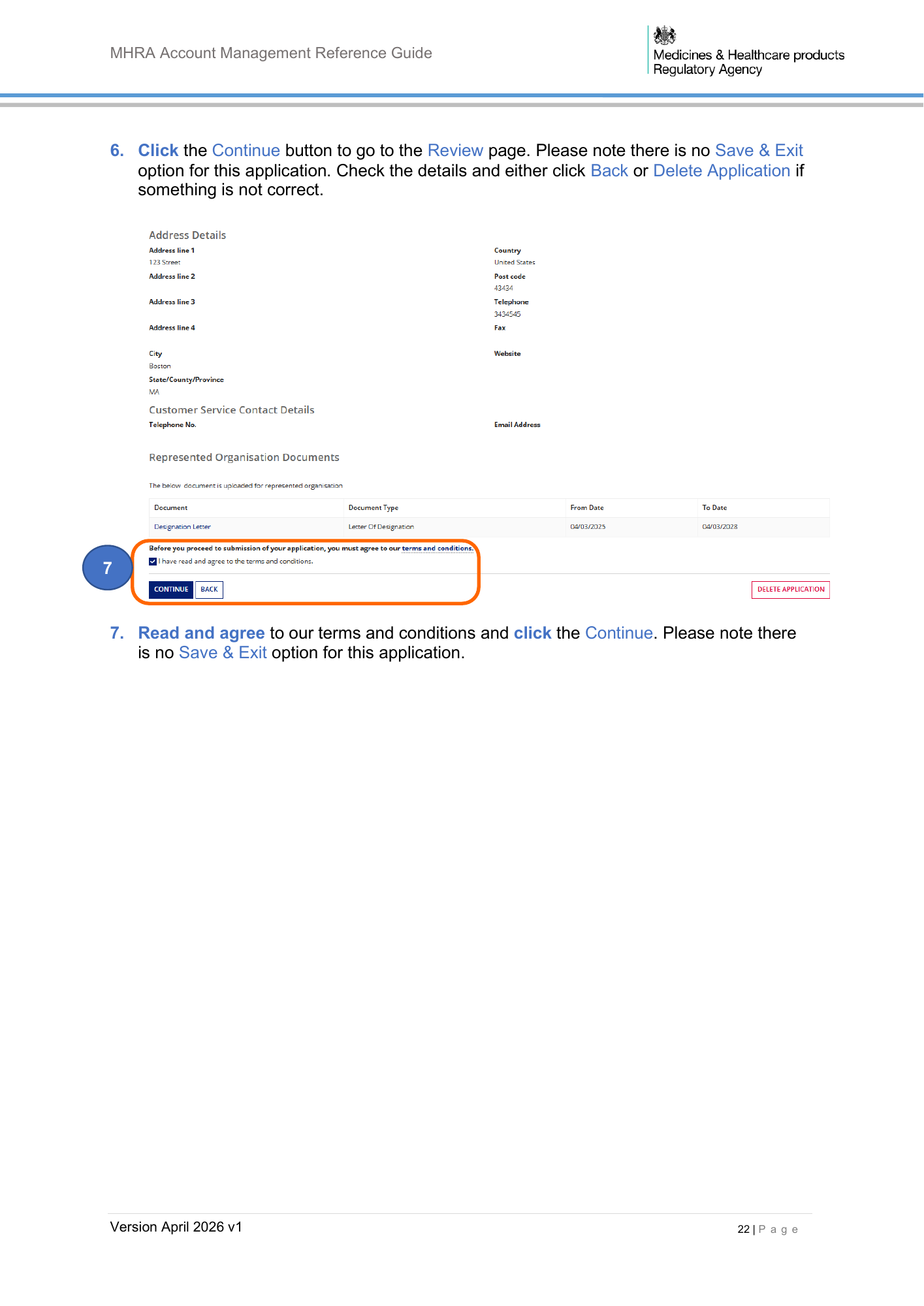
MHRA Account Management Reference Guide 6. Click the Continue button to go to the Review page. Please note there is no Save & Exit option for this application. Check the details and either click Back or Delete Application if something is not correct. 7 7. Read and agree to our terms and conditions and click the Continue. Please note there is no Save & Exit option for this application. Version April 2026 v1 22 | P a g e
MHRA Account Management Reference Guide Review Registration Please note that the previous Renew registration process was removed on 01 April 2026. You must review your registration and the registrations of any represented manufactures frequently to ensure they are up to date. It is a legal requirement to inform MHRA of any changes to your registrations per section 7A (general medical devices), section 33A (in vitro diagnostic medical devices) and section 21A (active implantable medical devices) of the Medical Devices Regulations (2002) SI 618 (as amended) and Regulation 7 of the Northern Ireland Regulations 2021, concerning registration of persons placing medical devices on the market, as and when they occur. It is an offence to place a non-compliant device on the market in the UK. Please review organisation details and all registered devices and products to ensure the data is correct and up to date. Follow the Manage Registered Devices instructions in the Device Registration Reference Guide and watch the video tutorial for steps on how to review your devices and take any necessary action. This includes uploading new Conformity documents, adding or removing products, adding devices, or removing devices (that you no longer manufacture, or devices that you use in the manufacturing process but to not manufacture yourself). This is an important step to ensure that the statutory fee is calculated correctly. If new devices need to be added to your registration/s this is a separate transaction. Please see the Device Registration Reference Guide. Please note if organisation name and/or address has changed you must update this by following the instructions for Editing Organisation details. Please update any data fields that were not previously populated using the Update registered devices and products functionality. In particular we urge you to provide the UDI-DIs for your devices (where applicable) as these will be crucial for monitoring and ensuring patient safety. Please see the Device Registration Reference Guide. If you are a UK Responsible Person (UKRP) or an Authorised Representative (in Northern Ireland) it is your responsibility to review the registration of each organisation that you represent. If you do not pay the annual fee by the due date, or upload a new Letter of Designation for represented manufacturers before the expiry of the existing one, the account will be suspended. Suspended accounts are removed from the Public Access Registration Database (PARD) and you will not be able to add new devices or order Certificates of Free Sale until the appropriate action has been completed. Please also see Account Closure. Version April 2026 v1 23 | P a g e
MHRA Account Management Reference Guide Account Suspension 1. If you do not pay the statutory fee by the due date, or upload a new Letter of Designation before the exisiting one expires, the account will be automatically suspend until the action has been taken. If you are a UK Responsible Person or an Authorised Representative (in Northern Ireland) the accounts of all your represented manufacturers will also be suspended. Suspended accounts will be removed from the Public Access Registration Database (PARD). You will receive reminder emails 90, 60 and 30 days before automatic suspension of an account due to non-payment of statutory fee or Letter of Designation expiry. Please ensure that you act on these to avoid unnecessary suspension of your account and removal of your registration from the Public Access Registration Database (PARD). 2. MHRA may also suspend accounts due to reasons other than non-payment of statutory fee or Letter of Designation expiry. The reason for suspension will be communciated to you by email. It is important that you take any requested action promptly to enable MHRA to unsuspend the account, if appropriate, and issue has been resolved. Please also see Account Closure. Automated email reminders will not be sent in cases where the account has been suspended by MHRA 3. If an account is suspended, due to non-payment of annual fee or Letter of Designation expiry, you will only be able to Pay Annual Fee, upload a new Letter of Designation or unregister your organisation or the manufacturers that you represent. You will no longer be able to place new devices on the market and your registration will be removed from the Public Access Registration Database (PARD). 4. Check the reason for suspension on the Summary page of the relevant organisation. Version April 2026 v1 24 | P a g e
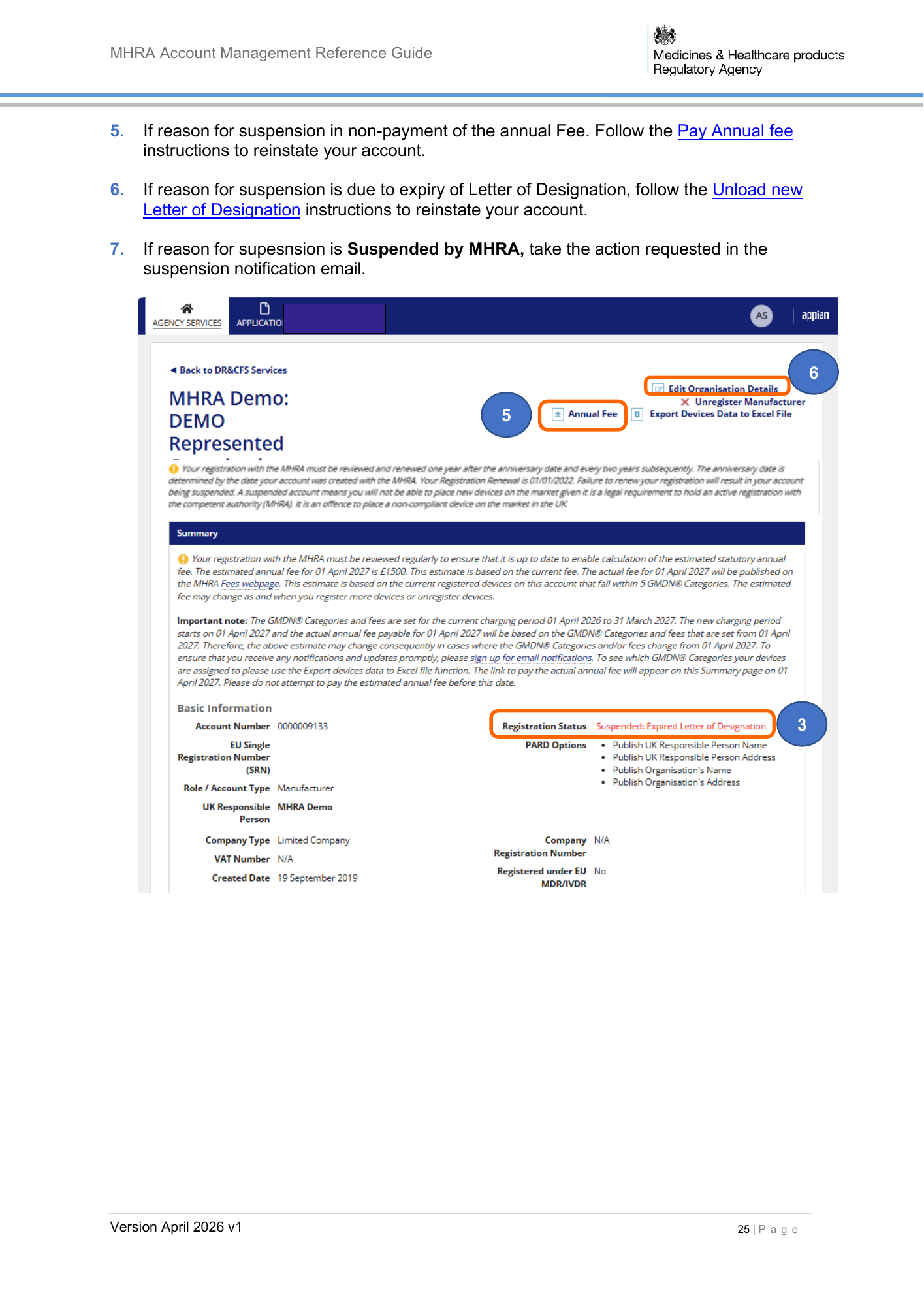
MHRA Account Management Reference Guide 5. If reason for suspension in non-payment of the annual Fee. Follow the Pay Annual fee instructions to reinstate your account. 6. If reason for suspension is due to expiry of Letter of Designation, follow the Unload new Letter of Designation instructions to reinstate your account. 7. If reason for supesnsion is Suspended by MHRA, take the action requested in the suspension notification email. 6 5 3 3 Version April 2026 v1 25 | P a g e
MHRA Account Management Reference Guide Account Closure Any accounts that have a status of Suspended on 31 March of each year will be automatically closed. Any accounts that have not paid the Annual fee for the charging period will be closed. MHRA may also close your account due reasons other than account suspension or non- payment of annual fee. The reason wil be communicated to you. If you are a UK Responsible Person or an Authorised Representative (in Northern Ireland) the accounts of all your represented manufacturers will also be closed. Important note: You will no longer be able to legally place devices on the market, and the registration will be removed from the Public Access Registration Database (PARD). Once closed the account can no longer be reinstated and you wil not be able to take any action on the account. You you will need to create a new account and register all devices again. The statutory fees will be payable. To ensure that MHRA can contact you concerning your Device Registration Account, please sign up for email notifications and keep the Main Contact on your account up to date. If you haven’t signed up for email updates, you will experience delays in receiving communications from MHRA, or may not receive them. This could result in closure of your account if we are unable to contact you. The link to sign up can be found at the top and bottom of the website pages: Additionally please ensure that the following email addresses are added to your safe senders or contacts in your email system. This will enable MHRA to contact you though our mailing system, from the Device Registration and Customer Experience Centre mailboxes, and though DORS: webmaster@subscriptions.mhra.gov.uk Device.Registrations@mhra.gov.uk MHRACustomerServices@mhra.gov.uk info@mhra.gov.uk no-reply@mhra.gov.uk Version April 2026 v1 26 | P a g e
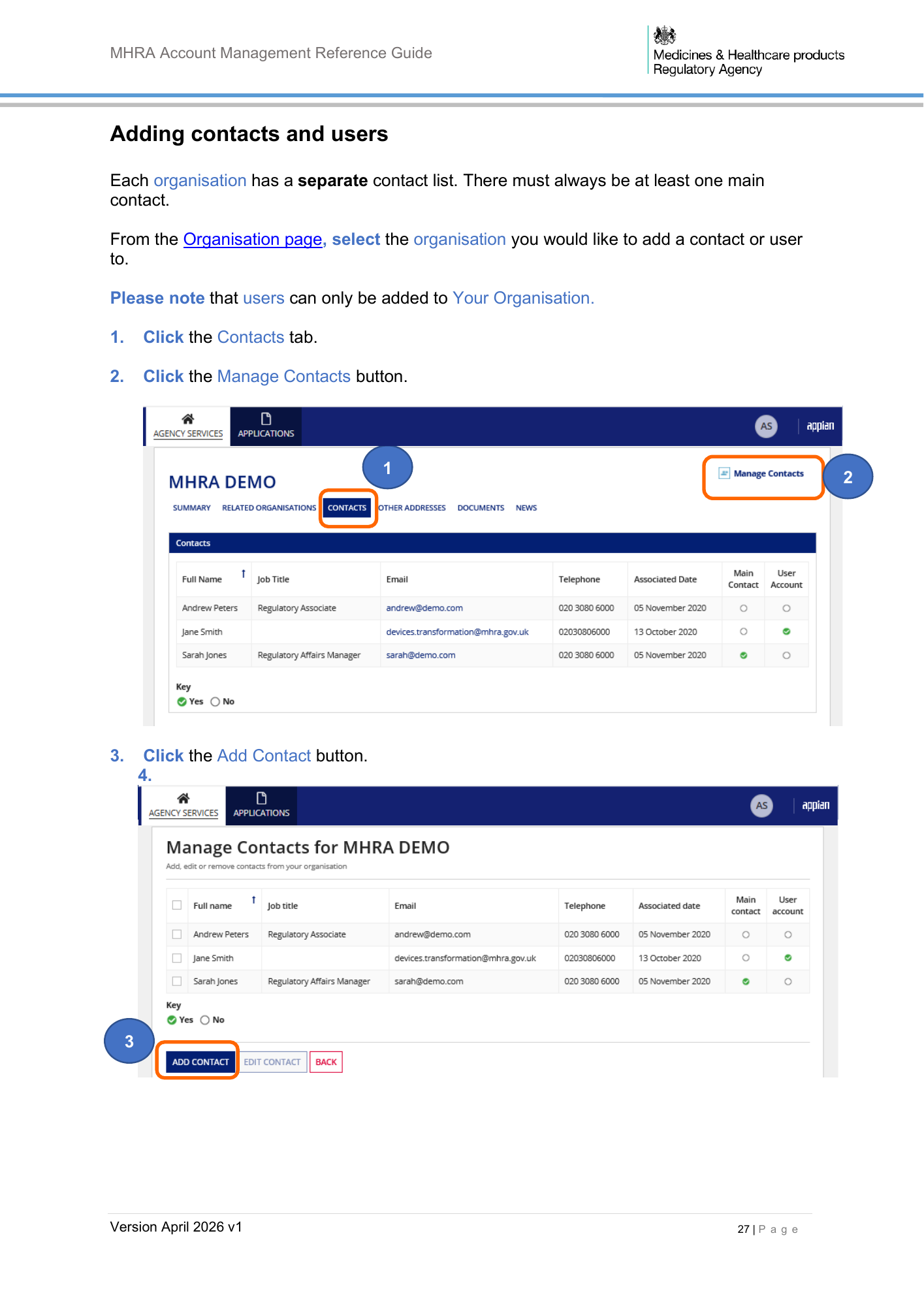
MHRA Account Management Reference Guide Adding contacts and users Each organisation has a separate contact list. There must always be at least one main contact. From the Organisation page, select the organisation you would like to add a contact or user to. Please note that users can only be added to Your Organisation. 1. Click the Contacts tab. 2. Click the Manage Contacts button. 1 2 3. Click the Add Contact button. 4. 3 Version April 2026 v1 27 | P a g e
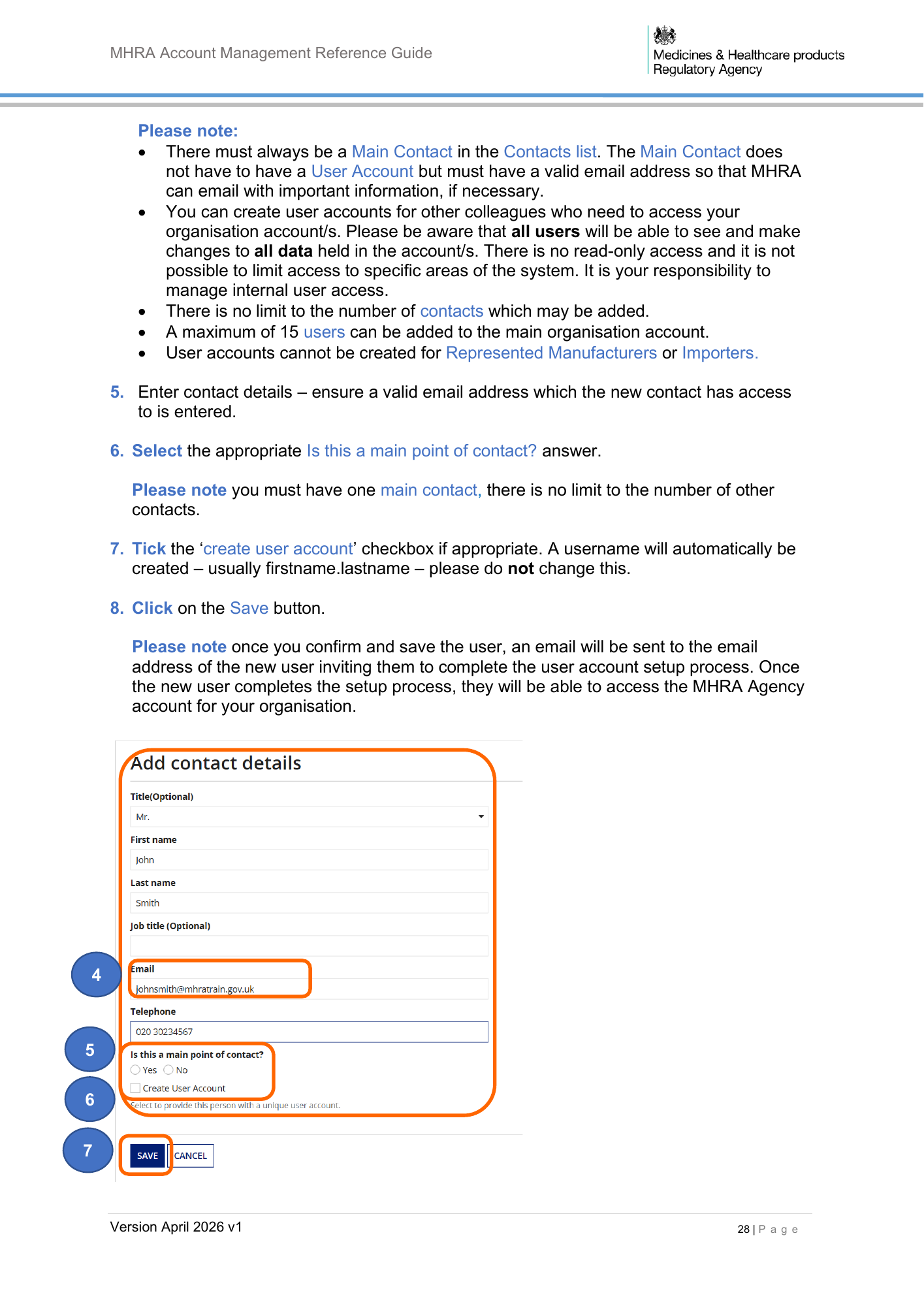
MHRA Account Management Reference Guide Please note: • There must always be a Main Contact in the Contacts list. The Main Contact does not have to have a User Account but must have a valid email address so that MHRA can email with important information, if necessary. • You can create user accounts for other colleagues who need to access your organisation account/s. Please be aware that all users will be able to see and make changes to all data held in the account/s. There is no read-only access and it is not possible to limit access to specific areas of the system. It is your responsibility to manage internal user access. • There is no limit to the number of contacts which may be added. • A maximum of 15 users can be added to the main organisation account. • User accounts cannot be created for Represented Manufacturers or Importers. 5. Enter contact details – ensure a valid email address which the new contact has access to is entered. 6. Select the appropriate Is this a main point of contact? answer. Please note you must have one main contact, there is no limit to the number of other contacts. 7. Tick the ‘create user account’ checkbox if appropriate. A username will automatically be created – usually firstname.lastname – please do not change this. 8. Click on the Save button. Please note once you confirm and save the user, an email will be sent to the email address of the new user inviting them to complete the user account setup process. Once the new user completes the setup process, they will be able to access the MHRA Agency account for your organisation. 4 5 6 7 Version April 2026 v1 28 | P a g e
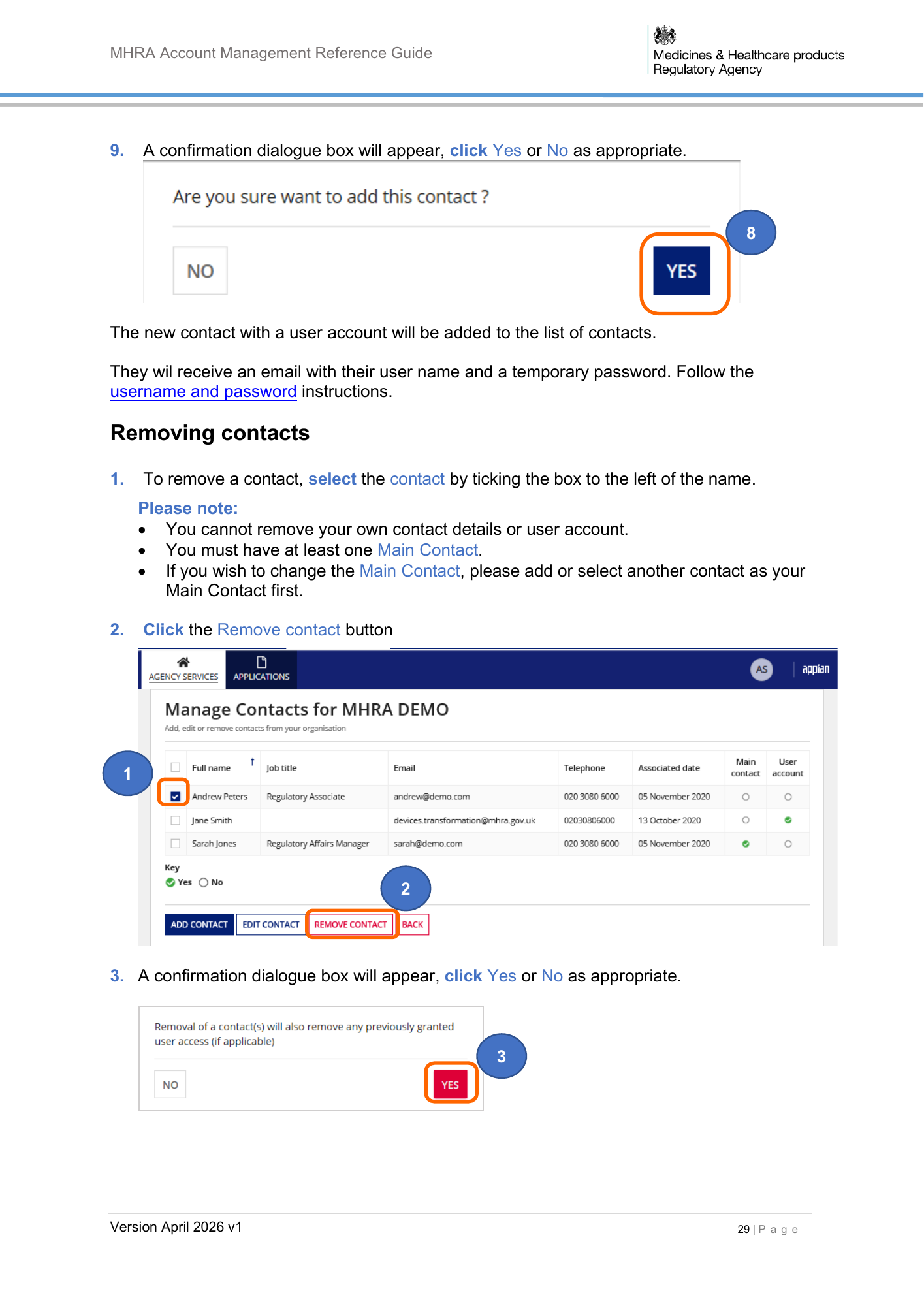
MHRA Account Management Reference Guide 9. A confirmation dialogue box will appear, click Yes or No as appropriate. 8 The new contact with a user account will be added to the list of contacts. They wil receive an email with their user name and a temporary password. Follow the username and password instructions. Removing contacts 1. To remove a contact, select the contact by ticking the box to the left of the name. Please note: • You cannot remove your own contact details or user account. • You must have at least one Main Contact. • If you wish to change the Main Contact, please add or select another contact as your Main Contact first. 2. Click the Remove contact button 1 2 3. A confirmation dialogue box will appear, click Yes or No as appropriate. 3 Version April 2026 v1 29 | P a g e
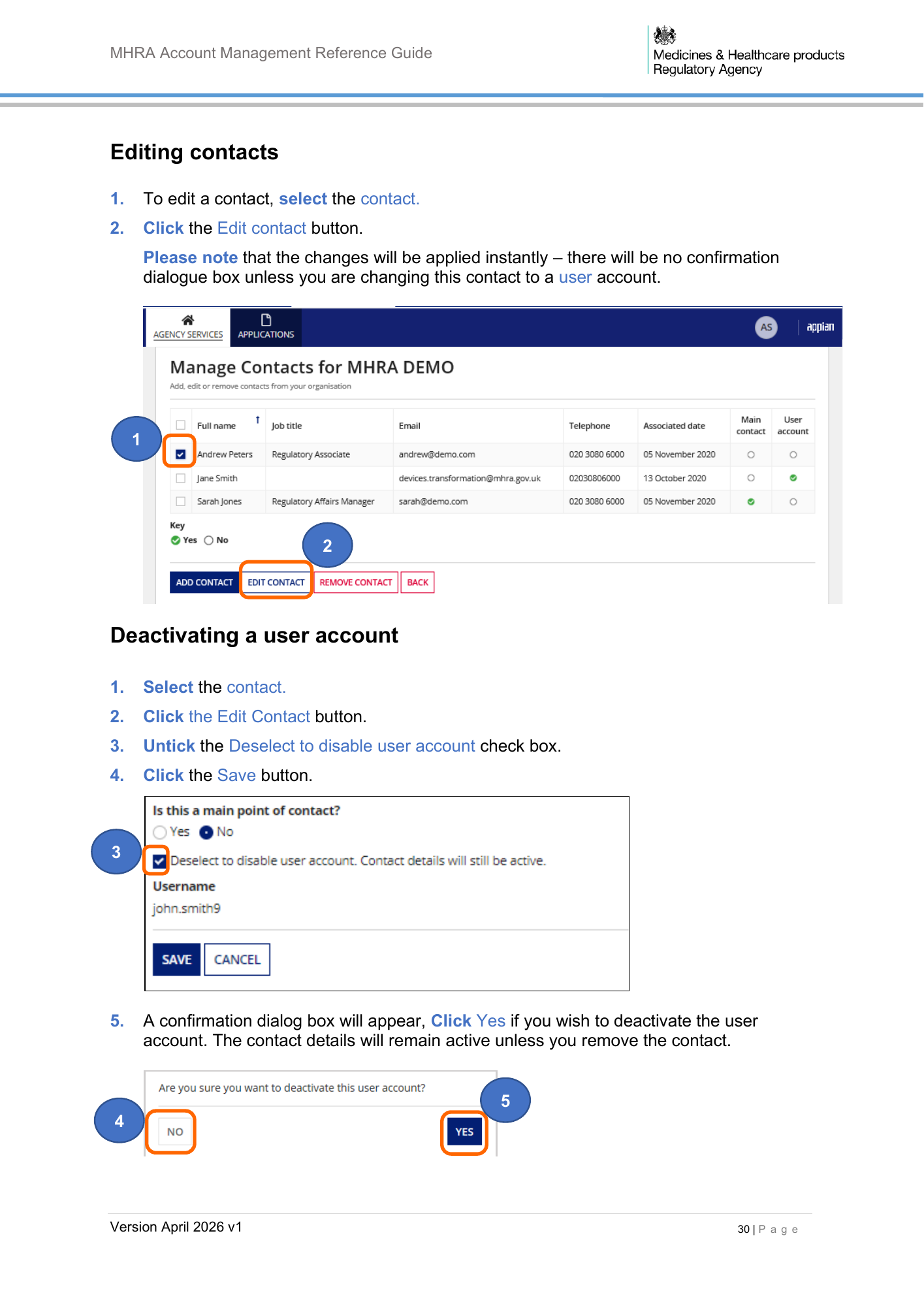
MHRA Account Management Reference Guide Editing contacts 1. To edit a contact, select the contact. 2. Click the Edit contact button. Please note that the changes will be applied instantly – there will be no confirmation dialogue box unless you are changing this contact to a user account. 1 2 Deactivating a user account 1. Select the contact. 2. Click the Edit Contact button. 3. Untick the Deselect to disable user account check box. 4. Click the Save button. 3 5. A confirmation dialog box will appear, Click Yes if you wish to deactivate the user account. The contact details will remain active unless you remove the contact. 5 4 Version April 2026 v1 30 | P a g e
MHRA Account Management Reference Guide Managing other addresses The system has functionality to capture other addresses, these are intended for the following purposes: Billing: Use this option to store billing addresses to select from on the payment page. Shipping: This option only relates to Certificates of Free Sale. As we are now processing all CFS orders in pdf format and sending by email you do not need to use this option. Manufacturing Site: This option is to enable customers to add manufacturing site/physical manufacturer addresses to Certificates of Free Sale if they differ from the Legal Manufacturer name and/or address. You cannot change your legal entity name and/or address here and addresses added here will not appear anywhere other than on Certificates of Free Sale. Authorised Representative: It is mandatory to provide the Authorised Representative details if: • you are a manufacturer based outside the UK, and • you do not have a Northern Ireland-based Authorised Representative (or do not wish them to register on your behalf), and • you wish to place custom-made devices on the Northern Ireland market and • a registration account request has been accepted by MHRA for the purposes of registration of custom-made devices for the Northern Ireland market only It is not currently mandatory to provide your Authorised Representative details if you are a GB-based Manufacturer and have registered devices with MHRA under the MDD/IVDD/AIMDD or EU MDR and EU IVDR. However it is a mandatory requirement to have appointed an Authorised Representative to place these devices on either the UK or EU markets. See further information on our Regulating Medical Devices in the UK webpage. If you are a non-UK manufacturer wishing to place devices on the GB market, you must appoint a UK Responsible Person who will register on your behalf. Please note. If you need to change your registered (legal entity) name and/or address, please follow the Editing Organisation Details steps, you cannot change it from the Other addresses function. Version April 2026 v1 31 | P a g e
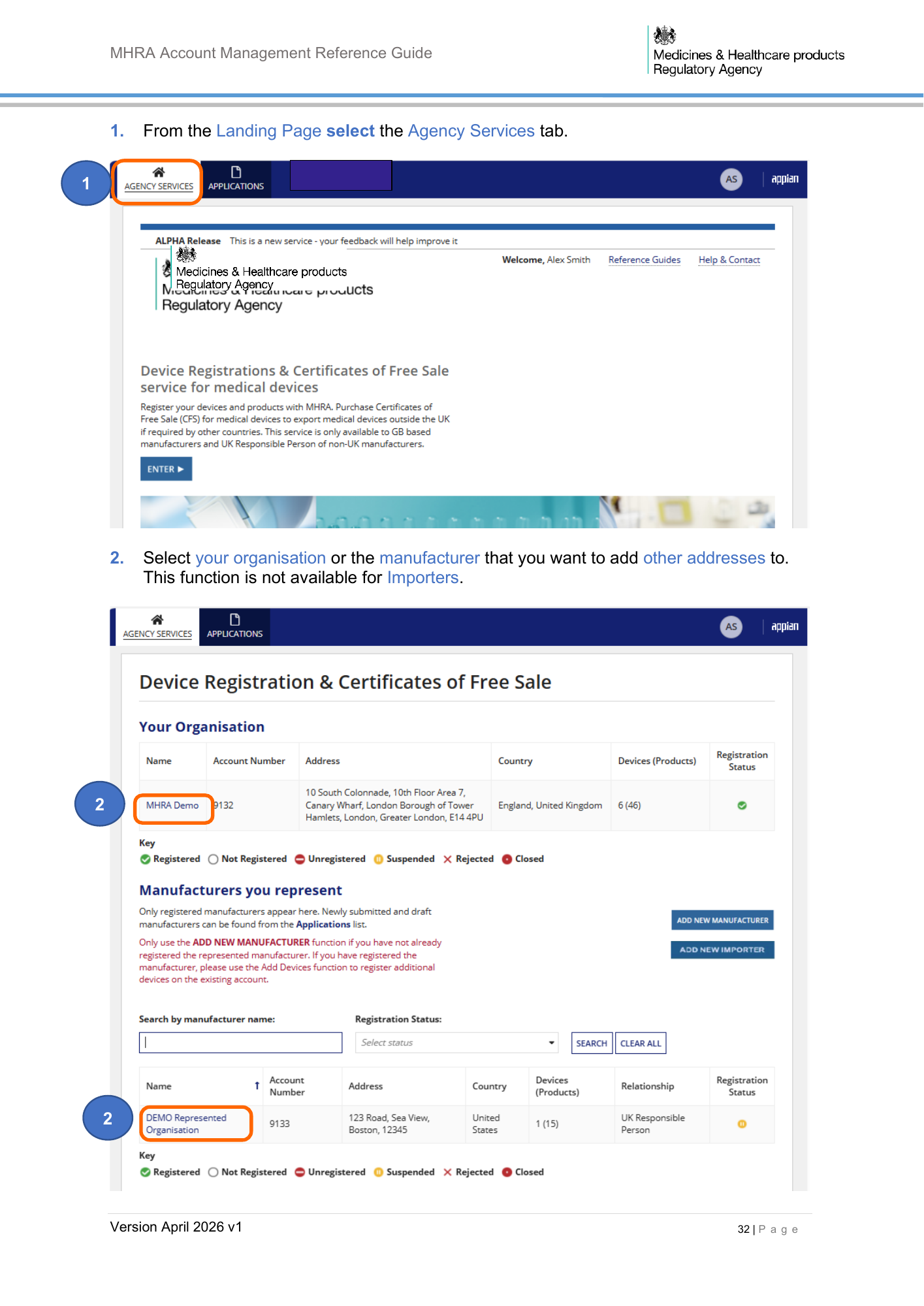
MHRA Account Management Reference Guide 1. From the Landing Page select the Agency Services tab. 1 2. Select your organisation or the manufacturer that you want to add other addresses to. This function is not available for Importers. 2 2 Version April 2026 v1 32 | P a g e
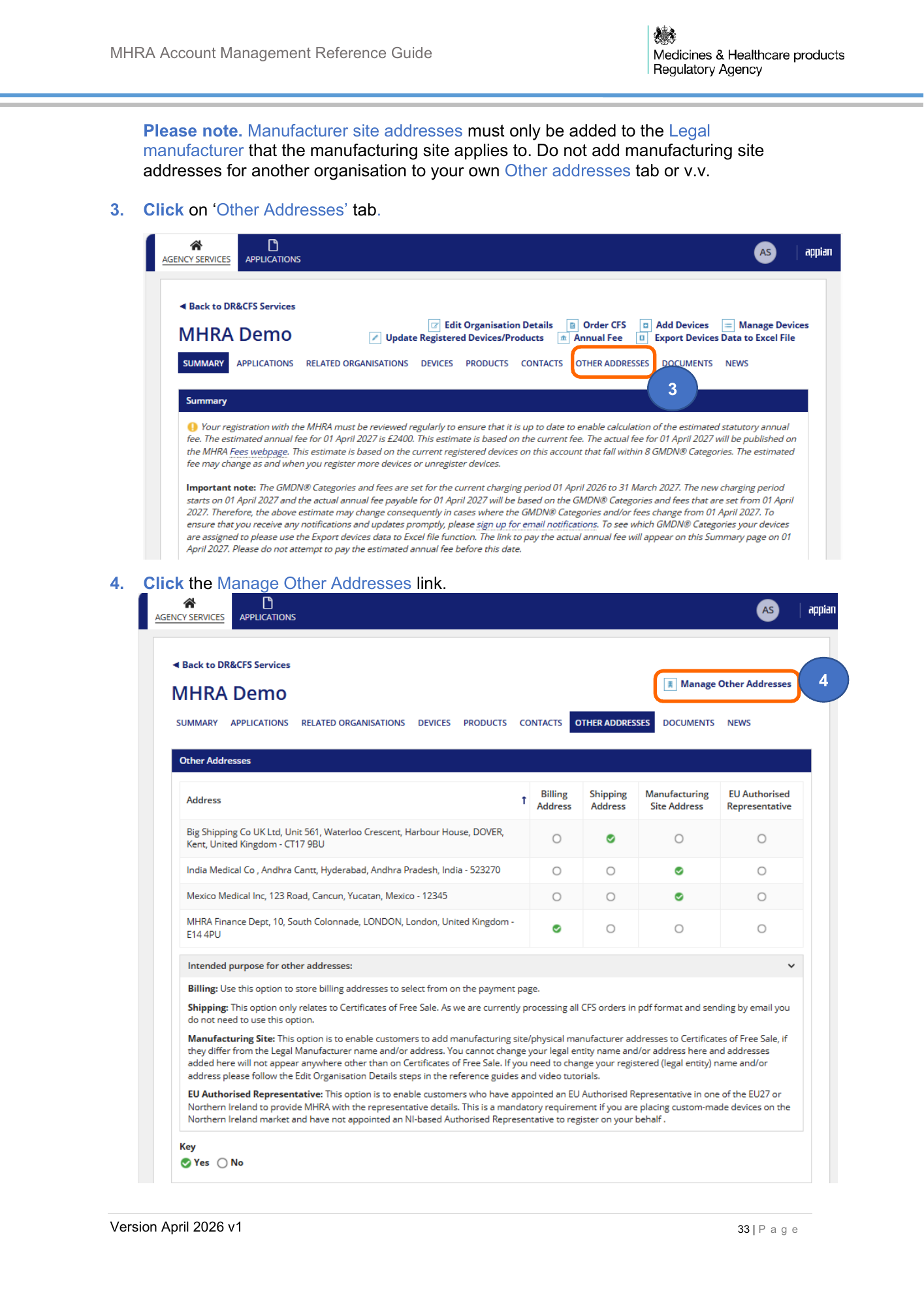
MHRA Account Management Reference Guide Please note. Manufacturer site addresses must only be added to the Legal manufacturer that the manufacturing site applies to. Do not add manufacturing site addresses for another organisation to your own Other addresses tab or v.v. 3. Click on ‘Other Addresses’ tab. 3 4. Click the Manage Other Addresses link. 4 Version April 2026 v1 33 | P a g e
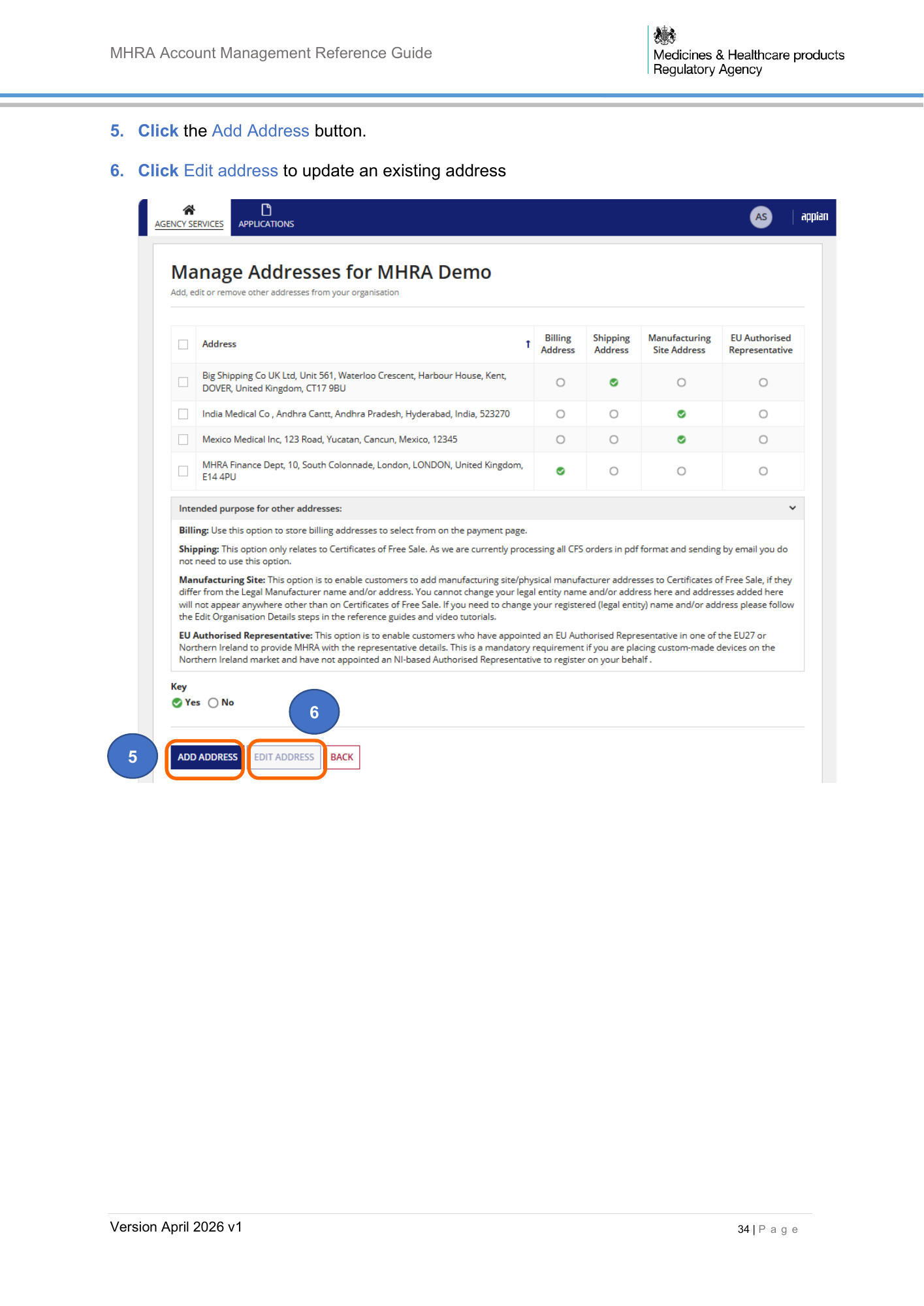
MHRA Account Management Reference Guide 5. Click the Add Address button. 6. Click Edit address to update an existing address 6 5 Version April 2026 v1 34 | P a g e
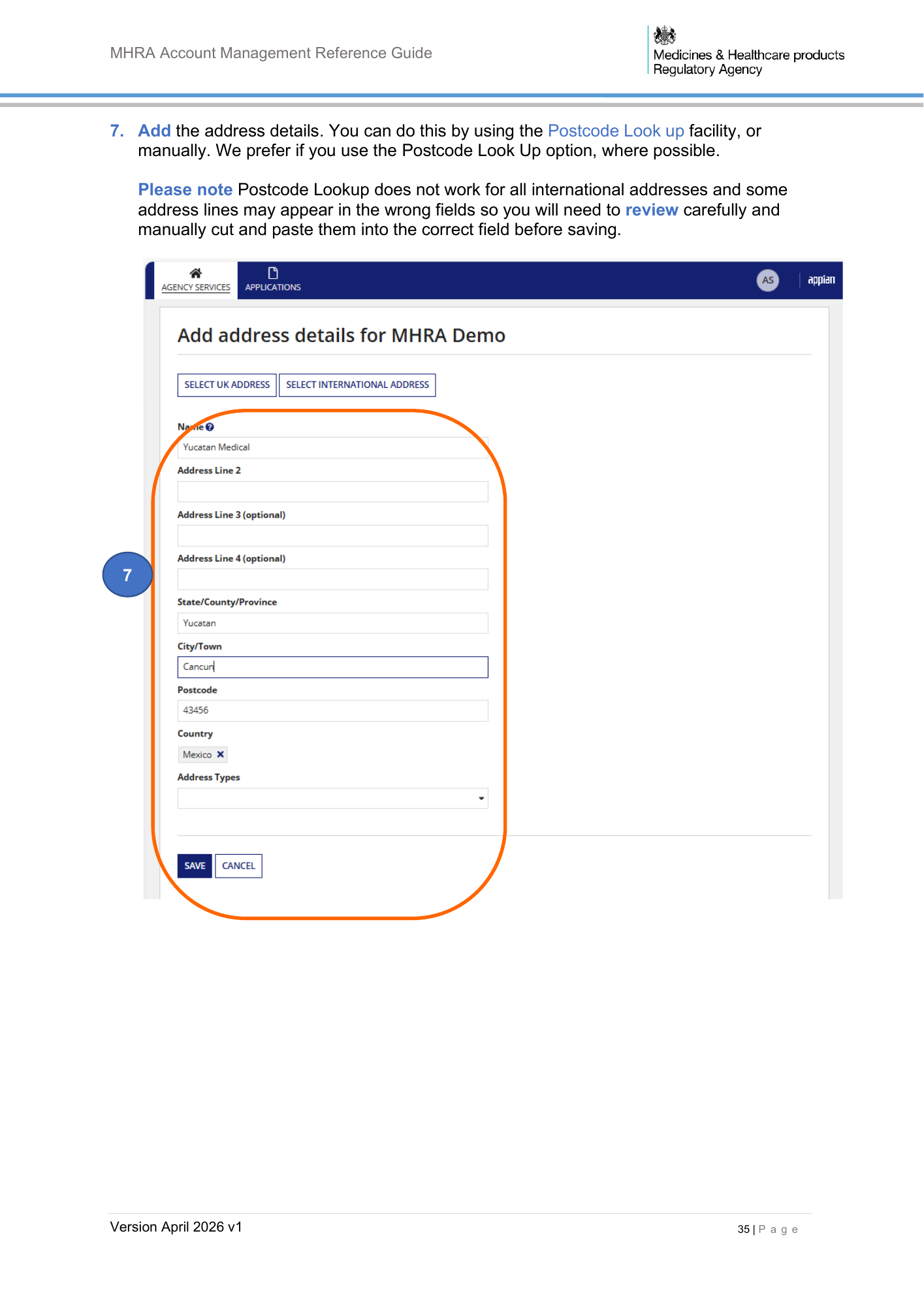
MHRA Account Management Reference Guide 7. Add the address details. You can do this by using the Postcode Look up facility, or manually. We prefer if you use the Postcode Look Up option, where possible. Please note Postcode Lookup does not work for all international addresses and some address lines may appear in the wrong fields so you will need to review carefully and manually cut and paste them into the correct field before saving. 7 Version April 2026 v1 35 | P a g e
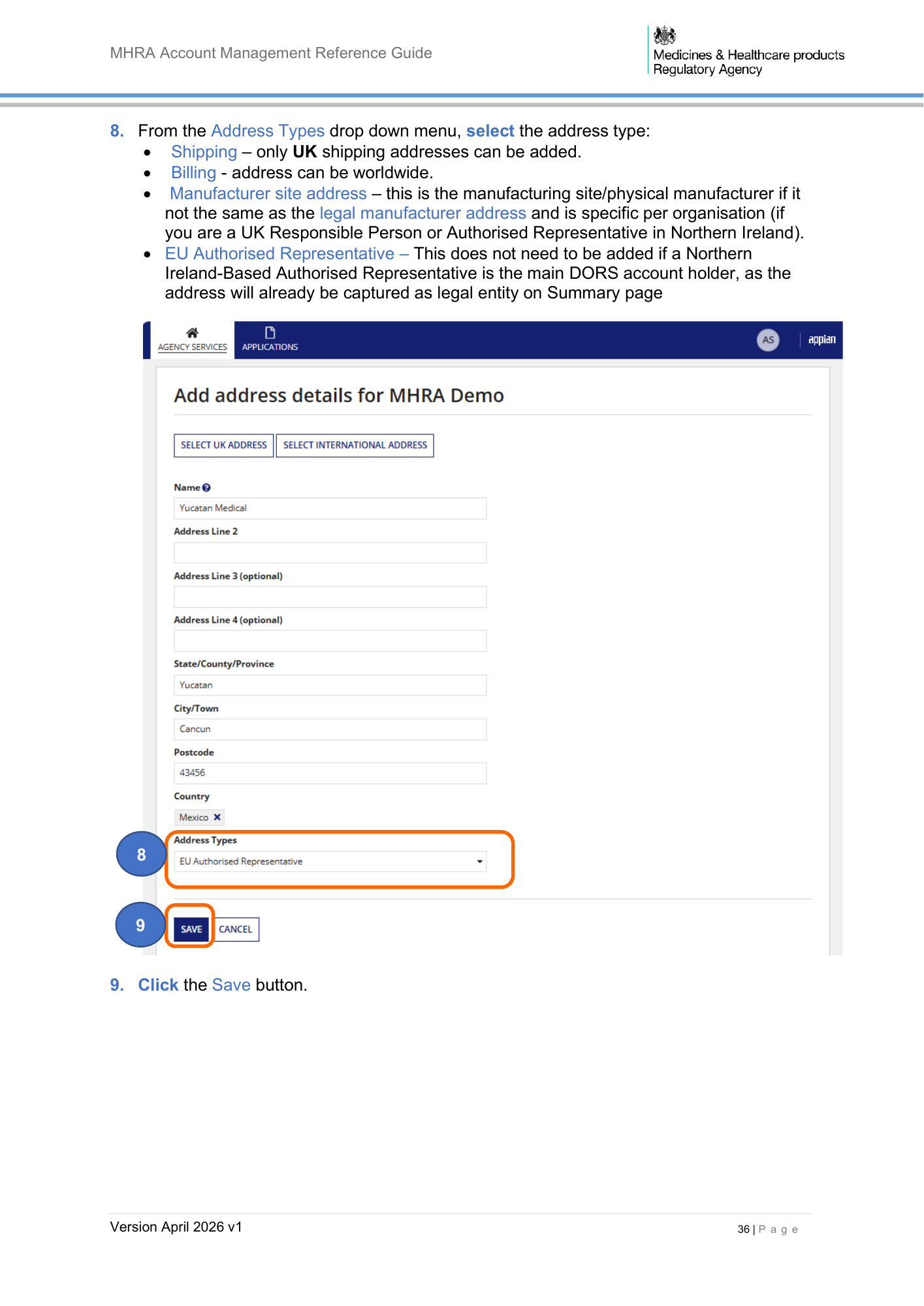
MHRA Account Management Reference Guide 8. From the Address Types drop down menu, select the address type: • Shipping – only UK shipping addresses can be added. • Billing - address can be worldwide. • Manufacturer site address – this is the manufacturing site/physical manufacturer if it not the same as the legal manufacturer address and is specific per organisation (if you are a UK Responsible Person or Authorised Representative in Northern Ireland). • EU Authorised Representative – This does not need to be added if a Northern Ireland-Based Authorised Representative is the main DORS account holder, as the address will already be captured as legal entity on Summary page 8 9 9. Click the Save button. Version April 2026 v1 36 | P a g e
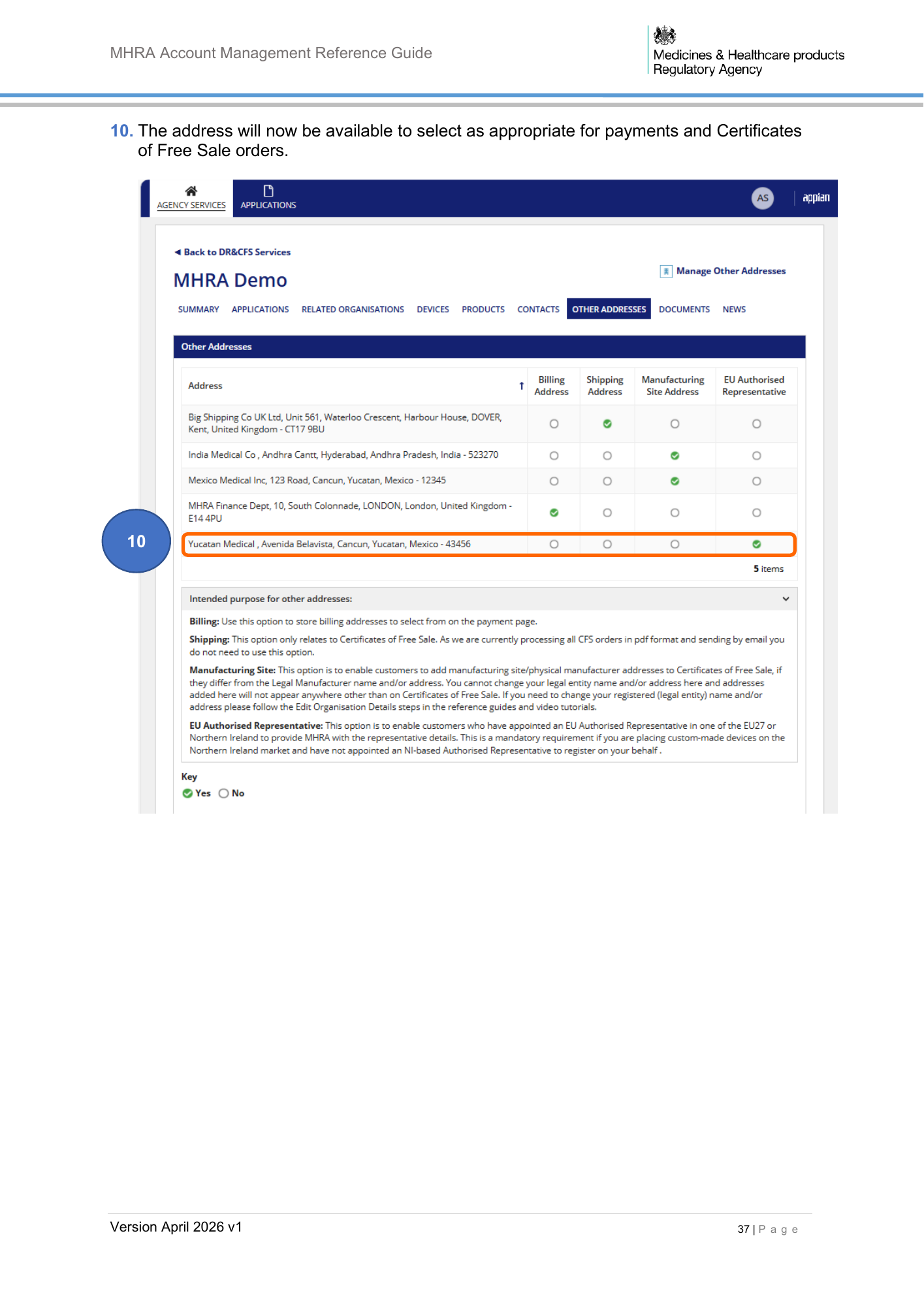
MHRA Account Management Reference Guide 10. The address will now be available to select as appropriate for payments and Certificates of Free Sale orders. 10 Version April 2026 v1 37 | P a g e
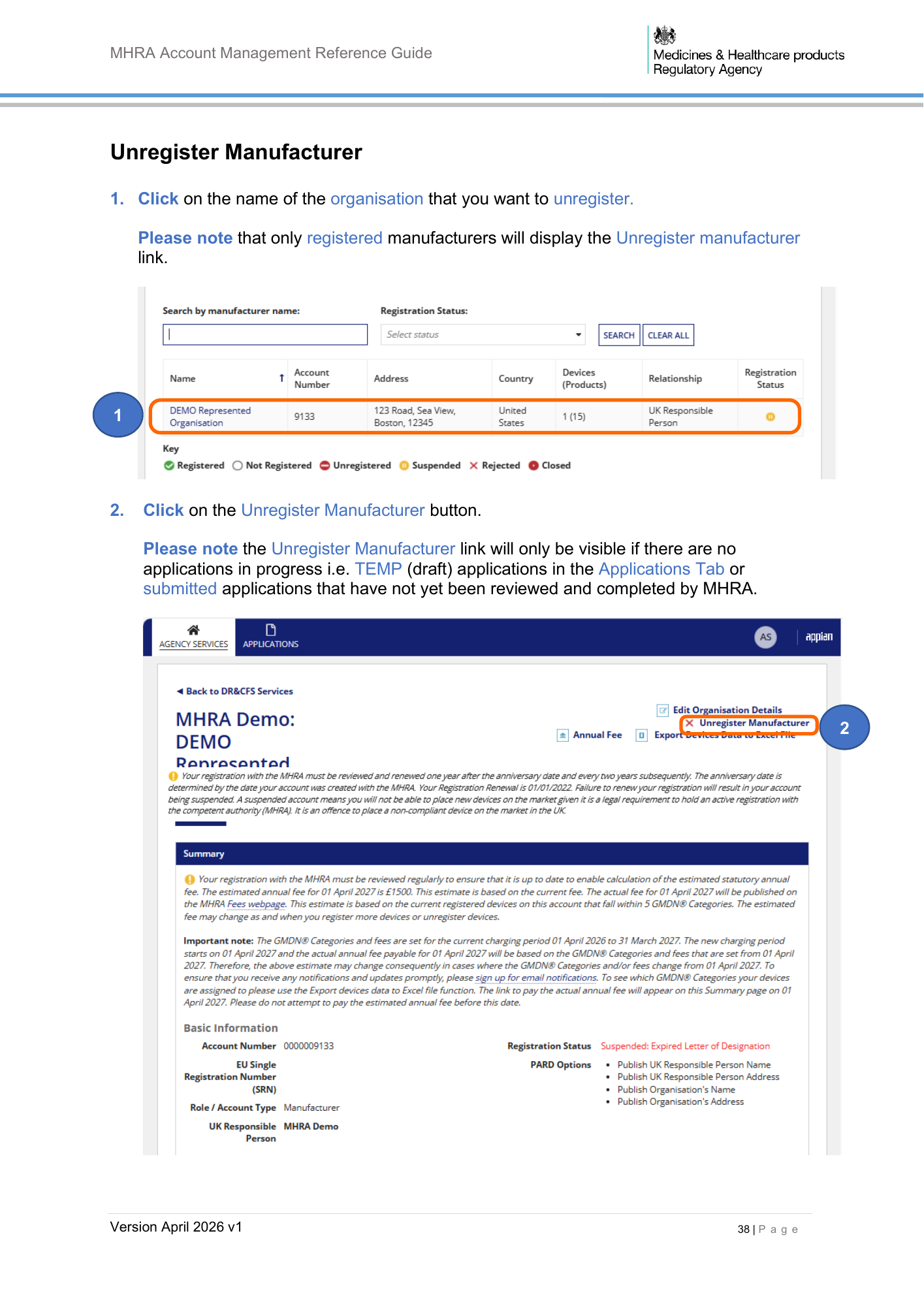
MHRA Account Management Reference Guide Unregister Manufacturer 1. Click on the name of the organisation that you want to unregister. Please note that only registered manufacturers will display the Unregister manufacturer link. 1 2. Click on the Unregister Manufacturer button. Please note the Unregister Manufacturer link will only be visible if there are no applications in progress i.e. TEMP (draft) applications in the Applications Tab or submitted applications that have not yet been reviewed and completed by MHRA. 2 Version April 2026 v1 38 | P a g e
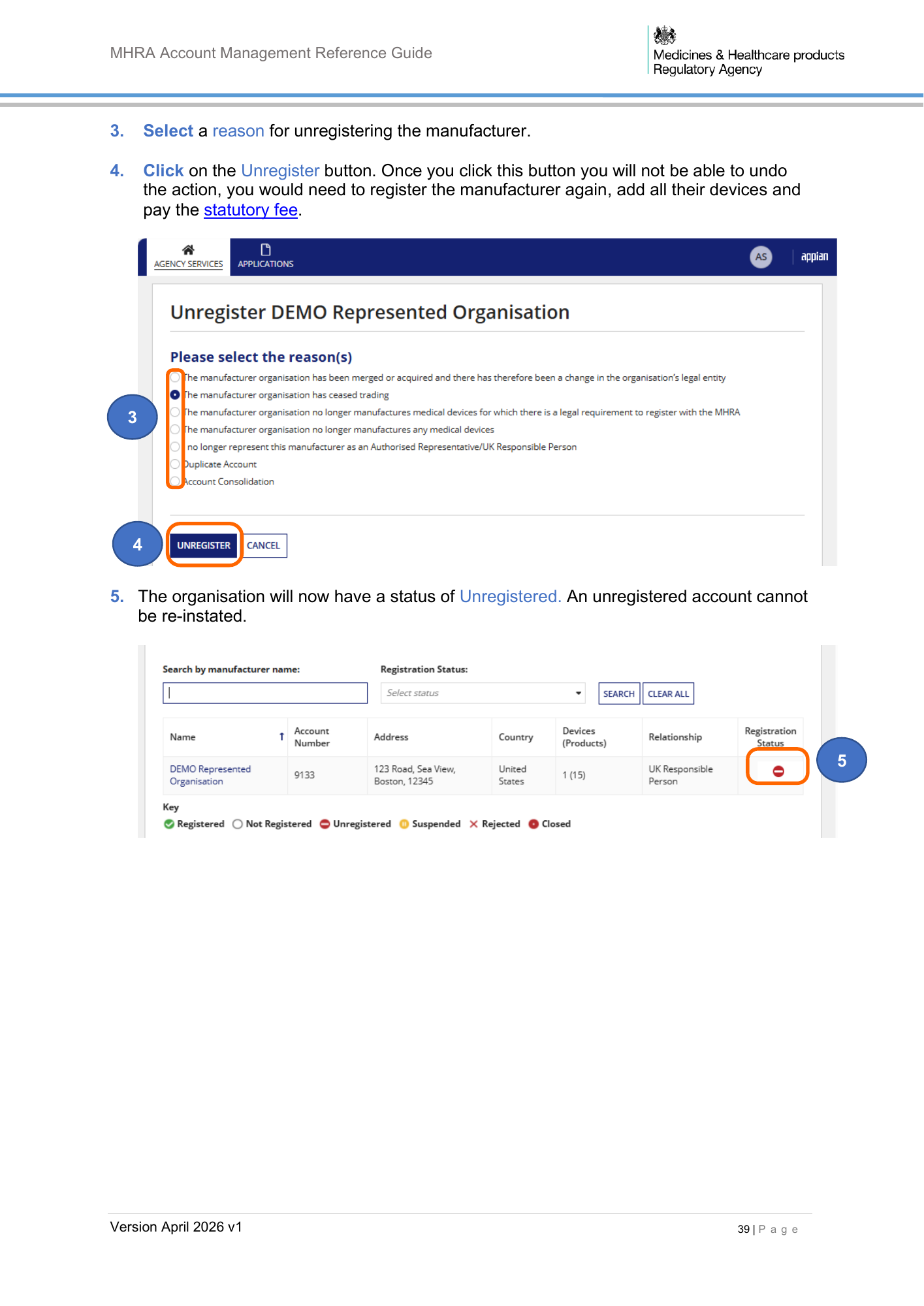
MHRA Account Management Reference Guide 3. Select a reason for unregistering the manufacturer. 4. Click on the Unregister button. Once you click this button you will not be able to undo the action, you would need to register the manufacturer again, add all their devices and pay the statutory fee. 3 4 5. The organisation will now have a status of Unregistered. An unregistered account cannot be re-instated. 5 Version April 2026 v1 39 | P a g e
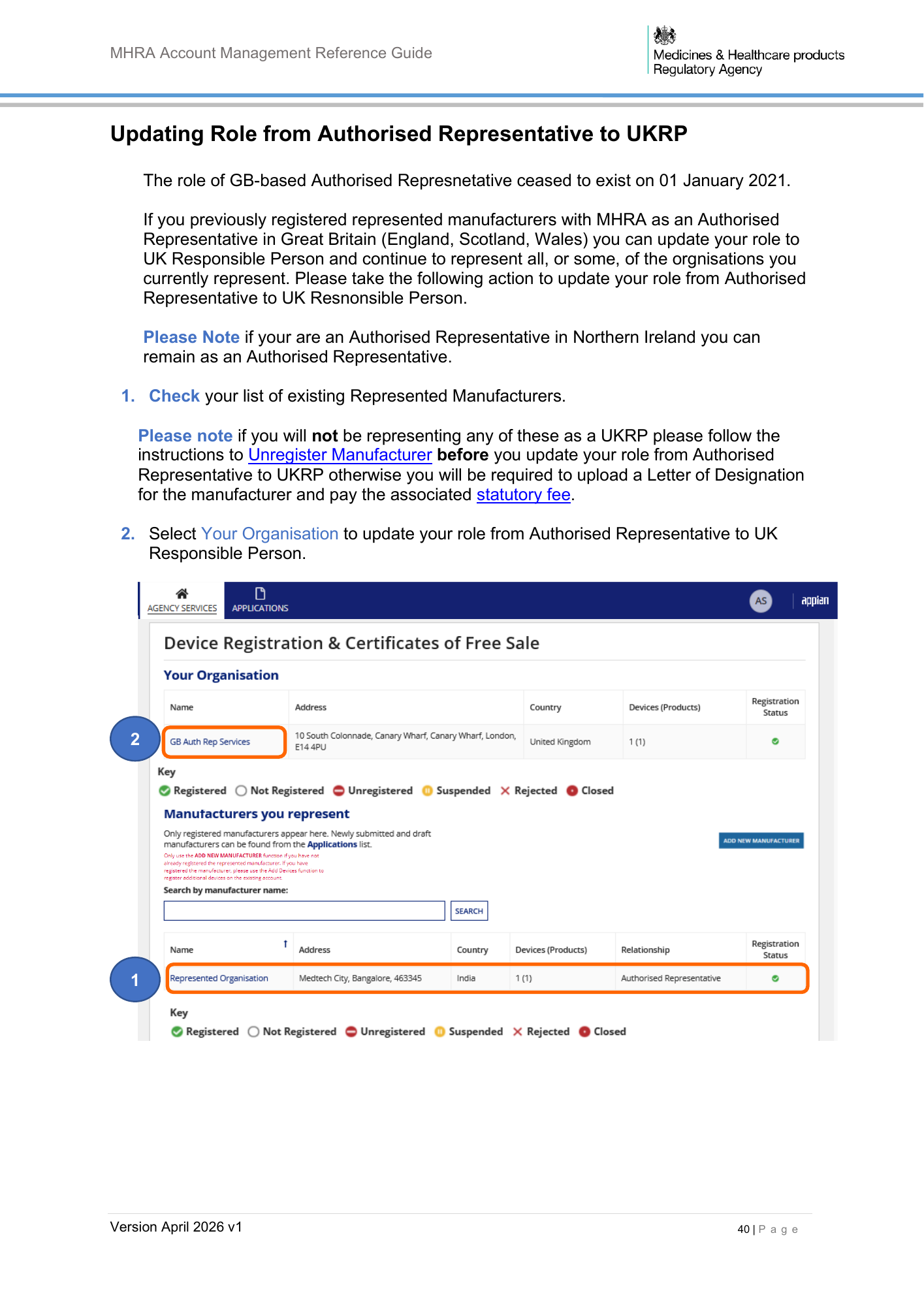
MHRA Account Management Reference Guide Updating Role from Authorised Representative to UKRP The role of GB-based Authorised Represnetative ceased to exist on 01 January 2021. If you previously registered represented manufacturers with MHRA as an Authorised Representative in Great Britain (England, Scotland, Wales) you can update your role to UK Responsible Person and continue to represent all, or some, of the orgnisations you currently represent. Please take the following action to update your role from Authorised Representative to UK Resnonsible Person. Please Note if your are an Authorised Representative in Northern Ireland you can remain as an Authorised Representative. 1. Check your list of existing Represented Manufacturers. Please note if you will not be representing any of these as a UKRP please follow the instructions to Unregister Manufacturer before you update your role from Authorised Representative to UKRP otherwise you will be required to upload a Letter of Designation for the manufacturer and pay the associated statutory fee. 2. Select Your Organisation to update your role from Authorised Representative to UK Responsible Person. 2 1 Version April 2026 v1 40 | P a g e
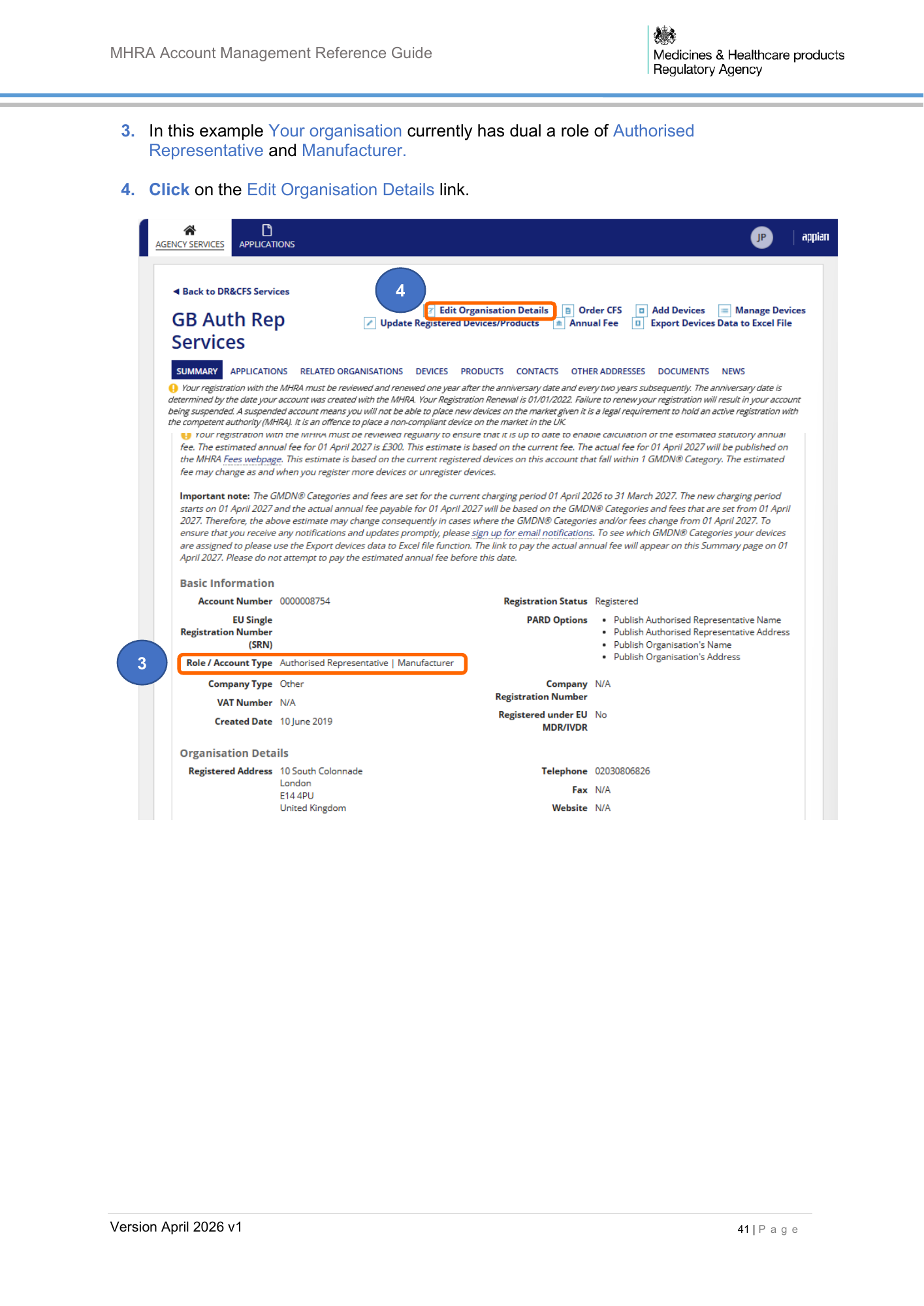
MHRA Account Management Reference Guide 3. In this example Your organisation currently has dual a role of Authorised Representative and Manufacturer. 4. Click on the Edit Organisation Details link. 4 3 Version April 2026 v1 41 | P a g e
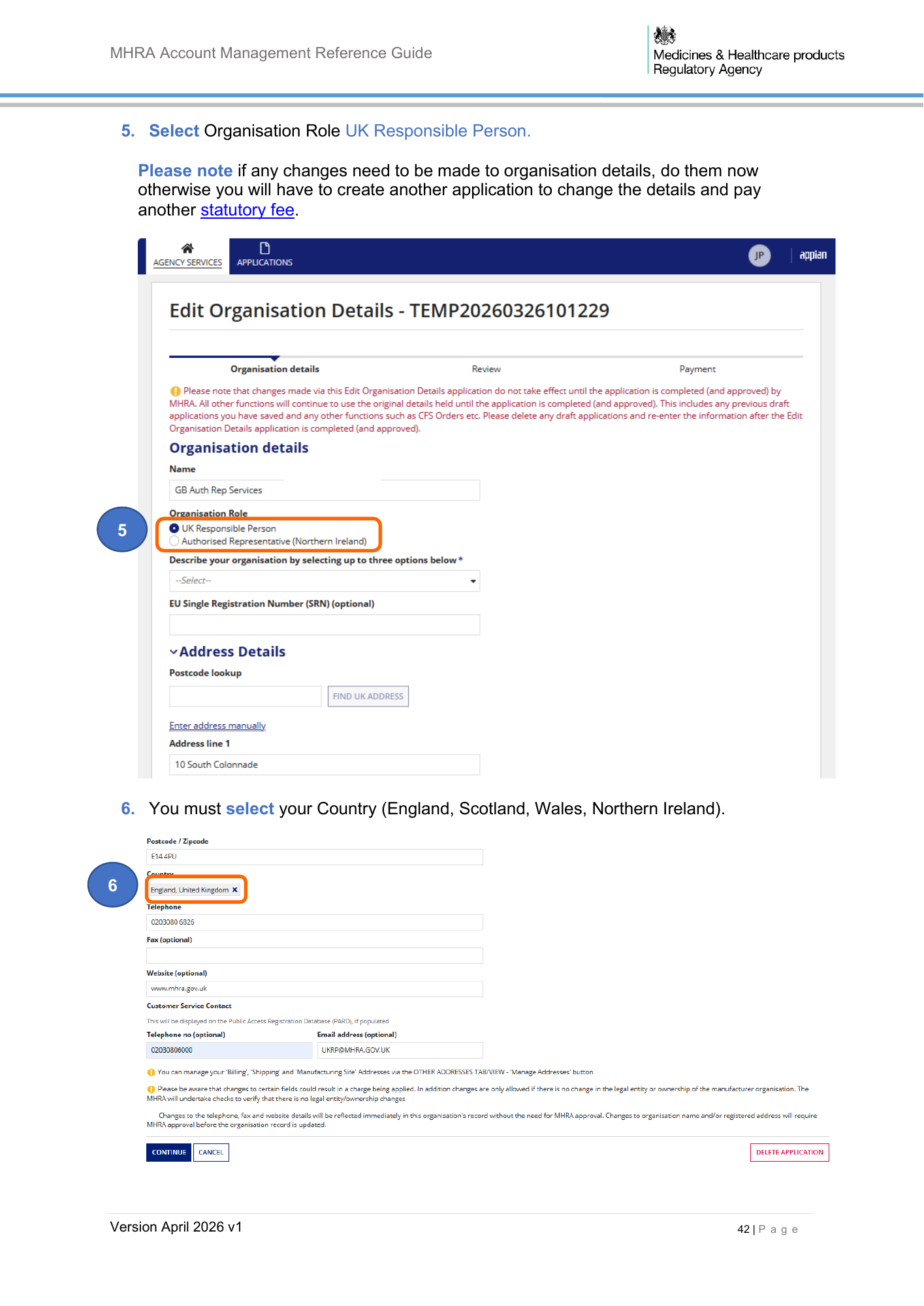
MHRA Account Management Reference Guide 5. Select Organisation Role UK Responsible Person. Please note if any changes need to be made to organisation details, do them now otherwise you will have to create another application to change the details and pay another statutory fee. 5 6. You must select your Country (England, Scotland, Wales, Northern Ireland). 6 Version April 2026 v1 42 | P a g e
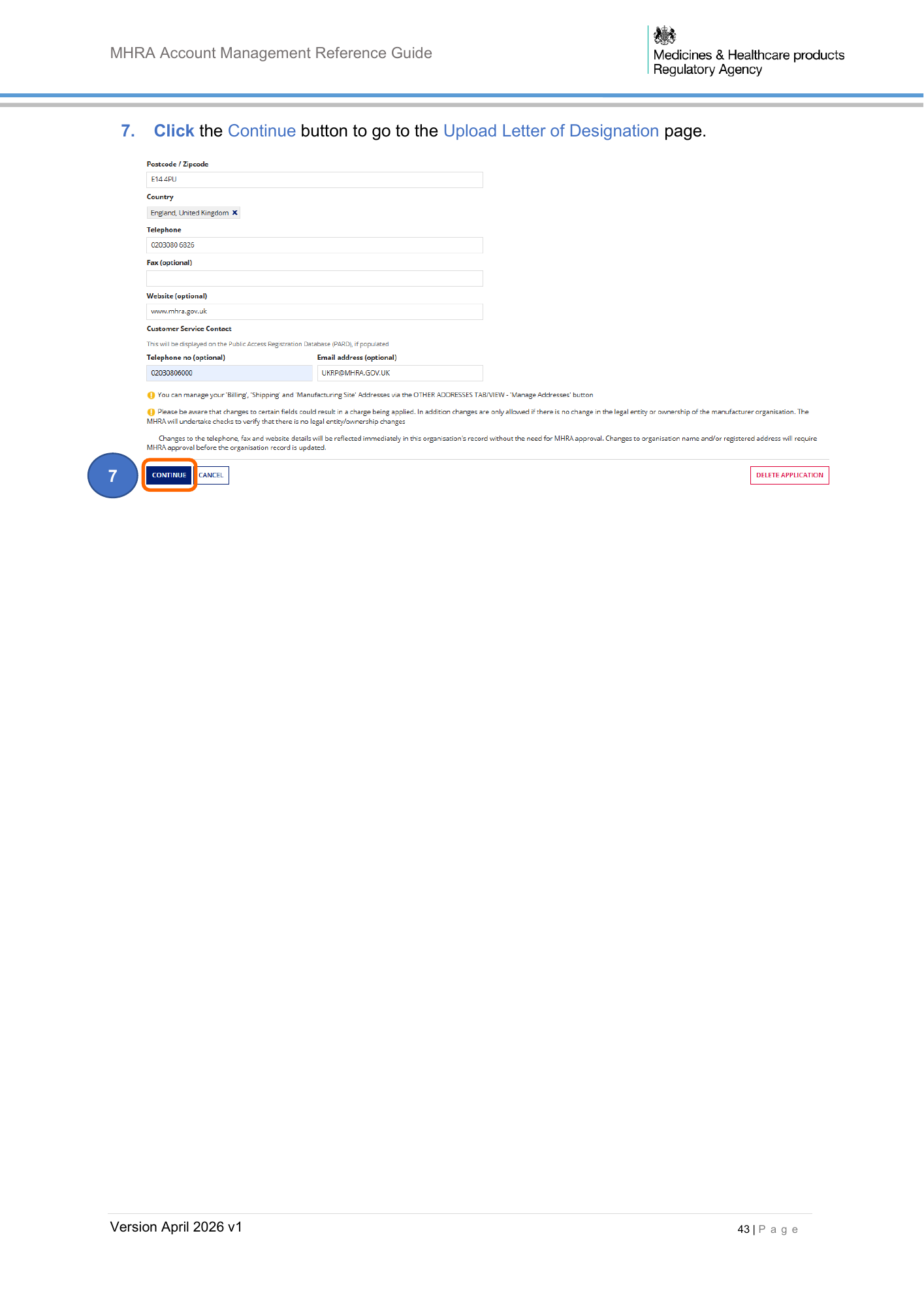
MHRA Account Management Reference Guide 7. Click the Continue button to go to the Upload Letter of Designation page. 7 Version April 2026 v1 43 | P a g e
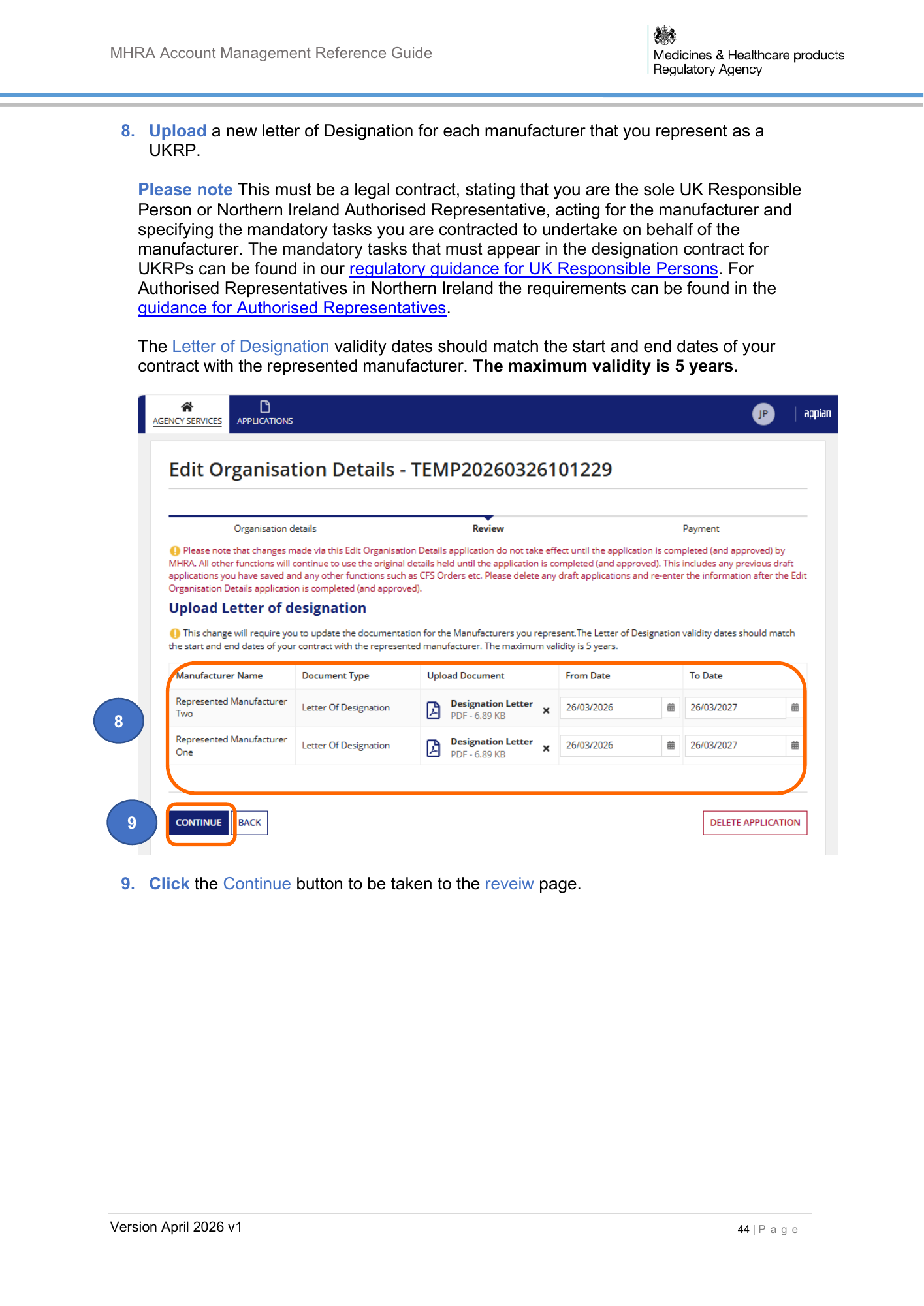
MHRA Account Management Reference Guide 8. Upload a new letter of Designation for each manufacturer that you represent as a UKRP. Please note This must be a legal contract, stating that you are the sole UK Responsible Person or Northern Ireland Authorised Representative, acting for the manufacturer and specifying the mandatory tasks you are contracted to undertake on behalf of the manufacturer. The mandatory tasks that must appear in the designation contract for UKRPs can be found in our regulatory guidance for UK Responsible Persons. For Authorised Representatives in Northern Ireland the requirements can be found in the guidance for Authorised Representatives. The Letter of Designation validity dates should match the start and end dates of your contract with the represented manufacturer. The maximum validity is 5 years. 8 9 9. Click the Continue button to be taken to the reveiw page. Version April 2026 v1 44 | P a g e
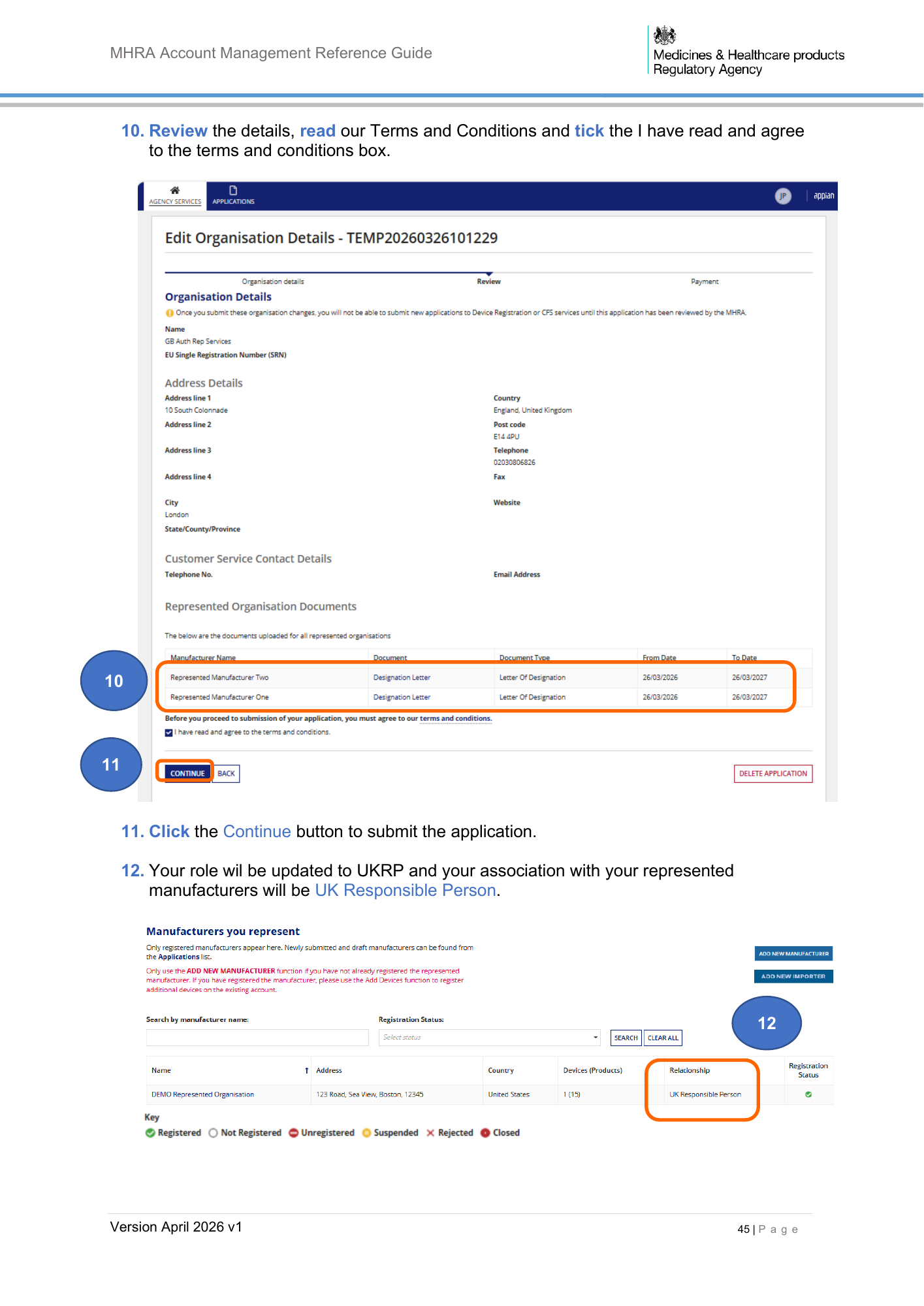
MHRA Account Management Reference Guide 10. Review the details, read our Terms and Conditions and tick the I have read and agree to the terms and conditions box. 10 11 11. Click the Continue button to submit the application. 12. Your role wil be updated to UKRP and your association with your represented manufacturers will be UK Responsible Person. 12 Version April 2026 v1 45 | P a g e
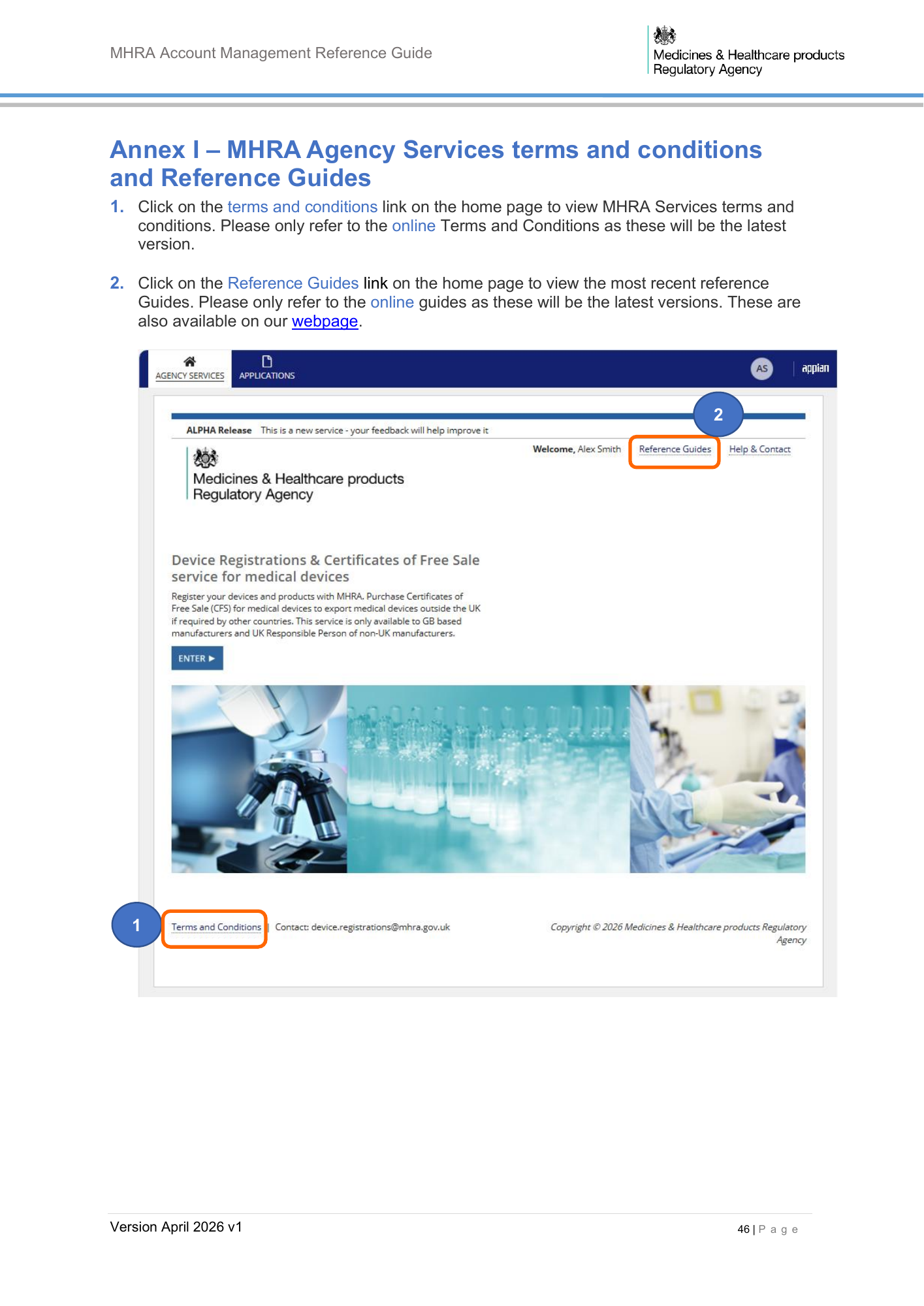
MHRA Account Management Reference Guide Annex I – MHRA Agency Services terms and conditions and Reference Guides 1. Click on the terms and conditions link on the home page to view MHRA Services terms and conditions. Please only refer to the online Terms and Conditions as these will be the latest version. 2. Click on the Reference Guides link on the home page to view the most recent reference Guides. Please only refer to the online guides as these will be the latest versions. These are also available on our webpage. 2 1 Version April 2026 v1 46 | P a g e