Searchable PDF text layer
Device Registrations Reference Guide Please do not print this document. View online only to ensure you have the latest version. © Crown Copyright 2026
Currentness under review. Whether this instrument remains applicable is under review. Consult the later instruments and source context below before relying on it.
Original page images are authoritative. Searchable text is the PDF text layer and may omit image text or contain extraction artifacts. Quote and verify against the page images.
Link directly to a passage with its anchor — for example #pdf-page-1 — to open it highlighted. This reference version is generated from the authority’s publication and does not replace it. Language: English.
Device Registrations Reference Guide Please do not print this document. View online only to ensure you have the latest version. © Crown Copyright 2026
MHRA Device Registrations Reference Guide Contents – Device Registration Reference Guide Logging in....................................................................................................................... 2 Username and Password ..................................................................................... 3 New Users > Change temporary password .......................................................... 4 Forgot password > resets .................................................................................... 4 MHRA Agency Services ....................................................................................... 6 Organisations ...................................................................................................... 7 Determine if your account is migrated or re-registered ......................................... 8 Registering new devices................................................................................................ 9 Add devices using GMDN® ................................................................................ 11 Upload Self-certification conformity declarations ................................................ 13 Select from existing Self-certification conformity declarations............................. 17 Upload Conformity Assessment Certificates (if applicable) ................................. 18 Select from existing Conformity Assessment Certificates ................................... 20 Uploading expired CE certificates that are valid under EU MDR ........................ 21 Adding products individually ............................................................................... 22 Add products in bulk – product template ............................................................ 25 Adding System or Procedure Packs (SPP) ........................................................ 33 Review information prior to making payment ...................................................... 38 Making Payments .............................................................................................. 40 Pay with Worldpay ............................................................................................. 42 Pay by BACS/CHAPS ........................................................................................ 46 Complete Application ......................................................................................... 47 Public Access Registration Database (PARD) ................................................... 49 Updating Registrations ................................................................................................ 50 Editing organisation details ................................................................................ 50 Adding new devices ........................................................................................... 50 Export devices data to Excel file ........................................................................ 50 Using filters to search for devices and products ................................................. 53 Manage registered devices ................................................................................ 55 Manage Conformity documents ......................................................................... 58 Managing expired CE certificates that are valid under EU MDR and EU IVDR ... 60 Add/remove products ......................................................................................... 61 Delete device/s .................................................................................................. 64 Update registered devices and products ............................................................ 68 Update Obsolete GMDN® ................................................................................. 70 Update Device Details ....................................................................................... 71 Update products individually .............................................................................. 72 Update multiple products ................................................................................... 75 Resolving data issues ........................................................................................ 76 Review updated devices and products ............................................................... 77 Version history ................................................................................................... 80 Removal of migrated Pseudo GMDN® Terms..................................................... 85 Adding a Manufacturer (only for UKRP in UK and EU AR in NI) ......................... 86 Adding Importers ............................................................................................... 90 Deactivating Importers ....................................................................................... 95 Save and exit: resume applications ............................................................................ 97 Annex I – Workflow .....................................................................................................101 1|Page Version April 2026 v1
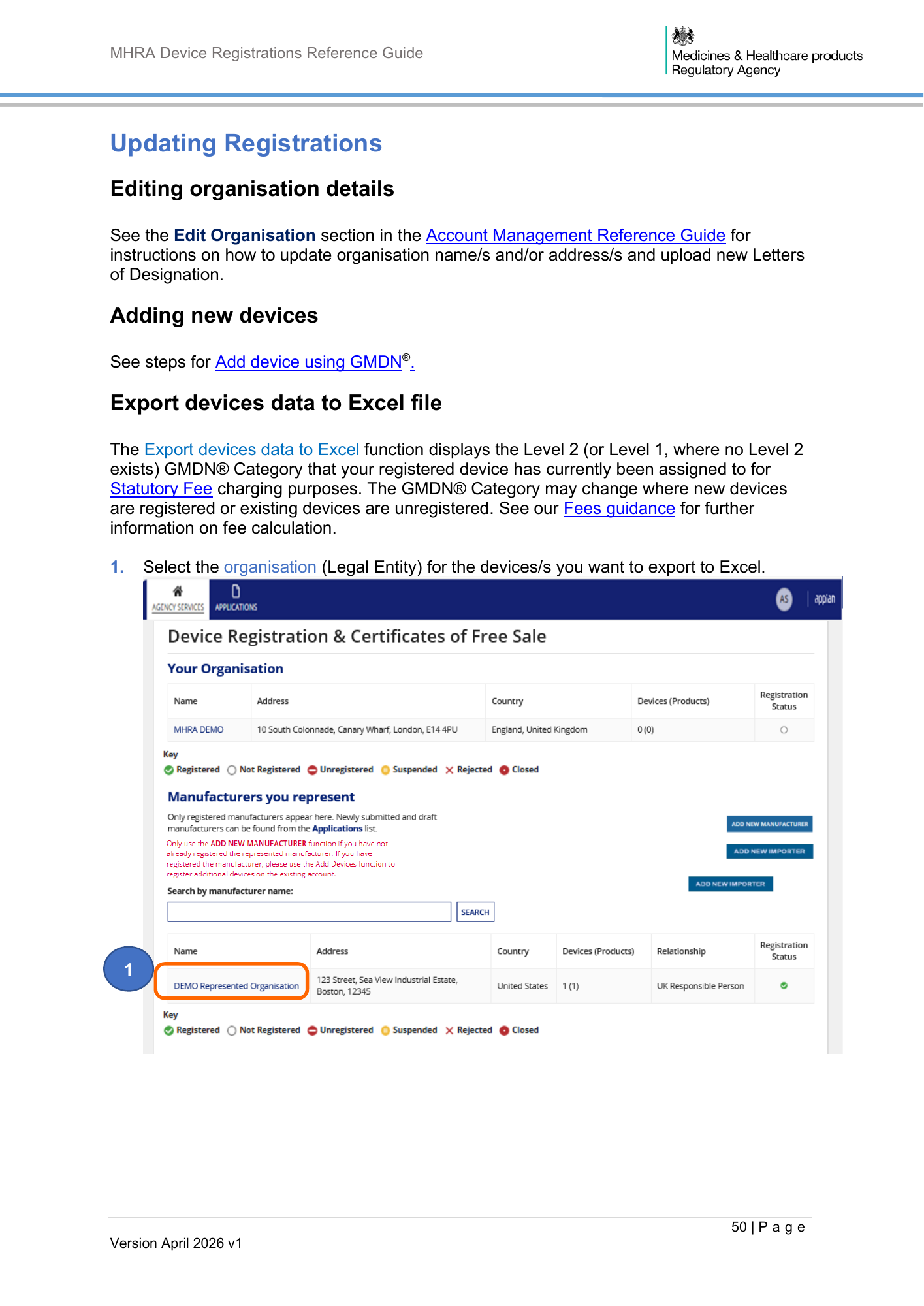
MHRA Device Registrations Reference Guide Updating Registrations Editing organisation details See the Edit Organisation section in the Account Management Reference Guide for instructions on how to update organisation name/s and/or address/s and upload new Letters of Designation. Adding new devices See steps for Add device using GMDN®. Export devices data to Excel file The Export devices data to Excel function displays the Level 2 (or Level 1, where no Level 2 exists) GMDN® Category that your registered device has currently been assigned to for Statutory Fee charging purposes. The GMDN® Category may change where new devices are registered or existing devices are unregistered. See our Fees guidance for further information on fee calculation. 1. Select the organisation (Legal Entity) for the devices/s you want to export to Excel. 1 50 | P a g e Version April 2026 v1
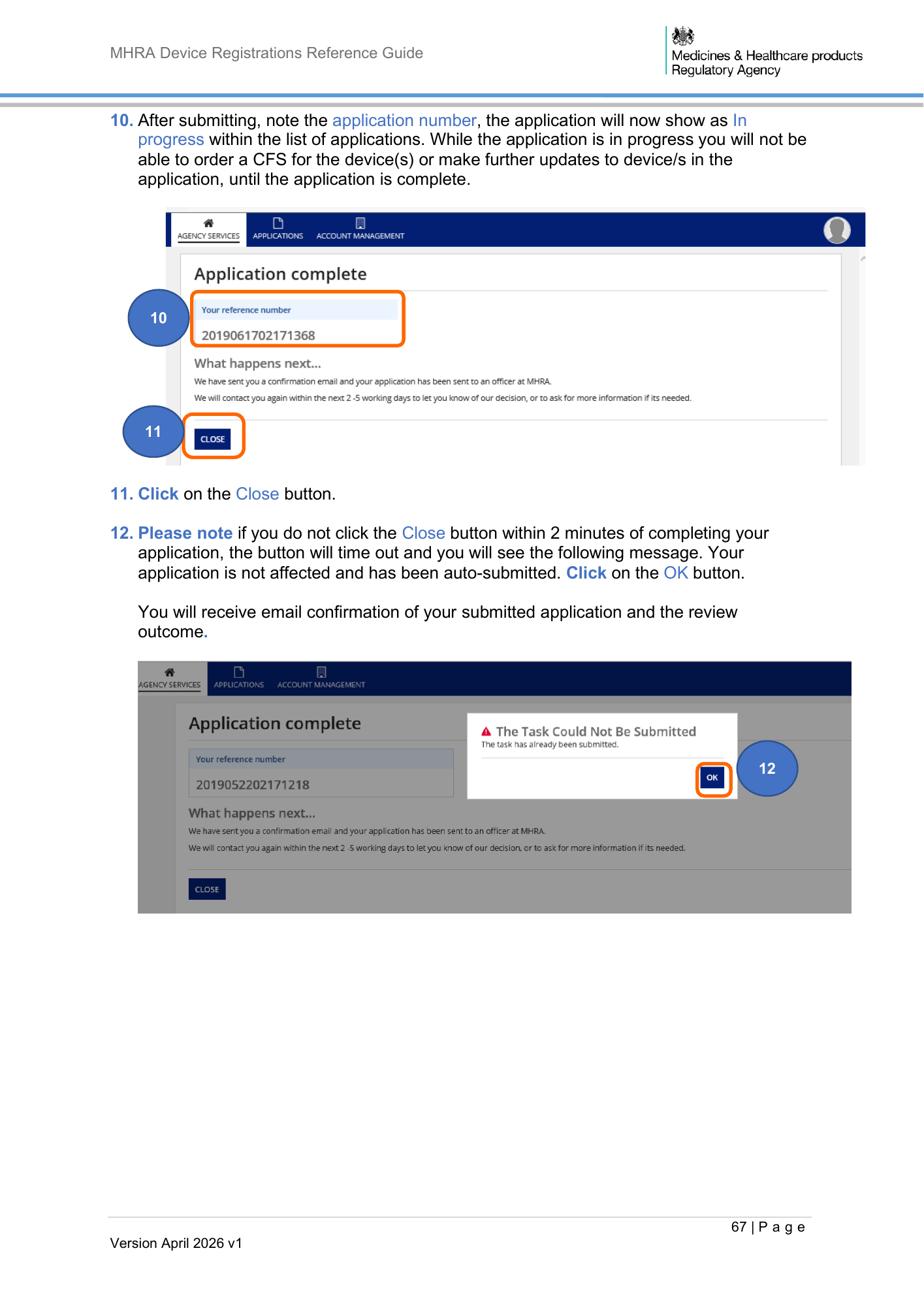
MHRA Device Registrations Reference Guide 10. After submitting, note the application number, the application will now show as In progress within the list of applications. While the application is in progress you will not be able to order a CFS for the device(s) or make further updates to device/s in the application, until the application is complete. 10 11 11. Click on the Close button. 12. Please note if you do not click the Close button within 2 minutes of completing your application, the button will time out and you will see the following message. Your application is not affected and has been auto-submitted. Click on the OK button. You will receive email confirmation of your submitted application and the review outcome. 12 67 | P a g e Version April 2026 v1
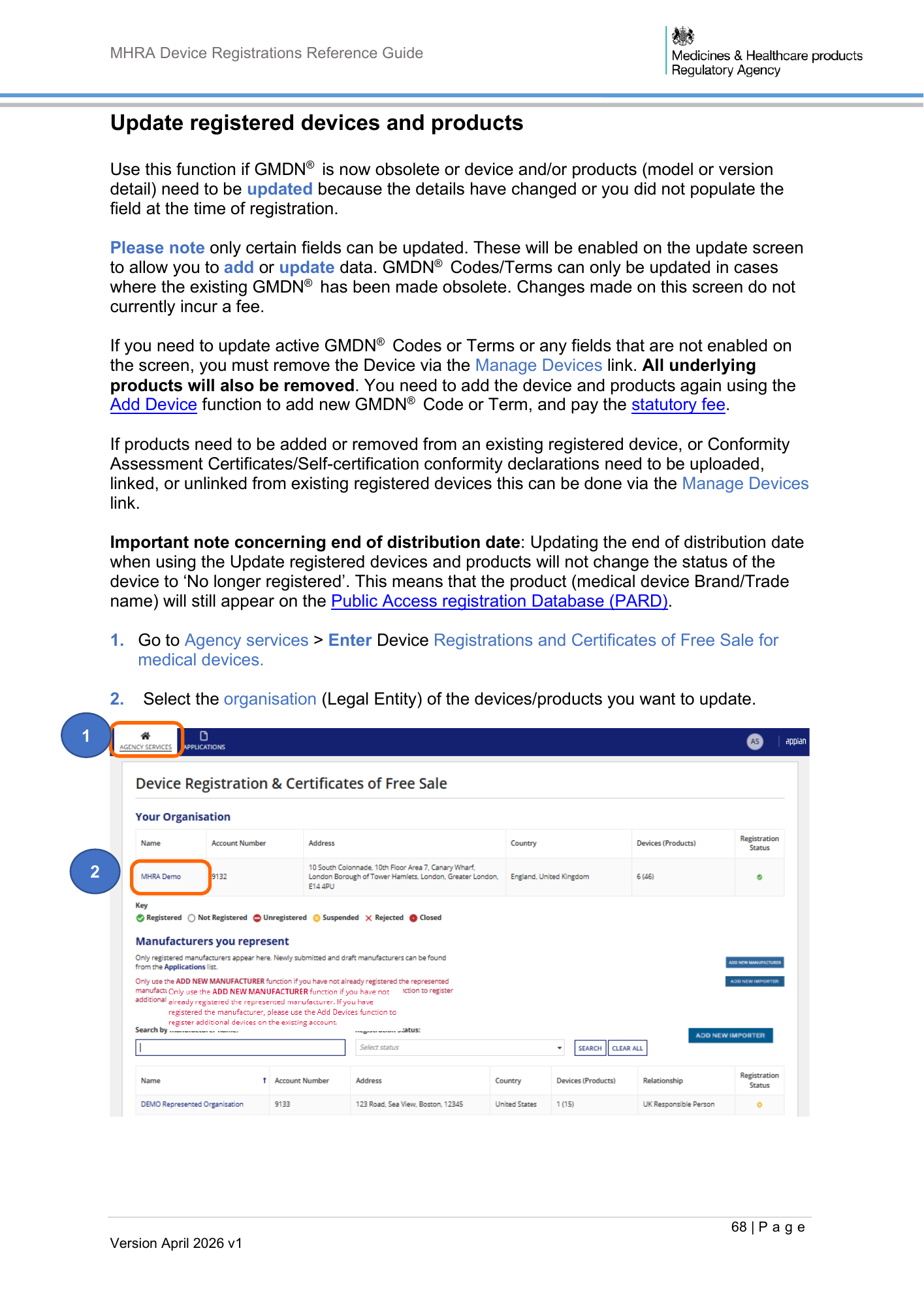
MHRA Device Registrations Reference Guide Update registered devices and products Use this function if GMDN® is now obsolete or device and/or products (model or version detail) need to be updated because the details have changed or you did not populate the field at the time of registration. Please note only certain fields can be updated. These will be enabled on the update screen to allow you to add or update data. GMDN® Codes/Terms can only be updated in cases where the existing GMDN® has been made obsolete. Changes made on this screen do not currently incur a fee. If you need to update active GMDN® Codes or Terms or any fields that are not enabled on the screen, you must remove the Device via the Manage Devices link. All underlying products will also be removed. You need to add the device and products again using the Add Device function to add new GMDN® Code or Term, and pay the statutory fee. If products need to be added or removed from an existing registered device, or Conformity Assessment Certificates/Self-certification conformity declarations need to be uploaded, linked, or unlinked from existing registered devices this can be done via the Manage Devices link. Important note concerning end of distribution date: Updating the end of distribution date when using the Update registered devices and products will not change the status of the device to ‘No longer registered’. This means that the product (medical device Brand/Trade name) will still appear on the Public Access registration Database (PARD). 1. Go to Agency services > Enter Device Registrations and Certificates of Free Sale for medical devices. 2. Select the organisation (Legal Entity) of the devices/products you want to update. 1 2 68 | P a g e Version April 2026 v1
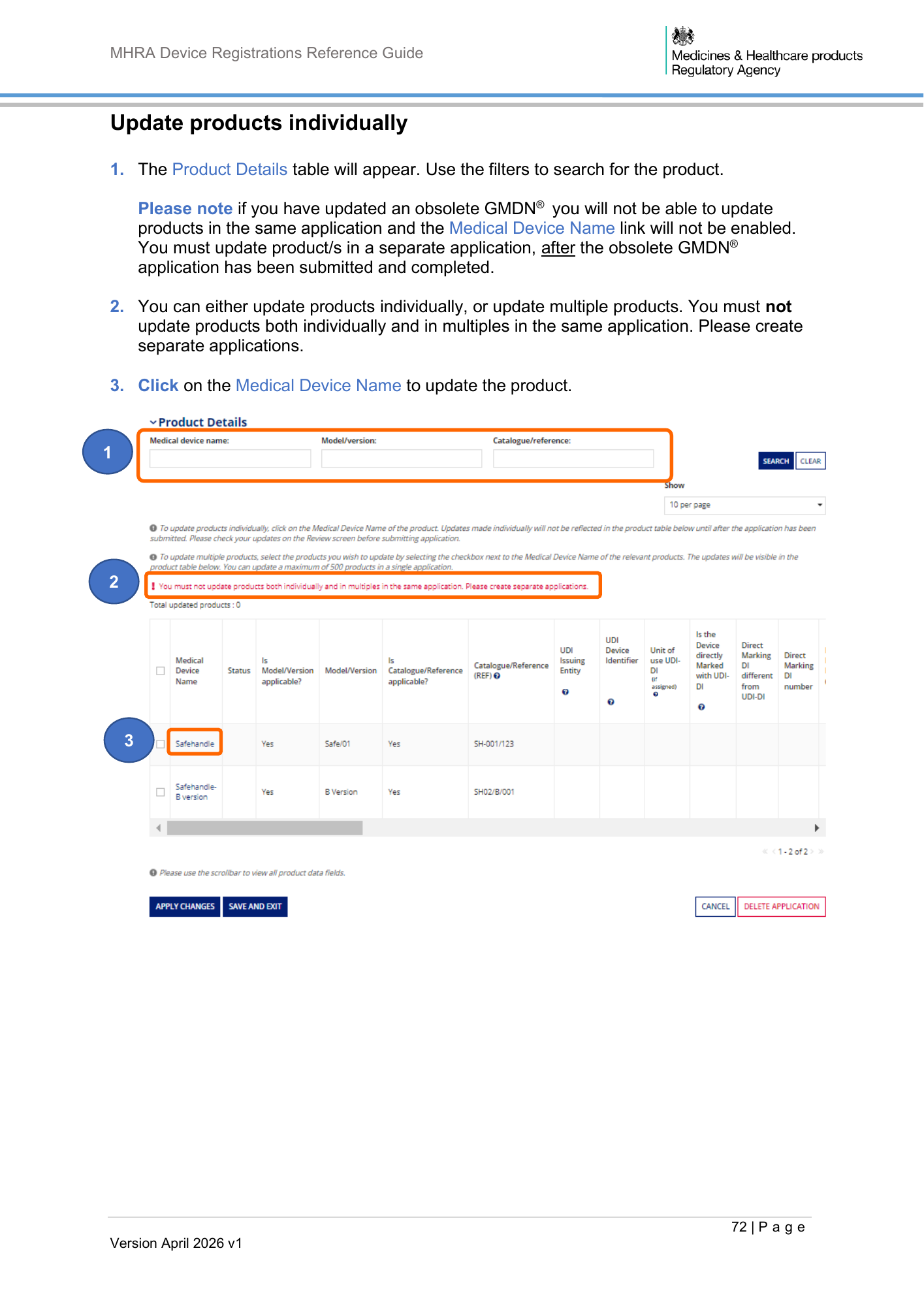
MHRA Device Registrations Reference Guide Update products individually 1. The Product Details table will appear. Use the filters to search for the product. Please note if you have updated an obsolete GMDN® you will not be able to update products in the same application and the Medical Device Name link will not be enabled. You must update product/s in a separate application, after the obsolete GMDN® application has been submitted and completed. 2. You can either update products individually, or update multiple products. You must not update products both individually and in multiples in the same application. Please create separate applications. 3. Click on the Medical Device Name to update the product. 1 2 3 72 | P a g e Version April 2026 v1
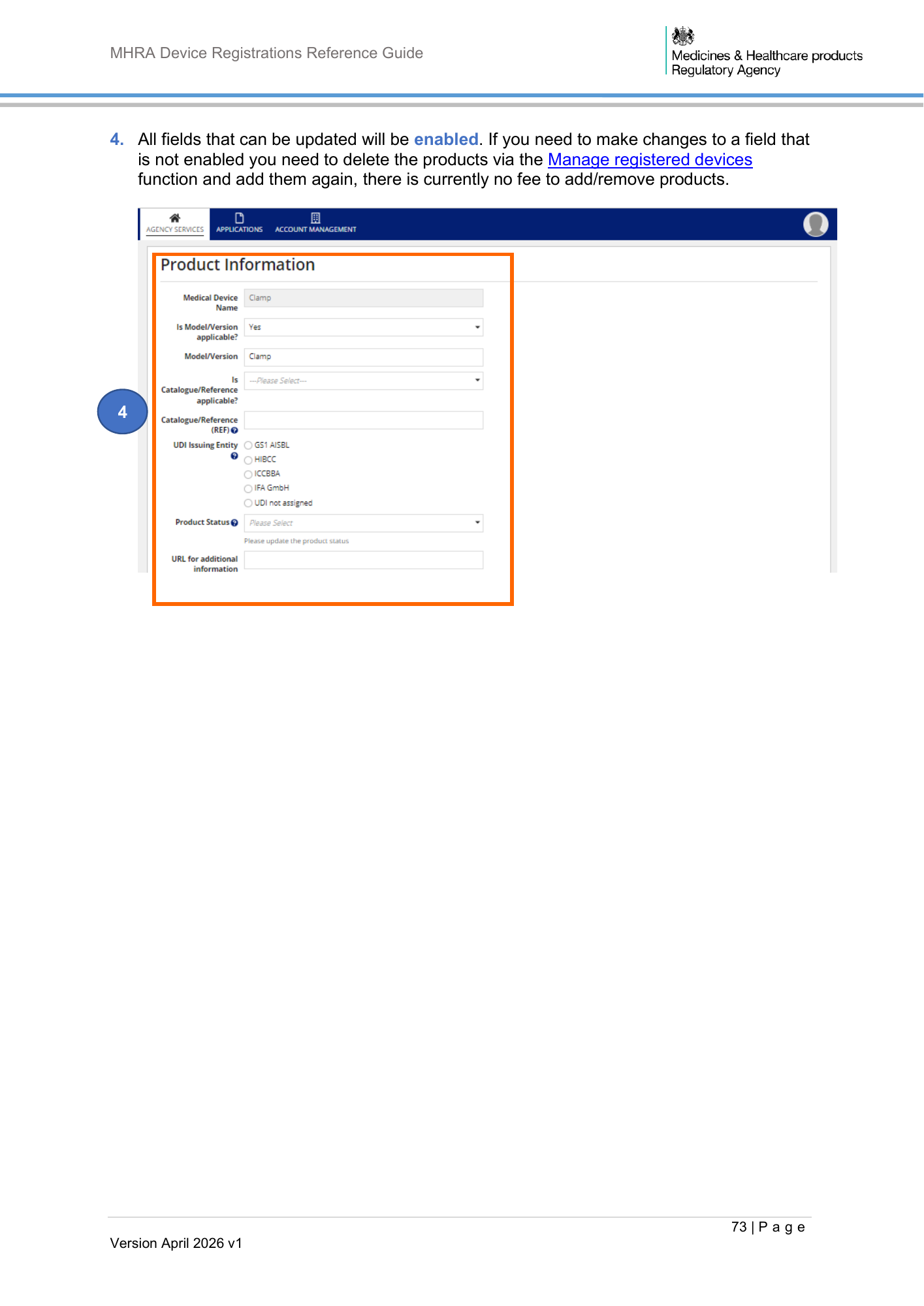
MHRA Device Registrations Reference Guide 4. All fields that can be updated will be enabled. If you need to make changes to a field that is not enabled you need to delete the products via the Manage registered devices function and add them again, there is currently no fee to add/remove products. 4 73 | P a g e Version April 2026 v1
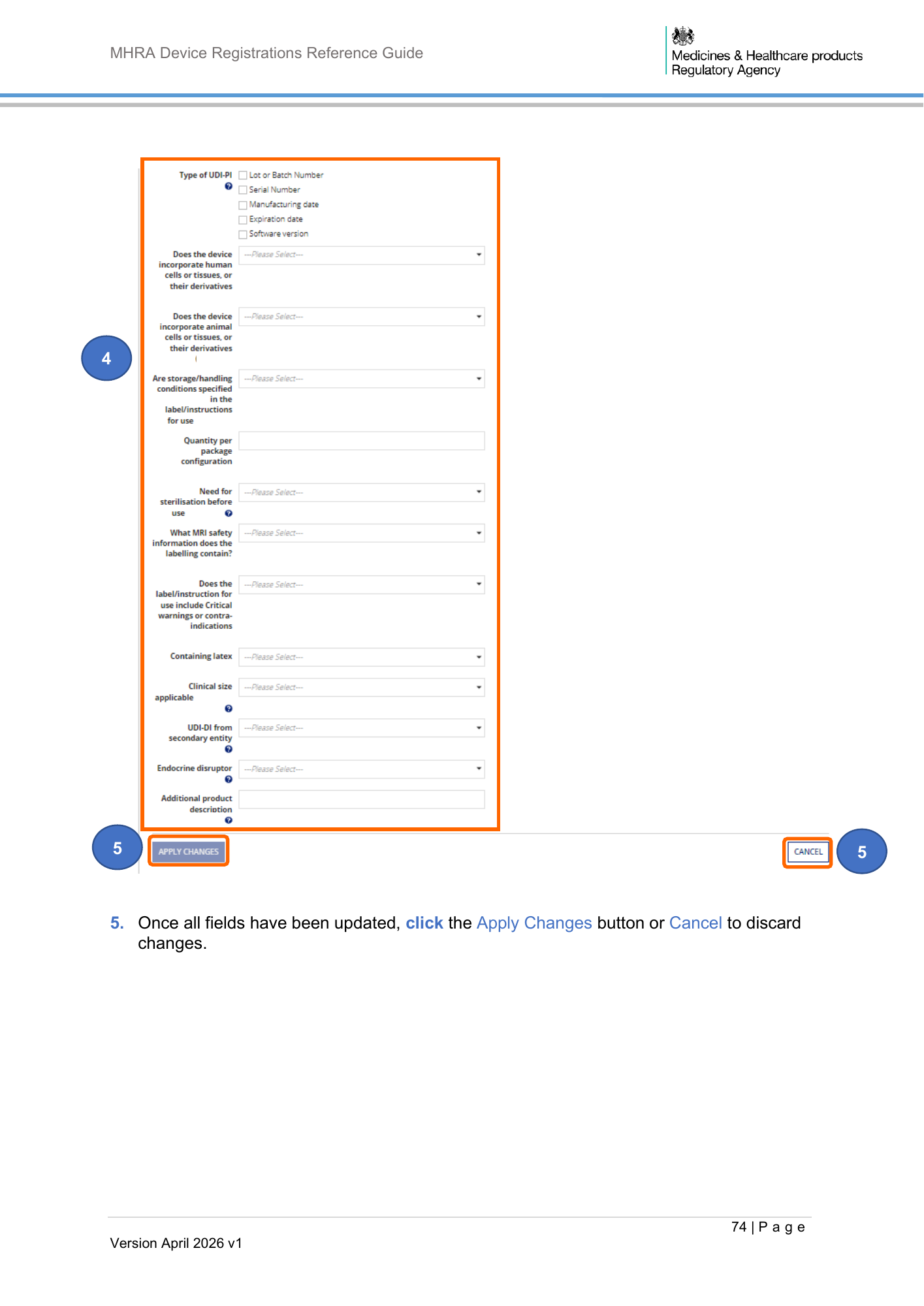
MHRA Device Registrations Reference Guide 4 5 5 5. Once all fields have been updated, click the Apply Changes button or Cancel to discard changes. 74 | P a g e Version April 2026 v1
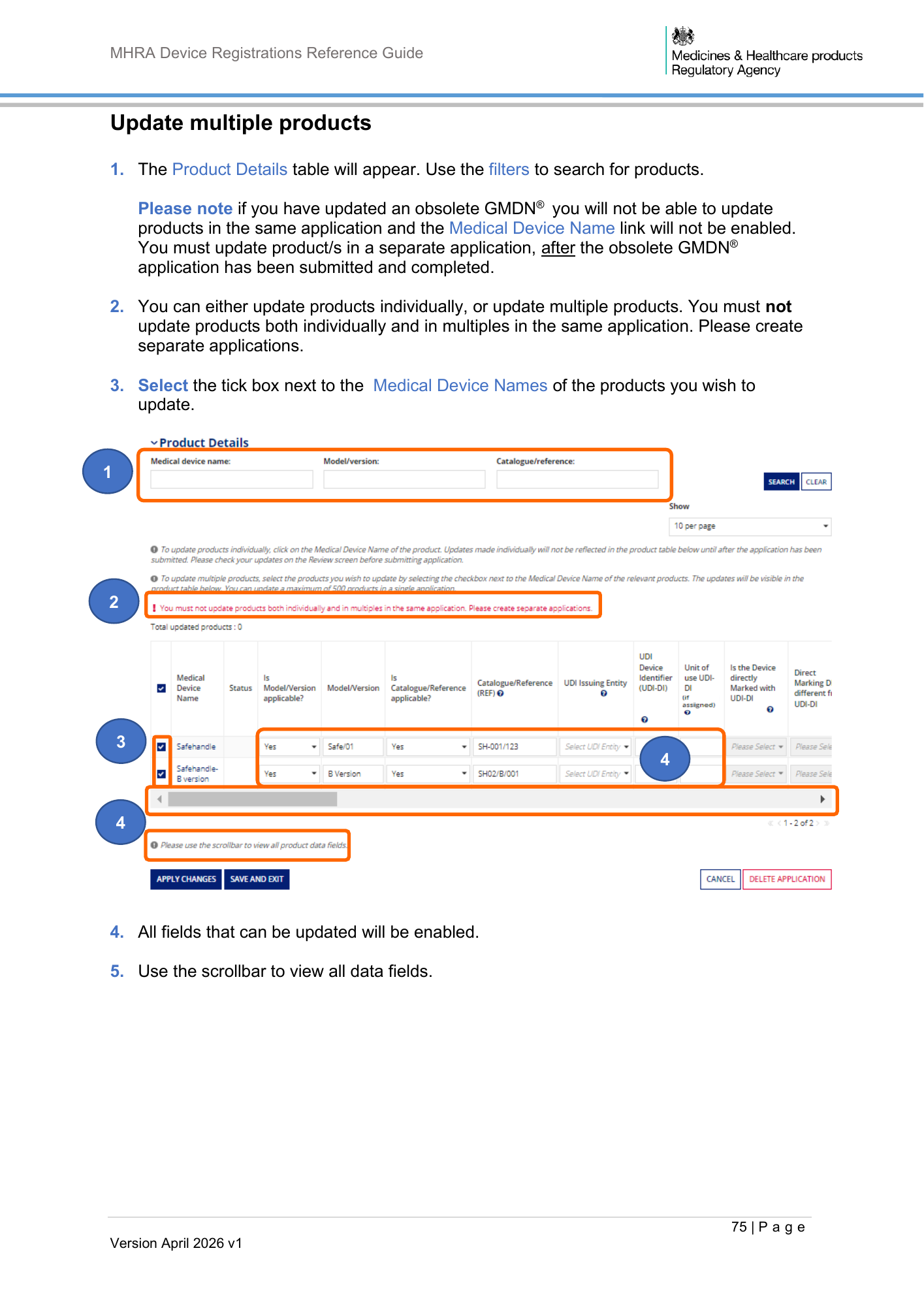
MHRA Device Registrations Reference Guide Update multiple products 1. The Product Details table will appear. Use the filters to search for products. Please note if you have updated an obsolete GMDN® you will not be able to update products in the same application and the Medical Device Name link will not be enabled. You must update product/s in a separate application, after the obsolete GMDN® application has been submitted and completed. 2. You can either update products individually, or update multiple products. You must not update products both individually and in multiples in the same application. Please create separate applications. 3. Select the tick box next to the Medical Device Names of the products you wish to update. 1 2 3 4 4 4. All fields that can be updated will be enabled. 5. Use the scrollbar to view all data fields. 75 | P a g e Version April 2026 v1
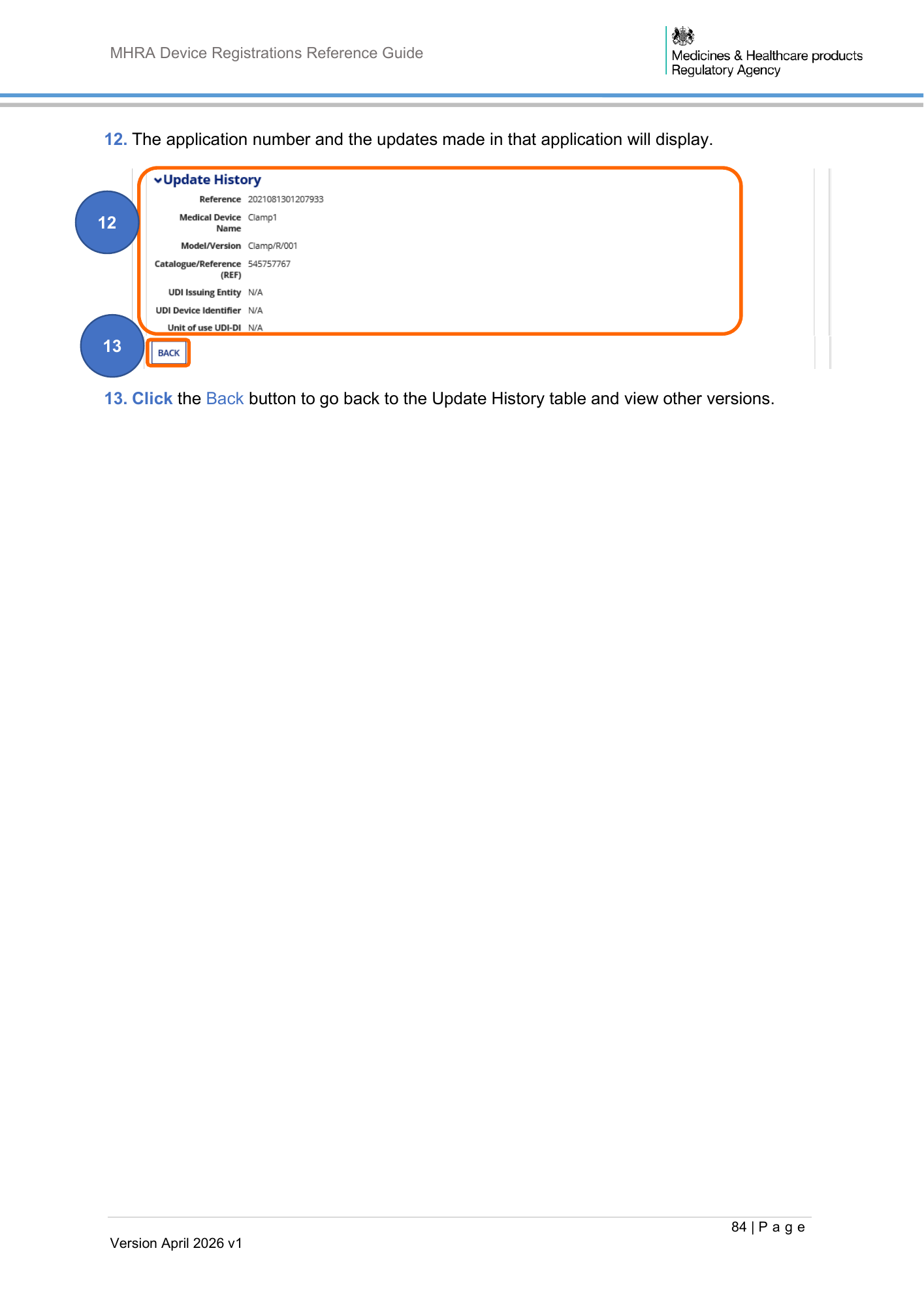
MHRA Device Registrations Reference Guide 12. The application number and the updates made in that application will display. 12 13 13. Click the Back button to go back to the Update History table and view other versions. 84 | P a g e Version April 2026 v1
MHRA Device Registrations Reference Guide 2 2 87 | P a g e Version April 2026 v1
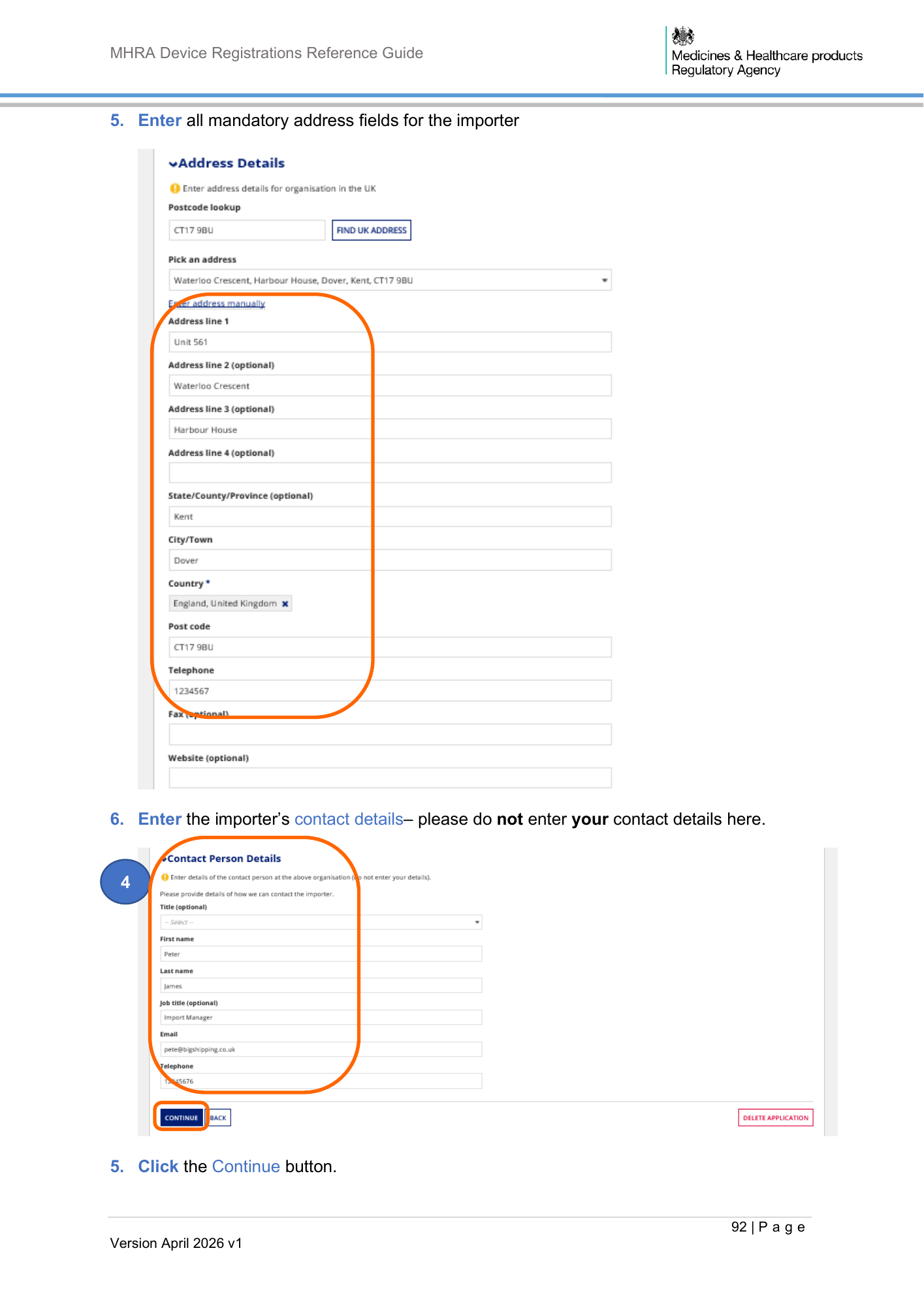
MHRA Device Registrations Reference Guide 5. Enter all mandatory address fields for the importer 6. Enter the importer’s contact details– please do not enter your contact details here. 4 5. Click the Continue button. 92 | P a g e Version April 2026 v1
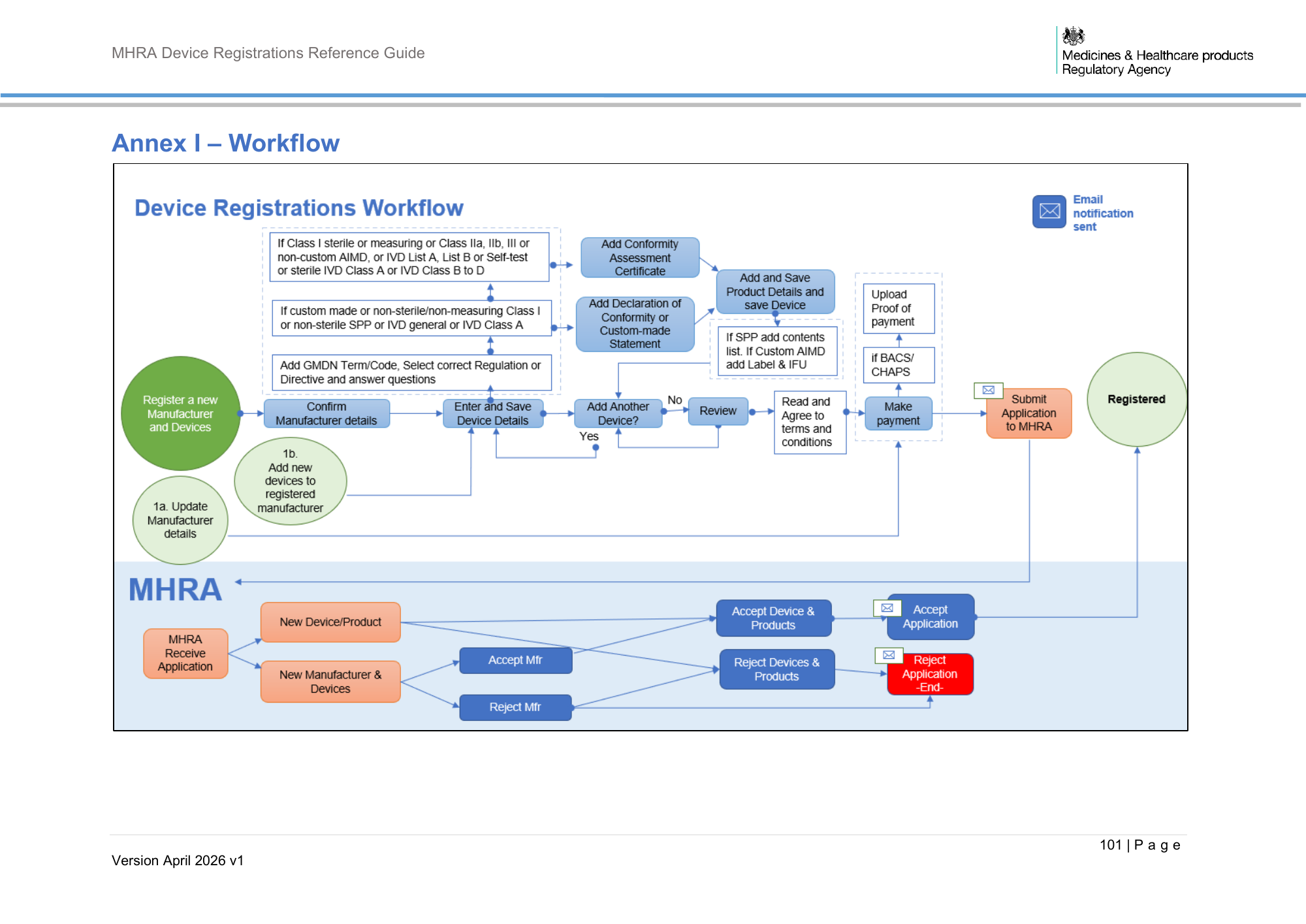
MHRA Device Registrations Reference Guide Annex I – Workflow 101 | P a g e Version April 2026 v1